

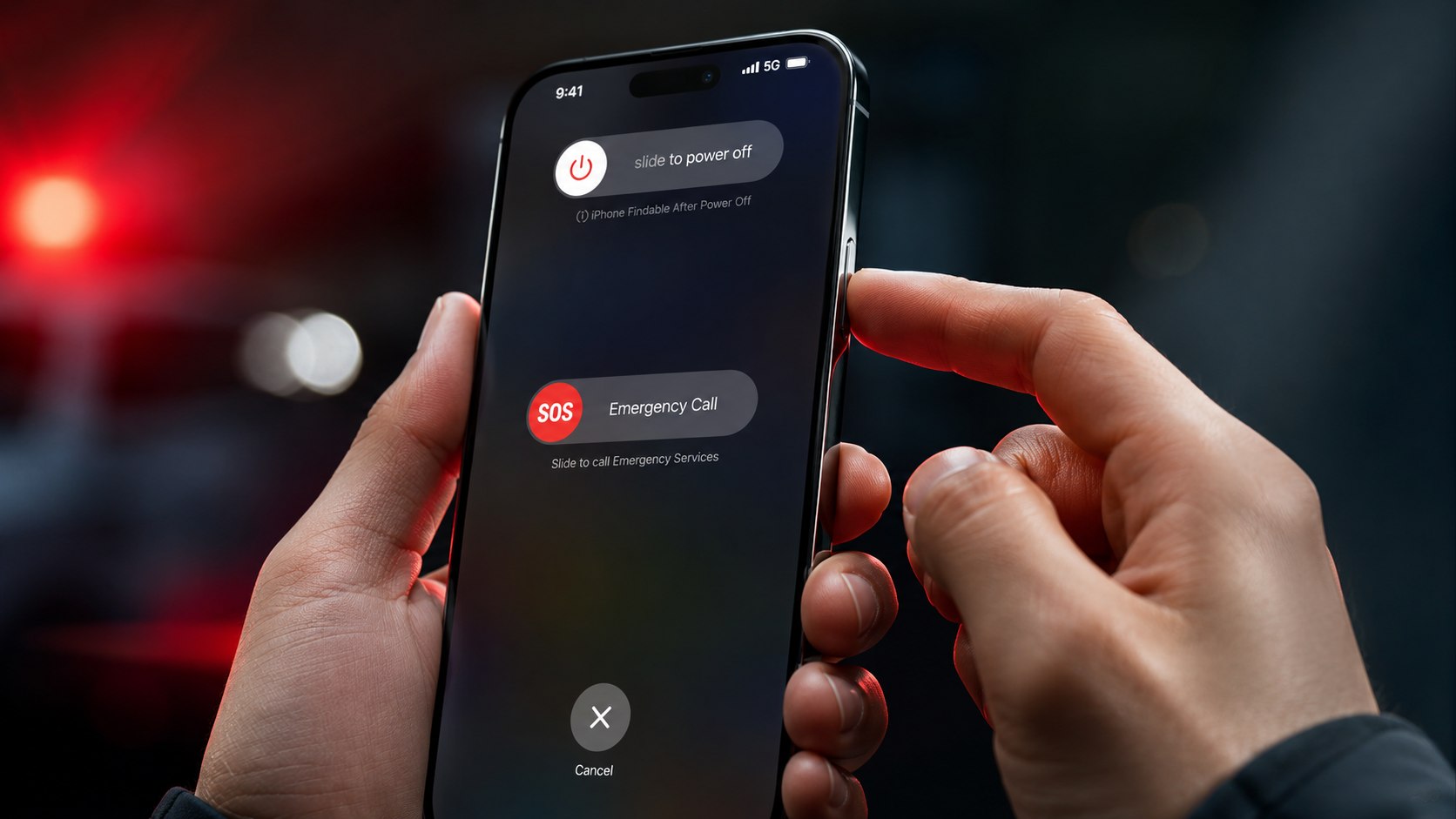
How to set up emergency sos iphone 2026 takes about 10 minutes. The setup prepares your phone to call 911 after a severe crash, share your location, display Medical ID, and alert trusted contacts, as the Baltimore Chronicle editorial team notes.
Start in Settings > Emergency SOS. Enable a calling method, confirm Crash Detection, then open the Health app to add emergency contacts. Apple Watch owners should also review Fall Detection before driving, exercising, or spending time alone.
Key takeaways
- Emergency SOS can call 911 and notify selected contacts after the emergency call ends.
- Crash Detection supports severe passenger-vehicle crashes on compatible iPhone and Apple Watch models.
- Fall Detection requires a compatible Apple Watch and cannot identify every fall.
What You Need Before Starting
The basic setup is free and does not require a paid safety subscription. However, some features depend on your iPhone model, Apple Watch model, cellular connection, or satellite availability.
You will need:
- An iPhone with the latest available iOS update.
- Your Apple Account signed in on the device.
- 5–10 minutes in a quiet location.
- At least 1 reliable emergency contact.
- Accurate medication, allergy, and medical condition details.
- A compatible Apple Watch for Fall Detection.
- An iPhone 14 or later for Emergency SOS via satellite.
Choose contacts who usually answer their phones. A partner, adult child, relative, neighbor, or nearby friend may be more useful than a distant contact.
Tell each person before adding them. Explain that an SOS alert may include your location and may arrive after an emergency call. Parents should consider adding another caregiver and a nearby relative.
Step 1: Update iOS and Back Up the iPhone
Open Settings > General > Software Update. Install the latest iOS version offered for your device before changing emergency settings.
Software updates can change menu names, compatibility, and satellite functions. They also provide current security and carrier settings.
Connect the iPhone to power and reliable Wi-Fi before updating. Do not begin with a nearly empty battery or limited public Wi-Fi connection.
Before a major update, create a current backup. Baltimore Chronicle’s guide to backing up an iPhone to iCloud in 2026 explains storage options, manual backups, and common backup failures.
If you are activating another device, review the guide on how to set up a new iPhone in 2026. Confirm that Health data, contacts, and Apple Watch information appear correctly after setup.
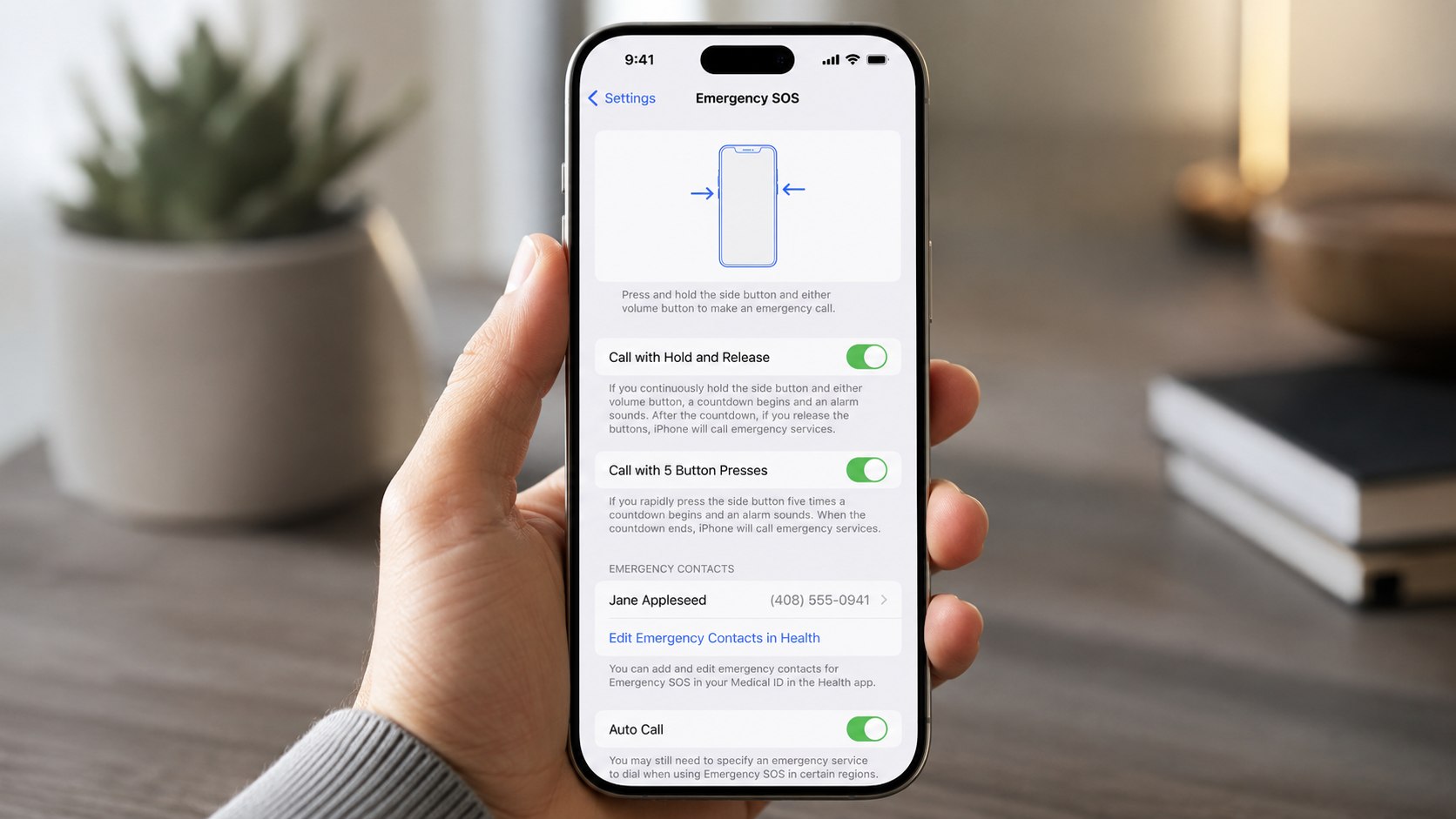
Step 2: Choose How Emergency SOS Starts a Call
Open Settings > Emergency SOS. Review every calling option shown on your phone.
Depending on the iPhone and iOS version, you may see Call with Hold and Release and Call with 5 Button Presses. The exact wording can differ between devices.
Follow these steps:
- Enable the hold-and-release method for access through the side and volume buttons.
- Enable 5-button calling when repeated side-button presses are easier for you.
- Review whether the countdown sound should remain active.
- Confirm that Call After Severe Crash remains enabled on supported models.
For the hold method, press the side button and either volume button. Continue holding until the emergency countdown begins or the Emergency Call slider appears.
The 5-press method may help after an injury when gripping 2 buttons is difficult. However, repeated accidental presses inside a tight pocket can start the countdown.
Practice finding the buttons without completing a real emergency call. Never call 911 only to test the feature.
If an accidental call connects, do not hang up immediately. Tell the dispatcher that the call was accidental and that no assistance is required.
Step 3: Add Emergency Contacts in Medical ID
Open the Health app and tap your profile picture. Select Medical ID, tap Edit, and scroll to Emergency Contacts.
Tap the plus symbol, choose a contact, and select the person’s relationship to you. Add at least 2 contacts when possible.
After an Emergency SOS call, the iPhone can send those contacts a text message. The message may include your current location and temporary location updates.
The phone number for 911 should not be added as an emergency contact. The SOS system contacts emergency services separately.
Health records and emergency contacts should be protected by a current backup. Before resetting or repairing the phone, confirm that iCloud Backup displays a recent completion time.
Avoid adding someone without explaining the alert. Your contact should understand that the message may follow a crash, fall, medical emergency, or manually triggered SOS call.
Step 4: Complete Medical ID for Responders
Medical ID can show important health information from the Lock Screen. First responders may view it without entering your passcode when locked access is enabled.
Add only information that could affect urgent treatment. Useful fields include medical conditions, allergies, medications, blood type, age, height, and weight.
| Medical ID field | What to enter | Why it may matter |
|---|---|---|
| Medical conditions | Diabetes, epilepsy, heart disease, or other relevant diagnoses | May explain symptoms or loss of consciousness |
| Allergies | Medication, food, latex, or material allergies | May help responders avoid harmful treatment |
| Medications | Current prescription names and significant doses | Helps identify interactions and existing treatment |
| Blood type | Your confirmed blood type, when known | Provides useful background during emergency evaluation |
| Emergency contacts | Reliable contacts with current phone numbers | Helps responders reach family or caregivers |
Enable Show When Locked. Also enable emergency-call sharing if that option appears in your Medical ID settings.
Review the information after every diagnosis, surgery, or prescription change. Outdated medication details can confuse caregivers.
Do not enter Social Security numbers, banking details, passwords, or unrelated private information. Medical ID is designed for emergency health details.
Renters should make sure trusted contacts know their current unit number. Homeowners may also tell a nearby contact about pets, gates, or access instructions.
Step 5: Confirm Crash Detection for Driving
iPhone Crash Detection is available on supported devices and is normally enabled by default. Check it under Settings > Emergency SOS > Call After Severe Crash.
The feature is designed to recognize severe passenger-vehicle crashes. It can display an alert, sound an alarm, and begin an emergency countdown when the user does not respond.
Crash Detection cannot identify every collision. It should support, not replace, seat belts, safe driving, and a direct 911 call when you can make one.
Secure the iPhone inside the vehicle. A loose phone may slide beneath a seat or become difficult to reach after impact.
High-impact activities can sometimes resemble crash movements. If an alert begins while you are safe, cancel it promptly and confirm that no emergency call is needed.
Do not disable the feature because of a single false alert without reviewing what happened. Check for software updates before changing the setting.
Step 6: Enable Fall Detection on Apple Watch
An iPhone does not provide Apple Watch Fall Detection by itself. You need a compatible Apple Watch worn securely on your wrist.
On the watch, open Settings > SOS > Fall Detection. You can also use the Watch app on the paired iPhone and open My Watch > Emergency SOS.
Choose Always On when you want continuous fall monitoring. Choose the workout-only setting when you need it mainly during recorded exercise.
After detecting a hard fall, Apple Watch displays an alert and taps the wrist. You can contact emergency services or dismiss the alert.
If the watch detects that you remain immobile, it can start an automatic emergency response. Keep Wrist Detection enabled and wear the band securely.
Fall Detection can help older adults, runners, solo workers, and people using stairs. It cannot detect every fall and may interpret high-impact movement as a fall.
Step 7: Prepare Emergency SOS via Satellite
Emergency SOS via satellite is supported on iPhone 14 or later where Apple offers the service. It is intended for locations without cellular or Wi-Fi coverage.
Open Settings > Emergency SOS and find the satellite demonstration. Complete the demo outdoors before a hike, rural drive, or remote work assignment.
The demonstration does not contact emergency services. It teaches you how to point the iPhone toward an available satellite.
A clear view of the sky and horizon provides the best chance of connecting. Mountains, buildings, deep canyons, and heavy foliage can delay communication.
Apple includes satellite access under eligibility terms that may change. Verify current 2026 availability and service terms on Apple’s Emergency SOS via satellite support page.
Do not wait for an emergency to learn the onscreen instructions. Practice outside while calm and follow the directional prompts.
Step 8: Check the Lock Screen and Brief Your Household
Lock the iPhone and open the Emergency screen. Confirm that Medical ID is available without completing a 911 call.
Show a partner, roommate, teenager, or caregiver how to reach the Emergency Call slider. A locked iPhone can make an emergency call without revealing the passcode.
Use this checklist before considering the setup complete:
- The latest available iOS version is installed.
- At least 1 SOS button method is enabled.
- Crash Detection is active on supported models.
- At least 2 reliable emergency contacts are listed.
- Medical conditions and medications are current.
- Show When Locked is enabled.
- Fall Detection is configured on Apple Watch.
- The satellite demonstration has been completed.
Repeat the review before long drives, solo hikes, or extended travel. Confirm that contacts have not changed their phone numbers.
When replacing the phone, use Baltimore Chronicle’s instructions for transferring data from an old iPhone to a new iPhone. A complete transfer can preserve Health records, emergency contacts, settings, and compatible Apple Watch data.
Parents should practice the Lock Screen process with older children. Freelancers working alone should share their schedule with a nearby contact.
Drivers crossing remote parts of Montana, Wyoming, Nevada, or Alaska should check coverage before departure. Carry a charged power bank because emergency features cannot work after the battery dies.
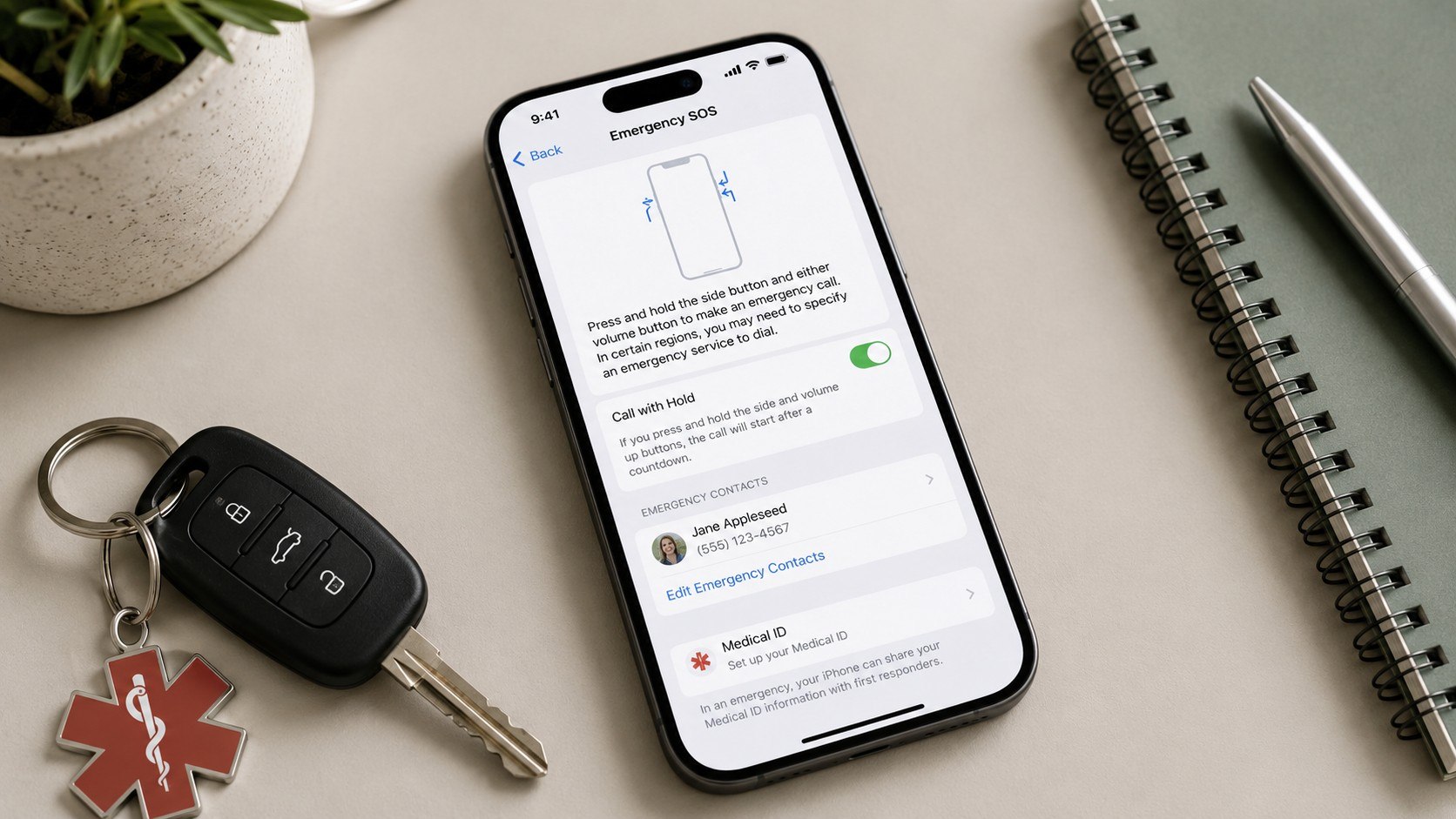
Troubleshooting Emergency SOS and Crash Alerts
Most setup failures involve outdated software, unsupported hardware, disabled settings, or incomplete Health information. Check these situations first.
- The Emergency SOS menu looks different: Update iOS and search Settings for “Emergency SOS.” Labels may vary by model.
- A contact received no alert: Confirm that the person remains listed and that Messages works correctly.
- Crash Detection is missing: Check model compatibility and install the latest available software.
- Fall Detection did not call: Check Wrist Detection, watch fit, connectivity, and the selected detection mode.
- Satellite features are unavailable: Check device eligibility, regional support, software, and outdoor visibility.
Restart the iPhone and Apple Watch after installing updates. Confirm that the watch remains paired to the correct phone.
Check cellular service, Wi-Fi, Bluetooth, and Messages. Some emergency functions rely on one or more of these services.
Local emergency systems also differ. Text-to-911 and enhanced location sharing are not available in every jurisdiction.
Review Apple’s official Crash Detection instructions when a supported setting remains unavailable. Apple Support can check device-specific compatibility.
FAQ About Emergency SOS on iPhone in 2026
Does Emergency SOS automatically call 911?
It can call 911 after you start an SOS countdown. Crash Detection may also call when a severe crash is detected and you do not respond.
Can I test Emergency SOS without calling 911?
You can review the controls and complete Apple’s satellite demonstration. Do not finish a normal SOS countdown only for testing.
Will my emergency contacts receive my location?
They may receive your current location after an emergency call. Temporary updates may follow when your location changes.
Does an iPhone detect falls without Apple Watch?
No. Apple’s automatic Fall Detection requires a compatible Apple Watch. The iPhone can still make a manually triggered SOS call.
Can Emergency SOS work without cellular service?
Supported iPhone 14 or later models may communicate by satellite. Availability depends on the country, region, and view of the sky.
Should the emergency countdown sound stay enabled?
The sound can help prevent accidental calls. However, a silent countdown may be preferable during certain personal safety threats.
Earlier we wrote about IRS Payment Plan 2026: How to Apply Online, Compare Fees and Choose Monthly Payments