

Learning how to back up iphone to icloud 2026 takes about 10 minutes if your Wi-Fi is stable and your Apple Account is ready. The fastest fix is simple: open Settings, tap your name, go to iCloud, turn on iCloud Backup, then tap Back Up Now and keep the iPhone on Wi-Fi until the latest backup time appears, аs noted by Baltimore Chronicle.
This guide covers the iPhone settings, the iCloud+ plan decision, common storage problems, and the checks that matter before replacing, repairing, selling, or resetting an iPhone in the United States.
Key takeaways
- iCloud Backup protects device settings, app data, Home Screen layout, Apple Watch backup data, and unsynced photos or messages.
- Most US users need an iCloud+ plan because Apple’s free 5GB tier rarely covers a modern iPhone backup.
- A completed backup shows a date and time under Back Up Now; the switch alone does not prove the backup finished.
What you need before you start
A successful iPhone iCloud backup depends on five practical items: the right account, enough storage, a reliable connection, power, and a few minutes without interruptions. You need an iPhone signed in to the correct Apple Account, your iPhone passcode, and access to two-factor authentication if Apple asks for it.
You also need a Wi-Fi network with a stable upload connection, not just strong signal bars. Keep a charger or MagSafe stand nearby, especially for larger backups, and make sure your iCloud account has enough available storage for the next backup size.
Set aside about 10–30 minutes for a small backup. A large photo library or slow home internet connection can take longer, and a payment method may be needed if you decide to upgrade to iCloud+.
If the backup is part of a phone upgrade, the next step is choosing the transfer method. Baltimore Chronicle has a separate guide on how to transfer iPhone data in 2026 that compares Quick Start, iCloud, and Finder.
How to back up iPhone to iCloud 2026: the settings that matter
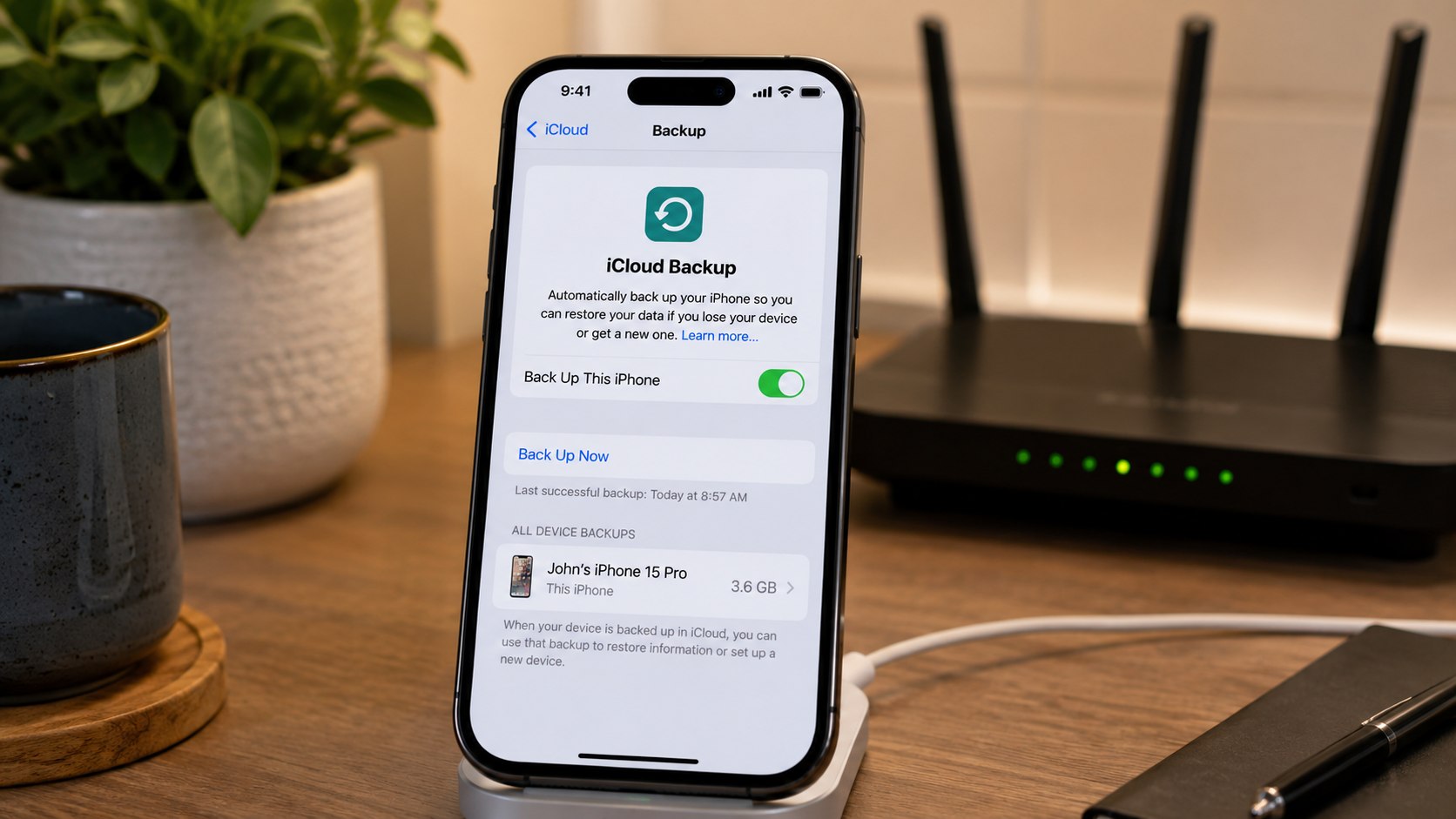
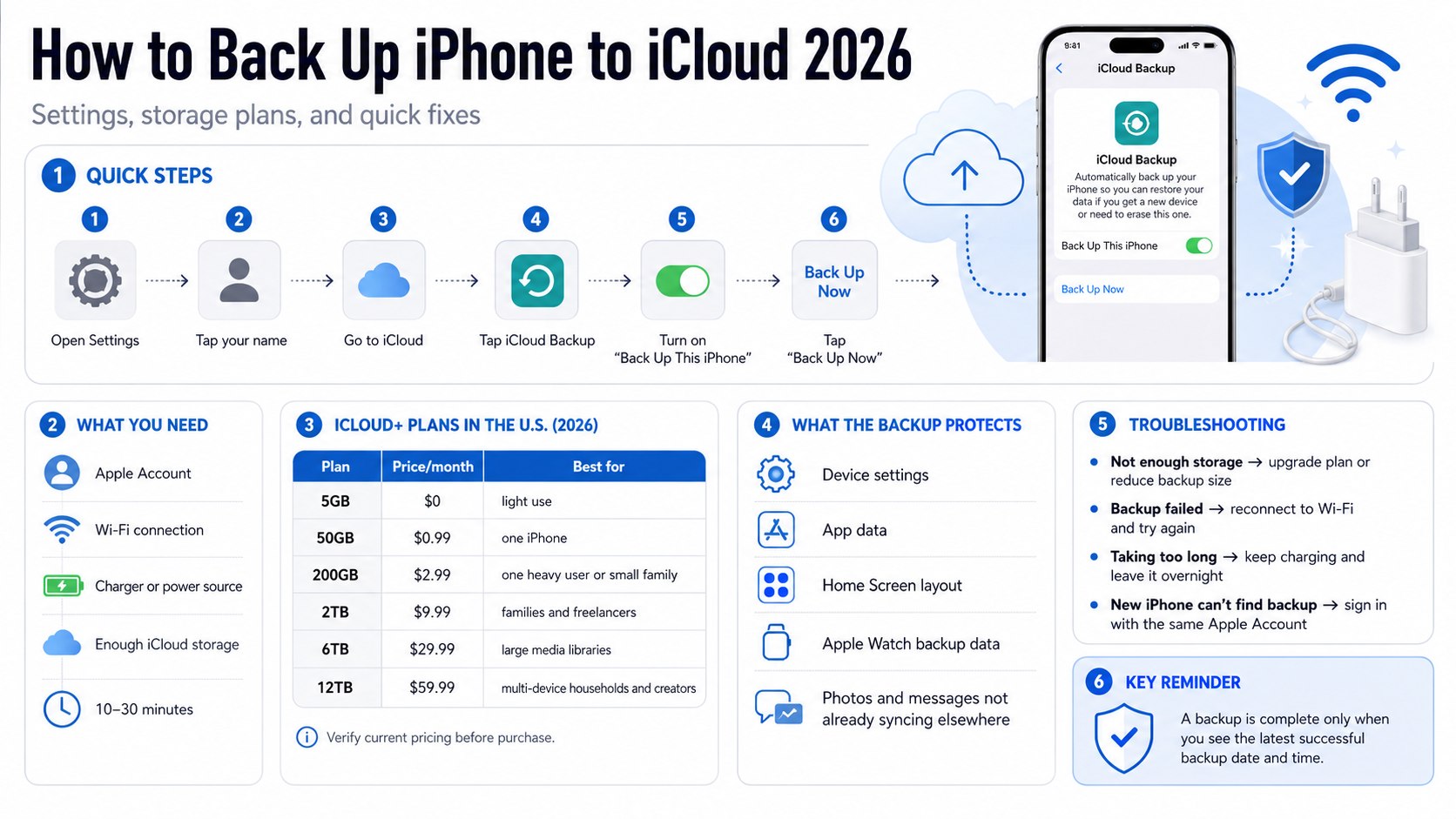
Apple’s official path starts in Settings, not the App Store or iCloud.com. On an iPhone, open Settings, tap your name, tap iCloud, tap iCloud Backup, turn on Back Up This iPhone, then tap Back Up Now.
The backup is complete only when the screen shows the date and time of the last successful backup. Apple says the iPhone should stay connected to Wi-Fi until the process ends, and automatic backups need power, Wi-Fi, and a locked screen. Apple Support explains the current iCloud Backup steps for iPhone and iPad.
This matters for renters, parents, drivers, freelancers, and anyone replacing a damaged phone because an unfinished backup can leave out recent photos, messages, app data, or settings. A parent in Texas upgrading a child’s iPhone, a freelancer in New York replacing a work device, and a driver in California switching after a cracked screen all need the same final proof: the latest backup timestamp.
Step 1: Check the Apple Account on the iPhone
Open Settings and look at the name at the top of the screen. Confirm that the iPhone is signed in to the Apple Account that owns your iCloud storage, App Store purchases, Messages, Photos, and device history.
This matters because a backup tied to the wrong Apple Account may not appear when you restore a replacement iPhone. Common mistake to avoid: do not use a family member’s Apple Account just because that person pays for Family Sharing or iCloud+.
Step 2: Open iCloud Backup settings
Go to Settings, tap your name, tap iCloud, then tap iCloud Backup. Turn on Back Up This iPhone if the switch is off.
This matters because syncing photos, contacts, or notes is not the same as making a restorable iPhone backup. Common mistake to avoid: do not assume iCloud Photos alone creates a full device backup.
Step 3: Review your next backup size
In iCloud storage settings, open Backups and select the iPhone you are using. Look for the next backup size and compare it with the storage available in your iCloud plan.
This matters because an iPhone with years of app data, videos, and message attachments can exceed the free 5GB tier quickly. Common mistake to avoid: do not delete important photos from iCloud Photos just to make space unless you already saved another copy.
Step 4: Pick the right iCloud+ plan
Apple gives every Apple Account 5GB of free iCloud storage. As of 2026 in the United States, Apple lists iCloud+ at $0.99/month for 50GB, $2.99/month for 200GB, $9.99/month for 2TB, $29.99/month for 6TB, and $59.99/month for 12TB.
Apple’s iCloud+ page lists current US storage plans and prices. This matters because the right iCloud storage plan prevents failed backups and avoids paying for far more storage than one household needs.
Common mistake to avoid: do not choose a plan based only on the iPhone model. Choose it based on backup size, iCloud Photos use, family sharing, and Mac or iPad storage needs.
| iCloud option in the US, 2026 | Monthly price | Best fit | Common problem |
|---|---|---|---|
| 5GB | $0 | Light use, contacts, calendars, small app data | Usually too small for a modern iPhone backup |
| 50GB | $0.99 | One iPhone with limited photos and videos | Can fill up quickly with Messages attachments |
| 200GB | $2.99 | One heavy iPhone user or a small family | Needs cleanup if several devices share it |
| 2TB | $9.99 | Families, freelancers, iPhone plus Mac workflows | Overkill for one low-storage iPhone |
| 6TB or 12TB | $29.99 or $59.99 | Large families, photo/video work, multiple Apple devices | Requires ongoing storage management |
Step 5: Start a manual backup
Connect the iPhone to Wi-Fi, open iCloud Backup, then tap Back Up Now. Keep the iPhone near the router if your home has weak coverage in bedrooms, garages, or basements.
This matters because a manual backup gives you an immediate restore point before a repair appointment, trade-in, carrier switch, iOS update, or factory reset. Common mistake to avoid: do not leave the house on cellular data and expect the backup to keep moving normally.
Step 6: Wait for the backup timestamp
Stay on the iCloud Backup screen or return later to check the last successful backup date and time. That timestamp is the practical confirmation that the backup finished.
This matters because a spinning progress bar, a turned-on switch, or a storage charge does not prove that the latest data is protected. Common mistake to avoid: do not erase or trade in the iPhone until the timestamp reflects the backup you actually need.
Step 7: Turn on automatic backups
Leave Back Up This iPhone turned on. For automatic backups, connect the iPhone to power, connect to Wi-Fi, and lock the screen.
This matters because daily automatic backups reduce the damage from theft, water damage, a lost phone, or a failed repair. Common mistake to avoid: do not keep the iPhone unplugged overnight and expect automatic backups to run consistently.
Step 8: Decide what should sync versus back up
iCloud handles data in two different ways: syncing and backup. Photos, Notes, Contacts, iCloud Drive, Messages in iCloud, and similar services can sync across devices, while iCloud Backup covers device data that is not already syncing.
This matters because backup iPhone photos to iCloud can mean two different things: iCloud Photos syncing the library, or iCloud Backup including photos when iCloud Photos is off. Common mistake to avoid: do not delete synced photos on one device unless you understand that iCloud Photos can remove them from other signed-in devices too.
Step 9: Keep a second backup for high-risk situations
For a critical phone, create a computer backup on a Mac or Windows PC before a major repair, beta software install, or device trade-in. A local encrypted backup can help preserve sensitive categories that need encryption in computer backups, such as Health and Activity data.
This matters because iCloud backup settings are convenient, but a second backup gives extra protection when the iPhone contains work files, travel documents, client messages, or medical records. Common mistake to avoid: do not forget the password for an encrypted computer backup. Apple cannot recover that password for you.
Users who prefer a local copy can follow Baltimore Chronicle’s guide on how to back up iPhone to Mac in 2026 before sending the device for service or trade-in.
What iCloud Backup includes and what it does not
iCloud Backup is designed to restore the iPhone experience, not to duplicate every cloud service you use. It can include device settings, Home Screen layout, app organization, Apple Watch backup data, app data, and some photos, videos, and messages when those items are not already syncing through iCloud.
It does not include everything. Apple Pay information, Face ID or Touch ID settings, App Store content, Apple Mail data, and data already stored in services like Gmail or Exchange are handled separately.
| Data type | Usually in iCloud Backup? | Important 2026 note |
|---|---|---|
| Device settings and Home Screen layout | Yes | Useful when restoring to a new iPhone |
| App data | Often yes | Some apps store data in their own cloud accounts |
| Photos and videos | Depends | iCloud Photos syncs them separately when enabled |
| Messages | Depends | Messages in iCloud syncs them separately when enabled |
| Apple Pay and Face ID settings | No | Set these up again after restore |
| Gmail, Exchange, or other cloud mail | No | Sign back in to those accounts after restore |
A backup is most valuable before the problem happens: cracked screen, lost phone, failed update, water damage, or a rushed carrier-store trade-in.
How much iCloud storage do you need in 2026?
The right iCloud backup storage level depends on the amount of data on the iPhone, not the monthly price alone. A 128GB iPhone with iCloud Photos turned on may need less backup space than a 64GB iPhone packed with unsynced videos and message attachments.
Use this practical rule: choose 50GB only for light single-device use, 200GB for most single users or small households, and 2TB when multiple family members, Macs, iPads, or large photo libraries share the same Apple ecosystem.
Freelancers should be more conservative. If client files, receipts, videos, signed PDFs, or business messages live on the phone, the extra monthly cost of 200GB or 2TB can be easier to justify than losing a week of work.
Parents should check Family Sharing before upgrading twice. One shared iCloud+ plan can cover up to five family members, which may be cheaper than several separate small plans.
Troubleshooting iCloud Backup problems
- “Not enough iCloud storage” appears: Check the next backup size, delete old device backups you no longer need, reduce app backup data, or upgrade the iCloud+ plan.
- “Last backup could not be completed” appears: Reconnect to Wi-Fi, install available iOS updates, restart the iPhone, and try another network if needed.
- The backup is taking too long: Keep the iPhone charging, locked, and on Wi-Fi overnight; large photo libraries and slow upload speeds can stretch the process.
- iCloud Backup is grayed out: Check whether a restore is still running or whether a work, school, or device-management profile restricts backup settings.
- The new iPhone cannot find the backup: Confirm that the replacement phone is signed in to the same Apple Account and that the old phone’s backup finished successfully.
If the backup is part of a first-time activation or family setup, Baltimore Chronicle also covers how to set up a new iPhone in 2026, including the checks that come before restoring apps and data.
Security and privacy settings to check
Turn on two-factor authentication for the Apple Account before relying on iCloud as the main recovery path. A strong account password and trusted phone number matter because the backup is only useful if you can access the account later.
Review trusted devices in Apple Account settings and remove old devices you no longer own. This is practical for renters with shared households, parents passing phones to children, and freelancers who have used multiple Macs or iPads over several years.
Use a strong iPhone passcode rather than a simple four-digit code. A backup plan protects your data after loss or damage, but the lock screen protects it before anyone tries to restore or access it.
FAQ
Does iCloud back up everything on my iPhone?
No. iCloud Backup covers many device settings and app data, but data already syncing to iCloud or stored in other cloud services may not be inside the backup file. Apple Pay, Face ID, Touch ID settings, and some mail data are not included.
Can I back up my iPhone to iCloud without paying?
Yes, but only if the backup fits inside Apple’s free 5GB iCloud storage tier. In 2026, many US users need a paid iCloud+ plan because photos, messages, and app data can exceed 5GB quickly.
How do I know my iPhone backup worked?
Go to Settings, tap your name, tap iCloud, then tap iCloud Backup. The safest sign is the date and time listed under Back Up Now after the backup finishes.
Should I use iCloud Backup or a Mac backup?
Use iCloud Backup for convenience and automatic protection. Use a Mac or Windows computer backup as a second copy before repairs, trade-ins, major software changes, or any situation where the iPhone contains work-critical data.
Will iCloud Backup save my photos?
It depends on the settings. If iCloud Photos is on, photos sync through iCloud Photos rather than being stored as part of the normal iCloud Backup. If iCloud Photos is off, the photo library may be included in the backup and can make the backup much larger.
What should I do before erasing or selling my iPhone?
Complete a manual iCloud backup, confirm the latest backup timestamp, keep a second computer backup if the phone contains important data, then sign out of Apple Account only when the backup is confirmed.
Earlier we wote about Uber vs Lyft Prices 2026: Which Rideshare Is Cheaper in the USA?