

How to fix iPhone stuck on Apple logo 2026 starts with a forced restart, followed by recovery mode if the screen remains frozen. Most software-related cases take 10–45 minutes to diagnose. A full restore may require another hour and can erase local data, as noted by Baltimore Chronicle.
Begin with the least destructive method. Force-restart the iPhone, connect it to a trusted computer, and choose Update before Restore. Use DFU mode only when standard recovery mode fails or the device repeatedly returns to the Apple logo.
Key takeaways
- A forced restart can clear a temporary boot failure without deleting photos, messages, apps, or account settings.
- Recovery mode should first reinstall iOS through Update, which attempts to preserve the iPhone’s existing data.
- DFU restore is the final software option because it reloads firmware and permanently erases local information.
The order matters. Jumping directly to Restore may destroy recoverable data, while repeatedly restarting a damaged device may hide a hardware problem.
What you need before repairing the iPhone
Prepare the equipment before starting. An interrupted update or unstable cable can create another failed installation and leave the phone unusable.
- A Mac running a current version of macOS or a Windows 10 or Windows 11 PC.
- The Apple Devices app on Windows, or Finder on a recent Mac.
- A reliable Lightning or USB-C cable that supports data transfer.
- A stable internet connection for downloading the current iOS package.
- The Apple Account email address and password linked to the iPhone.
- At least 45–90 minutes without disconnecting the phone.
- An available iCloud or computer backup, when one exists.
A charging-only cable may power the phone without allowing Finder or Apple Devices to detect it. Connect directly to the computer instead of using a hub, keyboard port, or monitor.
Users replacing an old phone should review the Baltimore Chronicle guide to setting up a new iPhone in 2026. It explains Apple Account access, activation, eSIM setup, and initial security checks.
Anyone with a recent working backup has more freedom to attempt a restore. The guide on backing up an iPhone to iCloud explains what Apple stores and how backup status appears.
Do not disconnect the cable while Finder or Apple Devices displays an update, extraction, verification, or restore message.
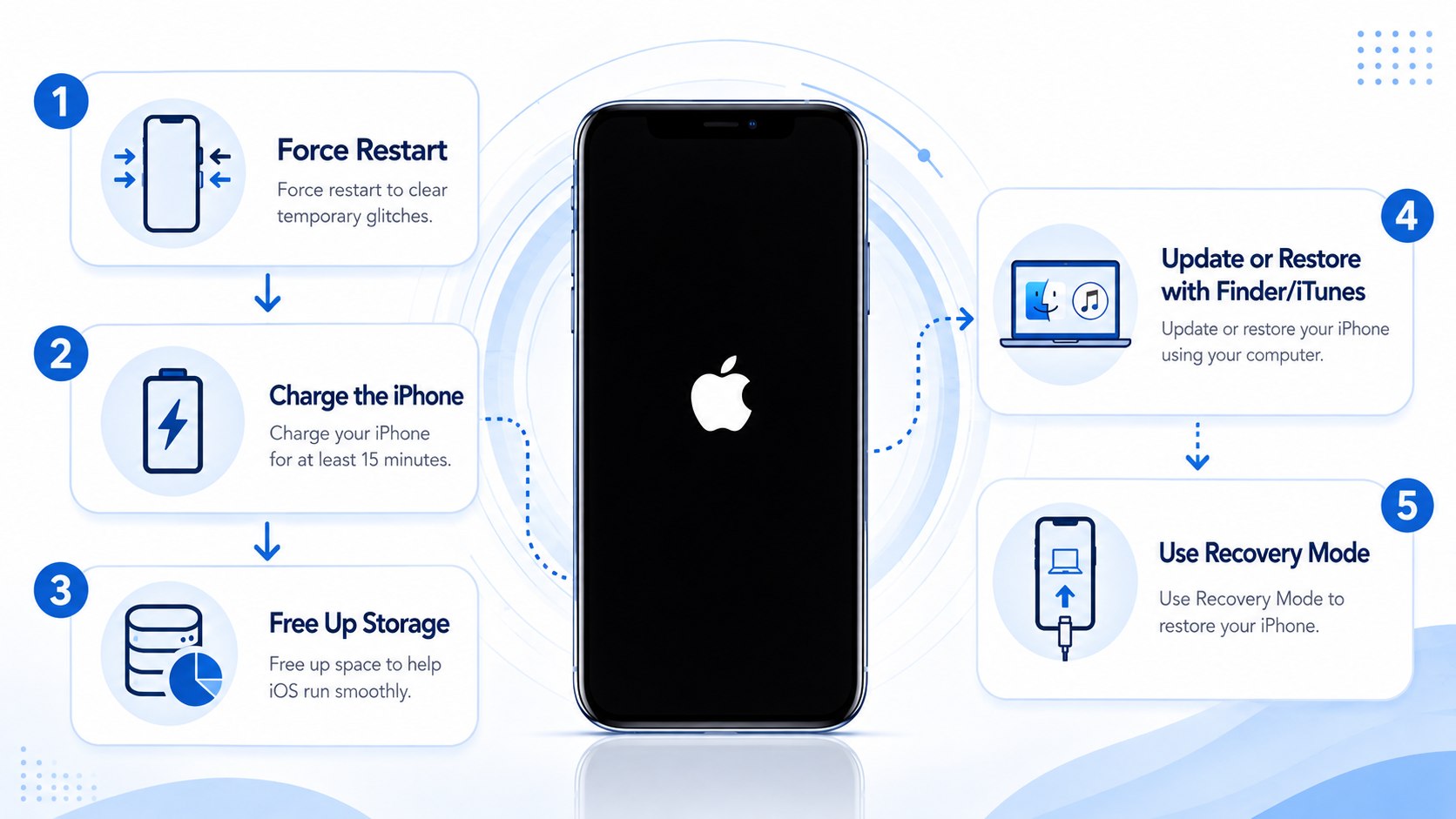
Step 1: Check whether the iPhone is actually frozen
Look for a progress bar below the Apple logo. If it has moved recently, connect the phone to power and allow the process to continue.
This distinction matters because an iOS update may pause visually while files are verified or reorganized. Apple advises entering recovery mode when a progress bar has not moved for more than 1 hour.
Avoid pressing buttons every few minutes. Constant interruptions can extend the update or force the device to restart during installation.
Step 2: Charge the iPhone and inspect its connections
Connect the iPhone to a dependable wall charger for at least 30 minutes. Remove damaged adapters, loose cables, and dirty connectors from the setup.
A weak battery may begin the startup sequence but fail before iOS finishes loading. This can produce a repeating Apple logo, often called an iPhone boot loop.
Do not insert metal tools into the charging port. Remove visible lint carefully with the device disconnected, or let a technician inspect it.
Step 3: Force-restart the correct iPhone model
A forced restart interrupts the current boot attempt without erasing stored data. Use the button sequence that matches the iPhone generation.
| iPhone model | Forced restart sequence | Release point |
|---|---|---|
| iPhone 8 and later, including Face ID models | Press Volume Up, press Volume Down, then hold the Side button | Release when the Apple logo reappears |
| iPhone 7 and iPhone 7 Plus | Hold Volume Down and the Side button together | Release when the Apple logo reappears |
| iPhone 6s, first-generation SE, and earlier | Hold the Home and Side or Top buttons together | Release when the Apple logo reappears |
Press the first 2 buttons quickly on an iPhone 8 or newer. Holding Volume Up or Volume Down too long can open another function instead.
The Side button may need to remain pressed for more than 10 seconds. Keep holding it even if the display briefly becomes black.
This method solves temporary kernel crashes and incomplete startup processes. It does not reinstall iOS or repair corrupted system files.
A common mistake is releasing the Side button when the screen turns black. Release it only after the Apple logo returns.
If the device starts normally, connect it to Wi-Fi and create a backup immediately. The freeze may return during the next restart.
Step 4: Use recovery mode before DFU
Connect the phone to the computer and open Finder or Apple Devices. Then repeat the model-specific buttons while keeping the iPhone connected.
For iPhone 8 and later, press Volume Up, press Volume Down, and hold the Side button. Continue holding past the Apple logo until the recovery screen appears.
For iPhone 7 models, hold Volume Down and the Side button. Older Home-button models require holding Home with the Side or Top button.
Recovery mode for an iPhone stuck on the Apple logo allows the computer to reinstall iOS. It is less aggressive than a DFU restore.
Do not stop when the Apple logo appears. That mistake performs another forced restart instead of opening recovery mode.
Step 5: Choose Update before Restore
Finder or Apple Devices should offer Update and Restore. Select Update first to reinstall iOS without intentionally deleting personal information.
This approach can replace damaged system files while preserving photos, messages, apps, and settings. Success still depends on the storage and operating system condition.
The computer must download the current compatible iOS package. If downloading takes over 15 minutes, the iPhone may leave recovery mode.
Let the download finish, then place the phone into recovery mode again. Do not repeatedly cancel and restart the same download.
Apple’s official instructions for an iPhone stuck on the Apple logo provide the current recovery sequences. They also explain when an unmoving progress bar requires computer recovery.
Step 6: Restore the iPhone if Update fails
Select Restore only after Update fails, displays an error, or returns the phone to the same boot loop. Restore erases the device and installs a clean iOS copy.
This step matters because severe file-system corruption may prevent an in-place update. A clean installation removes the damaged local system state.
Before proceeding, confirm that an iCloud or computer backup exists. Data stored only on the frozen iPhone may not be recoverable afterward.
| Method | Expected time in 2026 | Data risk | Best use |
|---|---|---|---|
| Forced restart | 1–3 minutes | Very low | Temporary freeze or interrupted startup |
| Recovery mode Update | 20–60 minutes | Low, but not zero | Damaged iOS files with valuable local data |
| Recovery mode Restore | 30–90 minutes | All local data erased | Failed Update or persistent boot loop |
| DFU restore | 30–90 minutes | All local data erased | Recovery restore failure or deeper firmware problem |
| Professional diagnosis | Same day to several days | Depends on damage | Errors, liquid exposure, impact, or failed buttons |
Download time varies by connection speed and Apple’s server availability. Installation also depends on the iPhone model and storage condition.
A restore requires the linked Apple Account afterward because Activation Lock remains active. The process does not remove ownership protection.
Do not buy software claiming to bypass Activation Lock. Legitimate restoration still requires the owner’s Apple Account credentials.
After activation, choose the newest reliable iCloud or computer backup. Applications and media may continue downloading after the Home Screen appears.
Users moving information between devices can consult the guide to transferring data from an old iPhone. It compares Quick Start, iCloud, and computer-based migration.
Step 7: Try DFU mode only as the final software repair
iPhone DFU mode lets the computer communicate with the device without loading the standard iOS recovery interface. The iPhone screen remains completely black when DFU mode is entered correctly.
On iPhone 8 and later, connect the device and press Volume Up, then Volume Down. Hold the Side button until the screen turns black.
After the screen turns black, hold Side and Volume Down together for about 5 seconds. Release Side while holding Volume Down for about 10 seconds.
Finder or Apple Devices should detect an iPhone requiring restoration. The screen must remain black; a cable graphic indicates standard recovery mode.
DFU timing can vary slightly between models and computer configurations. Repeat the sequence if the Apple logo appears or no device is detected.
A DFU restore does not retrieve missing data. It replaces firmware and software, then returns the iPhone to factory condition.
The common mistake is treating DFU as a harmless diagnostic tool. It becomes destructive once the user confirms Restore on the computer.
Step 8: Recognize signs of hardware failure
Stop repeating restores when the iPhone was recently dropped, bent, overheated, repaired, or exposed to liquid. Those events can damage storage, power, display, or logic-board components.
Persistent errors such as 9, 4013, or 4014 can involve the cable, USB connection, computer software, or hardware. Test another certified cable and direct USB port first.
Professional service is appropriate when buttons do not respond, the computer never detects the device, or every restore fails. Apple provides model-specific estimates through its US iPhone repair portal.
As of 2026, final out-of-warranty pricing depends on the model and diagnosed component. Apple Authorized Service Providers may set separate fees, while taxes and shipping can increase the total.
Repeated software restoration cannot repair damaged NAND storage, a failing power circuit, liquid corrosion, or a disconnected internal component.
Official service guidance summarized from Apple Support, in the context of failed recovery and restore attempts.
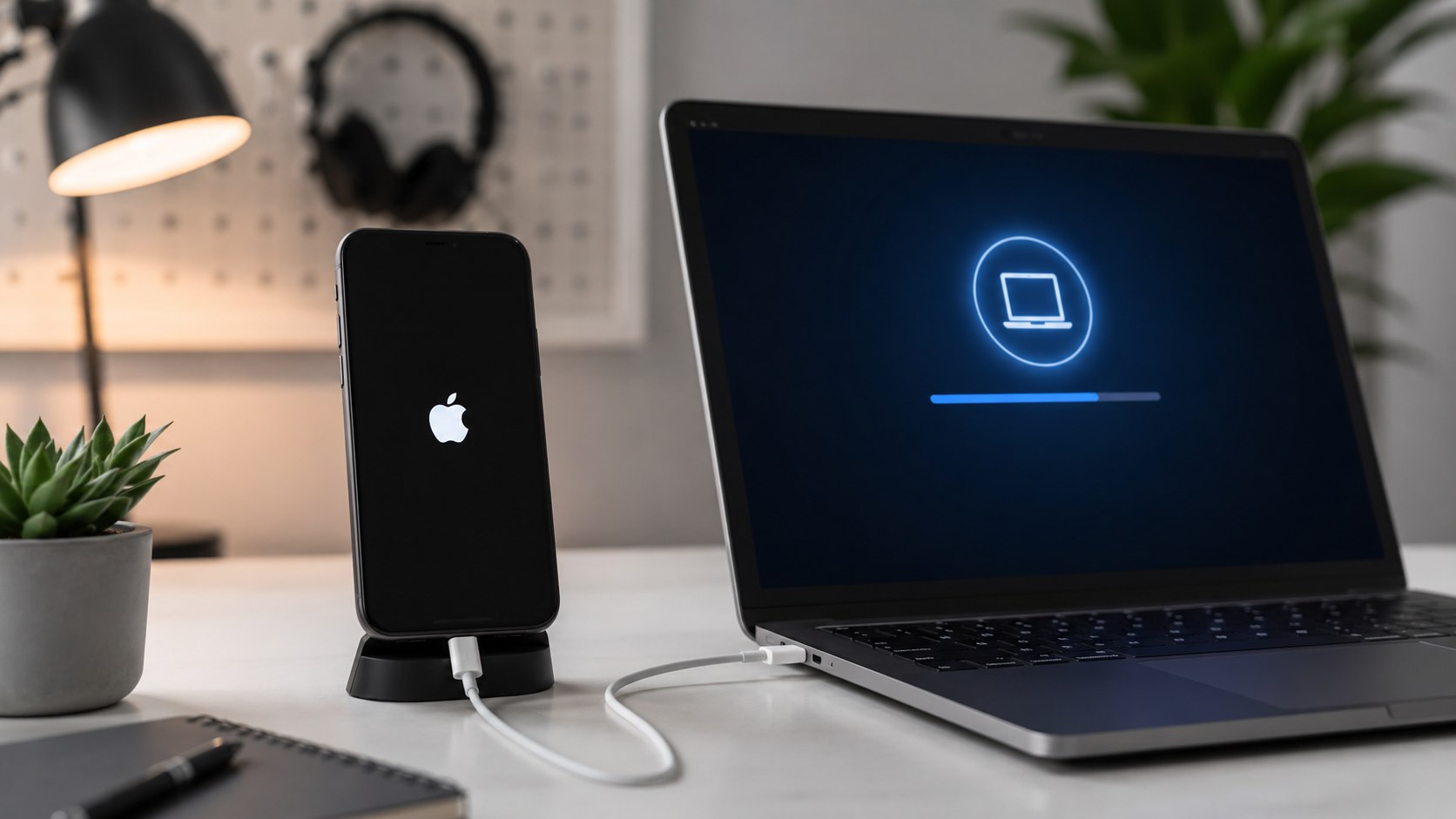
Troubleshooting an iPhone that still shows the Apple logo
These scenarios help separate a recoverable software problem from a likely cable, computer, storage, or hardware failure.
- The computer cannot see the iPhone: change the cable, USB port, and computer before assuming the logic board has failed.
- The iPhone exits recovery mode: finish downloading iOS, then repeat the recovery button sequence and reconnect the device.
- Update repeatedly fails: restart the computer, install current Apple software, disable unstable USB accessories, and retry once.
- The Apple logo flashes repeatedly: charge the phone, force-restart it, then attempt recovery mode without further boot cycles.
- Restore completes but the loop returns: arrange hardware diagnosis because storage, power, or internal connection faults may remain.
Error messages should be recorded exactly. A screenshot of the computer alert can help Apple Support or a repair provider identify the failed stage.
Try another internet connection when the download or verification repeatedly stops. Corporate networks may restrict Apple’s update services.
Do not install unknown “system repair” utilities before exhausting Apple’s built-in methods. Some tools charge $40–$100 without fixing hardware faults.
A recent unauthorized screen, battery, or charging-port repair is also relevant. Tell the technician what was replaced and when the boot loop began.
When local data is irreplaceable, stop before Restore or DFU. A specialist can assess whether data-focused recovery is possible, although success is never guaranteed.
FAQ
Why is my iPhone stuck on the Apple logo?
Common causes include an interrupted iOS update, damaged system files, full storage, a failed migration, or hardware damage. The timing of the failure usually provides the best clue.
Will a forced restart delete my photos?
No. A forced restart does not intentionally erase photos, messages, applications, or settings. Recovery Restore and DFU Restore erase local information.
How long should an iPhone stay on the Apple logo?
A normal startup usually finishes within several minutes. During an update, wait longer and watch the progress bar. Apple recommends recovery when that bar remains unmoved for over 1 hour.
Should I choose Update or Restore in recovery mode?
Choose Update first because it attempts to reinstall iOS while preserving data. Choose Restore when Update fails or the phone remains trapped in the boot loop.
What is the difference between recovery mode and DFU mode?
Recovery mode loads Apple’s visible recovery interface. DFU mode keeps the screen black and allows a deeper firmware restoration through the computer.
Can Apple fix an iPhone stuck on the Apple logo?
Apple or an authorized provider can diagnose software and hardware failures. Cost depends on the model, warranty status, AppleCare coverage, damage, and required replacement parts.
Earlier we wrote about How to Negotiate a Car Price at a Dealership in 2026: Scripts, Fees and 8 Steps