

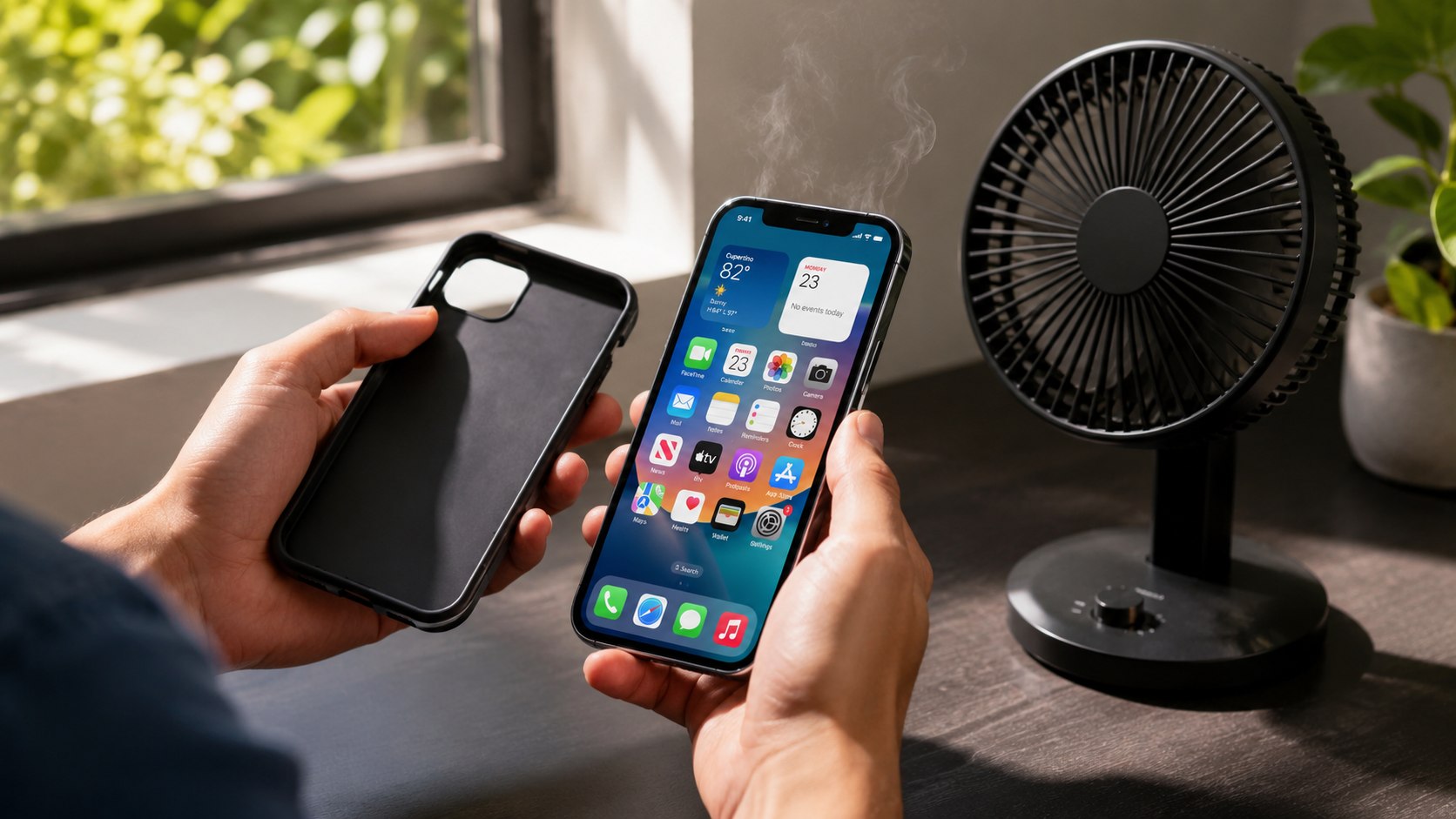
How to fix iPhone overheating 2026 starts with 3 immediate actions: disconnect the charger, remove the case, and lock the screen in a cooler room. Most heat caused by charging, navigation, video, updates, or background software should ease within 10 to 30 minutes, as noted by the Baltimore Chronicle.
Do not place the phone in a refrigerator, freezer, or ice pack. Rapid cooling can create condensation inside the device. Instead, let the iPhone cool gradually before changing software settings or testing the charger.
Key takeaways
- Stop charging and processor-heavy activity first, then allow the iPhone to cool naturally before troubleshooting software.
- Battery settings can reveal apps, weak cellular service, updates, and background tasks creating excessive heat.
- Repeated overheating during light use may indicate battery deterioration, damaged charging hardware, or another service issue.
These actions protect the battery while separating temporary warmth from a persistent fault. An iPhone may feel warm during setup, backup restoration, wireless charging, gaming, or a major update. That does not automatically mean the device has failed.
Apple designs iPhone models for ambient temperatures between 32°F and 95°F. Charging, display brightness, cellular performance, camera functions, and processing speed may be limited when internal temperatures rise.
A temperature warning, recurring charging suspension, or heat during basic tasks deserves closer attention. Continue through the steps below rather than repeatedly restarting the same hot phone.
What you need
The first checks require no specialist equipment. Prepare the following items before testing:
- 10 to 30 minutes in a cool, dry indoor location;
- access to Settings and the App Store;
- your Wi-Fi password;
- an Apple-certified or reputable USB-C charging cable;
- a compatible Apple, Belkin, Anker, or other certified power adapter;
- your Apple Account password for updates or backup;
- about $0 for software fixes, or a possible service budget if hardware has failed.
Avoid buying replacement accessories before identifying the heat source. The cable, adapter, case, battery, software, cellular radio, and active apps can all produce similar symptoms as stated https://yourashford.co.uk/.
Keep the phone disconnected while inspecting the charging port. Do not insert metal tools, spray cleaners, or compressed air into the connector.
Readers replacing or configuring another device can also review this guide to set up a new iPhone in 2026. Setup and cloud restoration can temporarily increase processor activity and temperature.
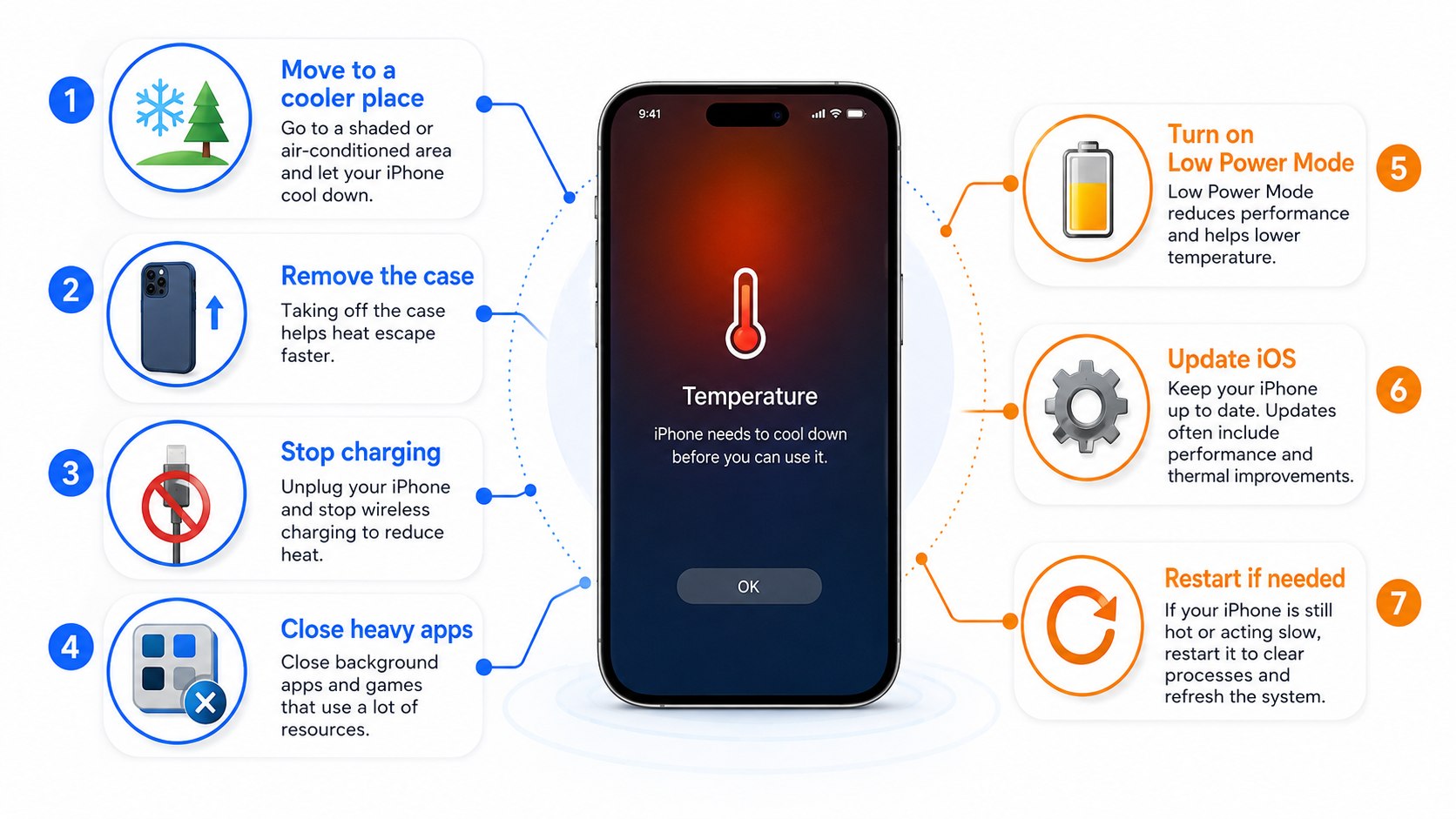
Step 1: Stop charging and cool the iPhone safely
Disconnect every cable or MagSafe accessory, remove the case, lock the screen, and move the phone away from direct sunlight. Leave it on a dry surface with normal airflow.
This matters because charging creates heat while the processor and battery may already be under load. A thick case can slow heat dissipation.
A common mistake is placing the phone beside an air-conditioner vent or against frozen food. Extreme temperature changes can expose internal components to moisture.
“Charging will resume when the device returns to normal temperature.”
Apple Support, guidance for the “Charging On Hold” notification, updated in 2026.
Do not continue recording video, using GPS, or playing games while waiting. Locking the screen reduces processor, graphics, radio, and display activity at the same time.
Step 2: Identify what caused the iPhone to get hot
Think about what happened during the previous 30 minutes. The timing often identifies the cause faster than changing several settings at once.
Compare the symptom with the most likely trigger below:
| When the iPhone gets hot | Likely cause | First action |
|---|---|---|
| While charging | Wireless charging losses, adapter problems, active apps, or high room temperature | Unplug it and test another certified cable later |
| After an iOS update | Indexing, app optimization, photo analysis, or cloud synchronization | Connect to Wi-Fi and allow background work to finish |
| During navigation | GPS, cellular data, bright display, and direct sunlight | Move the phone away from the windshield |
| During video or gaming | Heavy CPU, GPU, camera, and network use | Close the app and reduce display brightness |
| While apparently idle | Background activity, weak signal, stuck app, or system process | Check Settings > Battery |
| During every charge | Damaged cable, adapter, port, battery, or charging system | Stop using suspect accessories and arrange inspection |
Some warmth during a major update or backup restoration is expected. The important distinction is whether the phone cools after the task ends.
Navigation can generate unusual heat because several systems operate simultaneously. The display stays bright, GPS remains active, and cellular radios continuously exchange data.
In Arizona, Nevada, Texas, Florida, and other hot-weather states, a dashboard mount can expose the phone to sunlight even when the cabin feels comfortable. Move it near a shaded vent without attaching the phone directly to a cold surface.
Persistent idle heat is more suspicious. It usually points toward software activity, poor reception, a malfunctioning app, or degraded hardware.
Do not assume the newest app is responsible. Battery data provides stronger evidence than timing alone.
Step 3: Check Battery for software activity
Open Settings, tap Battery, and review Daily Usage plus App and System Activity Usage. Tap individual days and apps to compare recent consumption.
This matters because iOS can identify background activity, notifications, poor cellular coverage, ongoing setup, and update-related work. High power consumption usually produces additional heat.
A common mistake is judging apps only by screen time. An app can use location, audio, uploads, or downloads while its interface is closed.
Look for these warning signs:
- one app using much more battery than normal;
- long periods marked as Background Activity;
- high use caused by No Mobile Coverage or Low Signal;
- an Ongoing iOS Update or Ongoing Device Setup insight;
- heavy photo, cloud storage, navigation, or social-media activity;
- notifications waking the display throughout the day.
Restrict the suspicious app rather than closing every app repeatedly. Open Settings, select the app, and review Location, Cellular Data, Notifications, and Background App Refresh.
Set location access to “While Using the App” when permanent access is unnecessary. Disable background refresh for software that does not require live updates.
Closing every recent app can be counterproductive. Frequently relaunching apps may require additional processing and network activity.
For related battery maintenance, see Baltimore Chronicle’s guide on how to extend phone battery life. Heat management and charging habits directly affect long-term battery condition.
Step 4: Restart the iPhone and update iOS
After the phone has cooled, restart it normally. Then open Settings > General > Software Update and install the latest stable version available for your model.
This matters because a stalled system process, network service, or app component can continue consuming resources. Updates may include thermal-management, battery, modem, and app compatibility fixes.
A common mistake is installing an update while the phone is already hot and nearly empty. Charge it in a cool room first, then update over stable Wi-Fi.
After a major update, the device may remain warmer than usual while it indexes files, analyzes photos, restores data, and updates apps. Apple advises allowing several days before judging post-update battery performance.
If the heat began immediately after an update, review Battery before erasing the device. Temporary indexing activity is more common than a permanent operating-system failure.
Step 5: Reduce display, network, and background load
Lower screen brightness, enable Auto-Brightness, and set Auto-Lock to 30 seconds or 1 minute. Turn on Low Power Mode while diagnosing the problem.
This reduces display output, background refresh, visual effects, mail fetching, and other activity. It is especially useful during long drives, outdoor work, or poor cellular reception.
A common mistake is leaving maximum brightness enabled inside a hot vehicle. The display, GPS, charging system, and cellular modem can then generate heat together.
Try these changes one group at a time:
- Open Settings > Accessibility > Display & Text Size and enable Auto-Brightness.
- Open Settings > Display & Brightness and shorten Auto-Lock.
- Open Settings > Battery and enable Low Power Mode.
- Use Wi-Fi where the signal is reliable.
- In poor-service areas, use Airplane Mode when calls and data are unnecessary.
- Set 5G Auto instead of forcing 5G On continuously.
- Pause large cloud uploads until the phone reaches a cooler location.
These are diagnostic changes, not permanent requirements. Restore the features you need after identifying the main cause.
Weak reception deserves particular attention. A phone may increase radio activity while searching for Verizon, AT&T, T-Mobile, or another carrier.
This can happen in basements, rural areas, parking garages, elevators, and buildings with metal roofing. Heat may appear even when the screen remains off.
Wi-Fi can reduce power use when the local connection is stable. An unreliable Wi-Fi network may produce its own repeated connection attempts.
Monitor the device for several hours after each adjustment. Changing everything at once makes the final cause harder to identify.
Step 6: Test the charger, cable, case, and port
Once the phone is cool, charge it without the case using a known-good certified cable and adapter. Place it on a hard surface rather than a bed, couch, blanket, or car seat.
This matters because damaged connectors and inefficient wireless charging can create concentrated heat. Soft surfaces also restrict airflow.
A common mistake is continuing to use a frayed cable because charging still works. Intermittent connections can produce heat and repeated charging interruptions.
Inspect the charging setup for discoloration, bent pins, loose connections, unusual odor, buzzing, or excessive adapter heat. Stop using any accessory showing physical damage.
MagSafe and Qi charging normally create more warmth than a cable. Slight warmth is expected, but repeated “Charging On Hold” alerts require a cooler location or another charging method.
In 2026, reputable USB-C cables and adapters commonly cost about $15 to $50 in the United States. Verify current prices and compatibility through Apple or the accessory manufacturer.
Step 7: Check battery health and storage
Open Settings > Battery > Battery Health. On some older models, the menu is labeled Battery Health & Charging.
This matters because an aging battery may deliver power less efficiently and struggle under load. Battery health information can also show whether service is recommended.
A common mistake is focusing only on Maximum Capacity. Unexpected shutdowns, swelling, rapid discharge, and recurring heat are more serious than one percentage alone.
Also open Settings > General > iPhone Storage. Keep enough free space for updates, caching, temporary files, photo processing, and normal app operation.
If Battery Health shows 80% or less, review Baltimore Chronicle’s explanation of what 80% iPhone battery health means in 2026. Capacity alone does not prove overheating, but it strengthens the case for service.
Step 8: Reset settings or arrange professional service
If software checks fail, back up the iPhone before making broader changes. Start with Settings > General > Transfer or Reset iPhone > Reset > Reset All Settings.
This preserves personal data but resets network, privacy, keyboard, display, and system preferences. It can resolve configuration problems without erasing photos or apps.
A common mistake is selecting “Erase All Content and Settings” without a current backup. A full erase should be a later diagnostic step, not the first response to heat.
Stop using the phone and seek service when you notice swelling, screen separation, chemical odor, smoke, crackling, liquid exposure, or extreme heat during light use. Do not press a raised screen back into the housing.
Apple Store and authorized service prices vary by model, warranty, AppleCare coverage, and damage type. Verify the 2026 estimate before approving repair.
Troubleshooting common overheating scenarios
- iPhone overheats while charging: remove the case, stop using the phone, and test a certified cable in a cooler room.
- iPhone gets hot after an iOS update: check Battery for ongoing update activity and allow background indexing to finish.
- iPhone heats up during FaceTime: lower brightness, improve Wi-Fi, stop charging, and reduce other active apps.
- iPhone overheats in the car: remove it from direct sunlight and avoid charging during continuous GPS use.
- iPhone stays hot while idle: inspect background battery use, cellular signal, battery health, and recent app changes.
Repeated overheating during one specific app session usually points toward workload or app behavior. Update or reinstall that app after preserving its data.
Heat across several unrelated activities suggests a broader system, charging, battery, or environmental issue. Test the device without its case and accessories.
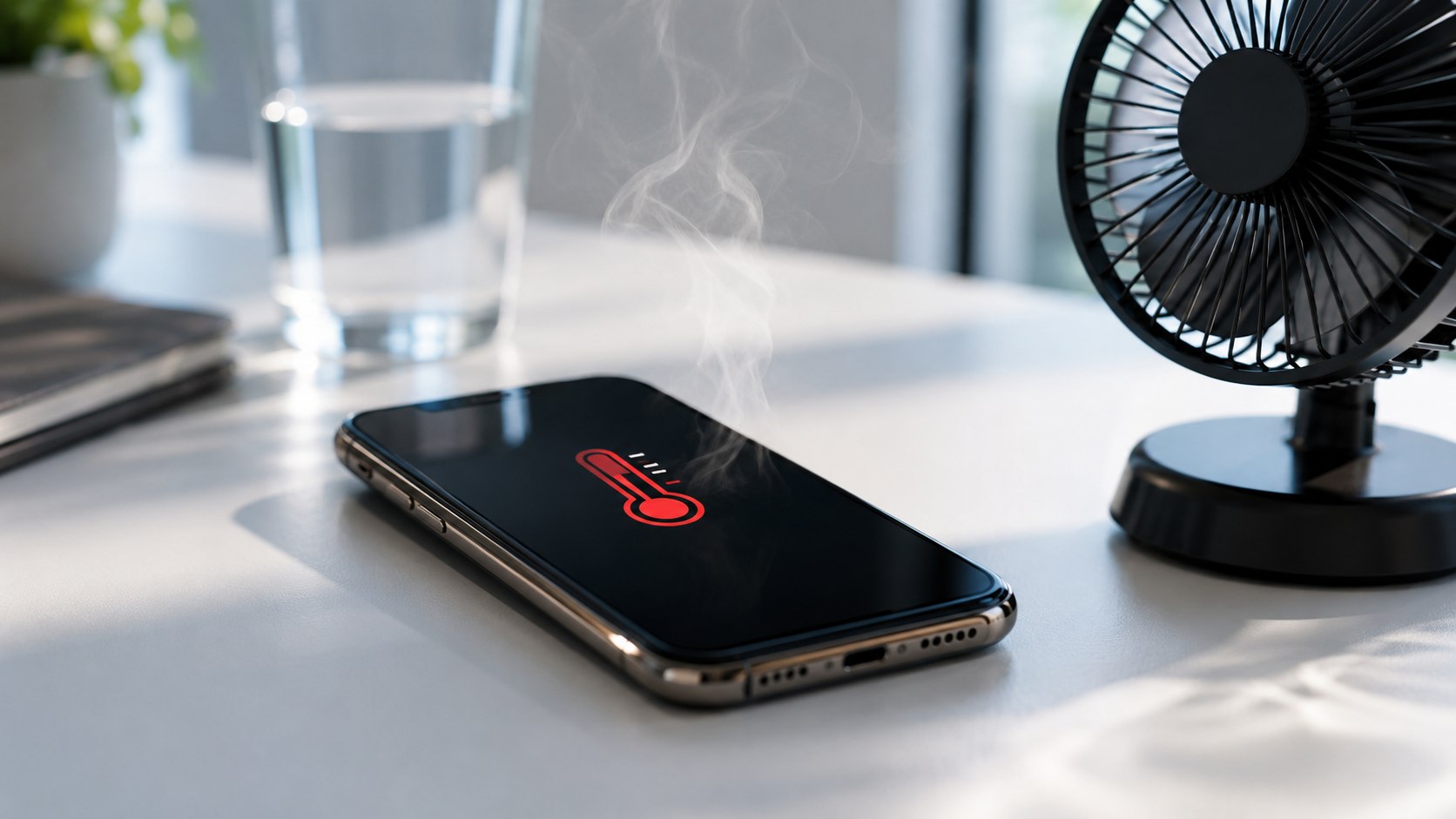
A warning screen is different from ordinary warmth. Turn the phone off, move it away from sunlight, and let it cool naturally.
Do not keep testing a device that displays physical battery damage. Lithium-ion battery faults require trained inspection.
When the cause remains unclear, document when the heat occurs, which charger was connected, and what Battery displayed. Those details make service diagnostics more useful.
FAQ
Why is my iPhone suddenly overheating?
A recent update, background app, weak cellular signal, cloud synchronization, navigation, gaming, video recording, or charging accessory may be responsible. Check Settings > Battery before deleting apps or resetting the phone.
Can an iPhone overheat because of software?
Yes. A stuck app, unfinished update, background upload, location tracking, or repeated network connection can keep the processor and radios active. Restarting, updating, and reviewing Battery usually reveals the pattern.
Should I put an overheating iPhone in the refrigerator?
No. Rapid cooling can cause condensation and expose the device to moisture. Remove the case, disconnect charging, lock the screen, and place the phone in a cool, dry room.
Is it normal for an iPhone to get hot while charging?
Mild warmth can be normal, especially with MagSafe or other wireless charging. Stop charging when the phone becomes uncomfortable to hold, shows a warning, smells unusual, or repeatedly pauses charging.
When should an overheating iPhone be repaired?
Arrange inspection when heat occurs during light use, continues after software troubleshooting, or accompanies swelling, rapid battery loss, shutdowns, odor, or screen separation.
Does Low Power Mode stop iPhone overheating?
It can reduce processor and background activity, but it does not repair damaged hardware. Use it as a diagnostic and temporary heat-reduction measure.
Featured image idea
A natural editorial photo of an adult removing a protective case from a warm iPhone beside a disconnected charger in a bright home office.
Inline image ideas
An overhead photo showing an iPhone, certified USB-C charger, charging cable, protective case, and a Settings screen open to Battery.
A lifestyle photo of an iPhone mounted away from direct windshield sunlight while navigation runs inside a parked car.
Earlier we wrote about How to Schedule a UPS Pickup at Home in 2026: Online Steps and Fees