

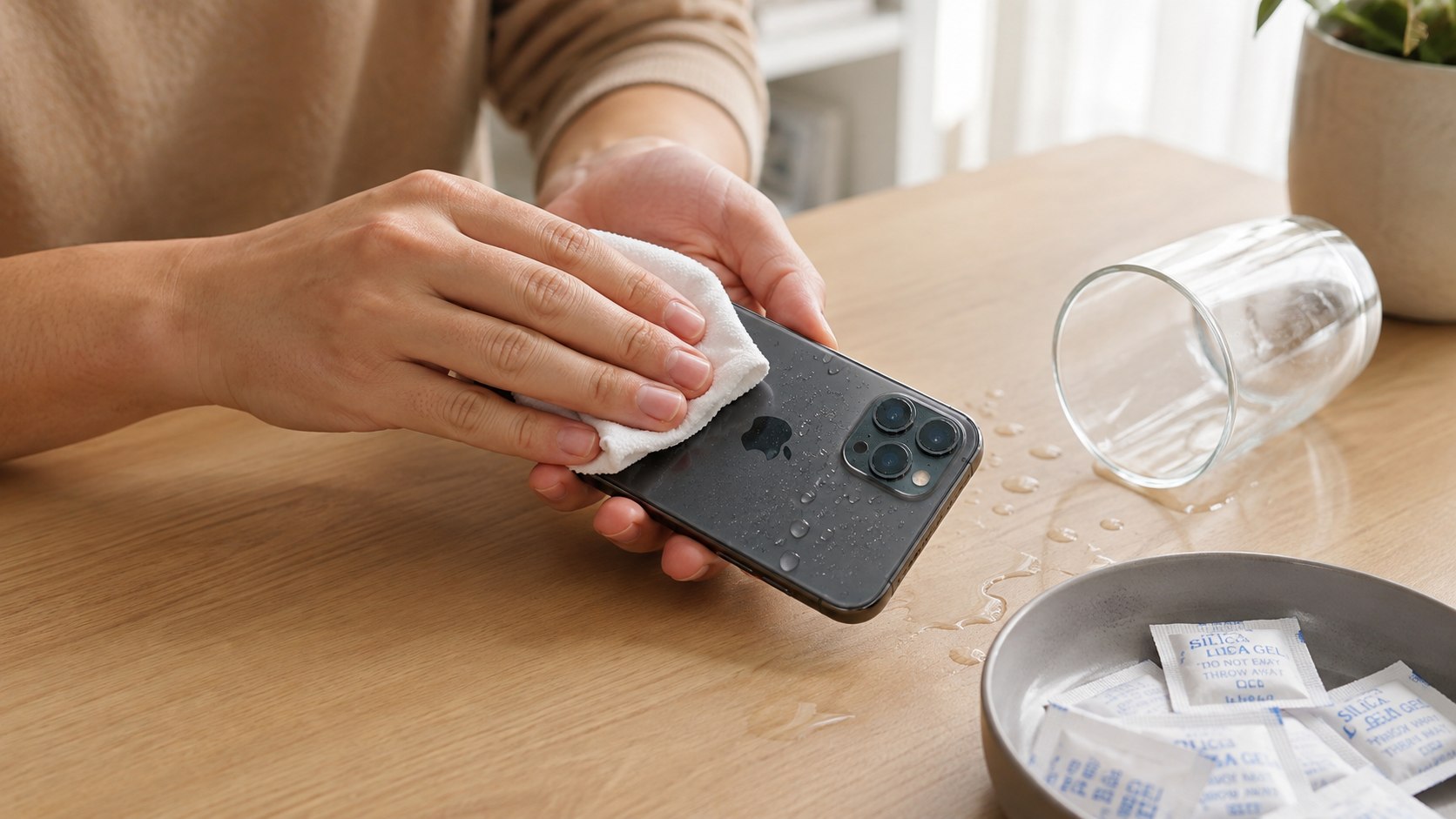
How to dry water damaged iPhone 2026 starts with 3 urgent actions: disconnect every cable, remove the case and position the charging port downward. Do not use rice, heat or compressed air. Initial handling takes about 5 minutes, but complete drying may require up to 24 hours, as noted by Baltimore Chronicle.
Apple’s official method is less dramatic than many online remedies. Gently remove surface moisture, allow natural airflow and test the connector only after waiting. The steps below apply to Lightning and USB-C iPhones sold across the United States.
Key takeaways
- Disconnect cables immediately because charging through a wet connector can corrode its pins and cause permanent damage.
- Hold the connector downward, tap the iPhone gently and leave it somewhere dry with natural airflow.
- Wait at least 30 minutes before retesting, although complete connector drying can take up to 24 hours.
These rules concern accidental exposure, including rain, sink water, spilled coffee and damp charging cables. A submerged phone, saltwater exposure or visible overheating requires more cautious handling.
What you need
You do not need specialist tools to begin drying a wet iPhone. Most recommended items are already available in a home, vehicle or office.
- A clean, soft and lint-free cloth
- A dry room with normal airflow
- A stable surface away from children and pets
- The iPhone’s case removed
- At least 30 minutes, preferably up to 24 hours
- Access to your Apple Account and recent backup information
- Apple Support access if the phone develops warning signs
Keep paper towels, cotton swabs and metal tools away from the charging port. Their fibers or edges can damage the contacts. Do not open the SIM tray while the exterior remains wet. Moisture could enter through the exposed opening.
Owners who recover normal operation should create a backup promptly. Baltimore Chronicle explains the process in its guides to backing up an iPhone to iCloud and backing up an iPhone to a Mac.
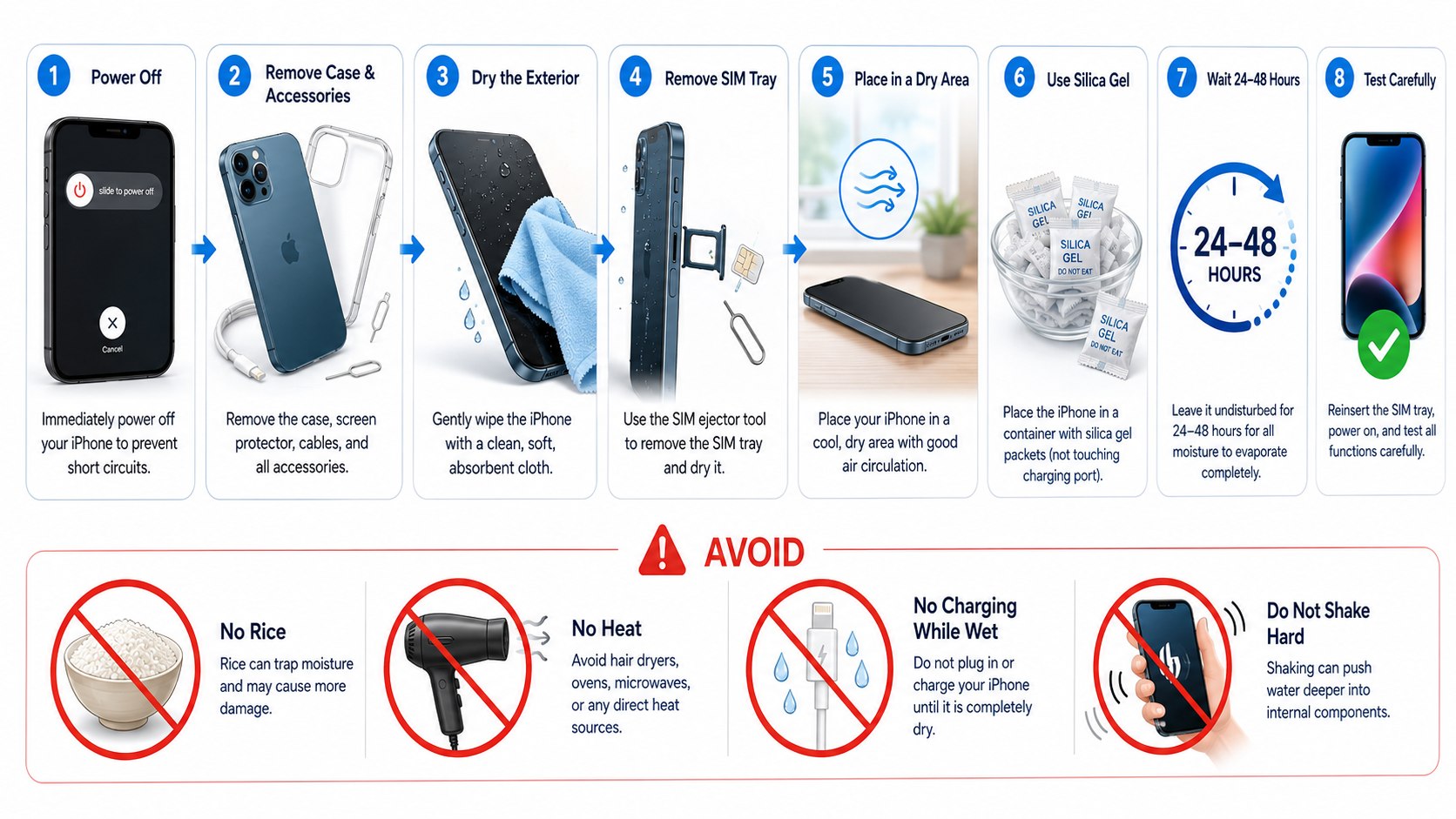
Step 1: Disconnect power and accessories
Unplug the charging cable, USB accessory, wired headphones or external battery immediately. Remove the case and any attached wallet, grip or magnetic accessory.
This reduces the chance of electricity passing through a damp connector. It also exposes trapped water around buttons, speaker openings and case edges.
A common mistake is repeatedly reconnecting the charger to check whether the warning disappeared. Each test introduces another opportunity for wet contacts to corrode.
Step 2: Move the iPhone away from the liquid
Place the iPhone on a clean surface away from the sink, bathtub, pool or spilled drink. If the device fell into saltwater or chlorinated water, avoid unnecessary button presses.
Apple says water resistance is not permanent. Seals can weaken through normal wear, impacts and previous repairs. Even an IP-rated model should not be treated as waterproof.
A common mistake is assuming a newer iPhone cannot suffer liquid damage. Laboratory ratings do not recreate cracked glass, aged adhesives or high-pressure water.
Step 3: Wipe the exterior carefully
Use a soft, lint-free cloth to remove visible moisture from the display, frame and rear glass. Pay attention to the charging connector, buttons and speaker areas without pushing material inside them.
This prevents surface water from migrating into openings while the device rests. It also helps you identify cracks or gaps that may have allowed deeper exposure.
Do not shake the phone forcefully. Vigorous movement can spread moisture across internal components instead of removing it.
If coffee, soda, juice, lotion or another sticky substance reached the iPhone, surface drying may not remove the residue. Contamination can remain after the water evaporates.
Step 4: Point the connector downward and tap gently
Hold the iPhone with its Lightning or USB-C connector facing downward. Tap the phone gently against your hand so excess liquid can leave the opening.
This is part of Apple’s official iPhone drying method. Gravity removes loose droplets without forcing air or foreign objects into the connector.
Avoid striking the phone against a desk or hard surface. Hard impacts can damage the display, camera stabilization system or enclosure.
“Don’t put your iPhone in a bag of rice.”
Apple Support, official liquid-detection guidance for iPhone users.
Apple warns that rice particles can enter and damage the connector. Rice also does not provide controlled airflow around the port. The phone may remain damp while appearing dry outside.
Step 5: Leave the iPhone in a dry area with airflow
Set the iPhone on a flat, dry surface in a room with normal ventilation. Keep the connector exposed and avoid covering the phone with clothing, towels or bedding.
Natural airflow allows moisture inside the connector to evaporate gradually. A cool fan may improve room circulation, but it should not force air directly into the port.
Do not use a hair dryer, oven, radiator, heating pad or direct sunlight. Excessive heat can damage the battery, display adhesive and internal seals.
| Method | Recommended? | Main concern | Suggested waiting period |
|---|---|---|---|
| Dry room with natural airflow | Yes | Slow but safest official approach | 30 minutes to 24 hours |
| Cool room fan nearby | Sometimes | Do not force air into the connector | Several hours |
| Bag of rice | No | Particles can enter the port | Not applicable |
| Hair dryer or heater | No | Heat can damage components and adhesives | Not applicable |
| Compressed air | No | Pressure can push liquid deeper | Not applicable |
The waiting period depends on how much liquid entered the connector. Humidity and room temperature also affect evaporation. A brief splash may clear faster than full submersion.
Do not rely only on the exterior’s appearance. The glass and frame may feel dry while moisture remains between the connector pins. Restarting or charging too early can turn a recoverable incident into permanent damage.
Leave the device undisturbed whenever possible. Constant handling changes its position and can move trapped moisture. A dry shelf or desk is better than a pocket or closed drawer.
Keep the iPhone away from steam, bathrooms and kitchen counters. Humid air slows evaporation. A climate-controlled room is generally more suitable than a garage or parked vehicle.
Apple’s guidance allows up to 24 hours for the connector to dry completely. That period is inconvenient, but it is cheaper than replacing a damaged charging assembly or phone.
Step 6: Wait at least 30 minutes before testing
After at least 30 minutes, connect a known-dry Apple or certified cable. If the liquid-detection alert returns, disconnect it immediately and continue drying.
The first waiting period allows visible droplets to drain. However, moisture deeper inside the connector may require several more hours.
A common mistake is dismissing the alert through the emergency charging option. That override exists for urgent circumstances, but wet wired charging can damage the connector.
When communication is essential, compatible wireless charging may be safer after the back of the iPhone becomes completely dry. Stop immediately if the device becomes unusually warm.
Step 7: Check the cable and charger
Inspect both ends of the cable for moisture, residue, discoloration or debris. Test another fully dry cable only after the iPhone has completed its drying period.
The liquid alert can be triggered by a wet or damaged accessory. Replacing the cable may solve the problem when the iPhone itself is dry.
Do not insert the cable into rice, silica gel or absorbent powder. Wipe its exterior and leave it disconnected in open air.
For related device preparation, Baltimore Chronicle also provides a guide on setting up a new iPhone. It covers Apple Account access, eSIM activation and data transfer.
Step 8: Back up the iPhone after it works
Once charging and normal operation return, connect to Wi-Fi and create a current iCloud backup. A Mac or Windows computer can provide another backup option.
Liquid damage sometimes appears gradually because corrosion continues after visible moisture disappears. A backup protects photos, messages, documents and authentication data.
A common mistake is postponing the backup because the phone appears normal. Unexpected camera, charging or display problems can develop later.
Step 9: Arrange service when warning signs remain
Contact Apple or an Apple Authorized Service Provider if the alert remains after 24 hours. Service is also appropriate when the iPhone restarts, overheats or loses major functions.
Apple states that liquid damage is not covered by its standard 1-year limited warranty. AppleCare+ may cover accidental liquid damage under its applicable service terms.
As of 2026, Apple’s online repair estimator shows that out-of-warranty “other damage” can reach several hundred dollars. Some model estimates approach $799 before tax or shipping. The final amount depends on the model and inspection results.
Verify the current estimate through Apple’s official iPhone repair page. Apple Authorized Service Providers may set separate labor and diagnostic fees.
Troubleshooting a wet iPhone
The following symptoms help distinguish remaining connector moisture from broader internal damage.
- The liquid alert returns: Disconnect the cable and continue airflow drying for several hours.
- The iPhone will not turn on: Stop repeated restart attempts and arrange an inspection.
- The speaker sounds muffled: Leave the phone drying naturally and avoid inserting objects into the grille.
- The camera lens looks foggy: Internal moisture is likely, making professional inspection advisable.
- The phone becomes hot: Stop using and charging it, then move it away from flammable materials.
A persistent liquid alert does not always prove internal flooding. The connector or cable may contain residue, corrosion or debris. Testing with a dry certified cable can isolate the accessory after 24 hours.
Muffled sound can improve as moisture evaporates from the speaker area. However, strong distortion or complete audio loss deserves service. Do not play loud “water-ejection” sounds repeatedly.
Fogging behind a camera lens indicates moisture passed beyond the exterior. Drying the port alone will not reliably address that problem. Internal corrosion can begin before visible performance changes appear.
Heat, swelling or a chemical odor requires immediate caution. Do not charge the device or place it under bedding. Apple advises discontinuing use when battery damage is suspected.
For a phone exposed to ocean water, pool chemicals, detergent or soda, residue creates an additional risk. A professional inspection may be justified even when the phone initially works.
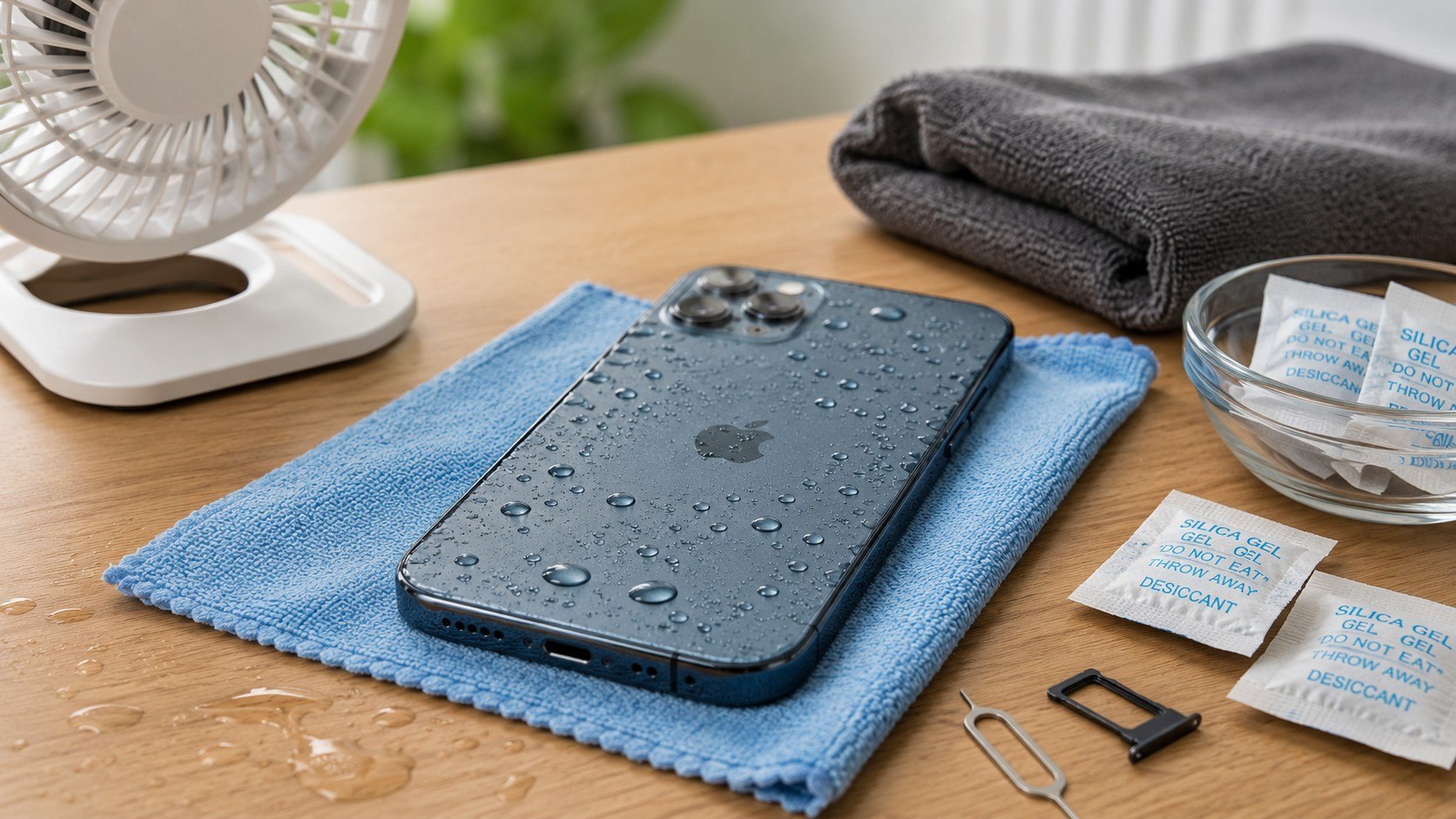
What not to do with a water-damaged iPhone
Most harmful mistakes come from trying to accelerate drying. Avoid these actions even when the phone contains urgent work, travel or banking information.
- Do not place the iPhone in rice.
- Do not use a hair dryer, oven or radiator.
- Do not insert cotton swabs, paper or tools into the connector.
- Do not use compressed air.
- Do not open the SIM tray while the phone remains wet.
- Do not charge through a cable while an alert is displayed.
- Do not shake, slap or strike the device.
- Do not dismantle the iPhone at home.
These methods can introduce particles, excessive heat or mechanical damage. They may also move liquid farther inside the enclosure. An intact phone can become harder to repair after aggressive handling.
Home disassembly carries additional battery risks. Modern iPhones use strong adhesives and tightly packed components. Puncturing a lithium-ion battery can cause overheating, smoke or fire.
Opening the phone may also complicate later diagnosis. Apple technicians need to identify the actual failure and inspect liquid contact indicators. Previous unqualified work can obscure the damage.
The safest approach remains controlled waiting. Disconnecting power, improving airflow and monitoring symptoms require patience rather than equipment.
When the phone contains irreplaceable data, tell the service provider that data preservation is the priority. Device replacement may restore function but will not recover information absent from a backup.
FAQ
How long should a water-damaged iPhone dry?
Wait at least 30 minutes before the first cable test. Apple says complete connector drying may take up to 24 hours. Continue waiting whenever the liquid alert returns.
Does putting an iPhone in rice work?
No. Apple specifically advises against rice because small particles can enter and damage the connector. A dry location with natural airflow is the recommended method.
Can I charge a wet iPhone wirelessly?
Wireless charging may be possible after the phone’s rear surface becomes completely dry. Remove the case and stop if the iPhone becomes unusually warm.
Is an IP68 iPhone waterproof?
No. IP68 describes resistance during controlled laboratory testing. Apple says water resistance can decline through wear, impacts and previous repairs.
Will Apple repair an iPhone with liquid damage?
Apple can inspect and service liquid-damaged iPhones. Standard warranty coverage generally excludes liquid damage, while eligible AppleCare+ plans may cover accidental incidents.
When should I stop using a wet iPhone?
Stop using it if you notice heat, swelling, smoke, a chemical odor or repeated shutdowns. Disconnect power and request professional support.
Earlier we wrote about How Much Does It Cost to Rewire a House in 2026? Full USA Price Breakdown