

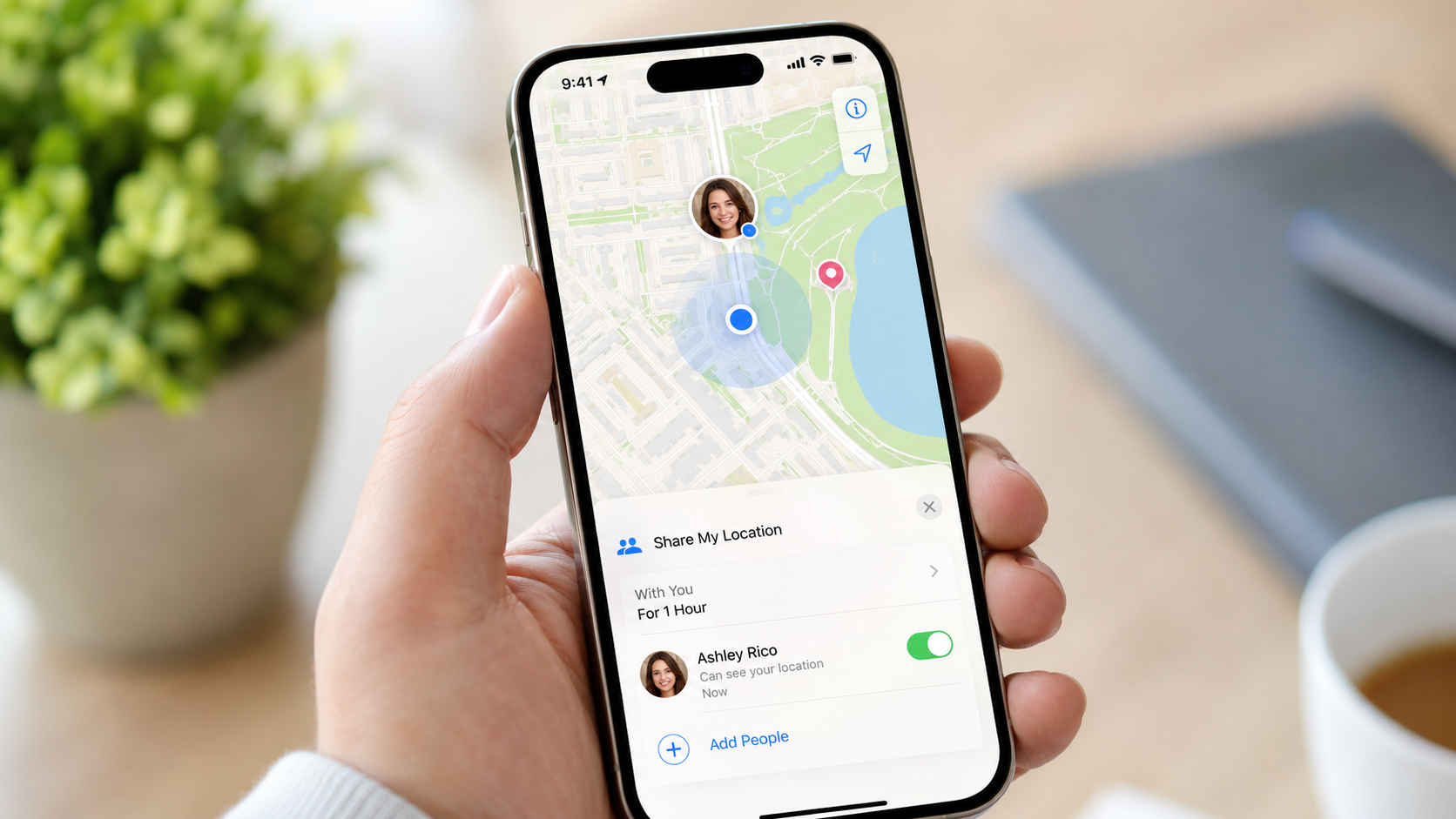
How to share location iPhone 2026 takes about 1–2 minutes using Find My or Messages. Use Find My for continuous access, or send a temporary Live Location or fixed map pin through Messages, as noted by the Baltimore Chronicle editorial team.
The quickest method is simple. Open Find My, tap People, select the Add button, and choose Share My Location. Pick a contact and limit access to 1 hour, the rest of the day, or indefinitely.
Messages is usually better for a pickup, meeting point, road trip, or short walk. Find My works better when a partner, parent, caregiver, or trusted contact needs updates over a longer period.
Key takeaways
- Use Find My when a trusted contact needs to follow your changing location for more than a brief conversation.
- Use Messages when you need to send a meeting point, current pin, or temporary Live Location.
- Choose the shortest practical sharing period and review indefinite access whenever your circumstances or relationships change.
What you need
You do not need a paid app or Apple subscription. Apple’s location-sharing tools are built into the iPhone and work through your Apple Account.
- An iPhone signed in to an Apple Account
- Location Services enabled
- Find My and Messages installed
- Wi-Fi or cellular data
- The recipient’s phone number or Apple Account email
- About 1–2 minutes
- No additional fee beyond normal carrier data charges
Update the iPhone before starting when menu names look different. Apple occasionally moves controls between software releases. Older devices may also offer fewer Live Location options.
The recipient may need an Apple device for the complete Find My experience. Android users can still receive a map pin or link through Messages, although the available controls may differ.
Step 1: Turn on Location Services
Open Settings > Privacy & Security > Location Services. Turn on Location Services if the main switch is disabled.
This setting allows the iPhone to calculate its position using GPS, cellular networks, Wi-Fi, and nearby devices. Find My cannot provide useful live updates when system-level location access is blocked.
Next, scroll through the app list and check Find My. Select an appropriate permission, such as While Using the App, when that option appears.
A common mistake is enabling location access for Maps but not checking Find My. Maps permission does not automatically grant the same access to every Apple app.
Step 2: Enable Find My and Share My Location
Return to Settings and tap your name at the top. Open Find My, then confirm that Find My iPhone is enabled.
Turn on Share My Location. This control allows selected people to see the location source linked to your Apple Account.
Find My iPhone and Share My Location perform different jobs. Find My iPhone helps recover your own missing device. Share My Location gives chosen contacts permission to see where you are.
Turning on Find My does not publish your location to everyone. You must still select each recipient and define how long access remains active.
Readers preparing a replacement phone should also review the Baltimore Chronicle guide on how to set up a new iPhone in 2026. It covers Apple Account access, eSIM activation, Quick Start, privacy settings, and post-setup checks.
Step 3: Select the correct location-sharing device
Open Find My and tap Me at the bottom. Check the device listed as the source of your location.
If the wrong Apple device appears, select Use This iPhone as My Location. This prevents an iPad, older iPhone, or work device from reporting the wrong place.
The setting matters for households with several Apple products. An iPad left in a New York apartment could make it appear that its owner never left home.
Freelancers carrying separate business and personal phones should also verify the source. Parents should repeat the check for every child using Family Sharing.
A common mistake is assuming Apple always selects the device in your pocket. Confirm the location source before a school pickup, airport trip, outdoor event, or long drive.
Step 4: Share your location through Find My
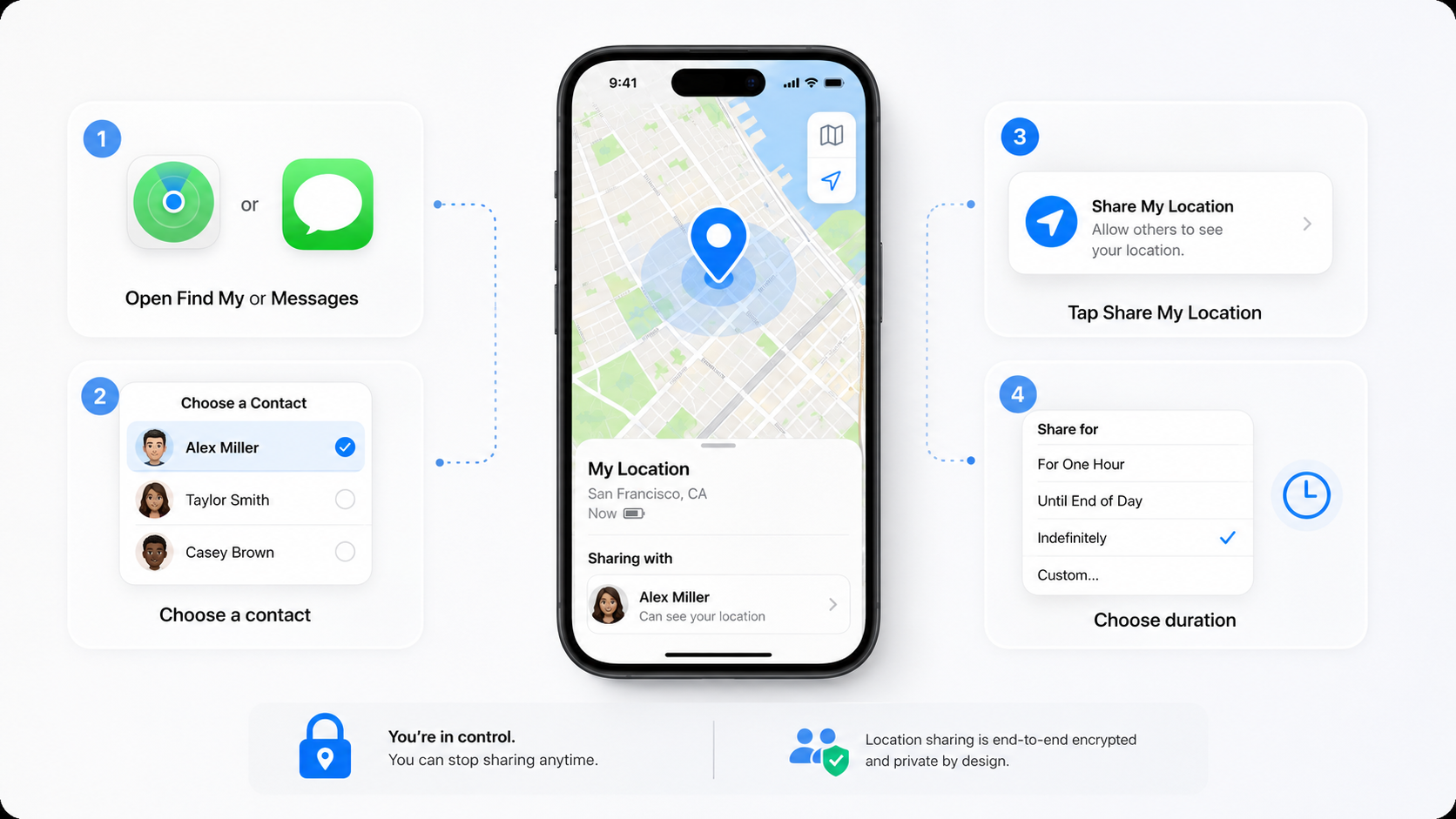
Open Find My and tap People. Select the Add button, choose Share My Location, and enter the recipient’s name, number, or Apple Account email.
Tap Send and choose a duration. Apple normally offers access for 1 hour, until the end of the day, or indefinitely.
This is the best method for continuous iPhone location sharing. The recipient can see changes as the iPhone moves, subject to connectivity and location accuracy.
The duration is a privacy decision, not just a technical setting. Use 1 hour for a short meetup. Choose the end of the day for travel or a family outing.
Reserve indefinite sharing for people who genuinely need ongoing access. That may include a partner, parent, caregiver, or household member.
The recipient may be invited to share their location back. Sharing is not automatically reciprocal, and you do not have to accept a return request.
A common mistake is granting indefinite access during a temporary event. The setting remains active until someone manually stops it.
Step 5: Share a location through Messages
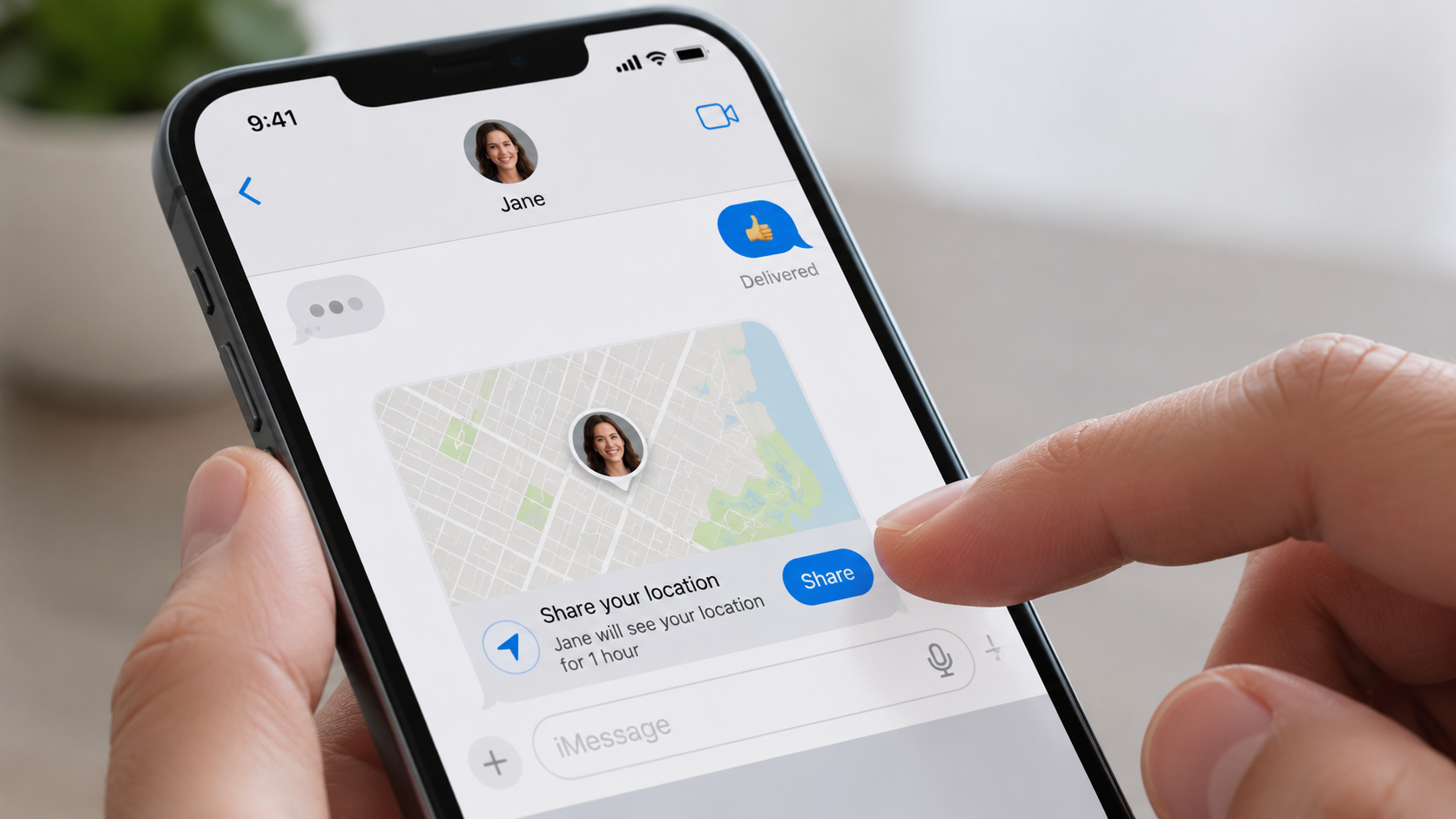
Open Messages and select the correct conversation. Tap the Add button beside the message field, then choose Location.
Select a fixed pin when the recipient only needs one place. Choose Live Location when they should see your movement for a limited period.
Sharing location in Messages works well when the map needs context. You can send an apartment entrance, parking area, restaurant door, or school pickup point beside written instructions.
A driver can share progress instead of answering repeated calls. A renter can mark the correct entrance in a large building. A parent can provide temporary updates during a child’s trip.
Before switching devices, review the Baltimore Chronicle guide on how to transfer data from an old iPhone to a new iPhone. It explains Quick Start, iCloud backups, Finder transfers, and checks that should be completed before erasing the old phone.
A common mistake is posting a location inside a group conversation. Check the recipient list before sending any home address, workplace, school, or travel route.
Step 6: Choose between Find My, Live Location, and a map pin
The right option depends on how much information the recipient actually needs. A fixed location reveals less than a live route.
| Method | Best use | What the recipient sees | Main privacy consideration |
|---|---|---|---|
| Messages map pin | Store, entrance, parked car, meeting point | One fixed position | Does not show later movement |
| Messages Live Location | Pickup, walk, commute, short journey | Changing position during the session | Check the selected duration |
| Find My for 1 hour | Concert, appointment, short meetup | Live updates for a limited period | Access expires automatically |
| Find My until day’s end | Road trip, family outing, travel day | Live updates until the period expires | May continue after the activity ends |
| Find My indefinitely | Trusted family or household arrangement | Ongoing access until manually stopped | Requires regular review |
A fixed pin is the most limited option. It shows where you were when the location was sent but does not follow later movement.
Temporary Live Location offers more detail without creating permanent access. It is usually enough for pickups, walks, appointments, and travel connections.
Indefinite sharing should not be treated as proof of trust. No partner, employer, landlord, or client should pressure someone into permanent tracking.
Review the People section after a breakup, job change, move, caregiving change, or family dispute. Old access can remain active long after its original purpose ends.
Stopping location sharing does not delete the contact. It only removes access to current and future location updates.
Step 7: Stop sharing your iPhone location
To stop access for one person, open Find My and tap People. Select the contact, scroll down, and choose Stop Sharing My Location.
To pause sharing more broadly, open the Me section and turn off Share My Location. This affects ongoing sharing from the selected device.
Removing someone from Messages does not necessarily cancel Find My access. Check both apps when privacy matters.
For a wider review, open Settings > Privacy & Security > Safety Check. Use Manage Sharing & Access to inspect people, apps, and connected account permissions.
Emergency Reset can end sharing quickly when access must be removed immediately. It is particularly relevant after account compromise, unwanted monitoring, theft, or an unsafe relationship.
Also inspect devices signed in to your Apple Account. Remove unfamiliar hardware and change your password when you do not recognize a listed device.
Troubleshooting iPhone location sharing
Most location-sharing failures involve permissions, internet access, the wrong source device, or incorrect contact information. Check these scenarios before resetting the phone.
- “Location Not Available” appears: Confirm that both devices have internet access and Location Services enabled.
- The map shows the wrong place: Open Find My, tap Me, and select this iPhone as the location source.
- The recipient receives nothing: Verify the saved phone number or Apple Account email.
- Updates appear late: Leave a garage or dense building and check Wi-Fi, cellular data, and Airplane Mode.
- The Location button is missing: Update iOS and inspect the Add menu inside Messages.
Restarting the iPhone can clear a temporary problem, but it should not be the first fix. Start with permissions, connectivity, and source-device settings.
Dense buildings, tunnels, parking garages, and rural roads can reduce GPS accuracy. A weak cellular connection may also delay updates.
Low Power Mode can limit some background activity. It does not normally remove an existing sharing arrangement, but updates may appear less frequently.
If Find My still fails after a device change, confirm that the new iPhone is signed in to the correct Apple Account. Also check that the old phone is no longer selected as the source.
For offline-device recovery, see the Baltimore Chronicle guide on how to find an iPhone when it is offline. It explains Find My network, Lost Mode, last-known locations, and recovery mistakes to avoid.
FAQ about how to share location iPhone 2026
Can I share my iPhone location with an Android phone?
You can send an Android user a map pin or link through Messages or another messaging app. However, the recipient may not receive the complete Find My experience available between Apple devices.
Does sharing location on iPhone cost money?
Apple does not charge a separate fee for Find My or Messages location sharing. Normal cellular data charges may apply when Wi-Fi is unavailable.
Can someone see my location after I stop sharing?
They should no longer receive new Find My or Live Location updates. Previously sent map pins may remain visible because they show an earlier fixed location.
Will someone know when I stop sharing my location?
The result can depend on the sharing method and software version. The other person may notice that your location is no longer available.
How do I share my location for only 1 hour?
Open Find My, tap People, choose Share My Location, and select a contact. Choose the 1-hour option instead of indefinite access.
Why is my iPhone showing the location of my iPad?
The iPad is probably selected as the location source. Open Find My on the iPhone, tap Me, and choose Use This iPhone as My Location.
Earlier we wrote about VA Loan Eligibility Requirements 2026: Service Rules, COE and Entitlement Explained