

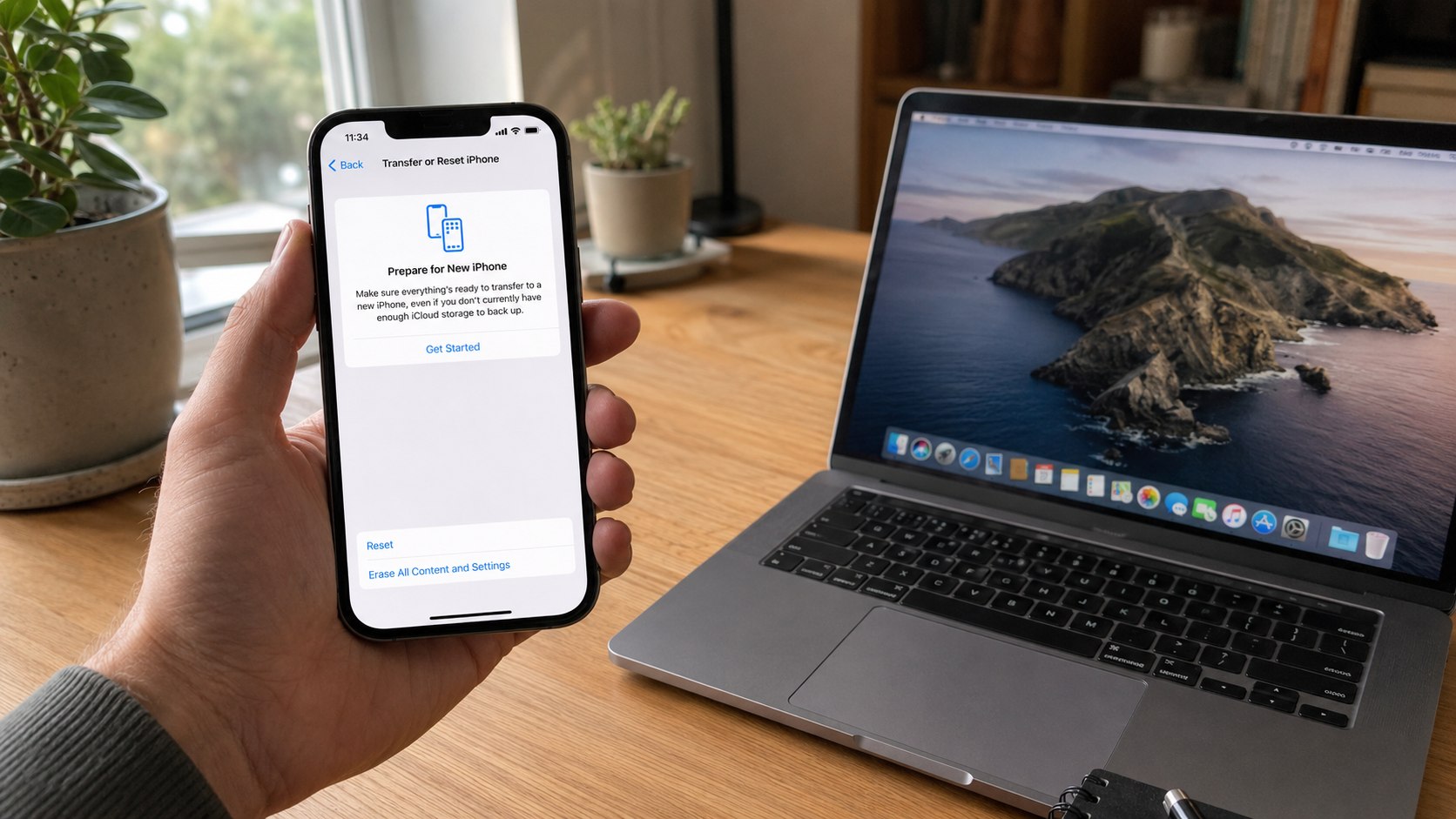
Learning how to factory reset an iPhone 2026 takes about 10 to 30 minutes when the phone works normally. The process removes personal content and settings, disconnects accounts, and returns the device to the initial setup screen, аs noted by Baltimore Chronicle.
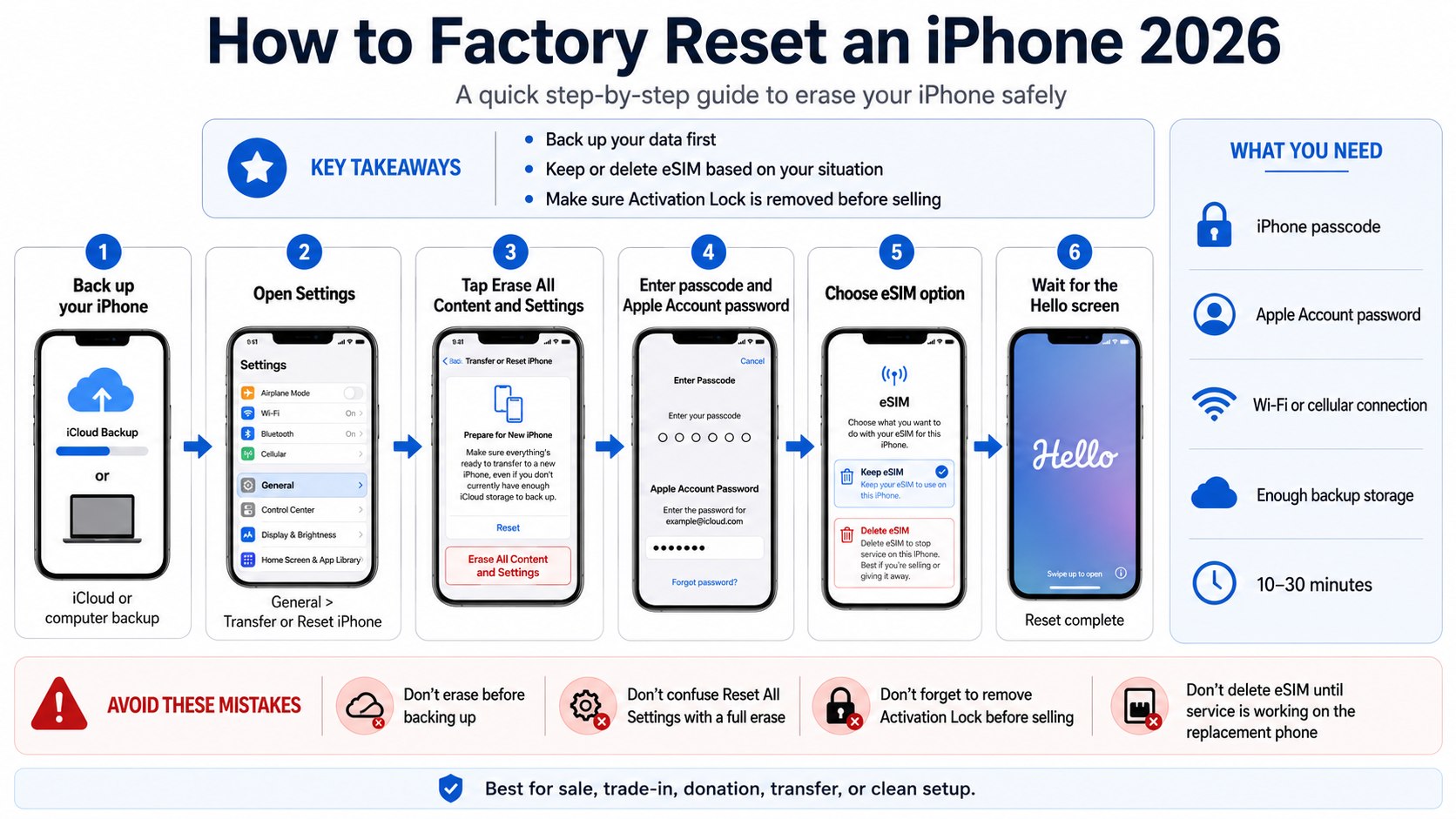
For a working iPhone, open Settings, select General, tap Transfer or Reset iPhone, and choose Erase All Content and Settings. Back up photos, messages, passwords, authentication apps, and other essential data before confirming the erase.
Key takeaways
- Back up the iPhone because a factory reset removes locally stored files, apps, accounts, and settings.
- Keep the eSIM when continuing to use the phone; erase it when transferring the device to someone else.
- Confirm that Activation Lock is removed before selling, trading in, donating, or giving away the iPhone.
What you need
- The iPhone and its current passcode.
- The password for the Apple Account connected to the device.
- A stable Wi-Fi or cellular connection.
- Enough iCloud storage or a Mac or Windows PC for a backup.
- A compatible USB or USB-C cable when using a computer.
- About 10 to 30 minutes for a standard reset.
- Additional time if a large backup must be created first.
- No payment. Apple does not charge a fee to erase an iPhone.
The menus described below apply to iPhone software available in the United States in 2026. Button names may differ slightly on devices running an older iOS version.
Step 1: Decide whether you need a reset or a full erase
Confirm that the problem requires a full factory reset rather than a restart or a settings-only reset. A complete erase is appropriate before a sale, trade-in, donation, family transfer, major troubleshooting attempt, or clean setup.
This distinction matters because Reset All Settings keeps photos, apps, messages, and other personal data. Erase All Content and Settings removes personal information from the device.
A settings reset may solve network, keyboard, privacy, location, or Home Screen problems without deleting files. Update the affected app, restart the phone, check available storage, and install current iOS updates before using a full erase to fix a minor problem.
| Option | What it changes | Best use |
|---|---|---|
| Restart | Turns the iPhone off and on without deleting data | Temporary freezing, slow performance, or a stalled app |
| Reset All Settings | Restores system preferences but keeps personal content | Network, privacy, keyboard, layout, or configuration problems |
| Factory reset | Deletes content, accounts, apps, and settings | Sale, trade-in, transfer, clean setup, or serious troubleshooting |
| Computer restore | Erases the phone and reinstalls compatible iOS software | Forgotten passcode, disabled device, or damaged system software |
Step 2: Back up the iPhone
Create a current backup through iCloud, Finder on a Mac, or the Apple Devices app on a Windows PC. Check that recent photos, contacts, messages, notes, health records, and app data are included.
The backup matters because a factory reset without losing data is possible only when the information exists somewhere other than the iPhone. Erasing the device does not automatically create a recovery copy.
For iCloud, open Settings, tap the account name, select iCloud, choose iCloud Backup, and tap Back Up Now. Keep the phone connected until the screen displays a recent successful backup time.
Detailed instructions are available in Baltimore Chronicle’s guide on how to back up an iPhone to iCloud in 2026. The guide covers Wi-Fi requirements, available storage, automatic backups, and common reasons a backup may fail.
For a local backup, connect the iPhone to a Mac, open Finder, and select the device from the sidebar. Choose the option to back up the iPhone’s data to the Mac and enable encryption when passwords, Wi-Fi settings, Health data, and other protected information must be preserved.
Baltimore Chronicle also provides separate instructions for backing up an iPhone to a Mac in 2026. A local encrypted backup can be useful when iCloud storage is full or the internet connection is unreliable.
Do not assume that iCloud Photos is the same as a complete device backup. Synced photos may remain in iCloud, but app data and device settings depend on the services and backup options enabled for the account.
Step 3: Prepare accounts, accessories, and cellular service
Unpair an Apple Watch before transferring the iPhone to another person. Check authentication apps, banking apps, work profiles, digital keys, and carrier information for anything that must be moved or reactivated.
This preparation reduces the risk of losing access to accounts that depend on the old phone. Parents should verify Screen Time credentials and confirm that a child’s data is included in the intended family backup.
When selling or giving away the device, remove payment cards from Apple Wallet and transfer any digital transit cards or keys that cannot remain on the old phone. Remove the physical SIM card when the iPhone model has a SIM tray.
Apple’s official instructions for preparing an iPhone for sale, trade-in, or transfer cover Apple Watch, Apple Pay, Find My, trusted devices, and account removal.
Do not manually delete photos, contacts, calendars, or notes while they are still syncing. Manual deletion may remove those items from iCloud and other connected Apple devices rather than only from the phone being transferred.
Step 4: How to Factory Reset an iPhone 2026 in Settings
Open Settings and follow this path:
- Tap General.
- Scroll down and tap Transfer or Reset iPhone.
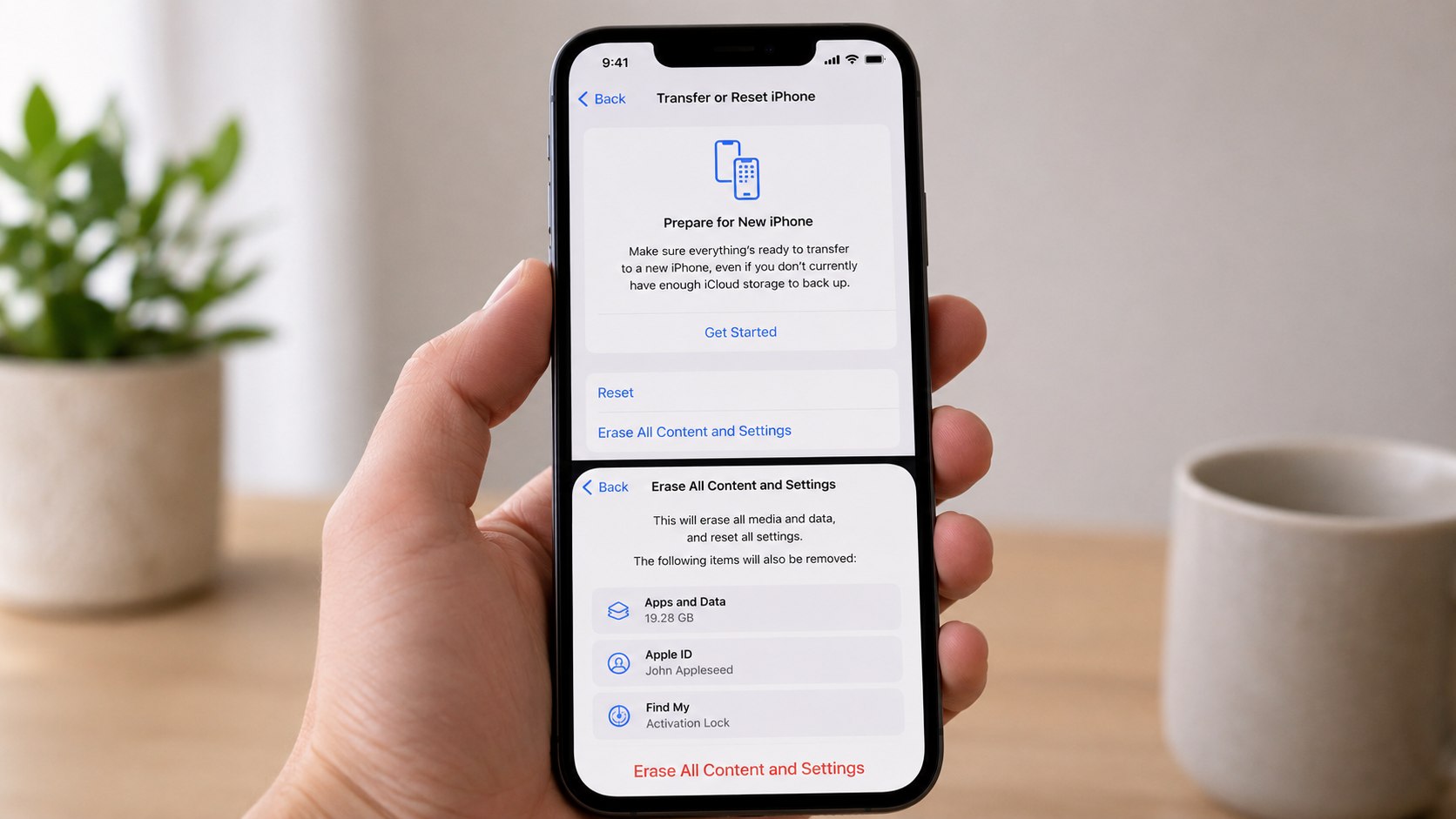
- Select Erase All Content and Settings.
- Review the content and accounts scheduled for removal.
- Tap Continue.
- Enter the iPhone passcode.
- Enter the Apple Account password if requested.
- Choose whether to keep or delete the eSIM.
- Confirm the erase command.
- Allow the iPhone to restart without interrupting the process.
This is Apple’s standard reset iPhone to factory settings method for a device that turns on and accepts its passcode. It removes personal content and returns the phone to the Hello screen.
The Apple Account password may be required to disable Find My and Activation Lock. Connect the phone to Wi-Fi or cellular service before starting so Apple can verify the account information.
Avoid choosing Reset from the Transfer or Reset iPhone menu when the goal is to remove personal information. The Reset submenu changes selected system preferences but does not perform a complete data erase.
A factory reset is complete when the iPhone reaches the Hello setup screen and no longer opens to the previous owner’s Home Screen.
Step 5: Choose whether to keep or delete the eSIM
Select the eSIM option according to what will happen to the device. Keep the eSIM when resetting the iPhone for personal troubleshooting. Delete it when selling, donating, trading in, or permanently transferring the phone.
This choice matters because deleting an eSIM may require assistance from AT&T, Verizon, T-Mobile, or another carrier before cellular service can be restored on the same device. Keeping it may leave a cellular profile associated with a phone intended for another person.
| Situation | Recommended eSIM choice | Reason |
|---|---|---|
| Resetting to fix software problems | Keep eSIMs and Erase Data | The current cellular plan remains available during setup |
| Setting up the same phone as new | Keep eSIMs and Erase Data | A new carrier activation is normally unnecessary |
| Selling or giving away the phone | Delete eSIMs and Erase Data | The cellular profile should not remain on the transferred device |
| Moving service to another iPhone | Complete the carrier transfer first | Transfer requirements depend on the carrier and account |
Confirm that calls, text messages, and cellular data work on the replacement phone before deleting the old eSIM. Activation procedures can differ among carriers and account types across California, Texas, Florida, New York, Maryland, and other states.
Deleting an eSIM does not automatically cancel the cellular plan or stop billing. Contact the carrier when a line must be canceled rather than transferred.
Step 6: Verify the erase and remove Activation Lock
Wait for the iPhone to restart and display the Hello screen. When transferring the phone, confirm that it does not request the previous owner’s Apple Account during activation.
This verification matters because Find My enables iPhone Activation Lock, which prevents another person from activating a lost or stolen device. A buyer, relative, recycling program, or trade-in company may reject an iPhone that remains linked to the former owner.
Erasing through Settings normally removes Activation Lock after the correct Apple Account password is entered. When the phone is no longer available, the owner may need to use Find My online, erase the device remotely, and remove it from the account.
Follow Apple’s current Activation Lock removal instructions when an erased phone still displays “iPhone Locked to Owner.” Never give an Apple Account password to a buyer, marketplace user, store employee, or repair technician.
A reset does not remove a carrier lock. Contact AT&T, Verizon, T-Mobile, or the relevant carrier when the phone must be unlocked for use on another network.
Step 7: Set up or transfer data to the iPhone
The same owner can configure the erased phone as a new device or restore an iCloud or computer backup. Select the appropriate option on the Apps & Data screen during setup.
Setting up the iPhone as new can help determine whether crashes, battery drain, or other software problems were connected to the previous configuration. Restoring a backup returns compatible apps, account settings, messages, and other saved information.
When replacing the device, Apple’s Quick Start feature can transfer information directly from an old iPhone. Baltimore Chronicle’s guide to transferring data from an old iPhone to a new iPhone compares Quick Start, iCloud, Mac, and wired transfer methods.
Do not erase or trade in the old phone until the replacement device contains the expected photos, contacts, messages, authentication apps, and cellular service. Some apps require a separate sign-in or security confirmation after restoration.
Troubleshooting an iPhone factory reset
- Erase All Content and Settings is unavailable. Restart the iPhone, install available iOS updates, and check whether Screen Time restrictions or a work-management profile blocks account changes.
- The Apple Account password is rejected. Confirm the account shown on the phone and use Apple’s account-recovery process. Do not erase a secondhand phone until the original owner removes it from Find My.
- The iPhone is frozen on the Apple logo. Connect it to a Mac or Windows PC and attempt an update. Use recovery mode and Restore when updating does not solve the problem.
- The screen passcode is forgotten. Use recovery mode with Finder or Apple Devices to erase and reinstall iOS. The previous Apple Account may still be required because erasing does not bypass Activation Lock.
- The phone has no internet connection. Connect to reliable Wi-Fi or cellular service. Apple Account verification and Find My removal may fail while the device is offline.
A computer-based restore iPhone with Finder erases the phone and reinstalls the latest compatible iOS version. On supported Windows computers, Apple Devices manages backups, updates, and restores.
Do not pay an online service that claims it can remove Activation Lock without the owner’s credentials or valid proof of purchase. Activation Lock is an anti-theft feature, not a paid carrier restriction.
Frequently asked questions
Does a factory reset delete everything from an iPhone?
It deletes apps, accounts, settings, downloaded media, messages, and other locally stored personal content. Information already synced or backed up to iCloud is not automatically deleted from iCloud because the phone is erased.
How long does it take to erase an iPhone?
A normal on-device erase often takes about 10 to 30 minutes. Backup creation, software downloads, limited storage, a slow connection, or a computer-based restore can extend the process.
Can an iPhone be factory reset without an Apple Account password?
The phone may be erased through recovery mode without its screen passcode, but this does not remove Activation Lock. The Apple Account credentials previously associated with Find My may still be required to activate the device.
Should the eSIM be erased during a factory reset?
Keep it when the same person will continue using the phone and cellular plan. Delete it when the device is being sold, donated, traded in, recycled, or transferred after confirming that service works on the replacement phone.
Is resetting all settings the same as a factory reset?
No. Reset All Settings restores preferences such as network, privacy, keyboard, and layout settings while retaining personal content. A factory reset erases personal content and returns the iPhone to its setup screen.
Can a factory reset fix a slow or crashing iPhone?
It can resolve problems caused by corrupted settings or software. It will not repair a failing battery, damaged storage, liquid damage, or another hardware defect.
Earlier we wrote about Salary Needed to Buy a 400k House in USA in 2026