

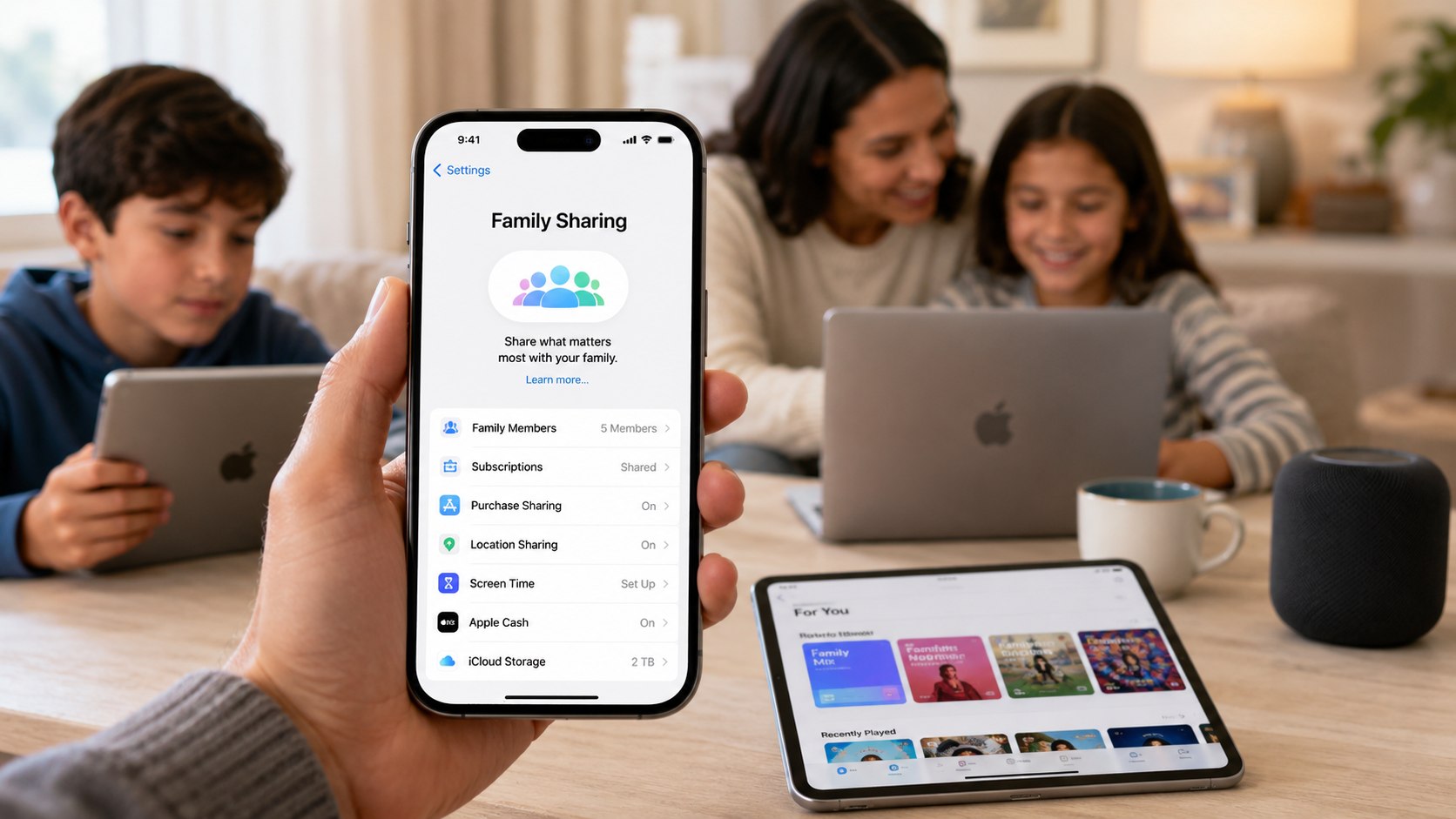
How to set up family sharing iPhone 2026 takes about 10 minutes when every person has a separate Apple Account. Open Settings, tap Family, add each member, then choose which subscriptions, purchases, location features, and parental controls to share. This guide also explains Apple Cash Family and Apple Music costs, as Baltimore Chronicle notes.
Do not sign several people into one Apple Account. Family Sharing keeps messages, photos, files, contacts, listening histories, and recommendations separate while sharing selected services.
Key takeaways
- A Family Sharing group supports an organizer and up to 5 additional members, for 6 people total.
- Apple Music Family costs $16.99 per month in the US as of 2026.
- Apple Cash Family lets an organizer manage Apple Cash for eligible children and teens in the United States.
What you need before starting
Gather the account details before sending invitations. Most failed setups involve outdated software, mismatched account regions, or someone who already belongs to another family group.
You will need:
- an iPhone running the latest available iOS version;
- a separate Apple Account for every family member;
- two-factor authentication enabled on the organizer’s account;
- the Apple Account email address or phone number for each adult;
- a valid US payment method if Purchase Sharing will be enabled;
- about 10 minutes for setup and another 5 minutes for subscription checks;
- a US residential address for Apple Cash features;
- permission from a parent or guardian when creating a child account.
Every member should confirm the country or region listed on their Apple Account. Shared purchases may not appear when one account uses the United States storefront and another uses a different country.
A family member can belong to only 1 Family Sharing group at a time. Apple may also limit how often an account can move between groups, so avoid creating a temporary group only for testing.
Back up important data before changing account settings. A recent iCloud backup protects photos, messages, settings, and app data if an account problem occurs.
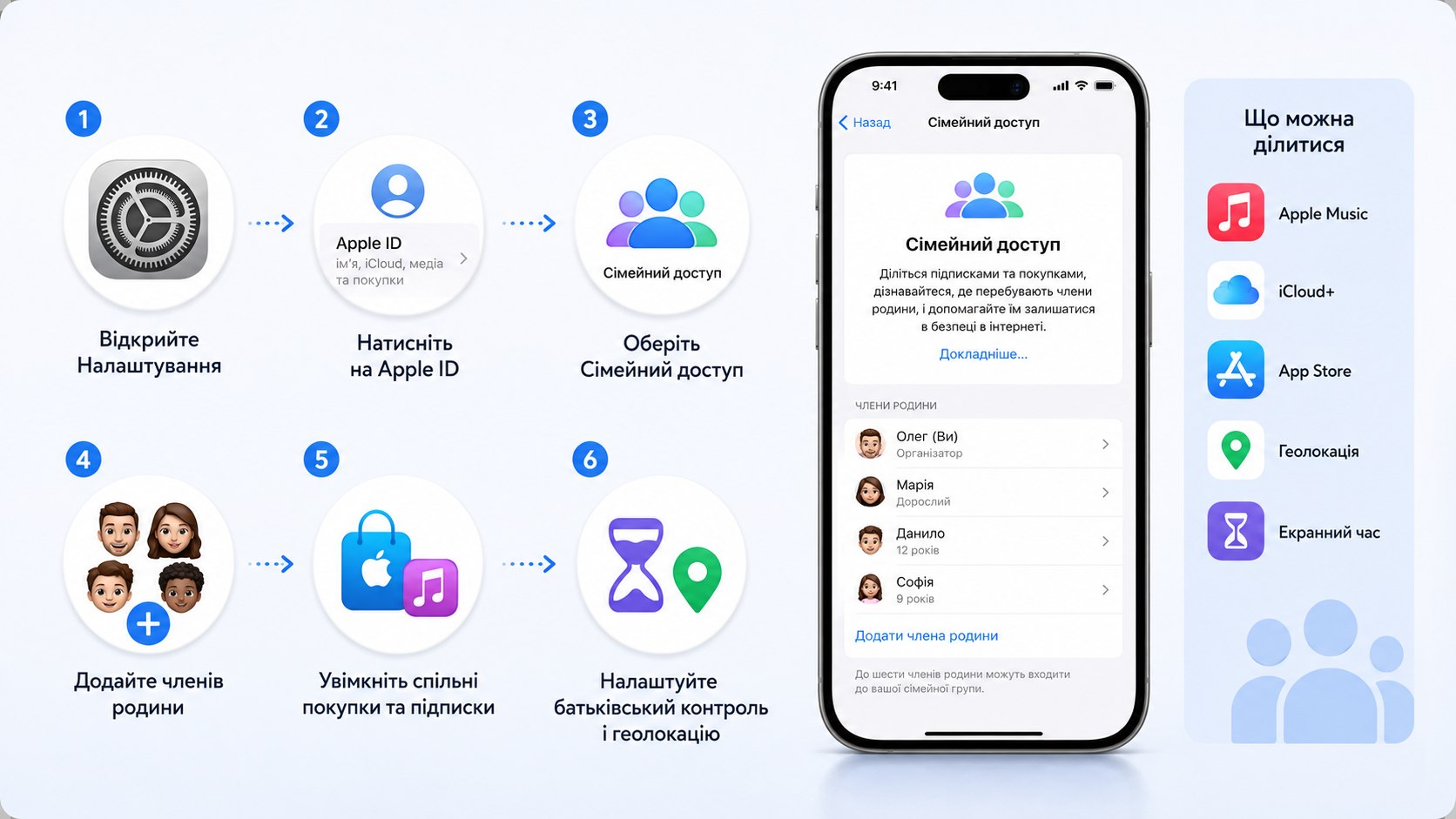
Step 1: Open Family settings on the organizer’s iPhone
Open Settings and tap Family. On some iOS versions, you may need to tap your name first and then select Family or Family Sharing.
This iPhone owner becomes the family organizer. The organizer controls invitations, shared payment settings, child accounts, and selected family services.
Avoid starting the group from an Apple Account that may soon be closed or transferred to another person. Changing the organizer later may require members to leave the current group and join a new one.
Step 2: Add adults, children, and teens
Tap the Add Member button and choose Invite People. Send the invitation through Messages, Mail, AirDrop, or the in-person option.
Each invited adult should join with a separate Apple Account. This protects personal iCloud Photos, Messages, notes, calendars, passwords, and device backups.
For a child without an account, select Create Child Account and follow the prompts. Enter the child’s correct birth date because it affects parental controls, Apple Cash access, and account-management options.
Never enter a false adult birth date to bypass a restriction. Correcting an incorrectly created child account can require additional identity checks or help from Apple Support.
Step 3: Confirm that every invitation was accepted
Return to Settings and tap Family. Select the invited person’s name to see whether the invitation remains pending.
If necessary, tap Resend Invitation. The recipient can also open Settings, tap their name, and check Invitations.
This confirmation matters because subscription access will not begin until the person joins the group. A common mistake is troubleshooting Apple Music while the invitation is still waiting for approval.
Step 4: Configure Purchase Sharing and payment controls
Open Settings, tap Family, and select Purchase Sharing. Follow the prompts if you want eligible App Store purchases, movies, books, and other content shared across the group.
When Purchase Sharing is active, the organizer’s shared payment method may be charged for family purchases. Adult members may sometimes use their own payment methods, depending on Apple’s current billing rules and account configuration.
Before enabling Purchase Sharing:
- Confirm the organizer’s card and billing address.
- Turn on Ask to Buy for eligible child accounts.
- Check whether each adult needs access to shared purchases.
- Review active subscriptions before changing the payment method.
- Hide eligible purchases that should not appear to other members.
Purchase Sharing is optional. You can share selected subscriptions without making every eligible App Store purchase available to the family.
Turning the feature off can affect access to apps, movies, books, or other media originally purchased by another member. It does not automatically erase personal photos, messages, or iCloud files.
Review Apple’s current Purchase Sharing instructions before changing the organizer’s payment method.
Step 5: Set up Apple Music through Family Sharing
Open Settings, tap your name, choose Subscriptions, and select Apple Music. Choose the Family plan if the organizer currently has an Individual subscription.
As of 2026, Apple lists Apple Music Individual at $10.99 per month and the Family plan at $16.99 per month in the United States. The Family plan serves up to 6 people, including the organizer.
Each person receives an independent music library, playlists, recommendations, downloads, and listening history. Family members do not need to share a password or combine their music profiles.
| Option | US price in 2026 | Who can use it | Main difference |
|---|---|---|---|
| Apple Music Individual | $10.99 per month | 1 person | One personal library and listening profile |
| Apple Music Family | $16.99 per month | Up to 6 people | Separate libraries and recommendations |
| Apple One Family | $25.95 per month | Up to 6 people | Apple Music, Apple TV, Apple Arcade, and 200GB iCloud+ |
| Apple One Premier | $37.95 per month | Up to 6 people | 6 services and 2TB of shared iCloud+ storage |
A couple paying for 2 Individual Apple Music plans would spend $21.98 monthly. Moving to the Family plan reduces that combined charge to $16.99, assuming both accounts are eligible.
Apple One Family may provide better value when the household also pays for Apple TV, Apple Arcade, or iCloud+. However, 200GB of shared storage may be insufficient for several active iPhone backups and large photo libraries.
The organizer should review existing subscriptions before switching. A service purchased through a wireless carrier or another company may not merge automatically with an Apple-billed plan.
Step 6: Enable Apple Cash Family for a child or teen
Apple Cash Family setup is available in the United States. The organizer can create and manage Apple Cash access for an eligible family member under 18.
Open Settings, tap Family, select the child or teen, and tap Apple Cash. Choose Set Up Apple Cash and complete the identity and account prompts.
The organizer must meet Apple’s eligibility requirements and may need to verify personal information. The child can then send, receive, and request money, subject to Apple’s rules and controls selected by the organizer.
Parents can:
- review transactions from the child’s Apple Cash settings;
- choose who the child can send money to;
- lock the account when a device is lost;
- respond to suspicious activity;
- explain payment requests and impersonation scams;
- use Ask to Buy separately for App Store purchases.
Apple Cash is not the same as the organizer’s bank account or credit card. Money held in Apple Cash can be spent through Apple Pay where accepted or transferred under Apple’s applicable rules.
Parents should discuss scams before activating the account. A child should never send money to someone claiming to represent Apple, a police department, the Internal Revenue Service, or a school administrator.
Apple Cash accounts can be restricted when verification fails or suspicious activity is detected. Review Apple’s official Apple Cash Family requirements for current age, residency, device, and identity conditions.
Apple Cash Family gives parents oversight, but it does not reverse every mistaken payment. Treat an Apple Cash transfer like money handed directly to another person.
Step 7: Choose location sharing and parental controls
Open Settings, tap Family, and review Location Sharing. Family members can use Find My to share locations and help locate supported devices.
Location sharing is not mandatory for every adult. Each person should understand which device reports their location and who can view it.
For a child account, configure Screen Time, content restrictions, communication limits, downtime, and Ask to Buy. Test the controls on the child’s iPhone instead of assuming every restriction synchronized correctly.
Parents should also confirm whether the child can install apps, make in-app purchases, change privacy settings, or communicate with unknown contacts.
Step 8: Test the setup from another family member’s iPhone
Use a second family member’s iPhone to open Settings and tap Family. Confirm that the organizer, shared subscriptions, and enabled services appear.
Open Apple Music and verify that the member has their own library. Then check the App Store purchase section, shared iCloud+ storage, Find My permissions, and Apple Cash settings where applicable.
This final test catches region conflicts, pending invitations, expired payment methods, and subscriptions bought through another provider. Avoid declaring the setup complete after checking only the organizer’s phone.
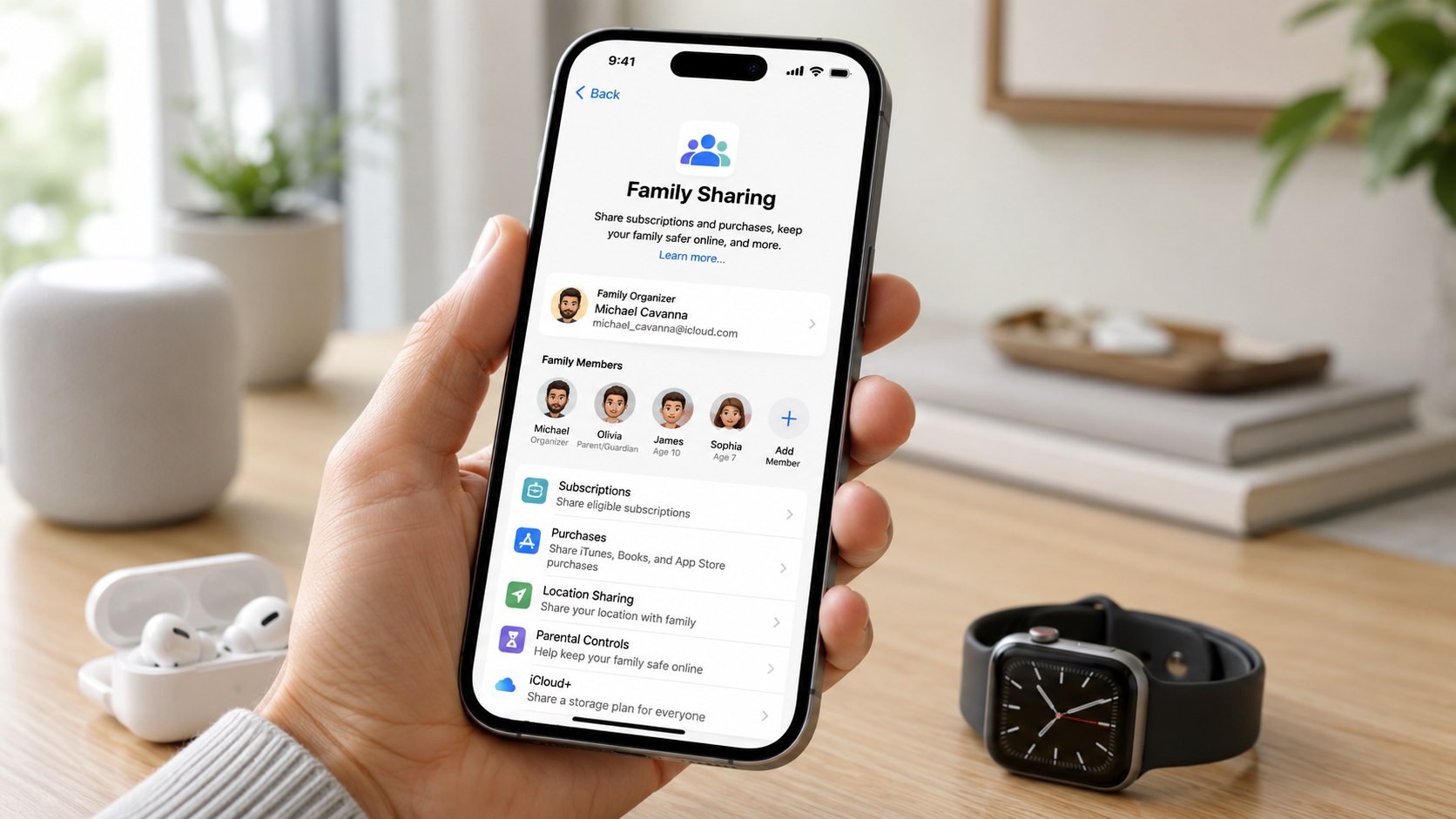
Troubleshooting Family Sharing on iPhone
Several common problems can prevent subscriptions, purchases, or Apple Cash features from appearing correctly.
- The invitation never arrives: confirm the Apple Account address, resend the invitation, or use Invite in Person.
- Apple Music still asks for payment: confirm that the member joined the group and the organizer has a Family subscription.
- Shared apps are missing: check Purchase Sharing, hidden purchases, storefront regions, and developer sharing rules.
- Apple Cash does not appear: verify US residency, age, compatible software, identity requirements, and organizer status.
- A person cannot join: check whether the account already belongs to another Family Sharing group.
Restart both iPhones after changing subscription or purchase settings. Then sign out of Media & Purchases only when Apple Support specifically recommends that action.
Do not immediately sign out of the entire Apple Account. That step can interrupt iCloud syncing, remove downloaded content, and create additional confusion.
For an Apple Music problem, check whether the subscription was purchased through Apple, Verizon, another carrier, or a third-party bundle. Only eligible Apple subscriptions appear under the organizer’s shared subscriptions.
When Apple Cash fails, review identity-verification messages in Wallet. Contact Apple Support when an account is restricted, locked, or connected to a transaction you do not recognize.
Family Sharing iPhone 2026 FAQ
How many people can use Apple Family Sharing?
A group can include up to 6 people: 1 organizer and 5 additional family members. Each person should use a separate Apple Account.
Does Family Sharing let relatives see my photos and messages?
No. Personal iCloud Photos, Messages, documents, contacts, and device backups remain separate unless someone deliberately shares an album, file, calendar, or another item.
Can I share Apple Music without sharing my credit card?
You can share an eligible Apple Music Family subscription without giving relatives your card number. However, Purchase Sharing can make the organizer’s payment method responsible for eligible family purchases.
Why is Apple Music Family Sharing not working?
The usual causes are a pending invitation, different Apple Account regions, an Individual plan, an expired payment method, or a subscription billed by another provider.
Can a child use Apple Cash through Family Sharing?
Yes. An eligible US family organizer can set up Apple Cash Family for a child or teen under 18. Account verification, compatible software, and residency requirements apply.
Can I remove someone from Family Sharing?
The organizer can remove eligible adult members in Family settings. Child accounts may need to be transferred to another family group rather than removed without replacement supervision.
Earlier we wrote about How to Shut Off Main Water in a House: Find the Valve and Stop an Emergency Leak