

Learning how to transfer from android to iphone 2026 comes down to one rule: use Apple’s Move to iOS app before finishing iPhone setup. Most people can move contacts, messages, photos, videos, calendars, mail accounts, accessibility settings, WhatsApp data, and some free apps in about 30 minutes to 2 hours, depending on storage and Wi-Fi speed, аs noted by Baltimore Chronicle.
The fastest path is simple: update both phones, plug them into power, keep them close, open Move to iOS on Android, then choose “From Android” during the new iPhone setup. Do not set up the iPhone first unless you are comfortable erasing it and starting over.
Key takeaways
- Use Move to iOS during first setup; after setup, the iPhone must usually be erased to run the guided transfer.
- Photos and videos take the longest, especially on 128GB, 256GB, or larger Samsung Galaxy and Google Pixel phones.
- Some items need manual work after transfer, including paid apps, music files, banking apps, two-factor authentication, and carrier eSIM setup.
What you need before you start
Set aside enough time so the transfer can finish without either phone leaving the room. A renter moving between apartments in New York, a parent replacing a cracked Samsung in Texas, or a freelancer switching from Pixel to iPhone in California will all run into the same problem if the Android phone disconnects halfway through.
- Your Android phone, charged to at least 50%
- Your new or erased iPhone, charged to at least 50%
- The Move to iOS app from Google Play
- Both chargers and access to Wi-Fi
- Your Google account password and Apple Account password
- Your carrier login or eSIM instructions from Verizon, AT&T, T-Mobile, or another US carrier
- Enough free time: usually 30 minutes to 2 hours
- Optional iCloud+ budget: as of 2026, US plans commonly range from $0.99/month for 50GB to $59.99/month for 12TB
Apple’s official guide for moving from Android to iPhone is the primary source to keep open if a screen looks different on iOS 26 or a later 2026 update: Apple Support guide to Move to iOS. If the iPhone is already out of the box and partly configured, Baltimore Chronicle’s guide on how to set up a new iPhone in 2026 helps check Wi-Fi, Apple Account, iCloud backup, and setup-screen decisions before restarting the process.
How to transfer from Android to iPhone 2026 with Move to iOS
The Move to iOS app creates a private Wi-Fi connection between the Android phone and the iPhone. That matters because the phones do not need a cable, but they do need to stay close and powered on.
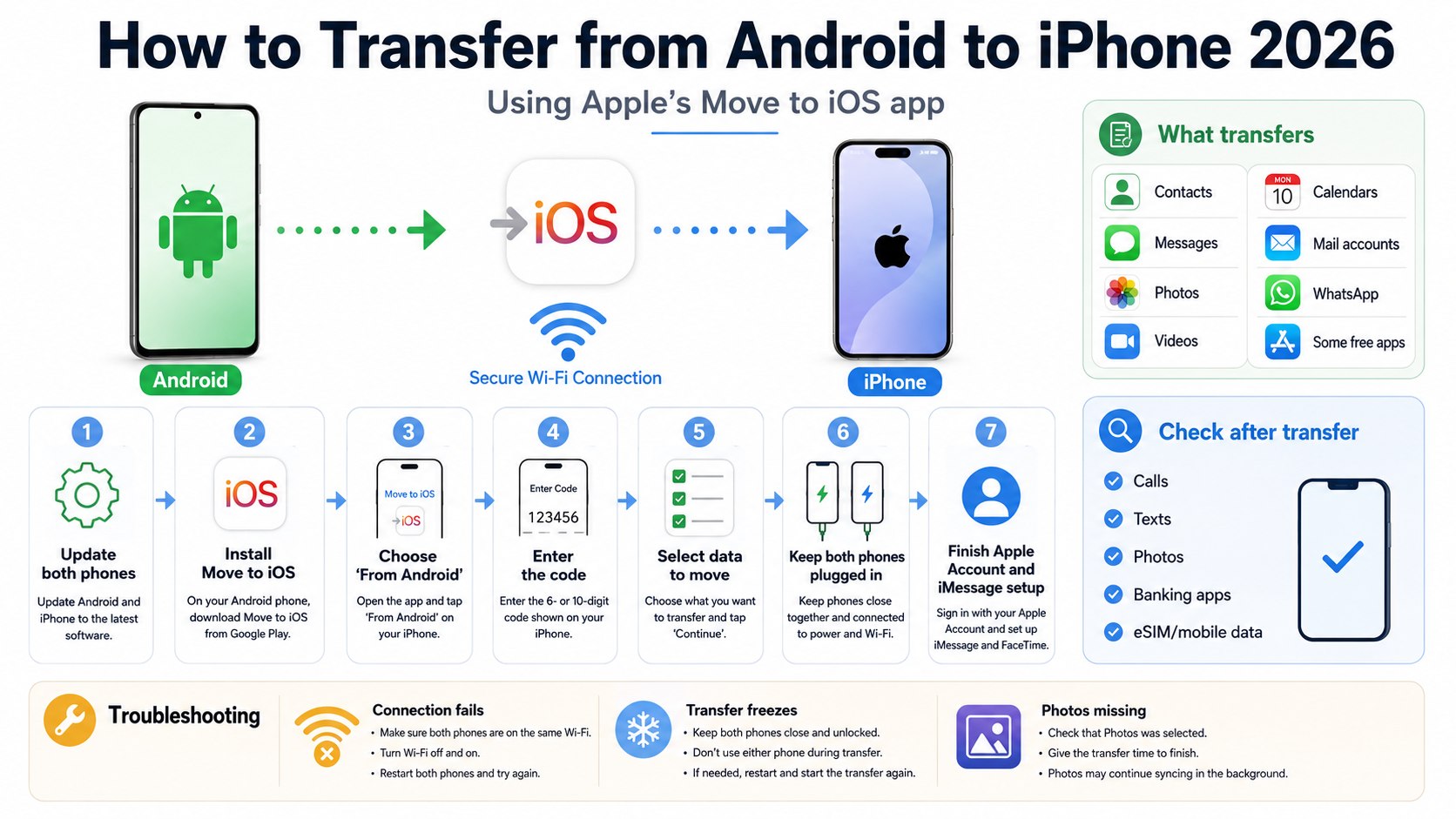
| Moves automatically | May need manual setup |
|---|---|
| Contacts | Paid Android apps |
| Message history | Banking app login and device approval |
| Camera photos and videos | Music files not stored in a cloud service |
| Calendars | Two-factor authentication apps |
| Mail accounts | Some eSIM transfers and carrier features |
| Some free apps with iOS versions | Home screen layout and widgets |
Step 1: Update both phones and back up Android
Update the Android phone through Settings and install the latest available iOS update during iPhone setup if prompted. Back up the Android phone to Google One, Google Photos, Samsung Cloud, or the phone maker’s backup tool before starting.
This protects contacts, photos, and app data if the transfer stalls or the Android battery dies.
Common mistake to avoid: starting with 10% battery and assuming the phones can be moved around the house during the transfer.
Step 2: Install Move to iOS on Android
Open Google Play on the Android phone, search for Move to iOS, and install Apple’s official app. Open it, accept the terms, and allow permissions when prompted.
The app needs permission to read the data you choose to move, including contacts, messages, photos, and calendar entries.
Common mistake to avoid: downloading lookalike transfer apps that use Apple-style names but are not published by Apple.
Readers who are still comparing Apple setup paths can also use Baltimore Chronicle’s guide to transferring data from an old iPhone to a new iPhone in 2026. It is written for iPhone-to-iPhone migration, but it helps explain the difference between Quick Start, iCloud backup, and device-to-device transfer.
Step 3: Start iPhone setup and choose “From Android”
Turn on the new iPhone and move through setup until the “Transfer Your Apps & Data” screen appears. Choose “From Android.”
This is the key moment because Move to iOS app transfer only works as a guided migration during initial iPhone setup.
Common mistake to avoid: tapping “Don’t Transfer Anything” just to reach the home screen faster.
If the iPhone is already set up, go to Settings, erase the iPhone, and restart setup only after confirming that anything already on the iPhone is backed up. This is the most common reason people think the Android to iPhone transfer is missing.
Step 4: Enter the code and connect the phones
The iPhone will show a code. Enter that code in Move to iOS on the Android phone, then let the phones connect through the private Wi-Fi network the iPhone creates.
This direct connection reduces dependency on your home router, although a stable internet connection still matters for sign-ins and app downloads.
Common mistake to avoid: switching the Android phone back to the home Wi-Fi network after the iPhone creates its temporary network.
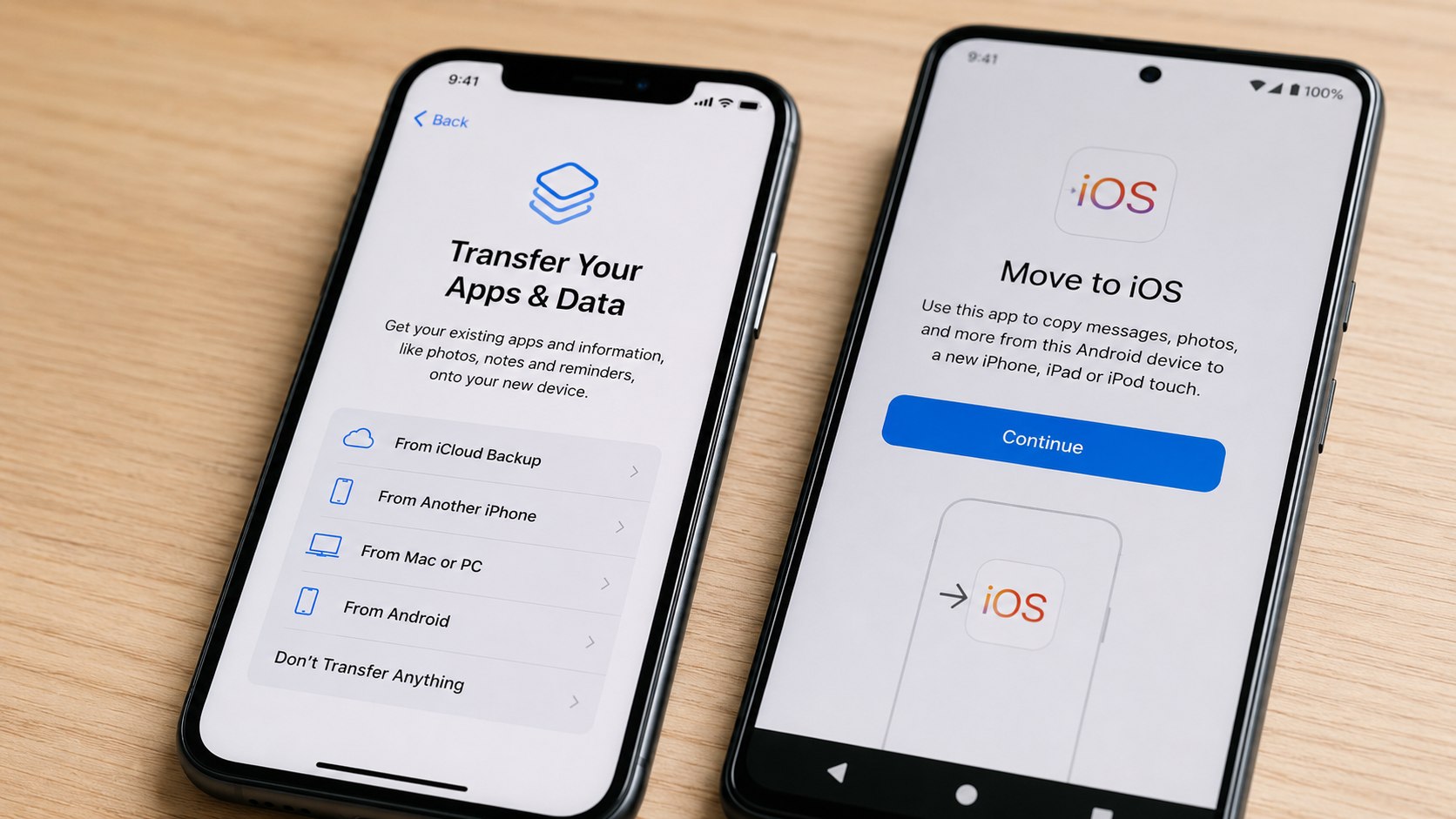
Step 5: Choose what to transfer
Select the data categories you want to move, such as contacts, messages, photos, videos, calendars, mail accounts, accessibility settings, and compatible free apps. Leave out large video libraries if you already use Google Photos and need the transfer to finish quickly.
This step controls the total transfer time, especially for phones with years of 4K video from trips, school events, job sites, or family gatherings.
Common mistake to avoid: selecting everything on a 256GB Android phone when the new iPhone has only 128GB of storage.
Storage check before moving photos
Open Android storage settings and compare used storage with iPhone capacity. A 180GB Android photo library will not fit comfortably on a 128GB iPhone unless much of it stays in Google Photos, OneDrive, Dropbox, or another cloud service.
Apple includes 5GB of free iCloud storage. For larger backups, Apple’s iCloud+ pricing page lists current US plans, which as of 2026 include common monthly tiers such as 50GB, 200GB, 2TB, 6TB, and 12TB.
Step 6: Keep both phones untouched until the bar finishes
Leave both phones on the table, plugged in, and close together until the iPhone says the transfer is complete. Do not rely on the Android progress bar alone.
The iPhone is the destination device, so its completion message is the one that matters.
Common mistake to avoid: answering calls, opening TikTok, or walking away with the Android phone while the transfer is still running.
A household with slower Wi-Fi in rural Pennsylvania or a congested apartment network in Illinois may see longer app download times after the initial transfer. That does not always mean Move to iOS failed.
Step 7: Finish Apple Account, iMessage, and FaceTime setup
After the transfer, sign in with your Apple Account, turn on iMessage and FaceTime, and confirm the correct phone number is active. Send a test text to an iPhone user and an Android user.
This catches common messaging problems before work clients, school groups, or family chats depend on the new phone.
Common mistake to avoid: assuming green and blue messages behave the same immediately after switching SIM cards or eSIMs.
For users switching because iPhone messaging has become more important in mixed Android-and-iPhone chats, Baltimore Chronicle’s coverage of iOS 26.5 encrypted RCS messaging and smarter Android transfers explains why recent iOS updates matter for people coming from Samsung Galaxy, Google Pixel, Motorola, or OnePlus phones.
Step 8: Reinstall apps, verify logins, and protect accounts
Open the App Store and download apps that did not move automatically, including banking, insurance, airline, school, ride-share, and work apps. Log in while the Android phone is still available for two-factor codes.
This prevents lockouts from banks, payroll tools, landlord portals, state DMV apps, and freelance platforms that treat a new iPhone as a new trusted device.
Common mistake to avoid: wiping or trading in the Android phone before moving authenticator apps and confirming account recovery options.
Parents setting up a child’s first iPhone after an Android hand-me-down should also review Baltimore Chronicle’s guide on how to set up parental controls on a smartphone. Screen Time, app limits, location sharing, and purchase approvals are separate from the Move to iOS data transfer.
Step 9: Handle eSIM, carrier settings, and trade-in timing
Follow the iPhone setup prompts for eSIM transfer, or use your carrier’s app if the phone number does not activate automatically. Verizon, AT&T, and T-Mobile may handle eSIM transfers differently depending on plan type, device lock status, and account permissions.
This matters because the data transfer and phone-number activation are related but not identical.
Common mistake to avoid: mailing the Android trade-in before calls, texts, voicemail, mobile data, and hotspot have all been tested on the iPhone.
| Check after transfer | Why it matters | Fast test |
|---|---|---|
| Calls | Confirms carrier activation | Call another US number |
| SMS and iMessage | Confirms mixed Android/iPhone texting | Text one iPhone and one Android |
| Photos | Confirms library migration | Search by month or place |
| Banking apps | Confirms trusted-device approval | Log in and view account page |
| Maps and rideshare | Confirms location permissions | Open Apple Maps, Uber, or Lyft |
Troubleshooting common Android to iPhone transfer problems
- Move to iOS will not connect: restart both phones, turn off mobile hotspot on Android, keep Wi-Fi on, and restart iPhone setup from the transfer screen.
- The transfer freezes: plug in both phones, keep them awake, and remove other nearby Bluetooth or Wi-Fi distractions only if the same failure repeats.
- Photos are missing: check Google Photos, OneDrive, or Samsung Gallery sync because some images may be cloud-only and not stored locally on Android.
- Messages did not move: confirm the Android phone was not using an encrypted or manufacturer-specific messaging backup that Move to iOS cannot read.
- WhatsApp did not transfer: update WhatsApp on both devices, use the same phone number, and keep the Android phone until chat history is confirmed.
Anyone doing a switch from Samsung to iPhone should also check Secure Folder, Samsung Notes, and Samsung Health before trade-in. Those categories may require separate export steps.
What Move to iOS does not solve
Move to iOS is useful, but it is not a full clone of the Android phone. Apple and Google use different app stores, backup systems, payment tools, and default services.
Paid Android apps usually need to be purchased again in the App Store. Some app subscriptions follow the account, such as Netflix, Spotify, Microsoft 365, Adobe Creative Cloud, or YouTube Premium, but purchases made only through Google Play may not always transfer cleanly to iOS billing.
A transfer contacts from Android to iPhone issue is usually easier to fix than an app-data issue. Contacts often live in Google Contacts and can be restored by adding the Google account under iPhone Mail, Contacts, and Calendars settings.
A move photos from Android to iPhone problem depends on where the images actually live. Local camera files can transfer through Move to iOS, while cloud-only images may need Google Photos installed on iPhone.
A Android to iPhone data transfer also does not automatically teach the iPhone your old habits. Set default mail, calendar, browser, maps, emergency contacts, Focus modes, Face ID, Apple Pay, and Find My before relying on it for driving, school pickup, rent payments, or client work.
FAQ
Can I use Move to iOS after setting up my iPhone?
Usually, no. Move to iOS is designed for the initial iPhone setup flow. If the iPhone is already set up, back up anything important on the iPhone, erase it, and start setup again to use the guided transfer.
How long does it take to transfer from Android to iPhone in 2026?
Most transfers take about 30 minutes to 2 hours. A phone with many years of photos, 4K videos, downloaded files, and message attachments can take longer.
Does Move to iOS transfer WhatsApp?
Move to iOS can support WhatsApp transfer when both phones, WhatsApp versions, and phone numbers meet the current requirements. Keep the Android phone until WhatsApp chats, media, and groups appear correctly on the iPhone.
Will my Android apps move to iPhone?
Some free apps with iOS versions can be matched and downloaded from the App Store. Paid apps, unavailable apps, and some app data usually need separate setup or repurchase.
Should I use iCloud or Google Photos after switching?
iCloud fits best for people who plan to use iPhone, iPad, Mac, and Apple Photos together. Google Photos may be easier for households that still use Android phones, Chromebooks, or shared Google accounts.
When is it safe to erase or trade in the Android phone?
Erase the Android phone only after calls, texts, photos, contacts, WhatsApp, banking apps, authenticator apps, and carrier service all work on the iPhone. A trade-in deadline is not worth losing account access.
Earlier we wrote about How to Cancel Spotify Premium Family in 2026 Without Extra Charges