

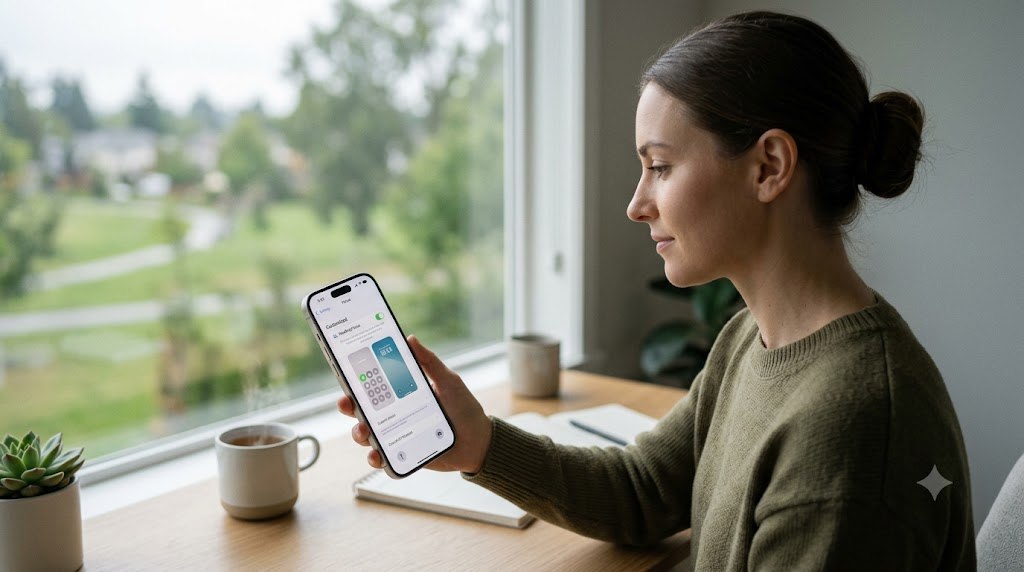
How to use Focus Mode on iPhone 2026 starts with opening Settings, selecting Focus, and choosing which people and apps may interrupt you. A useful setup takes about 5–10 minutes and can activate automatically during work, driving, sleep, or family time, as noted by the editors of Baltimore Chronicle.
Focus Mode does more than silence an iPhone. It can show a separate Home Screen, filter work and personal accounts, hide distracting notification badges, and synchronize settings with a Mac, iPad, or Apple Watch.
Key takeaways
- Allow essential contacts first, including family members, schools, caregivers, clients, or emergency-related numbers.
- Use schedules and app triggers so Focus starts automatically instead of depending on memory.
- Test every Focus after setup because repeated calls, time-sensitive alerts, and device sharing can change its behavior.
What you need before setting up iPhone Focus Mode
You do not need a paid app, subscription, or AppleCare plan. Focus is built into supported iPhones and remains free to use in 2026.
- An iPhone running a current supported iOS version
- Your iPhone passcode
- An Apple Account for syncing between Apple devices
- About 5–10 minutes for the initial setup
- A list of people and apps that must remain available
- Optional location access for arrival-based automations
Update the iPhone before changing notification rules. Open Settings, select General, and tap Software Update. A current installation reduces the risk of outdated menu labels or synchronization problems.
Anyone configuring a recently purchased device can first review how to set up a new iPhone in 2026. Users preparing for a major update should also consider an encrypted iPhone backup on a Mac.
Before silencing anything, identify the calls that cannot wait. Parents may need school alerts, drivers may need navigation, and freelancers may need selected client messages.
“Focus is a feature that helps you concentrate on a task by minimizing distractions.”
Apple, iPhone User Guide, official Focus setup documentation.
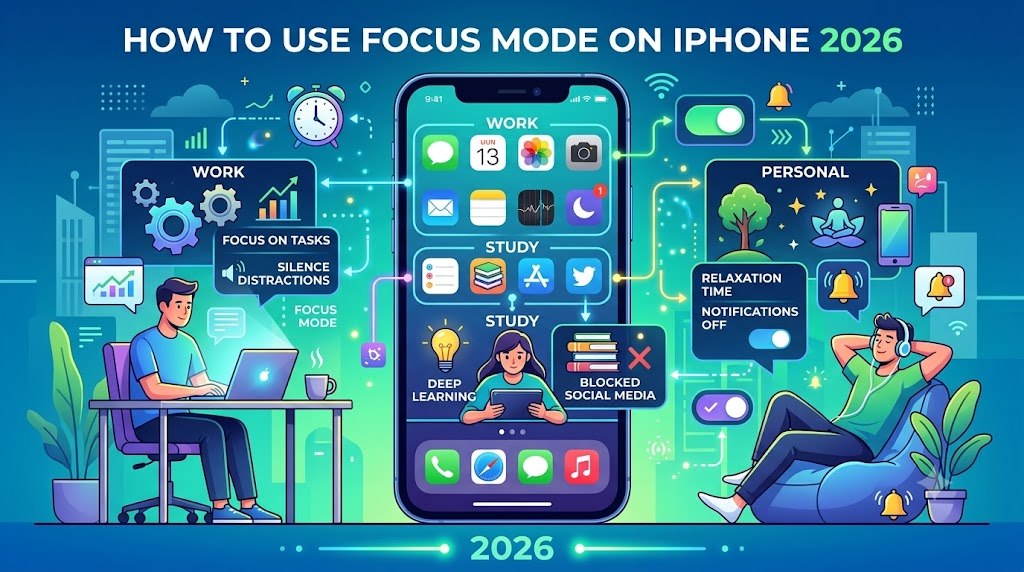
Step 1: Choose an existing Focus or create a custom mode
What to do: Open Settings, tap Focus, and select Do Not Disturb, Personal, Work, Sleep, Driving, or another available option. To create your own mode, tap the plus button and choose Custom.
Name the custom Focus according to a real activity, such as Client Work, School Pickup, Gym, Reading, or Family Dinner. A specific name makes schedules and Lock Screen connections easier to recognize later.
Why it matters: Separate modes prevent one broad Do Not Disturb rule from blocking useful notifications in every situation.
Common mistake: Do not create several nearly identical modes. Start with 2 or 3 clear routines and expand only when their rules genuinely differ.
Step 2: Decide which people can contact you
What to do: Open the selected Focus and tap People. Choose either Allow Notifications From or Silence Notifications From, then add contacts.
The allow-list approach works well when only a small group should reach you. A parent might allow a spouse, children, grandparents, a babysitter, and the school office. A contractor may allow the homeowner, site supervisor, supplier, and crew lead.
Review the calling options below the contact list. Depending on the current iOS version, you may allow calls from specific groups and permit repeated calls. Repeated Calls generally lets a second call from the same person bypass the Focus within a short period.
Why it matters: Contact rules protect quiet time without making the iPhone unreachable during an urgent situation.
Common mistake: Adding someone as an allowed contact does not guarantee every third-party app will behave identically. Test calls, Messages, WhatsApp, Signal, and other essential services separately.
Step 3: Allow or silence specific apps
What to do: Return to the Focus settings, tap Apps, and choose which applications may notify you. Add only services that match the purpose of the mode.
A Work Focus could allow Calendar, Slack, Microsoft Teams, Gmail, Zoom, and a banking authentication app. A Personal Focus could allow Messages, FaceTime, a home-security app, weather warnings, and family-location services.
The following comparison can help determine which rule fits each routine.
| Focus | Apps commonly allowed | Apps commonly silenced | Useful trigger |
|---|---|---|---|
| Work | Calendar, Mail, Slack, Teams | Games, shopping, social media | Weekday schedule or office location |
| Personal | Messages, FaceTime, Home | Work email and project apps | Evening schedule |
| Driving | Maps, Phone, CarPlay apps | Most visual notifications | Car Bluetooth or detected motion |
| Sleep | Emergency contacts, health alerts | News, email, social media | Sleep schedule |
| Reading | Books, Music, timer | Messages and entertainment alerts | Opening the Books app |
Use Time Sensitive Notifications carefully. This setting can let certain apps deliver alerts that they classify as urgent. It is useful for security systems, delivery changes, travel updates, or authentication requests.
However, some apps label too many alerts as time-sensitive. Disable that privilege for any app that uses it for promotions, routine reminders, or nonessential engagement notices.
Why it matters: App-level controls reduce distractions without shutting down tools needed for work, transportation, parenting, or home safety.
Common mistake: Do not allow every work app “just in case.” That recreates the same notification overload under a different Focus name.
Step 4: Connect a Lock Screen and Home Screen
What to do: Inside the Focus settings, find Customize Screens. Choose a Lock Screen and select the Home Screen pages that should appear while the mode is active.
A Work Home Screen might contain Calendar, Mail, Notes, Files, Teams, and a time-tracking app. Social networks, shopping apps, streaming services, and games can remain on hidden pages.
You can also link Focus from the Lock Screen. Touch and hold the Lock Screen, select Focus, and assign the appropriate mode. Switching to that Lock Screen can then activate the linked Focus.
Why it matters: Notification silence helps, but a simplified Home Screen removes visual prompts that encourage unnecessary app opening.
Common mistake: Hiding a Home Screen page does not delete its apps. They remain available through App Library and Search.
Step 5: Add Focus Filters for Mail, Calendar, Messages, and Safari
What to do: Scroll to Focus Filters and tap Add Filter. Available filters may include Calendar, Mail, Messages, Safari, and supported third-party apps.
A freelancer can show only a business calendar and work email account during Client Work. A renter managing a move could display only a moving-project calendar and selected Safari tab group.
System filters may also change settings such as Dark Mode or Low Power Mode. Available options can differ by iPhone model, installed apps, and iOS release.
Focus Filters change what selected apps display. They do not create new privacy boundaries or move data into a separate account.
Why it matters: Filters separate contexts inside the same app, reducing accidental replies from the wrong account or missed events on a crowded calendar.
Common mistake: Do not assume filtering an email account blocks every alert from that app. Review both the Focus filter and notification permissions.
Step 6: Automate Focus Mode and test the result
What to do: Open the Focus, tap Add Schedule, and choose Time, Location, or App. Some modes also offer Smart Activation based on patterns such as location, app use, and time of day.
- Create a weekday time schedule for predictable work hours.
- Use a location trigger for an office, gym, library, or regular jobsite.
- Use an app trigger when opening Books, Zoom, Fitness, or another task-specific app.
- Configure Driving Focus for detected motion, vehicle Bluetooth, or CarPlay.
- Turn on Share Across Devices when the same rules should apply on a Mac, iPad, and Apple Watch.
- Activate the Focus manually and test calls, messages, apps, screens, and filters.
Schedules should match real behavior rather than an ideal routine. A freelancer with changing hours may benefit more from an app trigger than a fixed 9:00 a.m. schedule.
Location automation depends on location permissions and accurate geofencing. Large apartment buildings, shared offices, and nearby businesses can make arrival rules less precise.
Sharing across devices is useful when notifications move between an iPhone and Mac. However, it can become confusing when the devices serve different purposes. A household Mac, for example, may not need the same Focus as a personal iPhone.
Why it matters: Automation makes iPhone Focus Mode settings consistent and removes the need to remember manual changes several times daily.
Common mistake: Never trust a new automation without testing it. Ask an allowed contact and a blocked contact to call, then inspect notification delivery after Focus ends.
Troubleshooting Focus Mode on iPhone
- Calls still come through: Check allowed contacts, call groups, repeated calls, and app-specific calling permissions.
- Important alerts are missing: Add the person or app, review Time Sensitive Notifications, and inspect the app’s main notification settings.
- Focus starts unexpectedly: Review every time, location, app, Smart Activation, Lock Screen, and Driving trigger.
- Settings appear on a Mac or iPad: Open Focus settings and disable Share Across Devices when separate behavior is required.
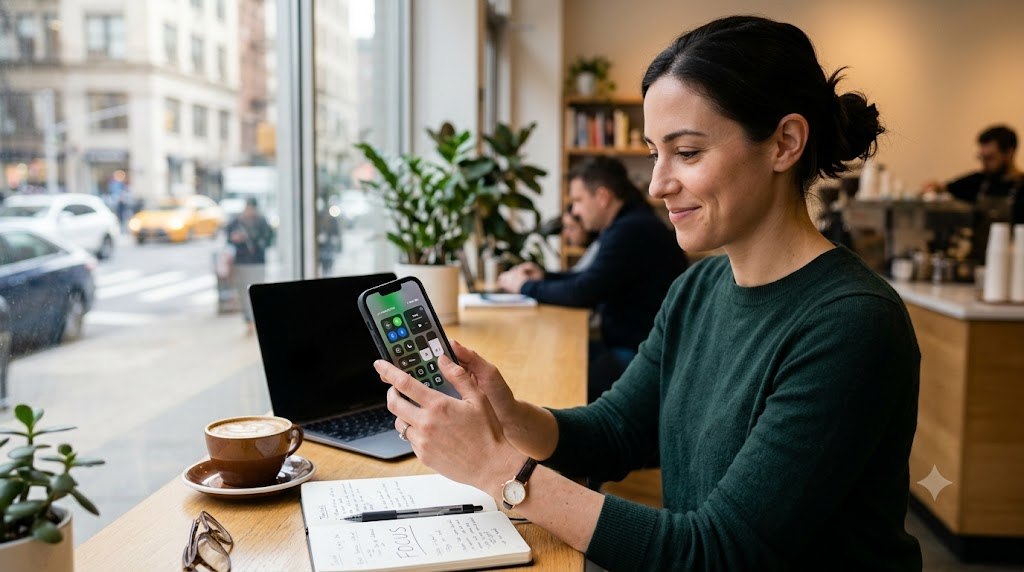
- Focus will not turn off: Open Control Center, press Focus, and tap the active mode. Then remove any schedule that immediately restarts it.
When troubleshooting, change one rule at a time. Multiple simultaneous changes make it difficult to identify which permission caused the problem.
Also inspect Settings, Notifications, and the affected app. Focus controls notification delivery during a mode, while the main Notifications menu controls whether the app can notify you at all.
Users concerned about preserving configurations before troubleshooting can review how to back up an iPhone to iCloud in 2026. A backup is especially useful before resetting settings or installing a major iOS update.
Driving Focus deserves extra testing. Apple supports automatic activation through detected movement, vehicle Bluetooth, or CarPlay. Confirm that navigation, emergency contacts, and hands-free calling still work before regular use.
FAQ about how to use Focus Mode on iPhone 2026
Does Focus Mode block calls completely?
No. Calls can still arrive from allowed contacts or permitted groups. Repeated Calls may also let a second call bypass the mode, depending on your settings.
Can someone tell which Focus Mode I am using?
Apps with Focus Status permission may show that your notifications are silenced. Apple states that the specific Focus name is not shared with the other person.
Can Focus Mode turn on automatically at work?
Yes. Add a location schedule for your workplace or use a time-based schedule. Location Services must be available for location-based activation.
Why does Focus Mode turn on across all my Apple devices?
Share Across Devices is probably enabled. The feature synchronizes Focus status between compatible devices using the same Apple Account.
Can I use different email accounts in different Focus modes?
Yes. Focus Filters can limit which Mail accounts appear during a selected mode. Calendar filters can similarly display only chosen calendars.
Is Do Not Disturb the same as Focus Mode?
Do Not Disturb is one type of Focus. Custom Focus modes provide more specific people, app, screen, schedule, and filter controls.
Earlier we wrote about Toilet Flapper Replacement: Find the Right Size, Adjust the Chain and Stop Leaks