

How to cancel DoorDash DashPass 2026 takes about 3–5 minutes when the correct DoorDash account is open. Use the app or DoorDash website, open Manage DashPass, cancel the membership, and keep the confirmation email. Cancel at least 24 hours before the next scheduled payment to avoid another renewal, as noted by the Baltimore Chronicle editorial team.
A paid membership normally remains active through the current billing period after cancellation. DoorDash says a cancellation made during a free period ends DashPass benefits immediately. Deleting the DoorDash app does not cancel the subscription.
Key takeaways
- Cancel at least 24 hours before the scheduled payment when the goal is to prevent another DashPass renewal.
- Both the DoorDash app and DoorDash.com provide access to the same Manage DashPass cancellation controls.
- Keep the cancellation email until the next billing date passes and confirm no new DoorDash membership charge appears.
The timing matters more than the device used. DoorDash currently lists standard DashPass at $9.99 monthly or $96 annually in the United States. Student plans are listed at $4.99 monthly or $48 annually as of 2026.
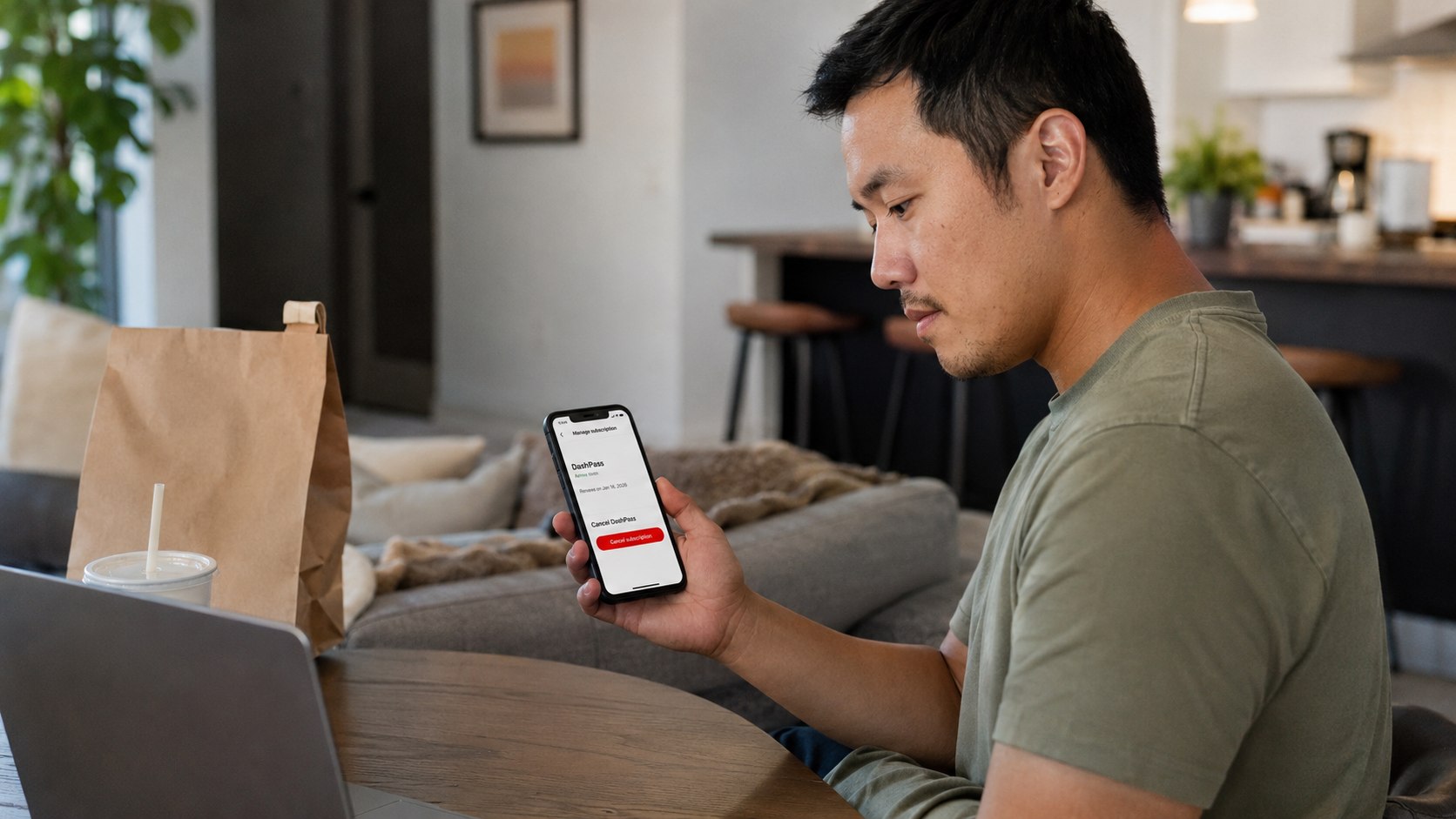
Featured image idea: an editorial lifestyle photo of a person checking DoorDash account settings on a smartphone beside a laptop and recent household bills, without text overlay.
What you need
Prepare the account details before opening the cancellation menu. This avoids losing time to password resets or checking the wrong household account.
- DoorDash account email or phone number.
- DoorDash password or another available login method.
- DoorDash app or a web browser.
- Access to the account email for confirmation.
- About 5 minutes.
- A recent DoorDash receipt if several household accounts exist.
No cancellation fee is listed for the standard DashPass membership. The important date is the next scheduled payment, not the date of the last food order. A household with several DoorDash users should identify the account receiving DashPass receipts first.
Checking the card statement can also reveal which account is still generating charges. Removing a saved card is not a substitute for canceling recurring membership. A similar account-first approach applies when canceling Apple One in 2026.
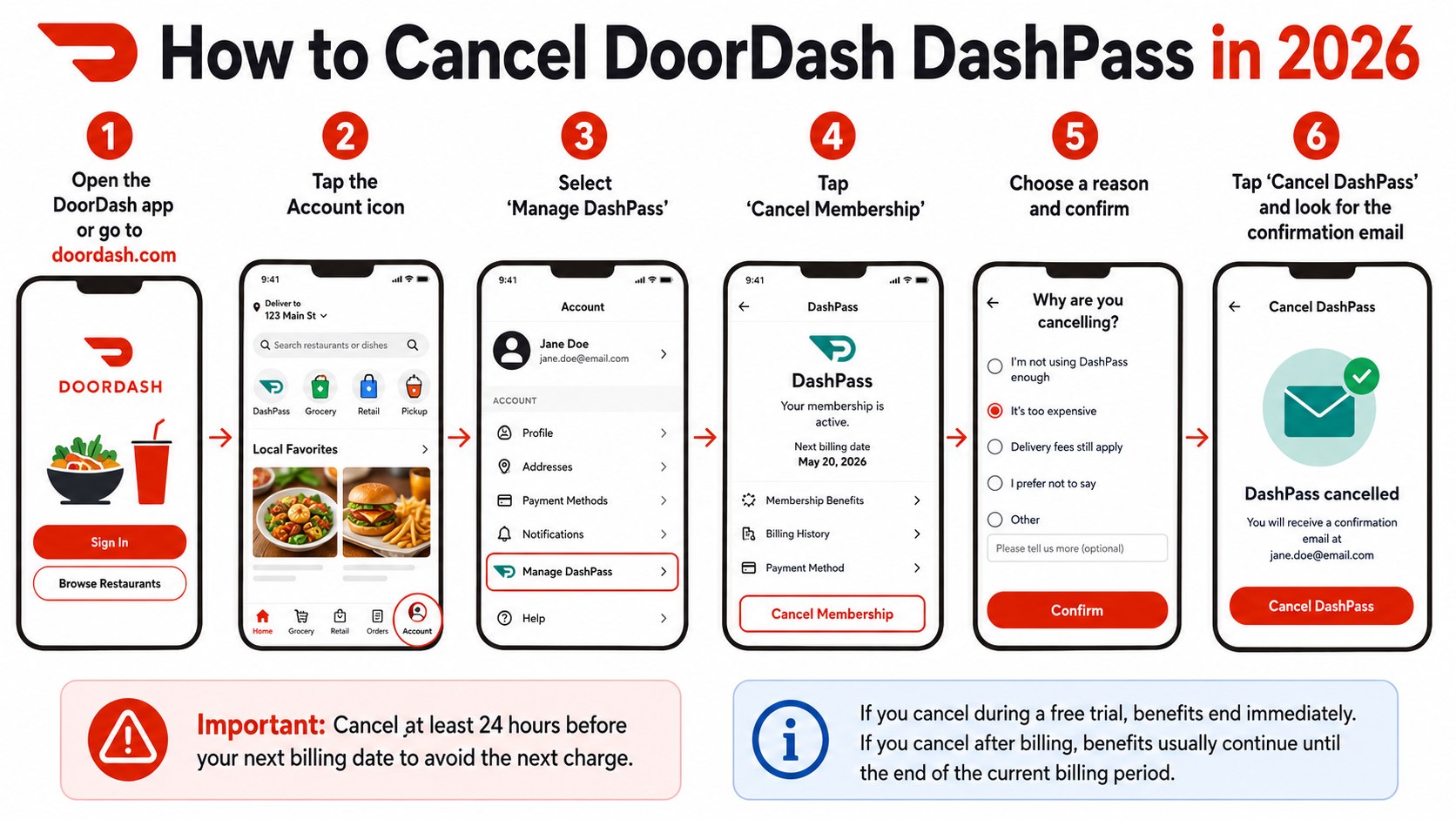
How to Cancel DoorDash DashPass 2026: Step 1: Check the Renewal Date
Open the account that currently pays for DashPass and review the membership information. Look for the next billing date before changing anything.
This matters because DoorDash instructs customers to cancel at least 24 hours before the next scheduled payment. A cancellation submitted too close to renewal may not achieve the goal of avoiding the upcoming charge.
Common mistake: checking a bank statement for the previous charge but never checking the upcoming renewal inside DoorDash.
“Cancel your DashPass membership 24 hours before your next scheduled payment.”
DoorDash Customer Support, cancellation guidance for DashPass members, DoorDash Help Center.
Step 2: Open DoorDash in the App or on the Web
For cancel DashPass in the DoorDash app, launch DoorDash on an iPhone or Android device and sign into the paying account. Web users can sign into DoorDash.com from a laptop, desktop, tablet, or mobile browser.
DoorDash supports cancellation through both routes, so switching devices is usually unnecessary. The account controls matter, not whether orders were normally placed through iOS, Android, Windows, or macOS.
A common mistake is deleting DoorDash from a phone. App deletion removes local access but does not tell DoorDash to stop the subscription.
Readers reviewing several recurring services can apply the same billing principle to other accounts. Baltimore Chronicle’s guide to canceling Paramount Plus in 2026 explains why identifying the actual billing account is essential.
Inline image idea: close editorial shot of the DoorDash app account screen on a phone beside DoorDash.com open on a laptop.
Step 3: Open the Account Icon and Manage DashPass
Tap or select the account icon after signing in. Choose Manage DashPass from the available account options.
This page controls the membership itself and should display relevant subscription information. It is different from order history, payment methods, saved addresses, and notification settings.
The same general route applies to both supported cancellation methods:
| Method | Starting point | Main route | Best use |
|---|---|---|---|
| DoorDash app | iPhone or Android app | Account icon → Manage DashPass | Fastest for regular mobile users |
| DoorDash website | DoorDash.com | Account icon → Manage DashPass | Useful when the app has login or display problems |
The website is a useful backup if the app freezes or an account menu fails to load. The app is usually more convenient when the user already remains signed in.
Both methods affect the same DoorDash membership account. Changing devices does not create a separate cancellation request. The membership status should ultimately match across devices after the account refreshes.
A common mistake is opening payment methods and deleting a credit card instead of selecting Manage DashPass. DoorDash may have another eligible payment method saved on the account.
Step 4: Select Cancel Membership and Give a Reason
Inside Manage DashPass, choose cancel DoorDash subscription by selecting Cancel Membership. DoorDash then asks for a cancellation reason before allowing the process to continue.
Select the appropriate reason and continue. This screen is part of the cancellation flow, not confirmation that the membership has already ended.
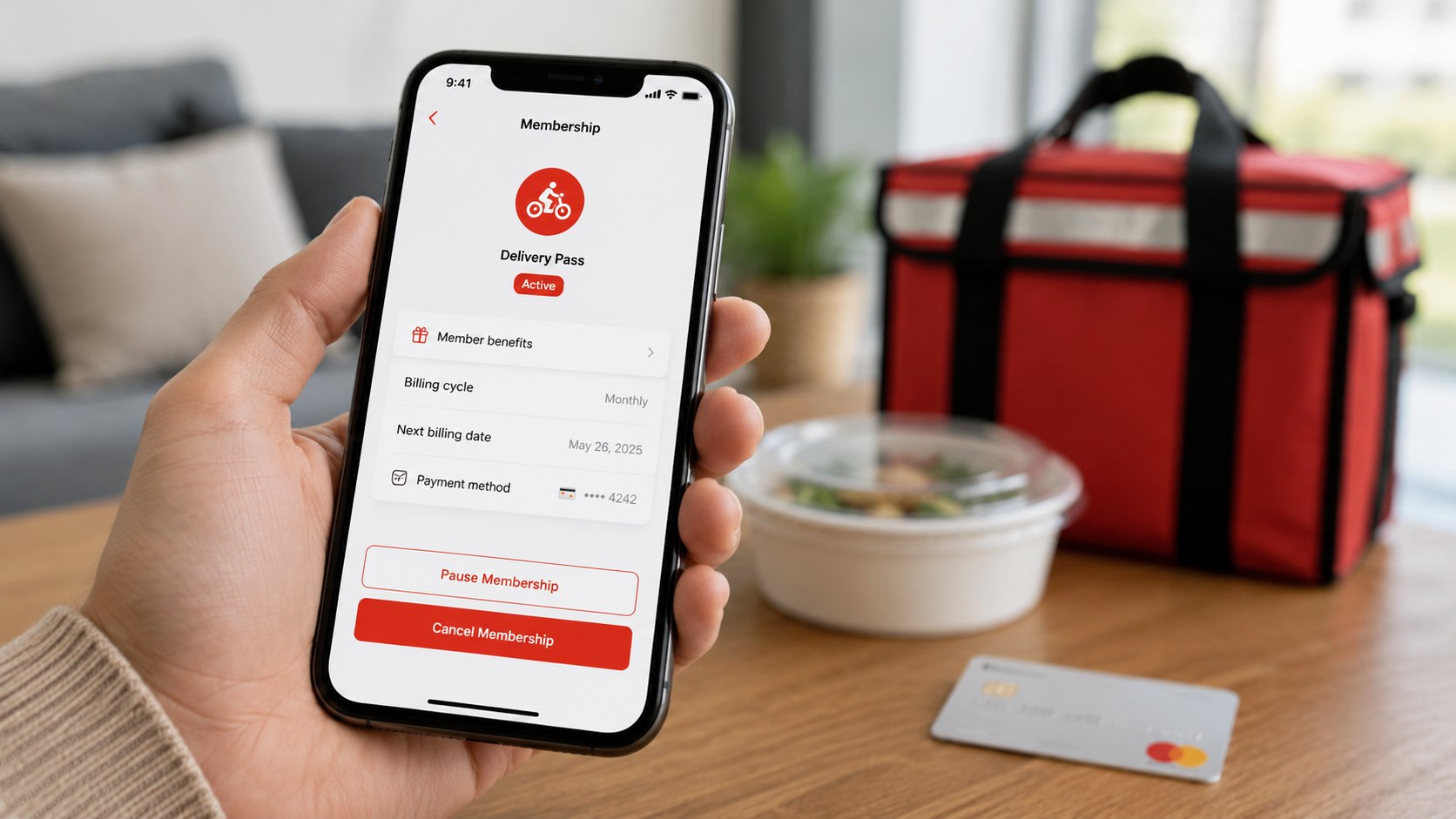
Retention screens can create confusion because a service may also present alternatives. DoorDash currently supports pausing DashPass from the Manage DashPass page, but pausing is different from permanent cancellation.
A common mistake is selecting a reason and closing the app. Continue until DoorDash shows the final cancellation confirmation.
Someone cutting recurring household costs should treat the final confirmation screen as the real finish line, not the first “Cancel Membership” button.
Step 5: Select Cancel DashPass and Finish the Request
After choosing the reason, select Cancel DashPass. DoorDash should then display a message confirming that the membership has been successfully canceled.
Select Got it when offered and return to Manage DashPass. This final step matters because it changes the recurring membership status rather than merely recording an intention to cancel.
The complete DoorDash DashPass cancellation steps can be summarized as follows:
- Sign into the DoorDash account that pays for DashPass.
- Check the next scheduled payment date.
- Open the account icon.
- Select Manage DashPass.
- Choose Cancel Membership and select a reason.
- Select Cancel DashPass and verify confirmation.
Do not treat a disappeared pop-up as proof that the request succeeded. Reopen Manage DashPass and check the membership status. A confirmation email provides another useful record.
Save it until the next scheduled payment date passes. Screenshots can also document what the account displayed on the cancellation date. This is particularly useful for annual memberships with long gaps between charges.
Inline image idea: an overhead photo of a smartphone displaying subscription settings beside a calendar with an upcoming renewal date marked.
Step 6: Check Access, Price and the Confirmation Email
DoorDash says paid DashPass benefits continue through the end of the current billing period after cancellation. Customers canceling during a free period lose benefits immediately, according to the company’s current support instructions.
That distinction matters when deciding exactly when to cancel. There is generally little reason to delay cancellation solely to preserve a paid month’s remaining benefits because DoorDash says those benefits continue through the period.
The standard listed US pricing also shows the cost of forgetting a renewal:
| DashPass option | Listed US price in 2026 | Billing pattern |
|---|---|---|
| Standard monthly | $9.99/month | Recurring monthly |
| Standard annual | $96/year | Recurring annually |
| Student monthly | $4.99/month | Recurring monthly |
| Student annual | $48/year | Recurring annually |
These are DoorDash’s listed prices as of 2026 and may not match promotional accounts. Some members receive DashPass through Chase, Amazon Prime, Robinhood, or another benefit arrangement.
SNAP-eligible customers may also encounter a discounted plan with separate conditions. The account page remains the best place to confirm the price attached to a specific membership. Taxes can also apply to subscription charges.
DoorDash’s official fee guidance lists the current standard and student prices.
For a wider subscription cleanup, Baltimore Chronicle also covers how to cancel Spotify Premium in 2026, including family-plan billing issues.
Troubleshooting DoorDash DashPass Cancellation Problems
Most DashPass cancellation problems come from account identity, renewal timing, or stopping before the last confirmation. These checks cover the most common situations.
- No Cancel Membership button: confirm that the signed-in account actually owns the active DashPass membership.
- App menu will not load: sign into DoorDash.com through a browser and open Manage DashPass there.
- Charge appears after cancellation: compare the charge date with the cancellation time and scheduled renewal date.
- No confirmation email: check spam, verify the account email, and reopen Manage DashPass to inspect membership status.
- Free DashPass ended immediately: DoorDash states that free-period benefits terminate when the free membership is canceled.
Multiple DoorDash accounts are a common source of confusion in households. Search email inboxes for DashPass receipts if the membership cannot be located. Compare the receipt email with the account currently signed into DoorDash.
If the account still shows an active renewal after completing every cancellation screen, contact DoorDash support through its official help system. DoorDash lists chat and phone support options in its Help Center. Keep receipts, confirmation emails, and screenshots when investigating a disputed charge.
“After canceling, your DashPass benefits will be valid through the end of the current billing period.”
DoorDash Customer Support, explanation of post-cancellation access, DoorDash cancellation instructions.
Canceling the membership stops future renewal when completed correctly; deleting the app, removing an address, or signing out does not perform the same action.
FAQ
Can I cancel DoorDash DashPass from the app?
Yes. Open the DoorDash app, select the account icon, choose Manage DashPass, and select Cancel Membership. Choose a reason, continue to Cancel DashPass, and verify the final confirmation.
Can I cancel DashPass on DoorDash.com?
Yes. DoorDash’s official instructions allow cancellation through DoorDash.com as well as the mobile app. The web route is useful when the app is unavailable or its account menu is not loading correctly.
When should I cancel DashPass to avoid the next charge?
DoorDash instructs members to cancel at least 24 hours before the next scheduled payment. Check the renewal date inside the account rather than estimating it from an older card statement.
Do I lose DashPass immediately after canceling?
Not on a normal paid billing period. DoorDash says paid benefits remain available through the end of that period. A free-period membership ends immediately when canceled.
Does deleting the DoorDash app cancel DashPass?
No. Removing the app does not change the membership’s billing status. Cancellation must be completed through Manage DashPass in the account.
How much does DashPass cost in the USA in 2026?
DoorDash currently lists standard DashPass at $9.99 per month or $96 annually. Student membership is listed at $4.99 monthly or $48 annually, while promotional and partner-supported plans can have different terms.
Earlier we wrote about How to Redirect a FedEx Package Before Delivery in 2026: Fees, Steps and Delivery Manager Rules