

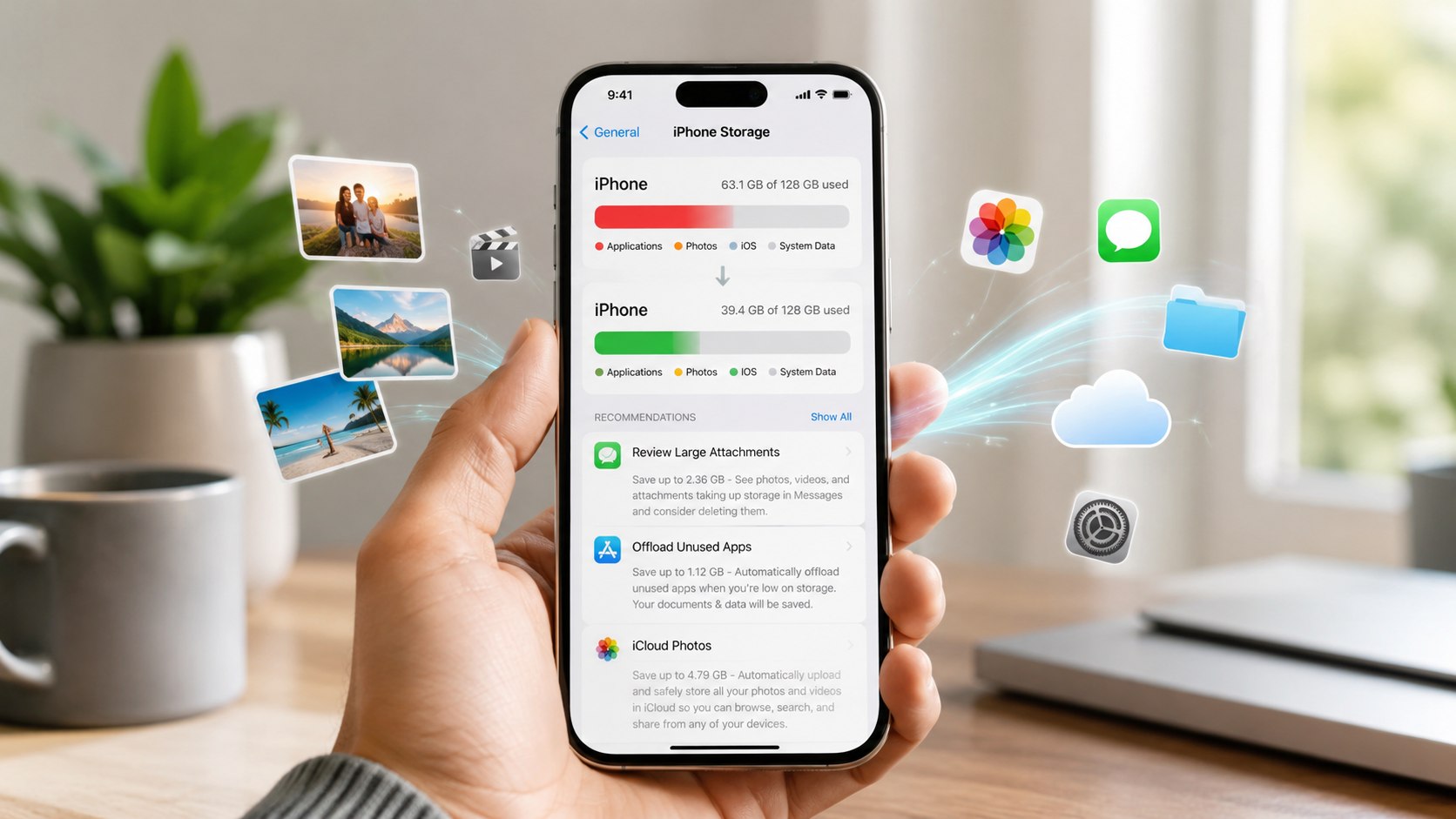
How to free up storage on iphone 2026 is usually a 10–20 minute job if photos, videos, downloads, and unused apps are causing the problem. Start with iPhone Storage, optimize the photo library, and then offload applications you rarely use, as noted by Baltimore Chronicle.
The safest approach is not to delete everything that looks large. First identify what actually consumes storage, then target photos, videos, offline downloads, messages, and dormant apps.
Key takeaways
- Start in iPhone Storage because it shows which apps and media categories use the most local space.
- Optimize iPhone Storage can reduce local photo usage while full-resolution originals remain available through iCloud Photos.
- Offloading an app removes its program files but normally preserves its documents and data for later reinstallation.
These 3 moves solve many storage problems without a factory reset. They also reduce the risk of deleting personal data unnecessarily. Photo optimization may take time because iOS manages local files dynamically. Offloaded applications can return when you tap their icons again.
What you need
You do not need a Mac, paid cleaning application, or third-party utility for the basic process. Most tools are already built into iOS.
- Your iPhone and passcode
- Your Apple Account credentials
- A reliable Wi-Fi connection
- A charger for large photo libraries
- About 10–30 minutes for the initial cleanup
- Optional iCloud+ storage if your library exceeds available cloud space
Back up irreplaceable data before aggressive deletion. Baltimore Chronicle has a separate guide explaining how to back up an iPhone to iCloud in 2026.
A completed backup is especially useful before deleting message attachments or moving large photo libraries. Do not confuse iCloud storage with physical iPhone storage. They are separate storage pools. Buying more iCloud space does not directly increase your iPhone’s built-in capacity.
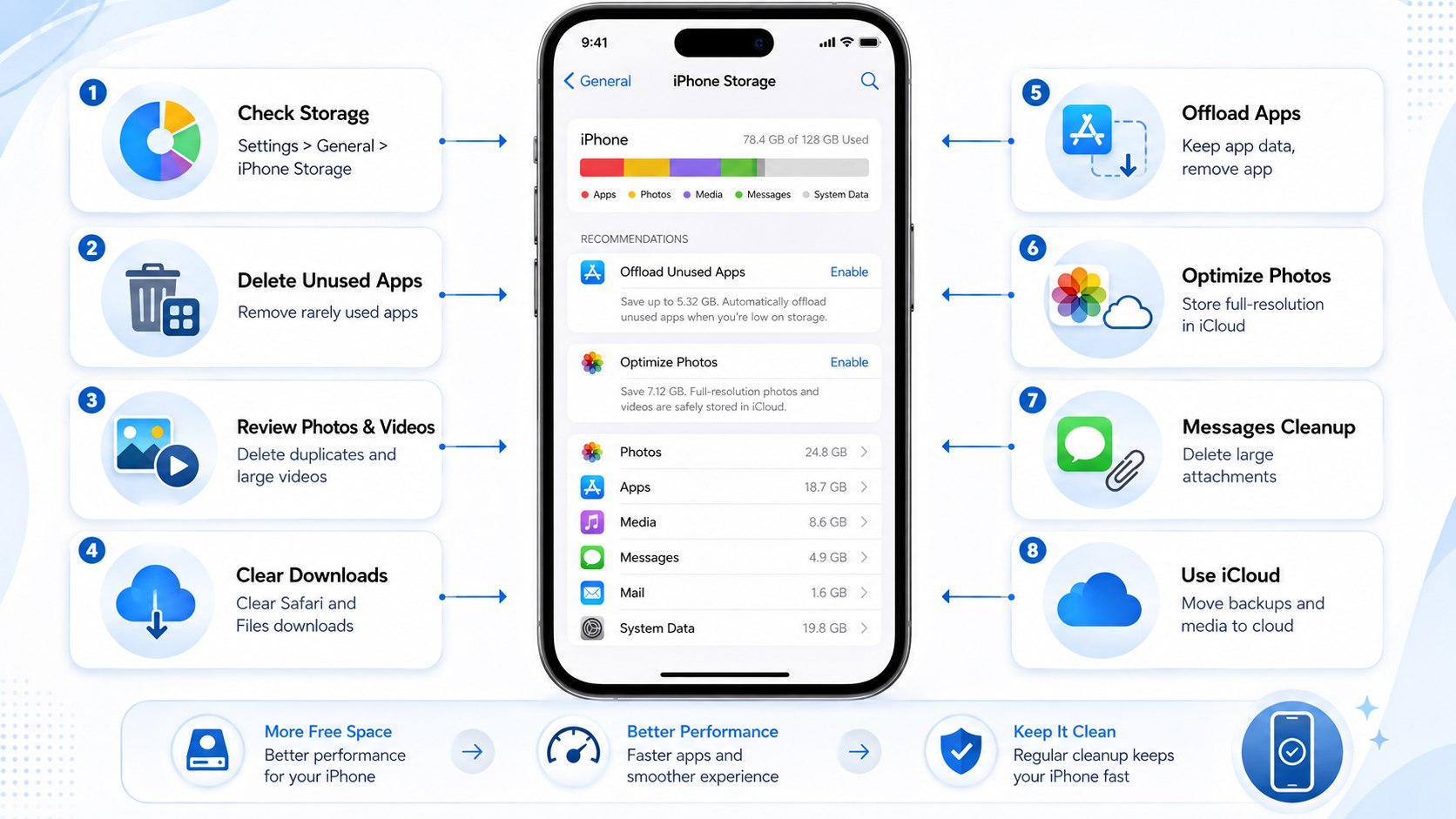
Step 1: See what is taking space — how to free up storage on iPhone 2026 starts here
Open Settings, choose General, then tap iPhone Storage. Wait for iOS to calculate the categories and application list.
The largest number deserves attention, but do not assume the largest app should immediately be deleted. An app may contain important downloaded files, projects, conversations, or offline media.
Check iPhone storage before changing anything because the problem varies between users. One parent may have 80 GB of family videos, while a freelancer may have huge editing apps and downloaded client files.
The common mistake is clearing tiny applications while Photos or video downloads consume tens of gigabytes. Work from the largest removable category downward.
Step 2: Optimize photos instead of deleting your library
For many people, iPhone photo storage is the fastest place to recover meaningful capacity. Open Settings, tap your Apple Account, choose iCloud, then Photos.
Turn on iCloud Photos if appropriate, then select Optimize iPhone Storage. Apple keeps full-resolution originals in iCloud while the iPhone can retain smaller versions locally.
“Choose to optimise storage.”
— Apple Support, guidance for iCloud Photos storage settings.
This option matters most with years of 4K video, Live Photos, screenshots, and family pictures. Apple explains the current process on its iCloud Photos support page.
Optimization is not instant deletion. iOS adjusts local photo storage as space becomes necessary, while originals remain tied to iCloud Photos.
A common mistake is deleting pictures from Photos while iCloud Photos is synchronized. A deletion can propagate to other devices using the same library.
Step 3: Remove duplicate photos, videos and screenshots
Optimization reduces local storage pressure, but unnecessary media can still occupy cloud and device capacity. Open Photos and review large videos first.
Then check screenshots, screen recordings, burst shots, downloaded memes, and duplicate images. These categories often contain files with little long-term value.
A practical cleanup order looks like this:
- Review long videos and screen recordings.
- Check the Duplicates collection when available.
- Remove obsolete screenshots and downloaded images.
- Review recently saved social-media clips.
- Empty Recently Deleted only after verifying the files.
The last step matters because deleted media can remain recoverable for a period instead of disappearing immediately. Check the Recently Deleted album after reviewing your choices. Do not empty it immediately if you are uncertain.
A rushed cleanup can cost more than the storage problem itself. Keep important family photos, business records, and documents backed up elsewhere. Users preparing a replacement device can also follow Baltimore Chronicle’s 2026 iPhone transfer guide.
Step 4: Offload unused apps without wiping their data
Offload unused apps is one of Apple’s most useful storage tools. It removes the application itself while retaining its documents and data.
In current iOS settings, open Settings, choose Apps, tap App Store, then enable Offload Unused Apps. Apple says iPhone can remove unused applications when storage becomes low.
You can also manage individual applications from iPhone Storage. This gives more control when one large game or editing tool consumes several gigabytes.
The difference between the main options is important:
| Action | App files | Documents and data | Best use |
|---|---|---|---|
| Offload App | Removed | Usually retained | Apps you may use again |
| Delete App | Removed | Removed with the app | Apps you no longer need |
| Remove from Home Screen | Retained | Retained | Organization only |
Removing an icon from the Home Screen does not free meaningful storage because the application remains installed. Offloading is different because application files leave the device.
Your data can remain available for a future reinstall. Deleting is more aggressive and can remove associated local information. Check the application’s own sync or backup system before deletion. This distinction matters for banking, authentication, work, and creative applications.
Step 5: Attack downloads, messages and offline media
Photos and apps are not the only storage offenders. Streaming services, podcasts, maps, browsers, messaging applications, and Files can accumulate large offline libraries.
Open iPhone Storage and inspect applications individually. Netflix, Spotify, YouTube, Apple Music, Podcasts, Maps, and similar services may contain downloaded material.
Delete iPhone downloads that can easily be downloaded again. A saved movie is generally safer to remove than an original family video.
Messages deserve separate attention. Large video attachments, GIFs, photos, and old conversations can gradually consume significant space. Review attachments before deleting entire threads.
A useful rule is simple: remove reproducible files first. Protect anything that cannot be recreated, downloaded again, or restored from another location.
A common mistake is installing “cleaner” applications before checking Apple’s built-in storage controls. Third-party apps cannot magically expand physical flash storage.
Step 6: Decide whether iCloud+ is actually worth paying for
Cloud storage becomes relevant when you want more iPhone storage space without removing an entire photo library. It does not change physical capacity.
As of 2026, Apple lists these iCloud+ prices for users in the United States:
| iCloud+ plan | US price | Typical use |
|---|---|---|
| 50 GB | $0.99/month | Light backup and smaller photo libraries |
| 200 GB | $2.99/month | Large personal libraries or household use |
| 2 TB | $9.99/month | Large libraries and multiple Apple devices |
| 6 TB | $29.99/month | Very large photo and video collections |
| 12 TB | $59.99/month | High-volume professional or household storage |
Prices can change, so verify them on Apple’s official iCloud+ pricing page.
Do not upgrade merely because the iPhone itself is full. First determine whether Photos can benefit from optimization. A 200 GB plan can make sense for a large synchronized photo library.
It cannot turn a 128 GB iPhone into a 328 GB device. Device storage remains fixed for the life of the phone.
Step 7: Restart, update and recheck storage
After cleanup, restart the iPhone and return to Settings → General → iPhone Storage. Allow the storage calculation to refresh.
Temporary and cached data can change automatically. iOS also manages some cache files without offering a manual “clear everything” button.
If an update is available, consider installing it after creating a backup. Baltimore Chronicle also covers iOS 27 and its iPhone changes.
A common mistake is expecting the storage graph to update instantly after every deletion. Give the system time to recalculate large categories before making another aggressive change.
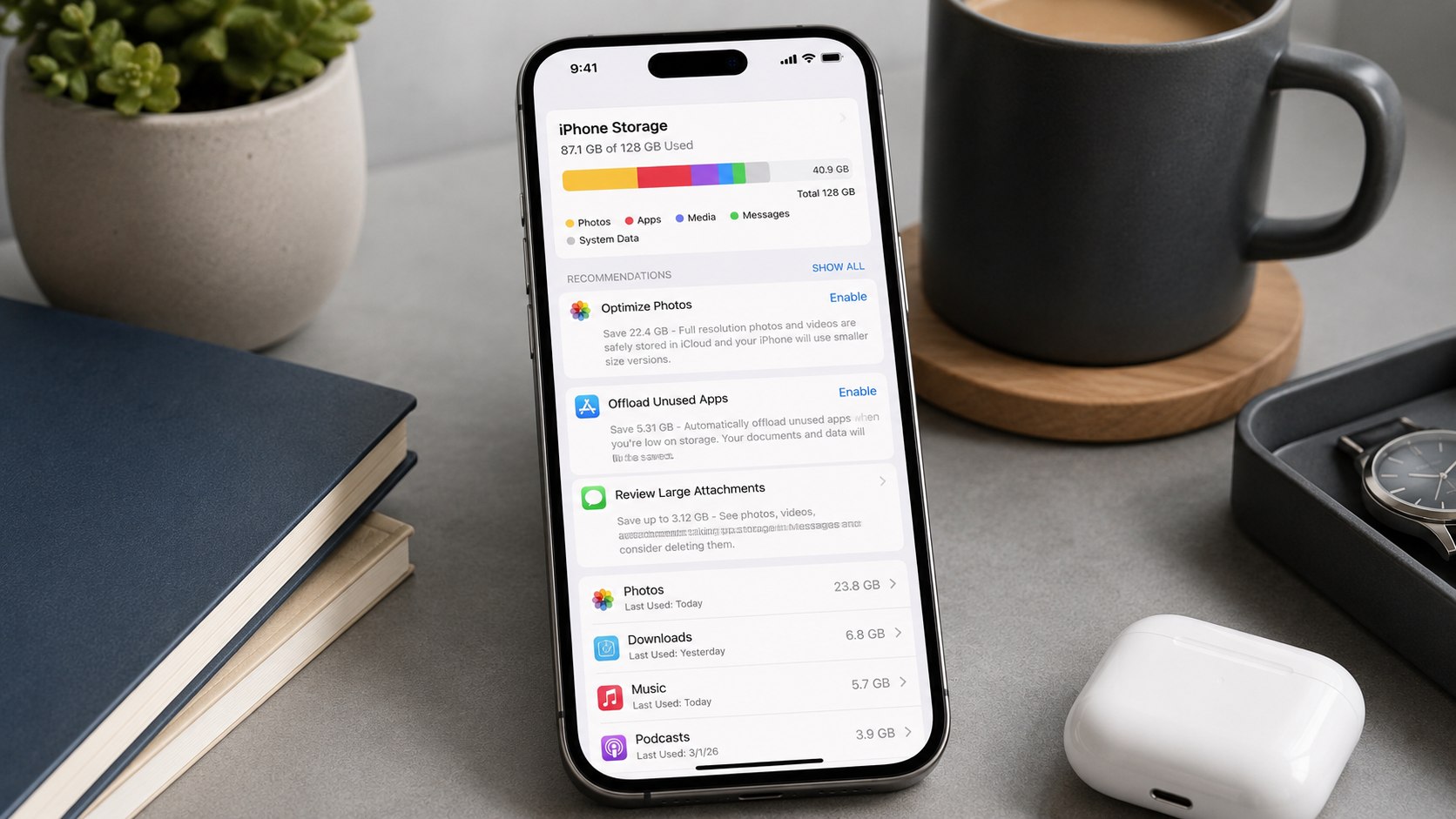
Troubleshooting when iPhone storage is still full
If the obvious cleanup does not work, the remaining problem usually falls into one of several categories. Check these scenarios before resetting the phone.
- Photos still use huge storage: confirm iCloud Photos and Optimize iPhone Storage are enabled, then connect to Wi-Fi and power.
- System Data looks unusually large: restart the iPhone, update iOS, and allow temporary files to be managed automatically.
- An app returns to its previous size: check whether it automatically downloads music, maps, videos, or offline files again.
- Storage stays full after deletion: review Recently Deleted in Photos and other applications that maintain temporary trash folders.
- iCloud is full too: remove unnecessary cloud data or choose an appropriate iCloud+ plan before further synchronization.
A factory reset should not be the first storage tactic. It creates unnecessary work and carries more risk than targeted cleanup.
Create a verified backup before any reset. Confirm that critical photos, contacts, authentication methods, and work files exist elsewhere. Then review storage again after synchronization finishes.
Persistent problems can also justify contacting Apple Support rather than repeatedly deleting personal data.
FAQ
What is the fastest way to free up storage on an iPhone in 2026?
Open Settings → General → iPhone Storage and identify the largest categories. Photos, large videos, downloads, and unused applications usually offer the biggest practical savings.
Does offloading an app delete my data?
Apple says offloading removes the application while keeping its documents and data. Deleting an application is different and can remove associated local information.
How can I free up iPhone storage without deleting photos?
Use iCloud Photos with Optimize iPhone Storage. Full-resolution originals can remain in iCloud while smaller versions occupy less local device storage.
Why is my iPhone storage full when I pay for iCloud?
iCloud storage and physical iPhone storage are separate. Paying for more iCloud capacity does not increase the phone’s built-in flash storage.
Should I delete apps or offload them?
Offload apps you may need again. Delete applications only when you no longer need them and have protected any important locally stored data.
Can I clear System Data manually?
There is no universal button that safely removes all System Data. Restarting, updating iOS, and removing unnecessary downloads can help iOS recalculate storage.
Once the iPhone has comfortable free space again, check Storage every few months. Keeping photos optimized and downloads under control prevents another emergency cleanup.
Earlier we wrote about How to Find Wall Studs Without a Stud Finder in 2026: Magnet, Outlet and 16-Inch Tricks