


How to back up Google Photos to a hard drive 2026 starts with Google Takeout, not with downloading thousands of pictures one by one. Select Google Photos, create an export, download every archive part, extract the files, then copy the complete folder to an external drive. A small library may take under an hour, while hundreds of gigabytes can require much longer for Google to prepare, as noted by Baltimore Chronicle.
The critical point is verification. Do not delete photos from Google after seeing ZIP files on the drive. Open several years, albums, videos, and original files first. Google Takeout can also place supplemental metadata in JSON files beside the photos, so those files should remain part of the archive.
Key takeaways
- Use Google Takeout for a full library instead of manually selecting thousands of individual photos.
- Keep every archive part until extraction and verification are complete, including JSON metadata files.
- Use a drive larger than the current library, leaving room for future exports and temporary files.
Step 1: Prepare the account, computer and external drive
What you need
A full Google Photos backup to external hard drive requires enough storage during both downloading and extraction. Takeout does not normally send a complete library straight to an unplugged external disk. The browser downloads files to the destination configured on the computer.
You will need:
- A Windows PC, Mac, or Chromebook with a current browser.
- Your Google Account password and access to 2-step verification.
- An external HDD or SSD with enough free capacity.
- A stable broadband connection.
- Temporary space for ZIP files and extracted folders.
- At least 30 minutes for setup, plus download and extraction time.
Check capacity before starting. A 700 GB Google Photos library should not be exported onto a drive with only 750 GB free. Extraction can temporarily require storage for both the compressed files and the unpacked library.
For a large family archive, a 2 TB or 4 TB drive is often more practical than buying capacity that barely matches current usage. In 2026, Seagate lists its 5 TB Expansion portable hard drive with a $149.99 MSRP on the official Seagate product page. Retail prices can vary.
Windows users normally choose NTFS for a Windows-only archive. exFAT is more practical when the same drive must work with both Windows and macOS. Reformatting a drive erases existing files, so anything already stored there needs another copy first.
One external drive is a local copy, not a complete disaster-recovery plan. A second drive stored elsewhere protects against theft, fire, loss, and hardware failure.
Android users who are unsure whether recent phone photos reached the cloud can first review the Baltimore Chronicle Android backup guide. Google Takeout can only export content already stored in the Google account.
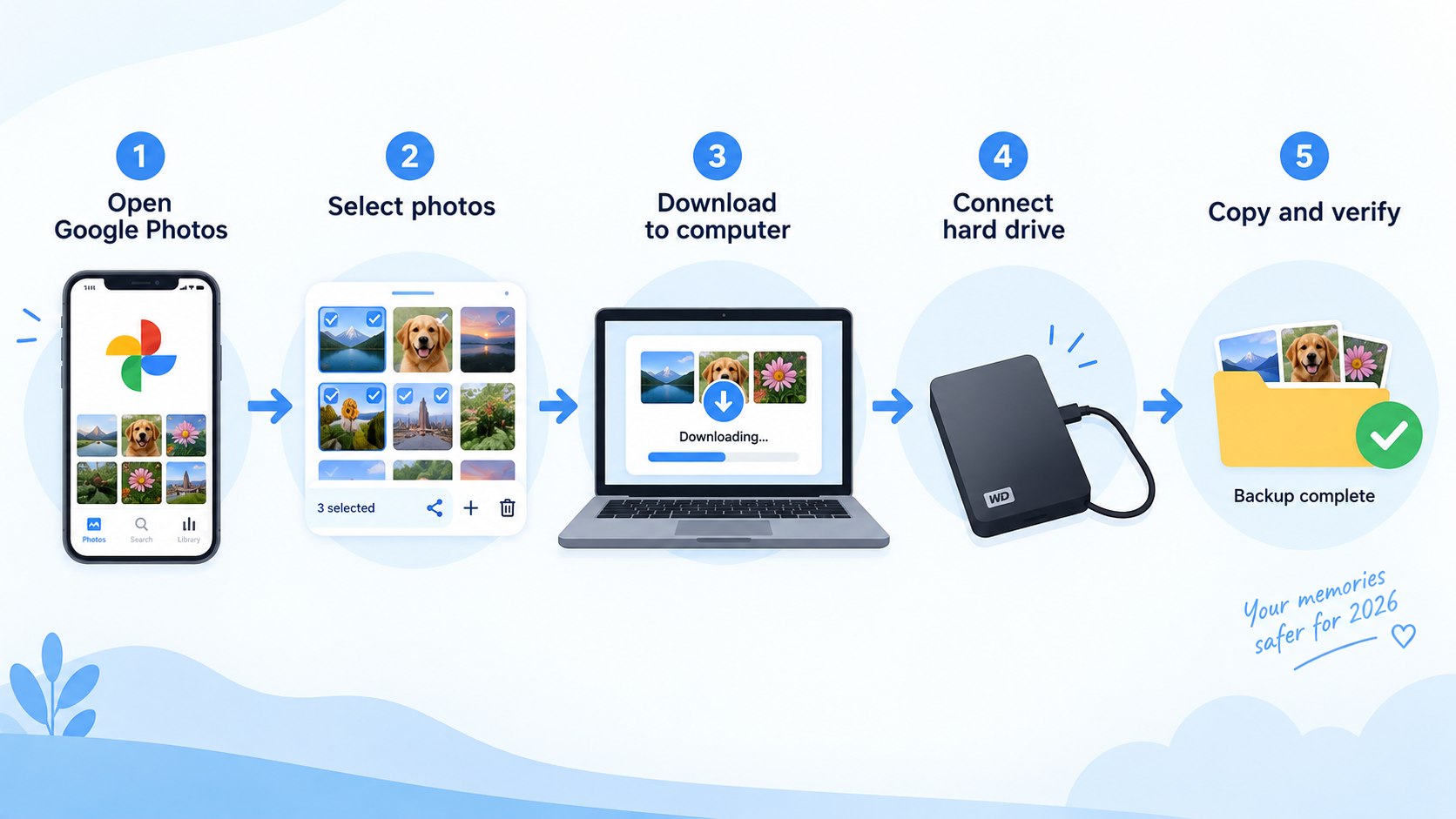
Step 2: How to Back Up Google Photos to a Hard Drive 2026 With Takeout
Sign in to the correct Google Account and open Google Takeout through Google’s official data-download instructions. Google products containing account data may initially appear selected. Choose “Deselect all,” then enable only Google Photos.
Follow these steps:
- Open Google Takeout while signed in to the correct account.
- Deselect the other Google products.
- Find Google Photos and select it.
- Review the album selection if only part of the library is needed.
- Choose “Next step” after confirming the selection.
Selecting only Photos prevents Gmail, Drive, Calendar, and unrelated account information from increasing the export size. This becomes important when the browser has limited disk space or the photo archive already contains hundreds of gigabytes.
Do not assume every visible Google Photos album represents a separate copy of each image. Albums often organize files that also appear in the main library, so the exported folder structure can look different from the Google Photos interface.
The most common mistake is exporting from the wrong account. Many households have personal, work, school, and older Gmail addresses signed into the same browser. Check the profile icon and email address before requesting the archive.
“If you download your Google data, it doesn’t delete it from Google’s servers.”
Google Account Help, data export guidance.
Step 3: Choose ZIP files, archive size and export frequency
Google Takeout offers ZIP and TGZ archive formats. ZIP is the simpler choice for most Windows and Mac users because current operating systems can open it without additional software.
| Setting | Best choice for most users | Why it matters |
|---|---|---|
| File type | ZIP | Easy to extract on Windows and macOS |
| Archive size | 10 GB to 50 GB | Fewer files without creating one enormous download |
| Frequency | One export | Best for an immediate full local backup |
| Scheduled export | Every 2 months for 1 year | Useful for maintaining later copies |
| Destination | Email download link | Keeps the process independent of another cloud provider |
A 300 GB library divided into 10 GB archives can generate many separate files. Larger archive sizes reduce clutter, although a failed large download can be more inconvenient to repeat.
Google states that archive preparation may take from minutes to days. Many exports arrive the same day, while very large libraries may need longer. Keep access to the Google account while the files are being prepared.
In 2026, Google also supports scheduled Photos exports. The option can create an export every 2 months for 1 year when Google Photos is selected. That makes Takeout useful for recurring local backups rather than a one-time emergency copy.
Readers who also keep ordinary files in Google Drive can compare this workflow with adding Google Drive to a computer. Drive synchronization and a Photos Takeout archive solve different problems.
The common mistake is choosing the smallest archive size without considering total library size. A large collection can turn into dozens of downloads that must all be tracked.
Step 4: Download every archive before extracting files
When Google sends the export notification, open the download page and save every archive part. For a download Google Photos to hard drive workflow, creating a dedicated folder first prevents Takeout ZIP files from becoming mixed with ordinary downloads.
A practical structure is Google Photos Backup / 2026-10 Takeout / Archives. Save every archive part there before extracting anything. Numbered Takeout files belong to the same export and should remain together.
Use this order:
- Connect the external drive before starting large downloads.
- Create one folder named for the export month and year.
- Download every listed archive part.
- Confirm each download finishes completely.
- Keep the browser page open until all parts are accounted for.
A missing archive can remove a large group of photos or videos from the final copy. The problem may not be obvious when thousands of other files extracted correctly.
Do not disconnect a portable drive while the browser is still writing files. Windows users should also watch for duplicate files with “(1)” in the filename after repeated download attempts.
If the computer’s internal SSD is almost full, change the browser’s download location to the external drive before beginning. Keep additional room available for extraction.
A backup is only as complete as its least obvious missing file. Treat every Takeout archive part as required until the library has been verified.
Step 5: Extract the archive without losing Google Photos metadata
Extract each ZIP file into a single backup location. The resulting folders may contain JPG, HEIC, PNG, RAW, MOV, or MP4 files alongside JSON files. Those JSON files can hold Google-specific information that was not embedded in the original media.
Google explains that an operating system can assign a new filesystem timestamp during download. Original media metadata can remain inside the photo or video, while some additional Google Photos information appears in separate JSON files.
“Any additional metadata that isn’t from the original file, like comments within Google Photos, are downloaded to a secondary JSON file.”
Google Account Help, Takeout metadata guidance.
This distinction matters when File Explorer or Finder shows a creation date that does not match the day the photograph was taken. A changed filesystem date does not automatically mean the original EXIF capture date disappeared.
Do not delete JSON files simply because normal photo viewers cannot display them. They take little space compared with large videos and can preserve useful information for later migration or archive reconstruction.
The common mistake is reorganizing everything immediately. Finish extraction and verification first. Rename folders, merge years, or remove duplicates only after preserving an untouched copy of the original export.
Step 6: Verify the backup before deleting anything from Google
A Google Takeout photos backup is not finished when the browser reaches 100%. Verification is what turns downloaded files into a trustworthy local archive.
Start with samples from across the library. Open old and recent photos, several videos, portrait images, screenshots, RAW files, and albums from different years. Play videos beyond the opening seconds rather than checking only thumbnails.
Use this checklist:
- Confirm the expected year folders exist.
- Open at least 20 photos from different periods.
- Play several short and long videos.
- Compare approximate file counts where practical.
- Confirm JSON files remain with the exported media.
- Safely eject and reconnect the external drive.
- Open several files again after reconnecting.
The second opening test catches a surprisingly common problem: reviewing files that still exist on the computer instead of the external disk. After reconnecting, check the path shown by File Explorer or Finder.
Do not immediately erase the downloaded ZIP archives. Keep them until the extracted copy has been checked and, ideally, duplicated to another storage device.
For households that also use Apple services, Baltimore Chronicle explains how to download iCloud photos to a PC in 2026. Keeping Google and iCloud exports in separate top-level folders reduces accidental deletion.
A stronger setup follows the 3-2-1 backup principle: keep several copies, use more than one storage type, and store one copy away from the primary location. A hard drive beside the computer protects against account problems but not every physical disaster.
Troubleshooting Google Photos Takeout problems
Large Takeout jobs can fail for ordinary reasons. Storage shortages, expired links, browser interruptions, and incomplete archive sets are more common than serious data corruption.
Typical problems include:
- Google Photos export to external drive is too large: export selected albums or use a larger destination drive.
- Download stops repeatedly: use a stable wired or strong Wi-Fi connection and retry the affected archive.
- ZIP will not extract: download that archive part again before using repair software.
- Photos show unexpected dates: inspect EXIF metadata instead of relying only on filesystem creation dates.
- Recent photos are missing: confirm Google Photos finished uploading them before requesting another export.
If Google creates multiple archives, one damaged ZIP does not necessarily mean the whole export failed. Replace only the affected part and preserve successful downloads.
Users with limited laptop storage should avoid extracting a large library onto the system drive. Put both archives and extracted files on an external disk with enough free capacity.
Another common problem is duplication. A later full Takeout export can contain files already preserved in an earlier backup. Keep exports in dated folders until there is a deliberate deduplication plan.
Never run duplicate-removal software against the only backup copy. Aggressive matching tools can incorrectly remove edited images, burst photos, or resized versions.
FAQ
Can Google Photos back up directly to an external hard drive?
Google Photos does not offer a conventional continuous sync option that mirrors the entire cloud library directly to a USB drive. Google Takeout is the official method for exporting a full copy. The downloaded archives can then be stored and extracted on the external disk.
How long does Google Takeout take for Photos in 2026?
Google says archive preparation can take from several minutes to several days. The actual time depends on library size, account conditions, and Google’s processing. Download time also depends on connection speed and archive size.
Does Google Takeout reduce photo or video quality?
Takeout is designed to export account data rather than create social-media copies. Preserve the exported originals and related metadata. Check representative RAW files, videos, and edited images before treating the archive as complete.
Can photos be deleted from Google after the hard-drive backup?
Yes, but only after the local copy is extracted, opened, and independently verified. A second backup is safer before deleting the cloud copy. Downloading through Takeout does not itself remove files from Google.
How often should Google Photos be copied to a hard drive?
For an active family photo library, every 1 or 2 months is reasonable. Google’s scheduled Takeout option can create recurring exports every 2 months for 1 year. Critical professional images should have additional backups immediately after creation.
Should an HDD or SSD be used for Google Photos?
HDDs usually provide more capacity per dollar and work well for long-term archives. SSDs are faster, quieter, and have no moving parts. Neither type should be the only copy of irreplaceable photos.
Earlier we wrote about How Turo Insurance Works in 2026: Premier, Standard and Minimum Plans Carry Very Different Damage Risks