

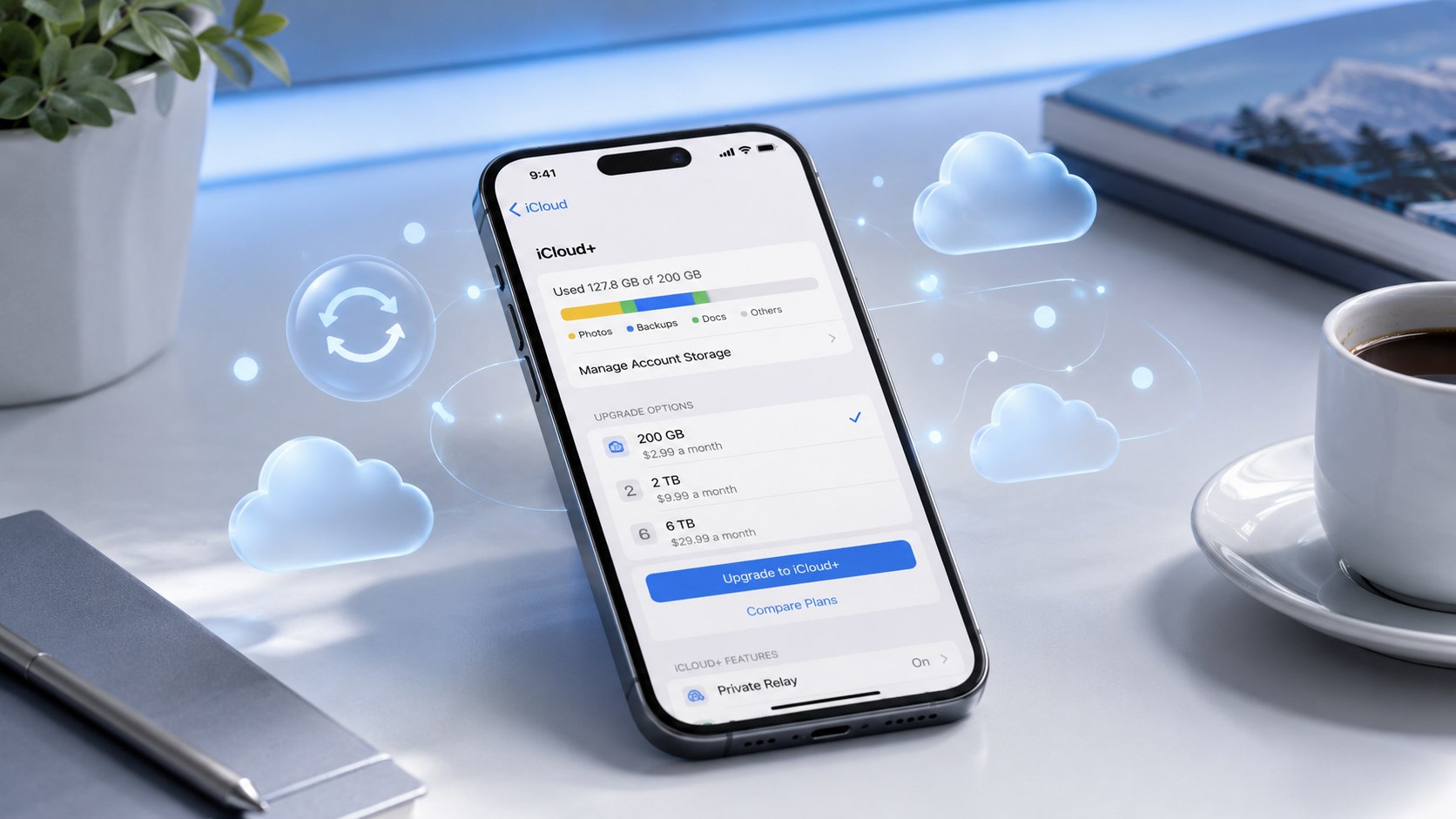
How to upgrade iCloud plan 2026 takes only a few minutes on an iPhone, iPad, Mac, or Windows PC. Open iCloud settings, choose a larger storage tier, confirm payment, and the extra capacity becomes available through your Apple Account, as noted by Baltimore Chronicle.
For US customers, Apple offers 50 GB, 200 GB, 2 TB, 6 TB, and 12 TB paid plans. Prices begin at $0.99 monthly, while every paid iCloud+ tier supports Family Sharing. The process itself usually takes less than 5 minutes.
Key takeaways
- US iCloud+ prices start at $0.99 monthly for 50 GB and reach $59.99 for 12 TB.
- Every paid iCloud+ tier can be shared with up to 5 additional Family Sharing members.
- Family members share storage capacity, but their photos, files, messages, and backups remain private.
The free Apple tier remains limited to 5 GB. That space is shared across backups, iCloud Photos, iCloud Drive, Messages, and other synchronized data. One iPhone backup can therefore consume much of the available capacity.
Families should consider combined usage rather than only the organizer’s storage. Upgrading does not require transferring existing files manually.
What You Need
Before changing your iCloud plan, make sure the basic account and payment requirements are ready.
- An Apple Account already signed into the device
- An iPhone, iPad, Mac, or Windows PC with internet access
- A valid payment method or sufficient Apple Account balance
- About 5 minutes for the plan change
- Family Sharing configured if several people will use the subscription
No separate iCloud account is required for the upgrade. Existing photos and backups stay associated with the same Apple Account. Apple bills iCloud+ monthly after the purchase, and applicable taxes may depend on the state.
Step 1: Check Your Current iCloud Storage and Pick a Tier
First, check how much storage is currently used. On iPhone, open Settings, tap your name, select iCloud, and review the storage indicator.
Do not choose a plan based only on today’s usage. Photos, 4K video, device backups, Messages, and shared family storage can increase the total quickly. Apple lists current US pricing on its official iCloud+ pricing page.
| iCloud+ tier | US price per month | Practical fit | Family Sharing |
|---|---|---|---|
| 50 GB | $0.99 | 1 light user, basic backups | Yes |
| 200 GB | $2.99 | Photos, backups, small family | Yes |
| 2 TB | $9.99 | Large libraries, several devices | Yes |
| 6 TB | $29.99 | Heavy video use, large households | Yes |
| 12 TB | $59.99 | Very large media collections | Yes |
The 50 GB plan is inexpensive but can become restrictive with several devices. The iCloud 200GB family plan offers more flexibility for modest household use.
A 2 TB subscription creates much more room for video and multiple backups. The 6 TB and 12 TB options are designed for unusually large libraries. Check actual storage consumption before committing to a higher monthly bill.
“Share everything with up to five other family members.”
Apple Support describes iCloud+ plans as shareable through Family Sharing while keeping each person’s data private.
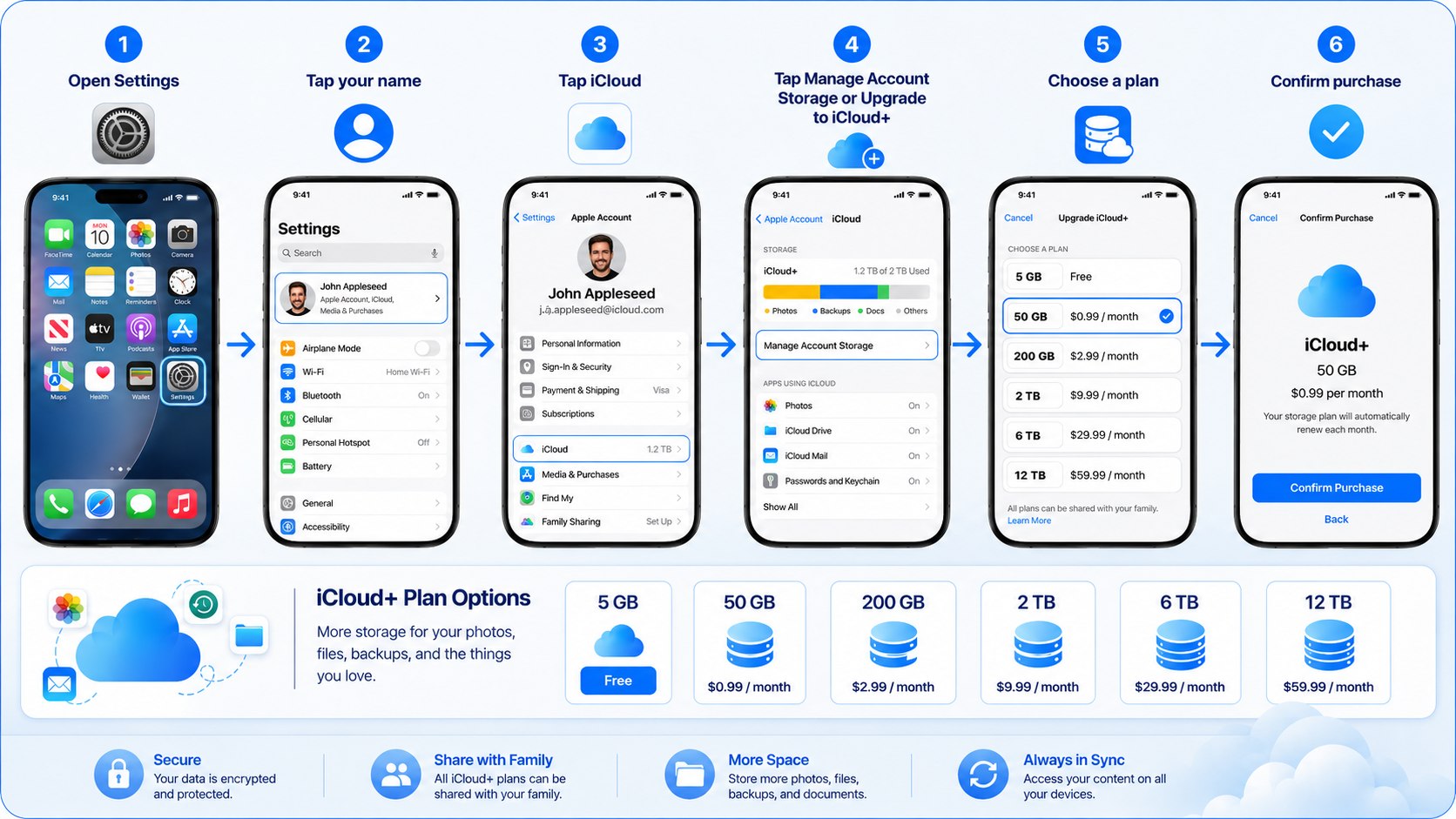
Step 2: How to Upgrade iCloud Plan 2026 on iPhone
On an iPhone or iPad, open Settings and tap your Apple Account name. Select iCloud, open the storage or plan management controls, and choose an available iCloud+ tier.
Confirm the subscription using the requested Apple authentication method. Exact menu names can differ slightly between software versions.
The important part is selecting the storage plan inside the correct Apple Account. This keeps existing photos, backups, files, and subscriptions connected.
A common mistake is upgrading an account different from the one storing the device’s data.
Extra iCloud storage expands the cloud allowance; it does not increase the physical storage inside an iPhone.
Step 3: Upgrade iCloud+ on a Mac or Windows PC
On a Mac, open System Settings, select Apple Account, and choose iCloud. Open the plan management option, select the desired storage amount, then approve the purchase.
Windows users can manage storage through iCloud for Windows. Open the application, choose storage management, and follow Apple’s subscription controls.
The subscription follows the Apple Account rather than one individual device. A frequent mistake is assuming that buying more iCloud storage automatically creates a new backup.
Backup settings still need to be enabled on each relevant device. Local encrypted backups and iCloud serve different purposes, so using both can provide another recovery option.
A computer backup also avoids consuming additional cloud storage.
Step 4: Share the New Plan With Your Family
The iCloud Family Sharing storage feature lets one subscription serve a group of up to 6 people in total. Each person continues using a separate Apple Account.
On iPhone, open Settings, select Family, tap Subscriptions, and choose iCloud+. Follow the prompts to share the existing subscription.
On Mac, open System Settings, select Family, then Subscriptions and iCloud+.
“Your photos, documents and other information stay private.”
Apple explains on its Family Sharing support page that members can share available storage without sharing personal files.
People using the free 5 GB tier can move onto the family capacity. Members already paying for iCloud+ can switch to the shared family plan instead.
Sharing an iCloud+ allowance does not give the family organizer access to another member’s private photo library or documents.
Step 5: Decide Whether 200 GB or 2 TB Makes More Sense
Choosing an iCloud storage upgrade is usually harder than performing the upgrade itself. The difference between 200 GB and 2 TB is particularly relevant for families.
- Choose 50 GB when 1 person mainly needs backups and a modest photo library.
- Choose 200 GB when several devices need backups but household media use remains moderate.
- Choose 2 TB or more when several people store large photo, video, and document collections.
Start with the storage already consumed across participating accounts. Then allow room for future iPhone backups and expanding photo libraries.
Parents recording frequent video may reach 200 GB faster than expected. Freelancers using iCloud Drive can also need substantially more capacity.
Moving to a larger tier later remains possible, so oversizing immediately is unnecessary. The iCloud+ price USA difference becomes substantial beyond 2 TB.
Moving from 2 TB at $9.99 to 6 TB at $29.99 adds $20 per month. The 12 TB tier costs $59.99 monthly before applicable taxes.
Step 6: Confirm the Upgrade and Check Family Usage
After payment, return to the iCloud storage screen and confirm the new capacity. Check that backups and synchronization resume if they previously stopped because storage was full.
Family organizers should also review combined usage after enabling sharing. This reveals whether one household member consumes a large portion of the allowance without exposing that person’s private files.
A successful subscription purchase does not automatically solve disabled backup settings. Confirm that iCloud Backup is enabled on important devices.
Also check the date of the latest backup. Avoid deleting photos immediately after upgrading simply to test synchronization.
Troubleshooting iCloud+ Upgrade Problems
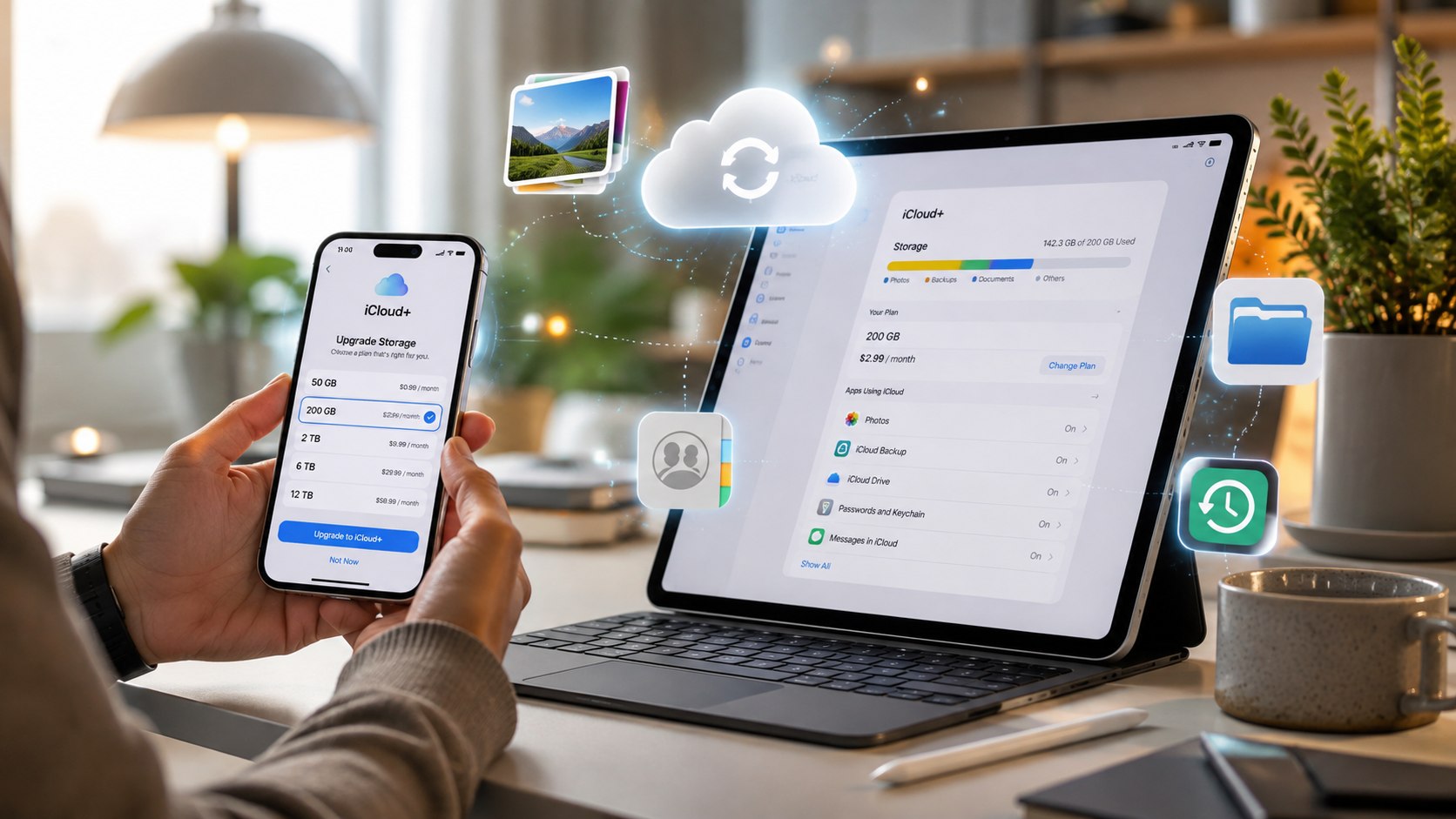
Most change iCloud storage plan problems involve the Apple Account, payment method, Family Sharing status, or outdated device software. These common scenarios are worth checking before attempting another purchase.
- Upgrade option is missing: confirm the device is signed into the expected Apple Account and connected to the internet.
- Payment is declined: review the payment method, billing details, and available Apple Account balance.
- Family storage is unavailable: confirm Family Sharing is configured and iCloud+ sharing is enabled.
- Storage still appears full: restart Settings and verify that the new subscription appears under the same Apple Account.
- Backups remain paused: confirm iCloud Backup is enabled and enough new capacity is available.
A payment problem should be fixed before repeatedly changing plans. Family members should also verify which person currently shares the subscription.
Leaving a Family Sharing group can reduce available storage. If stored content exceeds the new allowance, uploads and backups may stop.
Apple recommends having enough personal storage available when leaving a shared plan.
FAQ About Upgrading iCloud in 2026
How much does iCloud+ cost in the USA in 2026?
Apple lists 50 GB at $0.99, 200 GB at $2.99, and 2 TB at $9.99 monthly. The 6 TB tier costs $29.99, while 12 TB costs $59.99. Applicable taxes can vary.
Can I share a 50 GB iCloud+ plan with family?
Yes. Apple states that every paid iCloud+ tier supports Family Sharing with up to 5 additional family members. Storage is shared, while personal data remains private.
What happens to my photos when I upgrade iCloud storage?
Existing photos remain under the same Apple Account. Upgrading changes available cloud capacity and does not move or erase the photo library.
Can I upgrade iCloud storage and downgrade later?
Yes. Apple lets users change to another tier or return to the free 5 GB allowance. A downgrade normally takes effect after the current billing period.
Is iCloud storage the same as iPhone storage?
No. iCloud stores synchronized data and backups online. Buying 2 TB of iCloud+ does not add 2 TB of physical storage to an iPhone.
Which iCloud plan is best for a family?
Many smaller households can start with 200 GB. Families storing substantial video or several large backups may find 2 TB more practical.
Earlier we wrote about Window AC vs Portable AC: 2026 Prices, Efficiency and Installation Compared