

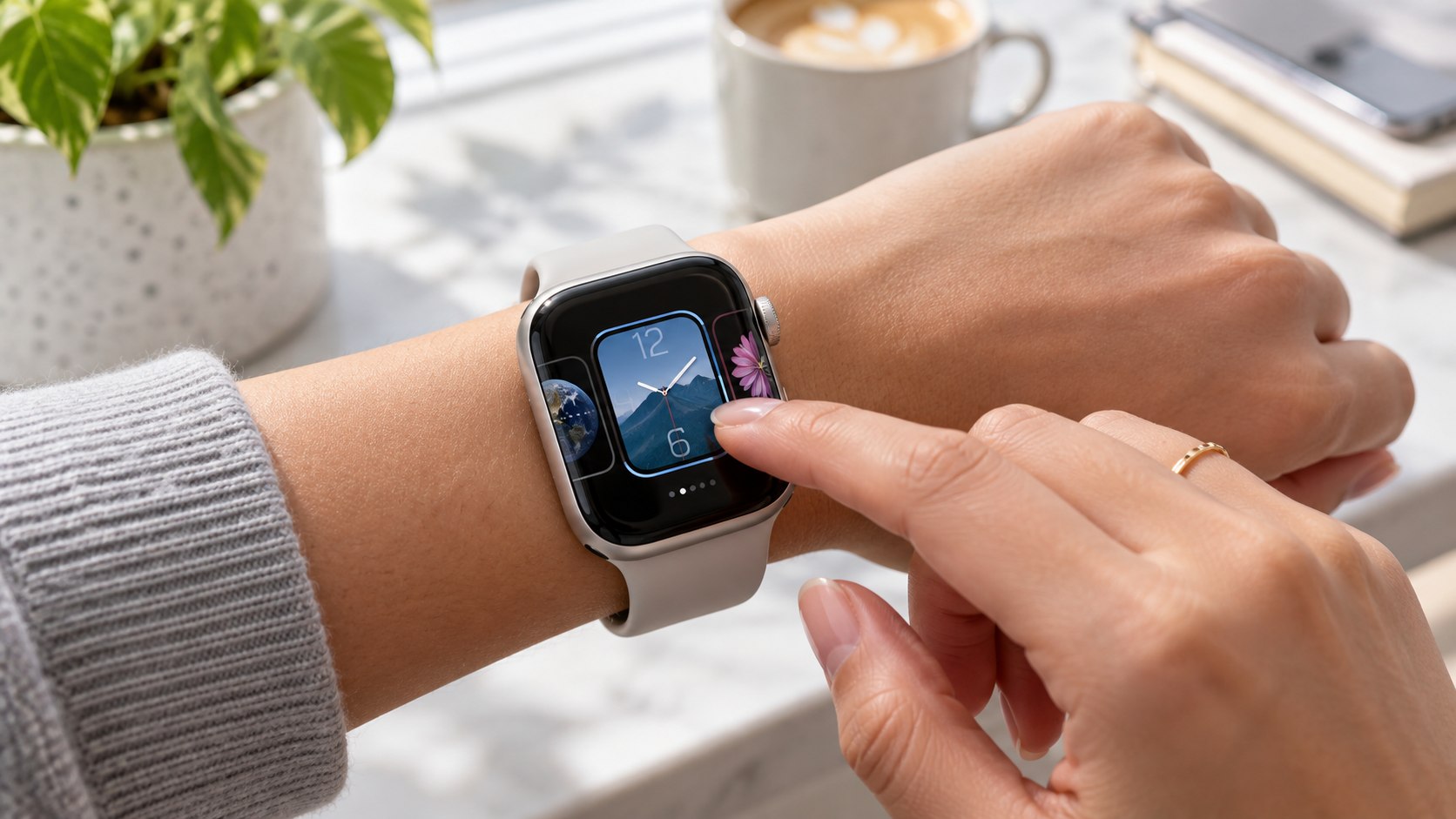
How to change Apple Watch face 2026 is a 30-second task once the face you want is already saved. Touch and hold the current face, swipe to another design, then tap it. Adding a new face or adjusting complications takes about 2–5 minutes, as noted by Baltimore Chronicle.
In 2026, Apple also lets you manage faces from the Watch app on your iPhone. That route is easier when choosing several complications, comparing layouts, or building multiple versions for work, exercise, and weekends. Apple’s current user guide confirms both methods.
Key takeaways
- Touch and hold the current face to switch between designs already stored on your Apple Watch.
- Use Face Gallery on iPhone when you want to compare layouts and configure several complications more comfortably.
- Watch faces can be shared, but third-party complications may require the recipient to install another app.
The important distinction is between switching and adding. Switching uses faces already in your collection. Adding brings another design into that collection. Editing changes colors, styles, complications, or other options supported by that particular face. Apple also allows optional swipe-based switching after a setting change.
А useful Apple Watch face should reduce taps, not simply make the screen look different.
What you need
- An Apple Watch that is already set up and unlocked.
- Your paired iPhone for Face Gallery, although basic changes work directly on the watch.
- About 30 seconds for switching or several minutes for a new configuration.
- Internet access only when downloading apps required by third-party complications.
- No extra payment for Apple’s built-in watch faces.
No Mac, cable, or separate design account is required. Keep the watch on your wrist while experimenting because readability changes with viewing angle. Bright colors can look appealing indoors but become less practical during meetings or workouts. Complications also deserve restraint because every available slot does not need filling. If the watch itself is new, the Apple Watch setup guide for 2026 covers pairing and initial configuration first.
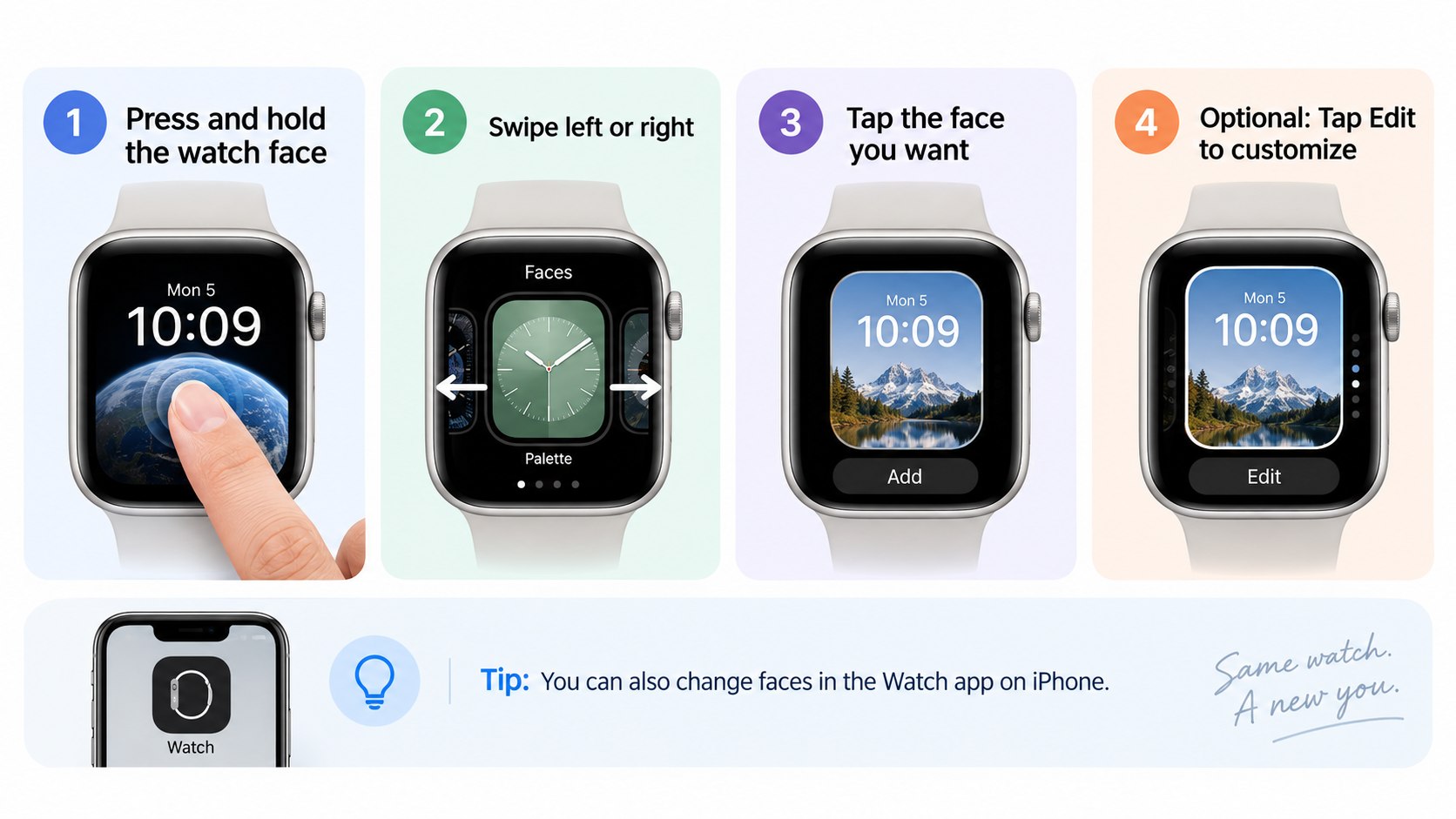
Step 1: Open the Apple Watch face selector
Wake the Apple Watch so the current face is visible. Touch and hold the display until the face becomes a smaller card with editing controls.
This screen is the central control point for switching Apple Watch faces, editing them, adding another design, or removing one. Apple’s 2026 documentation uses the same touch-and-hold method.
A common mistake is pressing the Digital Crown first. That opens apps instead of the watch-face collection. Start from the actual clock face.
“Choose a design, adjust colors and features, then add it to your collection.”
Apple Support, Apple Watch User Guide, current 2026 guidance.
Step 2: Swipe to another saved face and select it
Swipe left or right through the saved face cards. Stop on the design you want and tap it to make that face active.
This is the fastest answer to how to change an Apple Watch face when several designs are already saved. There is no confirmation screen and no need to open the iPhone app. Apple documents the sequence as touch, hold, swipe, and tap.
Do not swipe on the normal full-screen clock unless Swipe to Switch Watch Face is enabled. Otherwise, the gesture may interact with another watchOS feature rather than changing the face.
People moving an existing watch to another iPhone should finish that transfer before reorganizing faces. Baltimore Chronicle has a separate guide on pairing Apple Watch with a new iPhone in 2026.
Step 3: Add a new Apple Watch face
From the face selector, swipe all the way to the end and tap the Add button. Browse available groups, choose a face, then select Get and Add where prompted.
Apple groups designs by use rather than forcing every face into one continuous list. The available selection can differ by watch model, software version, and supported hardware features.
The mistake to avoid is assuming an online screenshot represents a downloadable third-party watch face. Apple Watch works primarily with Apple’s face framework. Third-party apps can supply complications, but they do not replace watchOS with unrestricted custom face software.
Create separate faces for situations that actually change during the day: commuting, focused work, exercise, travel, and evenings.
Step 4: Customize the face and choose complications
Touch and hold the active face, tap Edit, then move through the available customization screens. Depending on the face, controls can include color, style, dial treatment, layout, and complications.
Apple Watch complications are small information or action modules placed on compatible faces. Apple lists options from apps including Calendar, Weather, Maps, Activity, Compass, Notes, Timers, World Clock, and Shortcuts. Third-party App Store apps can also provide complications.
When editing a complication directly on the watch, tap its position and turn the Digital Crown to choose another option. Press the Digital Crown when finished, then return to the face.
The best complication is not necessarily the one with the most data. A driver may want weather and navigation access. A freelancer might prefer calendar appointments and timers. Someone exercising regularly could prioritize Activity, Workout, weather, or heart information.
The comparison below helps decide how much information belongs on one screen.
| Face setup | Best use | Practical complication choices | Main trade-off |
|---|---|---|---|
| Minimal | Meetings, evenings | Date, timer | Less information at a glance |
| Work-focused | Office, freelance work | Calendar, reminders, timer | Busier appearance |
| Fitness-focused | Gym, running, walking | Activity, weather, workout | Less room for productivity tools |
| Travel-focused | Flights, road trips | Weather, World Clock, Maps | May need reconfiguring after travel |
Complications should answer recurring questions without opening an app. Calendar is useful when meetings define the day. Weather matters more for outdoor work, commuting, or running. A timer can be more practical than another decorative element. Different layouts also support different numbers and shapes of complications. Building 2 or 3 purpose-specific faces is often cleaner than forcing every function onto one screen.
Step 5: Use Face Gallery on your iPhone
Open the Apple Watch app on the paired iPhone and select Face Gallery. Apple says this is the easiest place to view available faces, customize options, choose complications, and add a configuration to the watch.
The iPhone view is particularly helpful when configuring several complication positions. A larger display makes it easier to understand how the finished face will look before adding it.
Choose a category, select a face, change supported colors or styles, then configure complication positions. Tap Add to Watch when finished. The new design joins the collection and can become the current face.
A frequent mistake is editing a face but expecting every Apple Watch model to offer identical options. Hardware-specific faces and features can limit what appears on older devices.
For readers deciding whether their current hardware is still suitable, Baltimore Chronicle also compares Apple Watch Series 11 and Ultra 3 in 2026, including their original US pricing and size differences.
Step 6: Enable quick swiping and share a finished face
If you want faster switching, open Settings on Apple Watch, select Clock, and enable Swipe to Switch Watch Face. Apple documents this as an optional shortcut for moving directly between saved faces.
This option works well when 2 or 3 faces serve clear purposes. Too many nearly identical designs can make quick swiping less useful because finding the right one takes longer.
You can also share an Apple Watch face from the Watch app on iPhone. Select a face from your collection or Face Gallery, tap the Share button, and choose a sharing method. Apple says recipients need an Apple Watch with watchOS 7 or later.
“Shared faces can include the complications included in watchOS as well as those created by third parties.”
Apple Support, watch-face sharing guidance, 2026.
A shared configuration does not guarantee identical third-party content. If the face uses a complication from an app the recipient lacks, Apple can offer that app or let the person continue without it.
Troubleshooting Apple Watch face problems
Most watch-face problems come from using the wrong gesture, missing software, unsupported options, or a third-party complication that is not installed.
- The face will not change: touch and hold the clock first, then swipe through the saved face cards.
- A face is missing: check Face Gallery because availability can depend on the watch model and software.
- A complication is unavailable: confirm its app is installed and supports that complication position.
- Swiping does nothing: enable Swipe to Switch Watch Face under Settings > Clock.
- A shared face looks different: install required third-party apps or accept the face without those complications.
Restarting the watch should not be the first response to a missing design. Confirm that the face exists in the collection first. Then check whether the expected complication supports that particular slot. Third-party complications can disappear when their associated app is removed. A shared face may also arrive without optional app content. Persistent interface problems are better handled through Apple’s official watch-face instructions before erasing or resetting the device.
How to organize several Apple Watch faces without creating clutter
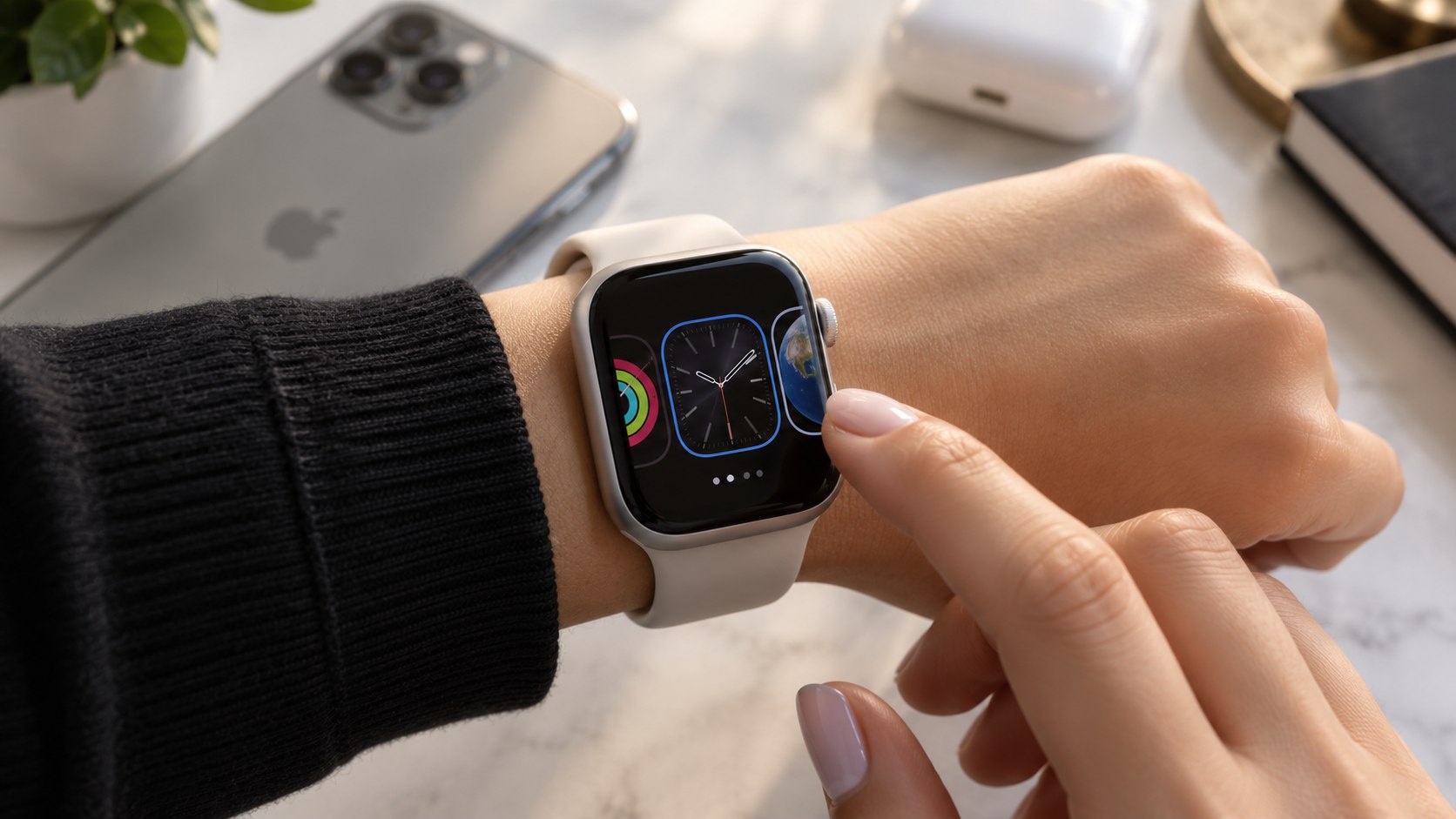
A practical collection usually has jobs rather than themes. One face can handle work, another exercise, and another evenings or weekends. That arrangement makes complications more useful because each face carries only the information needed at that moment.
You can rearrange saved faces from the Watch app on iPhone. Apple also allows rearranging directly on the watch by entering the face selector, touching and holding again, then dragging a selected face left or right.
If a design is no longer useful, touch and hold the current face, find the unwanted one, swipe up, and select Remove. Removing it does not permanently eliminate the design from Apple’s available collection. It can be added again later.
The most effective collection is usually the smallest one that covers the situations where your information needs genuinely change.
FAQ
How do I change my Apple Watch face in 2026?
Touch and hold the current watch face, swipe left or right through saved designs, then tap the face you want. Apple lists this as the standard method in its current Apple Watch User Guide.
How do I add a new Apple Watch face?
Touch and hold the current face, swipe to the end of the collection, and tap Add. Browse the available faces, choose one, then add and customize it.
Can I change an Apple Watch face from my iPhone?
Yes. Open the Apple Watch app and use Face Gallery to browse designs, adjust supported features, select complications, and add the finished configuration to your watch.
What are complications on an Apple Watch face?
Complications are small face elements that display information or open functions from supported apps. Examples include weather, calendar items, Activity data, timers, maps, and World Clock information.
Can I share my customized Apple Watch face?
Yes. The Watch app on iPhone includes a Share option for saved faces and Face Gallery configurations. Apple says shared faces can include built-in and third-party complications.
Why is a complication missing from a shared Apple Watch face?
The recipient may not have the third-party app that provides that complication. Apple allows the required app to be installed or the face to be added without that complication.
Earlier we wrote about HELOC or Home Equity Loan in 2026? Fixed vs Variable Rates Explained