


How to free up iCloud storage 2026 starts with one practical move: open Settings, tap your name, then iCloud. Check which category uses the most space before deleting anything. Most cleanups take 15–30 minutes, depending on Photos, backups, Messages, and iCloud Drive, as noted by Baltimore Chronicle.
If iCloud is full, new backups may stop, photos may stop uploading, and iCloud Drive may stop syncing. The fastest gains usually come from old device backups, large videos, message attachments, and forgotten files. Apple provides 5 GB free, so even one active iPhone can outgrow the basic allowance quickly.
Key takeaways
- Start with Settings > your name > iCloud and target the largest storage category instead of deleting random files.
- Delete old backups and large videos first because they can free several gigabytes without changing everyday iPhone settings.
- Remember that synced deletions can affect every Apple device using the same Apple Account and iCloud service.
What You Need
A few things should be ready before changing storage settings. None requires special software or a paid cleanup app.
- An iPhone, iPad, or Mac signed into the correct Apple Account.
- The device passcode and Apple Account password.
- A stable Wi-Fi connection.
- 15–30 minutes for a normal cleanup.
- An optional Mac or external drive for files that should be archived first.
- Access to iCloud.com when reviewing files from a computer.
Back up anything irreplaceable before removing it from a synchronized service. A photo deleted through iCloud Photos can disappear from other connected Apple devices too. Files removed from iCloud Drive also disappear wherever that drive is synchronized.
Anyone preparing a replacement device should also review Baltimore Chronicle’s guide to transferring data from an old iPhone. The transfer process is easier when the old phone still has a complete backup. Users who prefer local storage can instead follow the guide to backing up an iPhone to a Mac.
The safest cleanup is selective: remove data that is clearly replaceable before touching photos, documents, or active-device backups.
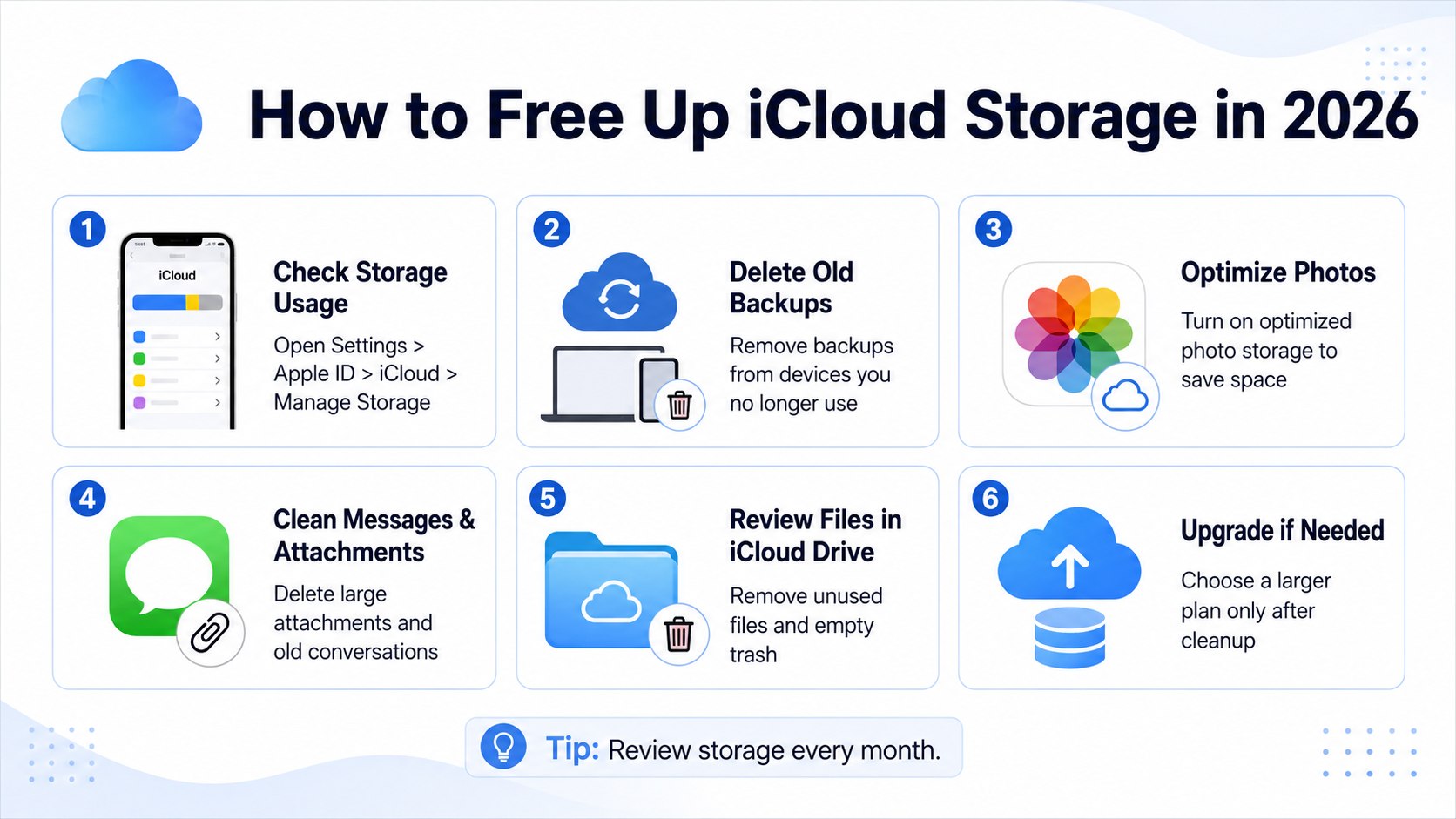
Step 1: How to Free Up iCloud Storage 2026 in Settings
Open Settings, tap your name, then tap iCloud. The storage graphic shows how much space Photos, Backups, Messages, Drive, Mail, and other services consume.
On supported versions of iOS, Apple may also show Recommended for You. That area can highlight large files, old backups, or other items worth reviewing first. Apple explains these controls in its official iCloud storage guide.
This first check matters because iCloud storage full problems rarely come from every category equally. A small device backup should not distract from a photo library using tens of gigabytes.
The common mistake is deleting apps from the Home Screen. Removing an iPhone app does not automatically remove every copy of its data stored in iCloud.
Step 2: Delete Old iPhone and iPad Backups
Go to Settings > your name > iCloud > Storage or Manage Account Storage > Backups. Open each listed device and confirm whether it is still owned and actively used.
Old backups from traded, broken, or retired devices are strong candidates for deletion. Apple states that deleting a device backup also turns off iCloud Backup for that device.
- Open the Backups category.
- Select an obsolete iPhone or iPad.
- Confirm the device name and backup information.
- Choose Turn Off and Delete from iCloud.
- Recheck available storage after deletion completes.
This approach often makes more sense than deleting personal photos one at a time. A household may have backups from several generations of iPhones under one Apple Account. Parents should also check older iPads previously used by children.
Do not delete the backup of a phone awaiting repair or replacement. That copy may be the easiest way to recover app data and device settings. The same caution applies before an Apple Store visit or carrier trade-in.
For a current phone, review which applications participate in the backup. Large apps whose information already exists elsewhere may not need another iCloud copy.
Step 3: Remove Large Photos and Videos Safely
For many households, Photos consumes more space than documents or Mail. Start with long videos, duplicate captures, screenshots, and recordings that already exist somewhere else.
The crucial rule is synchronization. With iCloud Photos enabled, deleting an image on one device also removes it from other devices using the same Apple Account.
| Action | Reduces iCloud storage | Main risk |
|---|---|---|
| Delete an iCloud Photo | Yes | Removed from synced devices |
| Remove an old device backup | Yes | Restore point is lost |
| Delete an iCloud Drive file | Yes | File disappears from synced Drive |
| Use Optimize iPhone Storage | No direct reduction | Mostly saves local iPhone space |
| Delete an app from iPhone | Not necessarily | Cloud data may remain |
The distinction between phone storage and cloud storage prevents a common mistake. Optimize iPhone Storage reduces the space used on the physical iPhone. It does not mean original photos stop using iCloud capacity.
Large videos deserve attention first because a few recordings can outweigh hundreds of ordinary photos. Export family videos to a Mac or another trusted archive before deleting them when no second copy exists.
Recently Deleted may provide a recovery window for eligible photos. However, it should not be treated as a permanent backup. Important family photos, work files, or legal documents should exist in another trusted location.
People moving to another phone should complete the new iPhone setup process before permanently removing old media.
Step 4: Clean iCloud Drive, Messages, and Mail
Open Files > Browse > iCloud Drive to find documents, ZIP archives, exported videos, PDFs, and old project folders. Delete only files that are no longer required or already have another copy.
For freelancers, iCloud Drive can quietly accumulate client exports and duplicated project folders. Renters may have old lease scans, while parents can find school videos and shared documents from previous years.
Messages is another common source of hidden storage. Open a conversation, tap the contact name, and review photos, videos, and other attachments. Removing several large video files can be more effective than deleting years of ordinary text.
Mail users should concentrate on messages with large attachments rather than plain-text email. Apple identifies attachments as one of the storage categories that can be reviewed when iCloud space runs low.
Apple’s guidance separates Photos, backups, iCloud Drive, Messages, and Mail into distinct storage categories. Each should be reviewed individually instead of treating iCloud as one undifferentiated block.
Apple Support, “Manage your iCloud storage on your Apple device.”
Several large attachments can consume more storage than thousands of ordinary messages, so size matters more than message count.
Step 5: Decide Whether Deleting or Upgrading Costs Less
Some accounts are genuinely too large for repeated cleanup. Apple’s US iCloud+ storage plans in 2026 range from 50 GB to 12 TB above the free 5 GB allowance.
Apple currently lists the following US monthly prices. Taxes can differ by billing location, including Maryland, California, Texas, Florida, and New York.
| iCloud+ plan | 2026 monthly price | Typical use |
|---|---|---|
| 5 GB | Free | Light syncing and minimal backup use |
| 50 GB | $0.99 | 1 light iPhone user |
| 200 GB | $2.99 | Photo-heavy user or small household |
| 2 TB | $9.99 | Families and large photo libraries |
| 6 TB | $29.99 | Very large media libraries |
| 12 TB | $59.99 | High-volume household or professional use |
Apple publishes current US pricing on its iCloud+ plans and pricing page. The listed subscription price should still be checked before purchase because billing taxes can depend on location.
An upgrade can make financial sense when storage fills again every few weeks. Paying $2.99 monthly for 200 GB may be preferable to repeatedly choosing which family photos should be deleted.
That does not make upgrading automatic. An account filled with obsolete backups and duplicated exports should be cleaned first. Otherwise, a larger plan only postpones the same storage problem.
People researching how to reduce iCloud storage should separate waste from legitimate long-term storage. The objective is not the smallest possible number. It is a library where the largest categories contain information worth keeping.
Step 6: Verify the Cleanup Before Changing More Settings
Return to Settings > your name > iCloud after deletions finish. Confirm that available capacity increased and that the largest categories now match expectations.
Next, create a fresh backup if iCloud Backup is part of the household’s recovery plan. Baltimore Chronicle’s guide to backing up an iPhone to iCloud explains the relevant backup settings.
This verification matters because searches for free up iCloud space often lead users to delete first and check later. That approach can leave the phone without a useful restore point.
Check Photos, Files, Messages, and iCloud Backup before ending the cleanup. Make sure essential content still exists where expected. Also confirm that other family devices are not showing unexpected deletions.
The common mistake is turning off several iCloud services at once. Disabling synchronization changes how data moves between devices and is not the same as removing unnecessary storage.

Troubleshooting iCloud Storage Problems
Storage totals do not always appear to change immediately after a large cleanup. Start with the exact symptom instead of repeating every deletion step.
- iCloud storage not updating: stay online, reopen iCloud settings, and allow synchronization time before deleting more data.
- Photos disappeared from another device: check Recently Deleted and confirm whether iCloud Photos was enabled on both devices.
- Backup is still too large: open the current device backup and review individual applications included in it.
- Files keep reappearing: verify that another Mac, iPad, or Windows PC is not synchronizing another copy.
- Storage fills again quickly: identify whether Photos, Messages, or device backups are growing every week.
Another frequent problem involves delete iCloud backup actions performed on the wrong device entry. Device names can look similar when a household upgrades iPhones regularly. Check the model and backup information before confirming removal.
If storage remains almost full after legitimate cleanup, moving up one iCloud+ tier may be more practical. A parent storing years of 4K family video has different requirements from someone using one older iPhone.
Third-party “cleaner” apps are not required for ordinary iCloud maintenance. Apple already provides controls for backups, Photos, Messages, Mail, and iCloud Drive. Giving unnecessary applications broad access to photos can also create additional privacy concerns.
FAQ
What should I delete first when iCloud storage is full?
Start with obsolete device backups, large videos, and old message attachments. Check storage categories first so the largest problem gets attention before smaller files.
Does deleting photos from iCloud delete them from my iPhone?
Yes, when iCloud Photos is enabled. A deletion synchronizes across devices using the same Apple Account.
Does Optimize iPhone Storage free iCloud space?
No. It mainly reduces local iPhone storage by keeping smaller device versions while full-resolution originals remain in iCloud.
Can I delete an old iPhone backup safely?
Yes, if that device is no longer needed and its important data exists elsewhere. Do not remove a backup that may be needed for an upcoming restore.
How much does iCloud storage cost in the US in 2026?
Apple lists 50 GB at $0.99 monthly, 200 GB at $2.99, and 2 TB at $9.99. The 6 TB and 12 TB plans are listed at $29.99 and $59.99 monthly.
Is it better to delete files or buy more iCloud storage?
Delete obsolete backups and disposable files first. Upgrade when most remaining storage consists of photos, documents, backups, and other data worth keeping.
Earlier we wrote about Rent Increase Laws 2026: How Much Landlords Can Raise Rent and When Notice Is Required