

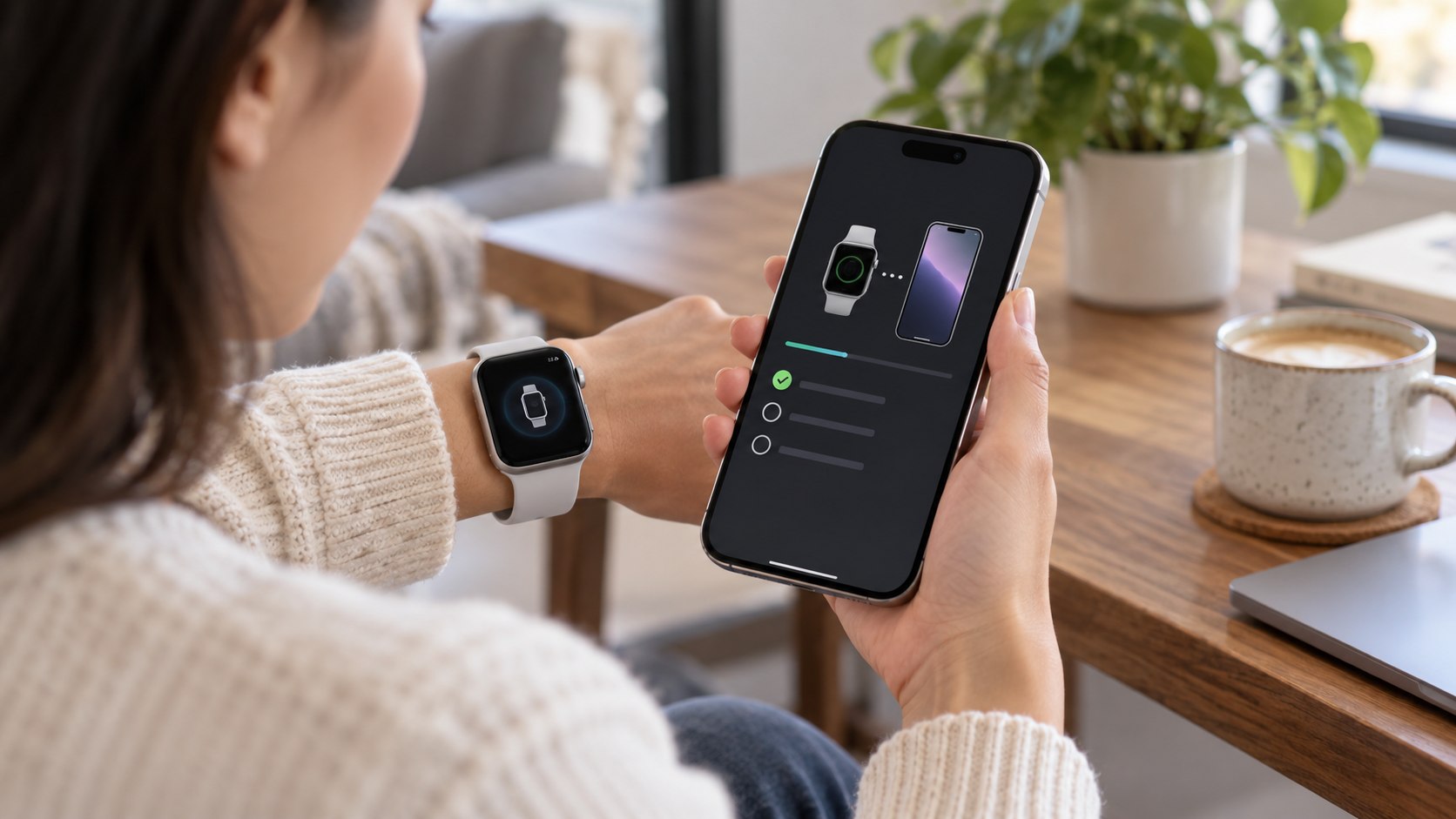
How to pair Apple Watch to new iPhone 2026 usually takes 10–30 minutes when the old iPhone is still available. Update both devices, back up the old iPhone, then complete the transfer from the Watch app. If pairing fails, unpairing and restoring the watch from its latest backup usually solves the problem, as noted by Baltimore Chronicle.
The safest route is to avoid erasing the old iPhone until the watch works with the replacement phone. Apple Watch backups travel with the paired iPhone backup, while Health data requires iCloud syncing or an encrypted computer backup.
Key takeaways
The transfer is straightforward when the old phone, Apple Account credentials, and a recent backup remain available.
- Back up the old iPhone before transferring the watch, because that backup also contains Apple Watch settings and data.
- Unpair rather than simply erase the watch when possible, because unpairing also removes Activation Lock correctly.
- Restore the newest available watch backup if preserving faces, settings, Activity history, and other supported data matters.
Do not factory-reset devices simply because the new iPhone fails to recognize the watch on its first attempt. Confirm software versions and Apple Account access first. Keep both devices on Wi-Fi and close together during setup. Apple recommends having at least 50% battery on the new iPhone and Apple Watch before the transfer.
The same principles apply whether the replacement phone came from Apple, AT&T, Verizon, T-Mobile, or another US retailer. Cellular Apple Watch owners have an additional decision about whether to retain their mobile plan. Carrier activation can continue separately after the basic pairing finishes.
Owners moving to current hardware can also review Baltimore Chronicle’s 2026 Apple Watch setup guide. The publication’s coverage of Apple’s 2026 devices and US prices provides additional context for current iPhone and Watch models.
What you need before pairing Apple Watch
Prepare the account information and devices before starting. Missing credentials cause more trouble than the Bluetooth pairing itself.
- Your old iPhone, if it is still available.
- Your new iPhone connected to Wi-Fi.
- Your Apple Watch and its passcode.
- Your Apple Account email or phone number and password.
- At least 50% charge on Apple Watch and the new iPhone.
- A recent iCloud backup or encrypted Mac or Windows backup.
- About 10–30 minutes for normal pairing, plus extra time for updates or syncing.
Apple Watch does not require a cable for this transfer. Bluetooth, Wi-Fi, the Apple Watch app, and the associated Apple Account handle the process. Large software updates can add considerably more time, so install them before a rushed commute or trip.
Health and Fitness information deserves extra attention. With iCloud, make sure Health synchronization is enabled under the Apple Account settings. A computer backup must be encrypted if Health and Activity records need to transfer. An ordinary unencrypted local backup does not preserve that information.
Do not erase the old iPhone until Activity history, watch faces, apps, notifications, and cellular service have been checked on the new phone.
If the old iPhone has already been traded in, the transfer is still possible. The process changes because the watch may need to be erased before it can establish the new pairing.
Step 1: Update the old iPhone and Apple Watch
Install the newest available iOS release on the old iPhone and the newest compatible watchOS release on Apple Watch. Keep both devices charging if an update is large.
This matters because an older watch backup may not appear correctly when the replacement iPhone runs newer software. Apple recommends updating both devices before transferring the watch.
Common mistake: upgrading only the new iPhone while leaving the watch and old phone several software versions behind.
Step 2: Back up the old iPhone before you unpair
Create a fresh iCloud backup from the old phone, or make an encrypted backup on a Mac or Windows PC. Apple Watch data is automatically backed up to its paired iPhone and becomes part of the iPhone backup.
The backup can contain watch-face configurations, app settings, notification preferences, Fitness information, and other supported settings. Apple Pay cards, the watch passcode, and Bluetooth pairings are not restored from the watch backup.
Apple explains that unpairing creates another Apple Watch backup on the paired iPhone before the watch is erased.
Source: Apple Support, “Back up your Apple Watch.”
Avoid assuming that every piece of watch information lives inside a single backup file. Some content synchronizes through iCloud instead. Other security-sensitive information must be added again after setup.
Step 3: Set up the new iPhone with the same Apple Account
Turn on the new phone and follow Apple’s setup process. Sign in with the same Apple Account used on the previous iPhone and restore the most recent appropriate backup.
During setup, the iPhone may detect the existing Apple Watch and ask whether it should be used with the new phone. Keep the watch unlocked, wear it on your wrist, and choose Continue when prompted.
The process can be less predictable when the new iPhone was configured as a completely new device before the watch transfer began. That does not automatically require erasing the iPhone. Open the Watch app first and see whether the watch can be transferred manually.
For broader iPhone maintenance after migration, Baltimore Chronicle’s guide to iPhone storage, battery health, and performance problems covers several common post-transfer issues.
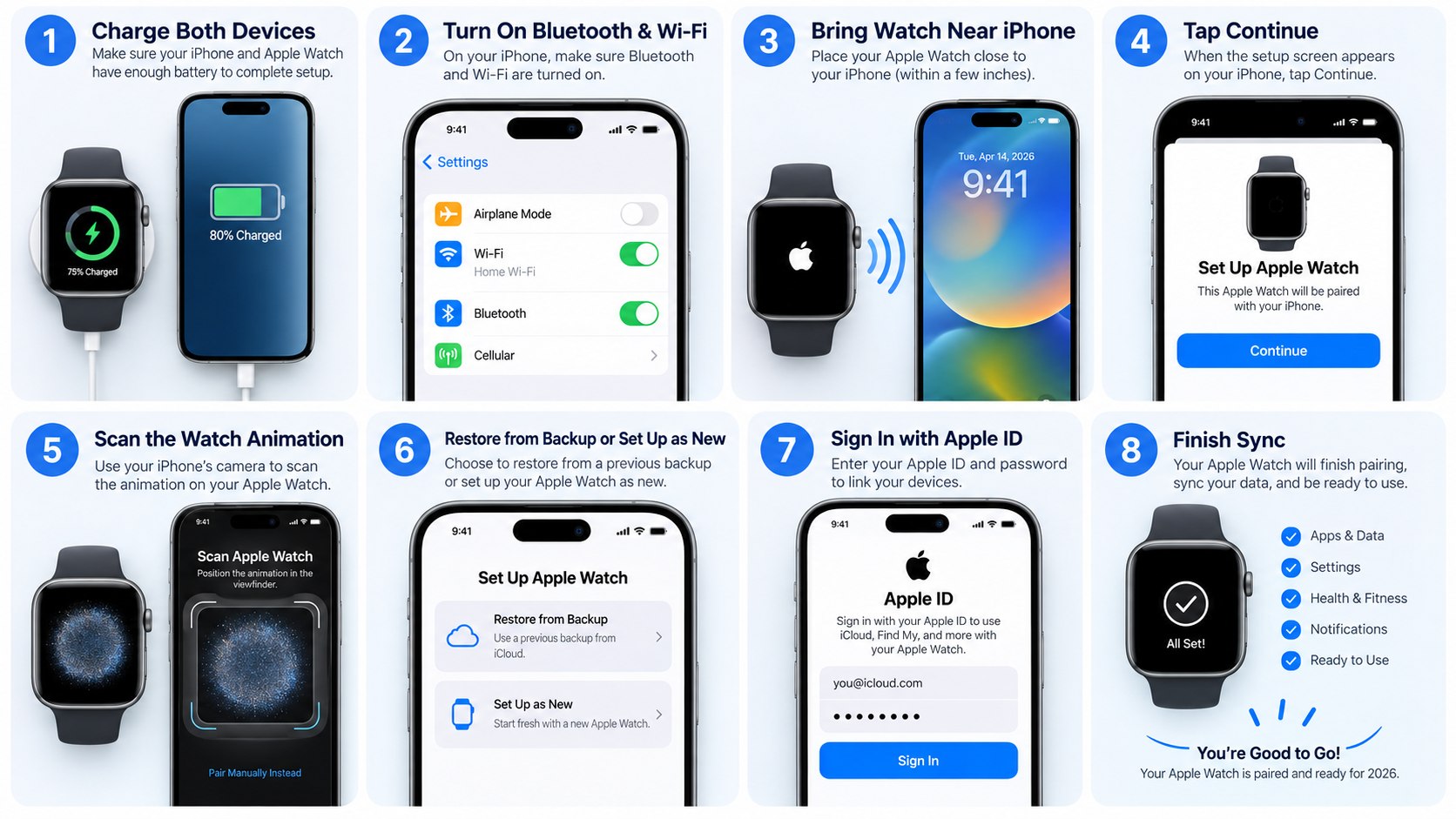
Step 4: How to pair Apple Watch to new iPhone 2026
Open the Watch app on the new iPhone while the watch remains unlocked and nearby. Follow the prompt to continue using the existing watch or select Start Pairing if the app requires a fresh connection.
- Open the Watch app on the new iPhone.
- Keep Apple Watch unlocked and close to the phone.
- Select the detected watch or begin pairing manually.
- Use the iPhone camera when the pairing animation appears.
- Enter the watch passcode if requested.
- Select Restore from Backup when an appropriate backup appears.
- Complete Apple Account, privacy, and cellular prompts.
Choosing Restore from Backup can return supported settings instead of creating a completely clean watch. Select the newest relevant backup when several dates appear. Older backups can omit recent Workout records or configuration changes.
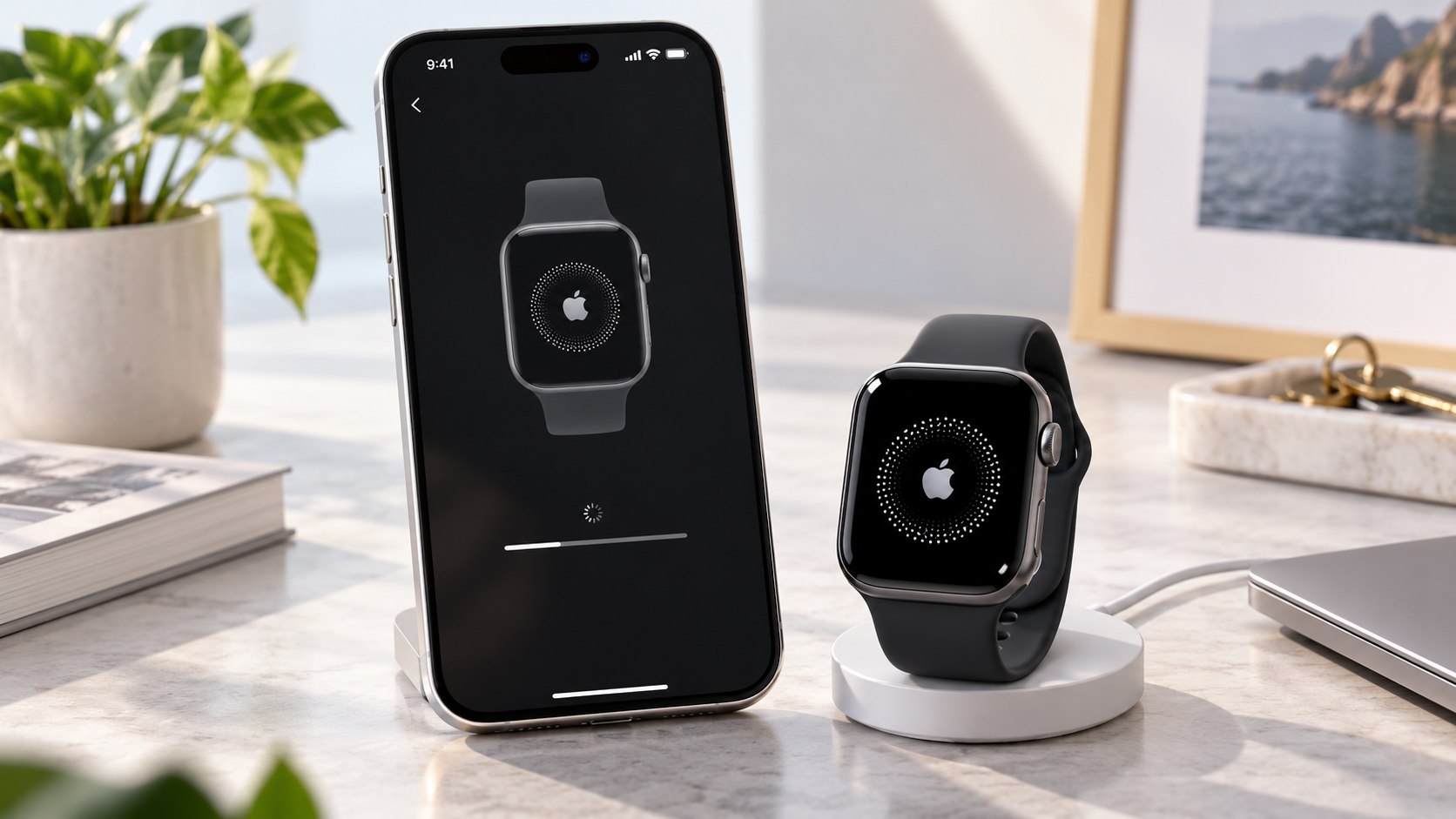
If the camera cannot recognize the pairing animation, use the manual pairing option shown on the iPhone. Both devices should remain close while setup continues. Temporary delays during syncing do not necessarily indicate failure.
Apple notes that some iCloud information can continue appearing after the initial setup finishes. Health and Activity information associated with the same Apple Account may synchronize separately.
Common mistake: choosing “Set Up as New Apple Watch” when the goal is to recover existing settings from a usable backup.
Step 5: Unpair Apple Watch when the new iPhone says Start Pairing
If the Watch app says Start Pairing instead of transferring the existing connection, Apple recommends unpairing the watch and setting it up again. Keep the old paired iPhone nearby whenever possible.
On that iPhone, open Watch > My Watch > All Watches. Tap the information button beside the watch, choose Unpair Apple Watch, and enter the Apple Account password when requested.
| Action | Watch data | Activation Lock | Best use |
|---|---|---|---|
| Unpair from paired iPhone | Erased after backup | Removed | Moving to another iPhone |
| Erase on Apple Watch | Erased | Remains active | Old paired iPhone unavailable |
| Restore from backup | Supported settings return | Account verification required | Keeping existing configuration |
The distinction between unpair Apple Watch from old iPhone and erasing it directly matters. Unpairing through the paired phone removes Activation Lock and prepares the device for another pairing. A direct erase removes local content but does not automatically remove Activation Lock.
For cellular models, Apple asks whether the plan should remain or be removed. Keep it when the same owner will pair the watch again. Removing a plan from the watch does not necessarily cancel billing with Verizon, AT&T, T-Mobile, or another carrier.
Users selling a watch should remove the plan and separately confirm cancellation requirements with their carrier. Pairing the same cellular watch to a replacement iPhone may also require another carrier authentication step.
If Activation Lock becomes the problem rather than pairing itself, Baltimore Chronicle also has a guide explaining Apple Activation Lock and legitimate account recovery.
Step 6: Restore Apple Watch and verify the transfer
After pairing, choose the latest suitable backup and allow the watch to finish syncing. Some apps and cloud data may continue populating after the watch becomes usable.
Check several items before wiping or trading the old iPhone:
- Activity rings and recent Health information.
- Expected watch faces and complications.
- Notifications from important apps.
- Messages and contacts synchronized through iCloud.
- Apple Pay cards, which may need to be added again.
- Cellular service on GPS + Cellular models.
Apple’s backup documentation explains why a restored watch may not look completely identical immediately. Credit and debit cards used for Apple Pay are excluded from the Watch backup. The watch passcode and Bluetooth pairings are also excluded.
That separation is intentional because those items have security implications. Re-adding a bank card can trigger verification from the card issuer. Bluetooth headphones may also need a new pairing.
A successful restore should be judged by the data that Apple actually backs up, not by whether every security credential reappears automatically.
Troubleshooting Apple Watch pairing problems
If Apple Watch won’t pair with new iPhone, identify the screen shown on the watch before resetting anything. A normal clock face often indicates that the watch remains paired to another iPhone.
- Watch still paired to old iPhone: use the old phone to unpair it, then start pairing again.
- Old iPhone is gone: erase the watch, then pair it with the new iPhone and authenticate Activation Lock.
- Backup does not appear: update the iPhone and watch software, then check again.
- Pairing animation stalls: restart the pairing procedure and use manual pairing if the camera method fails.
- Health data is missing: confirm Health is enabled in iCloud under the same Apple Account.
When the old iPhone is unavailable, the watch can be erased and paired again. Activation Lock remains, so the Apple Account and password previously linked with that watch are still required.
This is why buying a used Apple Watch from Facebook Marketplace, eBay, or a private seller requires extra care. A factory-reset screen does not prove that Activation Lock has been removed. The previous owner may still need to remove the device from their account.
A missing recent backup creates a different problem. The watch can still be configured as new, but changes made since the last backup may not return. Health and Activity data stored through iCloud can synchronize on devices using the same Apple Account.
For official instructions, use Apple Support’s guide to pairing Apple Watch with a new iPhone. Apple also maintains instructions for unpairing and erasing Apple Watch.
FAQ
Can I pair my Apple Watch to a new iPhone without the old iPhone?
Yes. Erase the Apple Watch, sign in on the new iPhone with the appropriate Apple Account, then begin pairing. Activation Lock remains after a direct watch erase, so account credentials are required.
Will I lose my Apple Watch data when switching iPhones?
Not necessarily. Apple Watch is automatically backed up to its paired iPhone. Restoring the new iPhone and then using restore Apple Watch from backup can recover supported watch data and settings.
Why does my Apple Watch say it is already paired?
A normal watch face usually means the device is still associated with another iPhone. Unpair it from the previous phone when possible. Otherwise, erase it and authenticate the associated Apple Account during the new setup.
Should I unpair Apple Watch before transferring to a new iPhone?
Not always. Apple’s normal migration can transfer the watch during new-iPhone setup. If the Watch app asks you to Start Pairing instead, unpairing and setting up the watch again is the safer route.
Does unpairing an Apple Watch delete everything?
It erases the watch, but the paired iPhone creates a backup first. Unpairing also removes Activation Lock when the Apple Account password is entered correctly.
How long does Apple Watch pairing take in 2026?
The hands-on pairing usually takes minutes, but updates and restoring data can extend the process. A large watchOS update can add considerably more time.
Earlier we wrote about Dehumidifier Sizing in 2026: Why Square Footage Alone Can Lead US Buyers to the Wrong Pint Capacity