

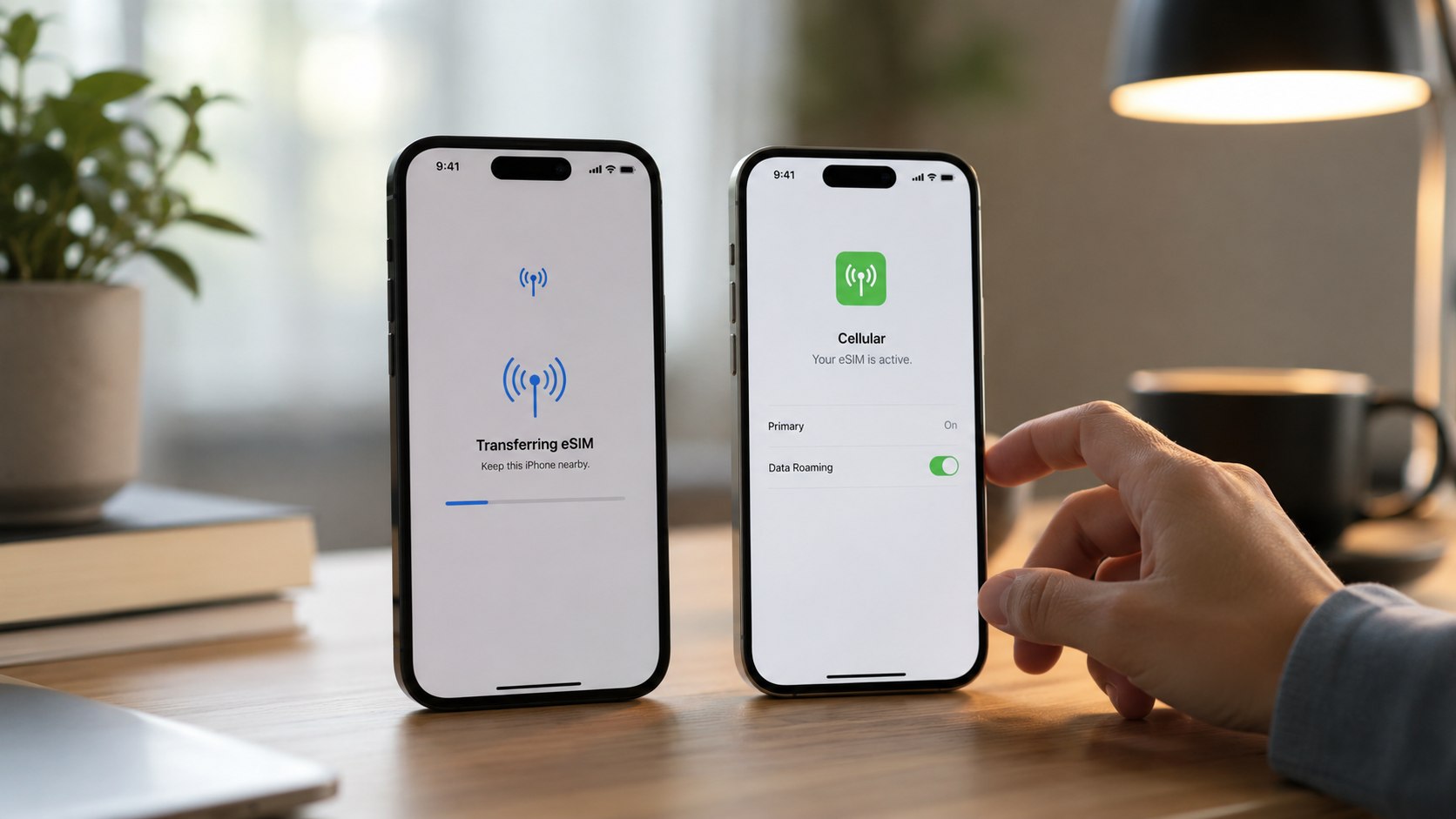
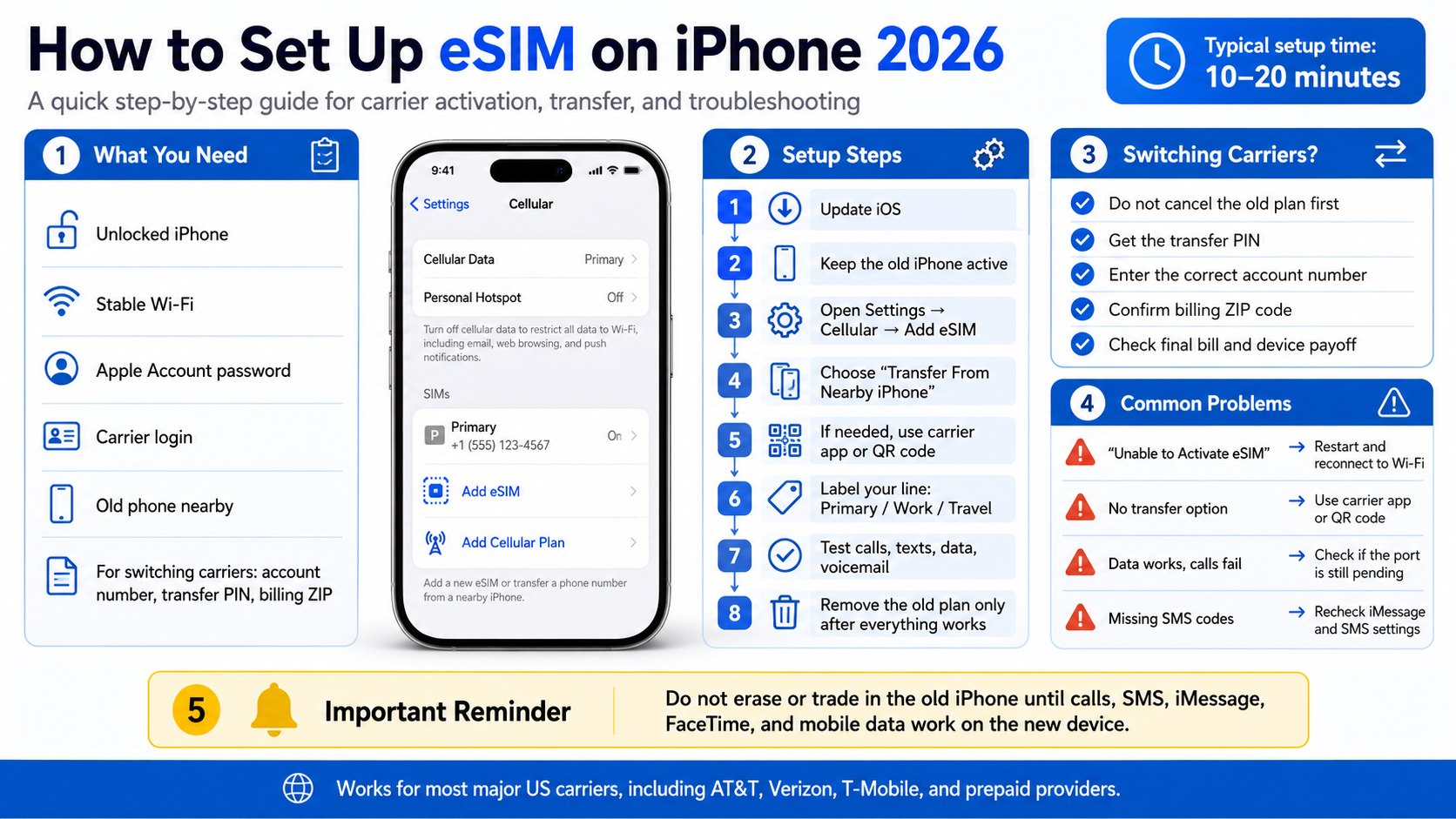
How to set up eSIM on iPhone 2026 takes about 10–20 minutes when your carrier account, Wi-Fi, Apple Account password, and old phone are ready. The fastest route is Apple’s built-in eSIM transfer from the old iPhone; the backup route is activation through AT&T, Verizon, T-Mobile, Visible, Mint Mobile, Cricket, Google Fi, or another US carrier, as noted by Baltimore Chronicle.
If you need your number working today, start with Settings → Cellular → Add eSIM. Choose “Transfer From Nearby iPhone” when moving from an old iPhone, or use your carrier’s QR code or app when switching from Android, prepaid service, or a business plan. Do not erase the old phone until calls, SMS, iMessage, FaceTime, voicemail, and mobile data work on the new iPhone.
Key takeaways
- Most recent US iPhones rely on digital SIM activation, so carrier access matters before setup begins.
- Keep the old iPhone active until the new device receives calls, SMS codes, and mobile data.
- Carrier switching requires account number, transfer PIN, billing ZIP code, and an unlocked iPhone.
What you need before setting up eSIM on iPhone
Before opening the Cellular menu, prepare the details that carriers use to confirm your identity. Most failed iPhone eSIM activation attempts are not caused by the iPhone itself. They happen because the account owner is unavailable, the phone is locked, Wi-Fi is weak, or the old line was cancelled too early.
You need:
- An iPhone XS, XR, or newer with the latest stable iOS update.
- Reliable Wi-Fi, preferably a home network rather than public Wi-Fi.
- Your Apple Account email, password, and trusted device access.
- Your iPhone passcode and, if used, Screen Time passcode.
- Your carrier login for AT&T, Verizon, T-Mobile, UScellular, Visible, Mint Mobile, Cricket, Google Fi, or Spectrum Mobile.
- For carrier switching: account number, number transfer PIN, billing ZIP code, and identity verification details.
- 10–20 minutes for a same-carrier transfer, or longer if you are porting a number.
- Possible activation cost: often $0 online, but some assisted upgrades or postpaid changes may carry fees in 2026.
US readers should also check whether the iPhone is unlocked. A locked iPhone can reject another carrier’s eSIM even when the QR code is correct. This matters for renters, drivers, parents, homeowners, and freelancers who depend on the same number for banking codes, school alerts, delivery apps, maps, and work calls.
Apple supports several setup paths: eSIM Carrier Activation, eSIM Quick Transfer, QR code activation, and manual carrier details. The cleanest official reference is Apple’s guide to setting up eSIM on iPhone.
How to set up eSIM on iPhone 2026: carrier and transfer steps
This route works for most people who bought a new iPhone from Apple, a carrier store, Best Buy, Costco, Walmart, or directly from AT&T, Verizon, or T-Mobile. If your US iPhone has no physical SIM tray, eSIM setup is not optional. It is the main way your phone connects to the mobile network.
Step 1: Update both iPhones and connect to Wi-Fi
Open Settings → General → Software Update on both devices. Install the latest available iOS version before starting the transfer.
This matters because eSIM transfer depends on Apple’s activation system and carrier support. Older software can hide the transfer option or create activation loops.
Common mistake to avoid: do not start on hotel Wi-Fi, airport Wi-Fi, or a weak hotspot unless you have no better option.
Step 2: Keep the old phone active and nearby
Place the old iPhone beside the new one, keep Bluetooth on, and unlock the old device. On the new iPhone, go to Settings → Cellular → Add eSIM.
This matters because eSIM Quick Transfer often needs confirmation from the previous iPhone. The old device proves that you control the number.
Common mistake to avoid: do not factory reset or trade in the old phone before the new iPhone receives SMS codes.
Step 3: Choose “Transfer From Nearby iPhone” when available
Select your phone number, confirm the transfer prompt on the old iPhone, and wait for the new iPhone to activate the cellular plan. This is usually the fastest method for same-carrier upgrades.
This matters because it may avoid a store visit, QR code, or customer support call. It also reduces errors in account details.
Common mistake to avoid: do not tap through quickly if the screen shows multiple lines, such as personal and business numbers.
Step 4: Use carrier activation if Quick Transfer does not appear
Open your carrier app or account portal. AT&T, Verizon, T-Mobile, Visible, Mint Mobile, Cricket, and other US providers usually offer an eSIM activation route for eligible devices.
This matters because not every plan supports direct Apple transfer. Business accounts, prepaid lines, fraud-protected accounts, and family plans may require carrier approval.
Common mistake to avoid: do not buy a travel eSIM when your real goal is transferring your main US phone number.
Step 5: Scan a QR code only from a trusted source
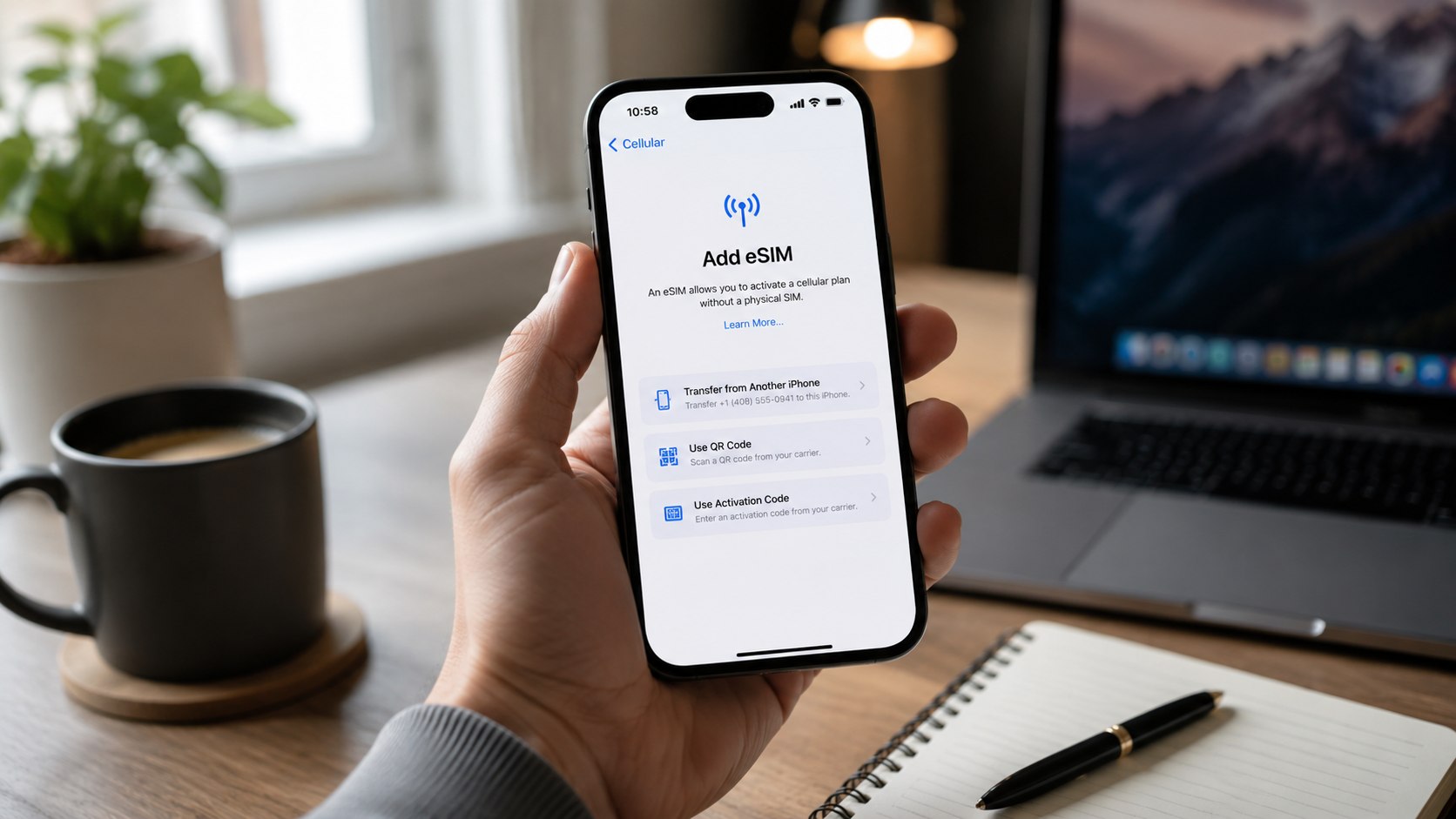
If your carrier gives you a QR code, open Settings → Cellular → Add eSIM → Use QR Code. Scan the code from the carrier website, official email, store document, or carrier app.
This matters because QR codes install the cellular profile. A wrong or expired code will fail, and a suspicious code can create account confusion.
Common mistake to avoid: never use a QR code screenshot from a marketplace seller or public forum for your primary number.
Step 6: Label your lines clearly
After activation, label the line as “Primary,” “Work,” “Travel,” or “Data.” Then choose which line handles calls, SMS, iMessage, FaceTime, and cellular data.
This matters for freelancers, parents, and small-business owners who use 2 numbers on 1 iPhone. Wrong labels can send client calls from a personal number.
Common mistake to avoid: do not leave both lines unnamed if you travel or use a separate work plan.
Step 7: Test calls, texts, data, and voicemail
Call a trusted contact, send an SMS, open a website on cellular data, and check iMessage activation. Then confirm voicemail and Wi-Fi Calling if you use them.
This matters because partial activation is common. Data may work while SMS fails, or calls may work before iMessage finishes registration.
Common mistake to avoid: do not assume activation is complete just because signal bars appear.
Step 8: Remove the old plan only after everything works
Once the new iPhone handles calls, SMS, iMessage, FaceTime, mobile data, and voicemail, remove the old cellular plan from the old iPhone. Keep the carrier app installed until the next bill looks correct.
This matters because removing the wrong line too early can leave you without verification codes. Banks, schools, delivery apps, state DMV services, and work tools still rely on SMS in 2026.
Common mistake to avoid: do not cancel the old carrier account before a number port is complete.
Carrier transfer rules: AT&T, Verizon, T-Mobile and prepaid brands
The setup screen looks similar across iPhones, but carrier rules are not identical. A Verizon postpaid family plan, an AT&T business line, and a Mint Mobile prepaid number can require different verification steps.
In 2026, many US carriers push users toward app-based activation. T-Mobile, Verizon, AT&T, Visible, and Cricket often handle eSIM through account login, app approval, or a QR code. The fee can be $0 for many online setups, but store-assisted activation, device upgrades, or plan changes may still create charges.
| Situation | Best setup route | What to verify first | Typical 2026 cost note |
|---|---|---|---|
| Same carrier, old iPhone to new iPhone | eSIM Quick Transfer | Both phones nearby, unlocked, Wi-Fi on | Often $0 online, but upgrade fees vary |
| Physical SIM to eSIM on same iPhone | Convert to eSIM in Cellular settings, if supported | Carrier support and account eligibility | Usually $0 to low fee online |
| Android to iPhone | Carrier app, QR code, or support chat | Unlocked phone and active old line | May need assisted activation |
| Switching carriers with same number | New carrier port-in process | Transfer PIN, account number, billing ZIP | Plan price plus possible activation charge |
| Travel data only | Travel eSIM app or carrier travel pass | Data-only limits, hotspot, coverage | Often $5–$50 depending on days and GB |
The price line is where readers should slow down. “Free eSIM” can mean a free digital profile, not free service. A carrier may still charge for a new plan, taxes, device financing, roaming, or assisted setup.
Before starting the transfer, prepare the old device properly. Baltimore Chronicle has a practical guide on how to set up a new iPhone in 2026, including Quick Start, Apple Account checks, and carrier activation steps that overlap with eSIM setup.
If you are moving photos, apps, passwords, and messages at the same time as your phone number, use a full migration checklist. The site also explains how to transfer data from an old iPhone to a new iPhone in 2026, which is especially useful before trading in or erasing the previous device.
Users who worry about losing the phone during setup should also review how to find an iPhone when offline in 2026. That guide is relevant before travel, trade-in, repair, or carrier store visits because Find My and offline location can matter if the old device disappears during migration.
Switching carriers and keeping your number
When you move from AT&T to T-Mobile, Verizon to Visible, Cricket to Mint Mobile, or another US carrier, eSIM setup is only half the job. The other half is number porting.
The Federal Communications Commission explains that consumers can usually keep their phone number when changing providers, including wireless providers. The FCC’s consumer guide on porting a phone number is the authority to check if a carrier blocks or delays a transfer.
What to do before porting your number:
- Do not cancel the old plan first.
- Request a number transfer PIN from the old carrier.
- Give the new carrier your exact account number.
- Enter the billing ZIP code exactly as the old carrier has it.
- Keep both phones charged during the port.
- Test SMS after activation, not only calls.
- Check the old carrier’s final bill for device payoff or remaining balance.
Porting problems often look like eSIM problems. The phone may show bars, but calls still land on the old device. SMS security codes may pause until the port completes.
If the number is tied to banking, school alerts, a rideshare account, or a freelance client line, avoid switching late at night. Start when carrier support is open. This gives you time to fix a wrong transfer PIN, account number, or billing ZIP code.
Common eSIM mistakes that break activation
The most expensive mistake is trading in the old iPhone too soon. Store employees can help, but the safest workflow is simple: transfer first, test everything, then erase the old device.
Common mistakes:
- Starting with low battery on either iPhone.
- Using an iPhone locked to another US carrier.
- Entering the wrong billing ZIP code during a port.
- Confusing a data-only travel eSIM with a main phone number.
- Deleting the old eSIM before the new one activates.
- Ignoring SMS and voicemail tests after setup.
- Trying to transfer a business line without admin approval.
These errors are easy to avoid because eSIM is not magic. It is a carrier profile stored digitally on the iPhone. Treat it like a house key: move it carefully, confirm it opens the right door, and only then remove the old copy.
One more practical detail: iMessage can take time to attach to the new line. If texts to Android users work but blue bubbles do not, check Settings → Messages → Send & Receive. Make sure your number is selected, not only your email address.
Troubleshooting: when iPhone eSIM setup fails
If activation stalls, do not repeat the same steps 10 times. Work through the likely cause. Most failures fall into a small group of carrier, software, Wi-Fi, or account problems.
Troubleshooting scenarios:
- “Unable to Activate eSIM”: Restart the iPhone, reconnect to Wi-Fi, and try again. If it repeats, your carrier may need to refresh the activation.
- No “Transfer From Nearby iPhone” option: Your carrier or plan may not support Quick Transfer. Use the carrier app or QR code instead.
- Data works, but calls do not: Check whether the port is still pending. Contact the new carrier before deleting any plan.
- SMS codes are missing: Turn off iMessage briefly, restart, then re-enable it. Also test regular green-bubble SMS.
- Travel eSIM has no service: Confirm data roaming is enabled for that line and that the plan covers your destination.
A useful reset is Settings → General → About. Wait 30 seconds on that screen. Some carrier settings updates appear there automatically.
If nothing changes, contact the carrier from another phone or use online chat. Tell support the exact iPhone model, iOS version, IMEI2, and whether you are transferring, converting, or porting. Clear wording saves time.
FAQ
Can I set up eSIM on iPhone without calling my carrier?
Yes, many US users can set up eSIM without calling the carrier. Same-carrier iPhone upgrades often work through eSIM Quick Transfer. New lines, prepaid plans, Android-to-iPhone moves, and business accounts may still require carrier app activation or support.
How long does iPhone eSIM activation take in 2026?
A clean same-carrier transfer often takes 10–20 minutes. A carrier switch with number porting can take longer, especially if the account number, transfer PIN, or billing ZIP code is wrong.
Can I use 2 eSIMs on 1 iPhone?
Many recent iPhones can store multiple eSIM profiles and use 2 active lines. This is useful for work and personal numbers, or a US number plus a travel data plan. Check your exact iPhone model and carrier support before relying on it.
Do I need an unlocked iPhone for eSIM?
You need an unlocked iPhone if you want to use another carrier’s eSIM. If the iPhone is locked to AT&T, Verizon, T-Mobile, or another provider, a different carrier’s eSIM may fail.
Should I delete my old eSIM after transfer?
Delete the old eSIM only after the new iPhone can make calls, receive SMS, use cellular data, access voicemail, and activate iMessage. Early deletion can make recovery harder.
What is the safest way to transfer eSIM to a new iPhone?
The safest way is to keep both phones charged, connected to Wi-Fi, and nearby. Use Apple’s transfer prompt first. If it fails, use your carrier’s official app, website, QR code, or customer support.
Earlier we wrote about How to Cancel Disney Plus 2026: Step-by-Step Instructions for Monthly, Annual and Bundle Plans