

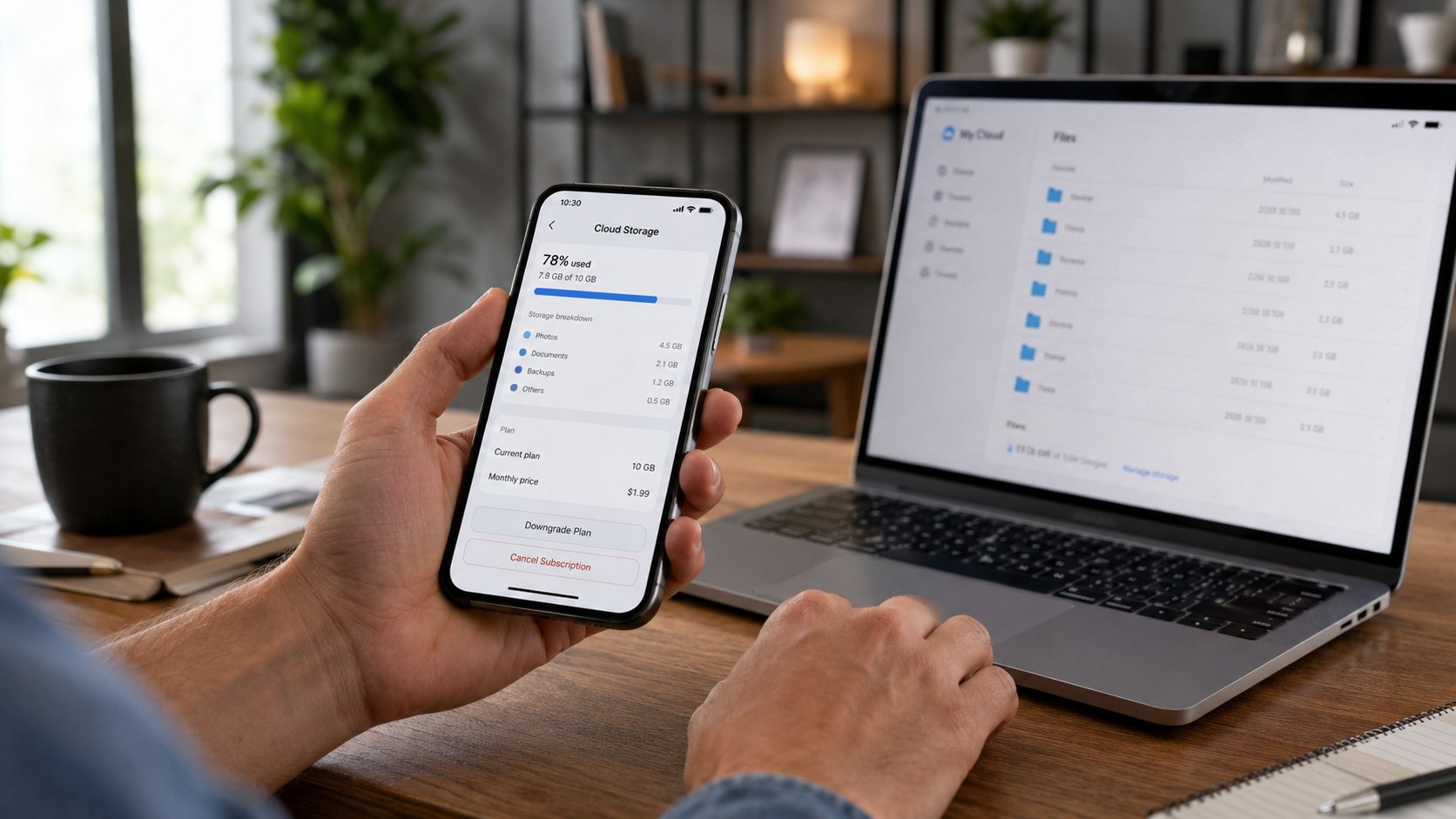
How to cancel iCloud Plus storage 2026 takes about 3–5 minutes on a current iPhone, iPad, Mac, or Windows PC. The critical step comes before cancellation: check how much iCloud storage you currently use. If your files exceed the new limit, syncing and iCloud backups can stop after the downgrade takes effect, as noted by Baltimore Chronicle.
For most US users, cancellation means moving from a paid iCloud+ tier to Apple’s free 5GB plan. You can also downgrade without canceling completely. Apple applies the change after your current subscription billing period ends, rather than immediately.
Key takeaways
- Check current iCloud usage before canceling, especially Photos, device backups, Messages, and iCloud Drive files.
- A downgrade below your stored-data total can stop new syncing and prevent future iCloud backups from completing.
- Canceling iCloud+ also removes paid features such as Private Relay, Hide My Email, and HomeKit Secure Video support.
If you are reviewing several recurring charges, Baltimore Chronicle also explains how to cancel Apple Music in 2026. Its Hulu cancellation guide covers another common subscription-management problem.
What you need before canceling iCloud storage
You do not need to call Apple or visit an Apple Store. Most changes can be completed directly through the Apple Account controlling the subscription.
Before starting, prepare:
- your iPhone, iPad, Mac, or Windows PC;
- the Apple Account used to purchase iCloud+;
- your Apple Account password if authentication is requested;
- access to Settings or System Settings;
- about 3–5 minutes;
- enough local or alternative storage if you must move files first;
- your current iCloud storage usage and the size of your largest backups.
Before changing the plan, open your iCloud storage view and identify what consumes the most space. Photos and videos often dominate personal accounts, while families may also have several large device backups.
If your account currently uses 180GB, canceling directly to 5GB creates a major capacity mismatch. Moving from 2TB to 200GB could be reasonable if your actual usage remains comfortably below 200GB.
The safest downgrade leaves unused capacity rather than targeting a limit that your account already nearly reaches.
Do not assume deleting files from an iPhone always frees only cloud space. Depending on synchronization settings, deleting a synchronized photo or document can remove it from other connected devices too.
Apple recommends downloading or removing content that exceeds the new storage amount before downgrading. Current instructions are available through Apple Support.
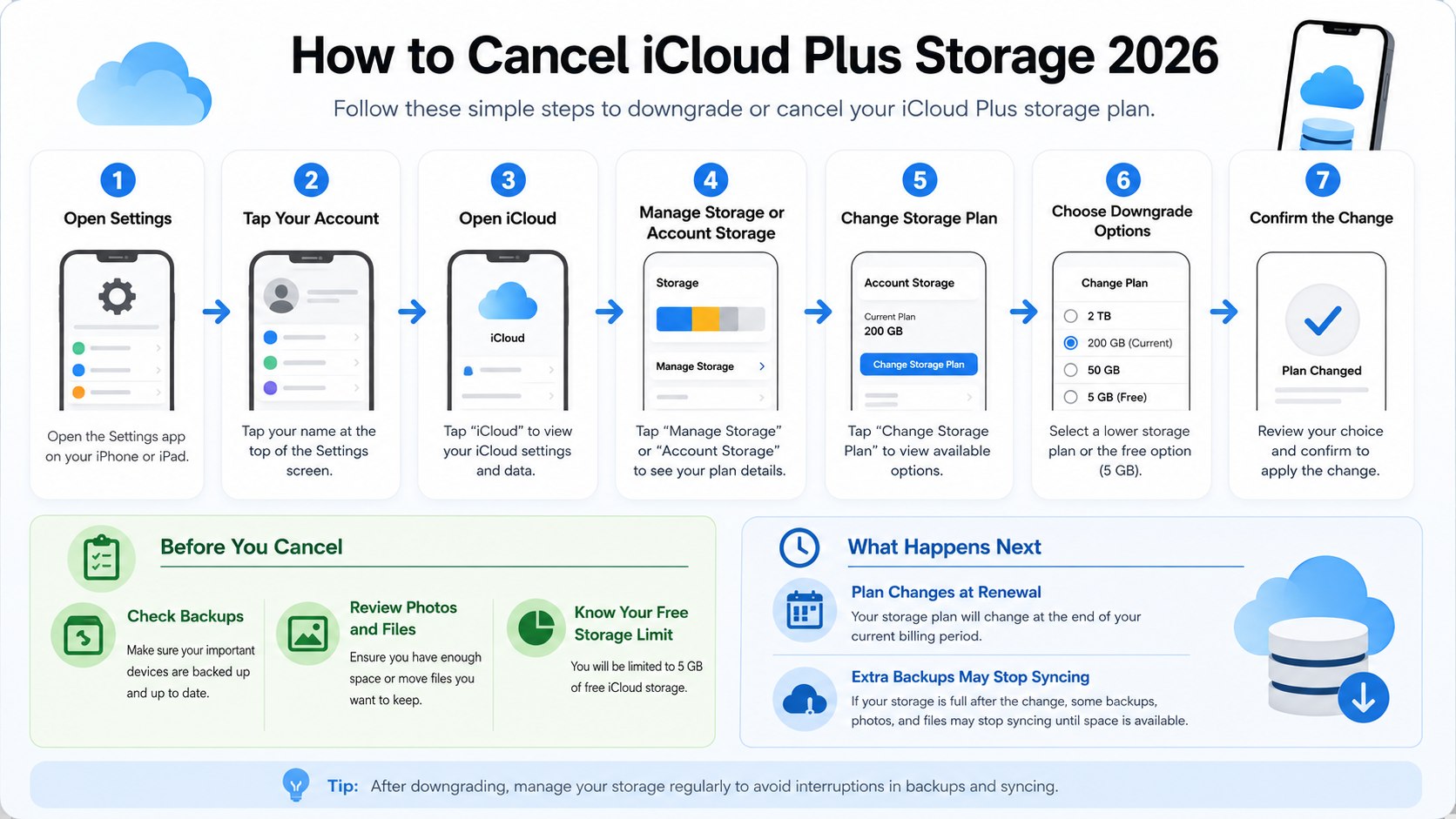
How to cancel iCloud Plus storage 2026 without risking your data
The safest process is not simply pressing Cancel Subscription. First determine what your new storage limit will be and whether your existing account fits inside it.
US iCloud+ pricing remained straightforward in Apple’s 2026 documentation. The free tier includes 5GB, while paid plans extend storage substantially.
| US iCloud plan | 2026 monthly price | Best downgrade use case |
|---|---|---|
| 5GB | Free | Very light syncing with little or no cloud backup |
| 50GB | $0.99 | Single user with modest photo and backup needs |
| 200GB | $2.99 | Larger personal library or smaller Family Sharing setup |
| 2TB | $9.99 | Large photo libraries, multiple devices, or families |
| 6TB | $29.99 | Very large personal or family storage requirements |
| 12TB | $59.99 | Extensive photo, video, backup, and family storage |
The price difference can make downgrading more attractive than canceling. A 2TB user paying $9.99 monthly could save $84 annually by moving to 200GB at $2.99.
Moving from 2TB directly to free storage saves more, but the technical consequences are much greater. Five gigabytes can be smaller than a single modern iPhone backup.
Apple says that when stored data exceeds the downgraded capacity, iCloud stops syncing or updating information. New iCloud backups also stop completing until storage becomes available again.
The important distinction is that an over-capacity downgrade is primarily a synchronization and backup problem. It should not be treated as a safe long-term storage strategy.
Prices can change, so verify the current US rates before making a long-term comparison. Apple publishes regional pricing through Apple Support.
Step 1: Check which Apple Account pays for iCloud+
Open Settings on your iPhone and tap your name. Confirm that the Apple Account shown is the one carrying the iCloud+ plan.
This matters for households with Family Sharing, work devices, old Apple IDs, or separate accounts used for App Store purchases. A common mistake is checking a secondary account and assuming the iCloud+ subscription has disappeared. Billing continues under the account that owns the plan.
Step 2: Measure your current iCloud storage usage
Open the iCloud storage section and compare total usage with the plan you want to select. Review Photos, Backups, Messages, iCloud Drive, Mail, and application data.
This is the most important step for avoiding iCloud downgrade data risk. Your planned tier should be larger than your actual stored-data total.
A common mistake is assuming a 200GB plan is safe because the account uses 198GB today. A new video upload or device backup could immediately push the account over capacity.
Step 3: Remove or copy data before the downgrade
If usage exceeds your planned limit, reduce it before canceling. Download valuable files, transfer photos to another storage location, or remove unnecessary backups.
Why it matters: once the lower limit applies, iCloud can no longer continue normal synchronization when usage remains above capacity.
A practical cleanup order is:
- Delete obsolete backups from devices you no longer own.
- Review large videos and duplicate media.
- Download important iCloud Drive folders before removing cloud copies.
- Check Messages attachments if Messages in iCloud is enabled.
- Review Family Sharing usage before changing a shared plan.
- Keep an independent copy of irreplaceable documents and photos.
Old backups are often the safest place to start because they may belong to devices that are no longer active. Current device backups deserve more caution.
Photos require particular attention because iCloud Photos synchronizes changes between connected devices. Deleting synchronized media is different from simply moving files onto another disk.
Families should review each member’s contribution before reducing a shared plan. One person’s photo library can account for most of the total.
Do not make large deletions immediately before traveling or replacing a phone. A current cloud backup has more practical value during those periods.
Cancel the storage only after the data plan makes sense without relying on another successful backup later.
Step 4: Cancel or downgrade iCloud+ on iPhone or iPad
On iPhone with iOS 18.4 or later, open Settings and tap your name. Select Subscriptions, then choose iCloud+ under Active.
Tap Cancel Subscription if you want to return to the free plan. To keep paid storage at a lower tier, tap See All Plans and choose another capacity.
The same route applies on iPad with iPadOS 18.4 or later. Older system versions can show iCloud, Manage Plan, or Downgrade Options instead.
Why it matters: Apple’s menus changed across software generations. Following an older tutorial can make users believe the cancellation option has been removed.
A common mistake is searching only under iCloud when a current iPhone shows iCloud+ inside Subscriptions.
Step 5: Cancel iCloud storage on a Mac or Windows PC
On a Mac running macOS Tahoe 26, open the Apple menu and choose System Settings, then Apple Account. Select iCloud and open Manage Plan under iCloud+ Features.
Choose Cancel Subscription to leave the paid plan. Use See All Plans when you only want an iCloud storage downgrade.
Older macOS versions may instead show Downgrade Options. Windows users can open iCloud for Windows, select Manage, then Change Storage Plan and Downgrade Options.
Why it matters: a desktop route can be useful when the iPhone is unavailable, damaged, or controlled by workplace restrictions.
A common mistake is uninstalling iCloud for Windows. Removing the application does not itself cancel paid cloud storage.
Step 6: Confirm when the downgrade takes effect
Apple states that an iCloud+ downgrade or cancellation takes effect after the current subscription billing period ends. Your larger allowance therefore does not normally disappear the moment you confirm the change.
Use that remaining paid period to finish downloads and storage cleanup. Do not treat it as extra permanent capacity.
A common mistake is waiting until the final day to discover that a photo archive or Mac folder requires hours to download.
Step 7: Understand what features disappear after cancellation
Returning to Apple’s free iCloud tier changes more than storage capacity. Paid iCloud+ features are also affected.
Apple specifically lists several features that are unavailable after downgrading to the free plan:
- iCloud Private Relay;
- Hide My Email;
- Apple Invites features tied to iCloud+;
- HomeKit Secure Video support associated with paid storage.
This can matter even when your storage use is below 5GB. Someone using Hide My Email regularly may value the subscription for privacy features rather than capacity alone.
HomeKit users should review camera requirements before cancellation. Losing an iCloud+ feature can affect a smart-home workflow that appears unrelated to cloud file storage.
Private Relay users should expect browsing privacy behavior to change after paid iCloud+ access ends.
For subscription cleanup beyond Apple services, Baltimore Chronicle’s guide to canceling Disney Plus in 2026 explains how billing providers can complicate cancellation.
A common mistake is comparing plans only by gigabytes. Storage capacity and iCloud+ features should be evaluated separately.
Step 8: Verify that backups and syncing still work
After the lower plan becomes active, return to iCloud settings and check current usage. Confirm that your available capacity remains above stored data.
Then verify that the next iCloud backup completes successfully. Check recent photos or documents on another connected device if synchronization is important to you.
Why it matters: a downgrade can appear successful while leaving the account too full for new information.
A common mistake is assuming that an old backup date is acceptable. A backup system that has stopped updating is not protecting recent changes.
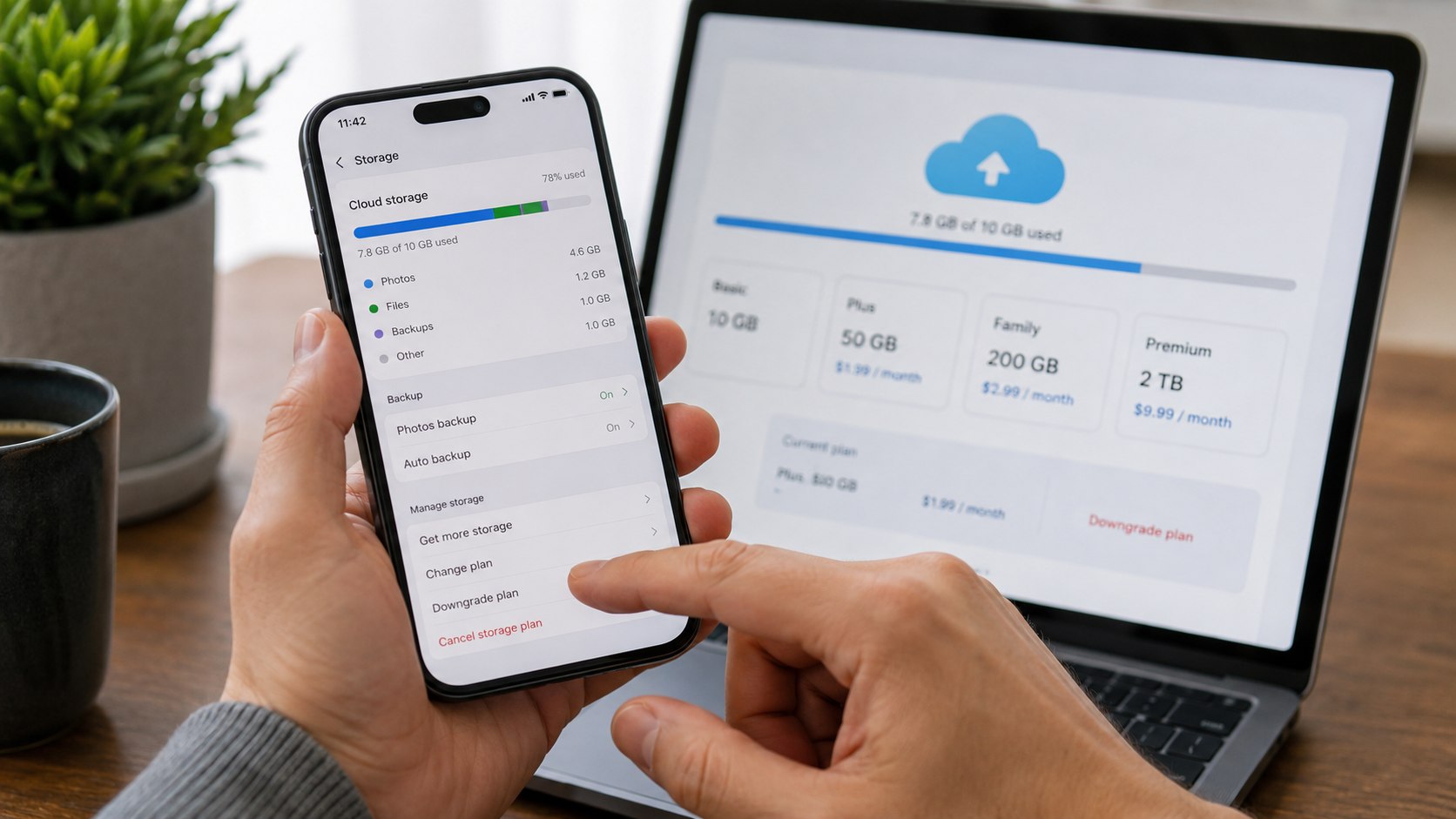
Troubleshooting iCloud+ cancellation problems
Most problems come from account ownership, outdated software menus, Family Sharing, or an Apple One subscription. These scenarios cover the common cases.
- Cancel Subscription is missing: verify the Apple Account and check whether your software uses the older Downgrade Options menu.
- You are already over the new limit: delete or download enough data before the lower tier becomes active.
- Storage still appears after cancellation: the downgrade may be waiting for the current billing period to end.
- You also have Apple One: check the storage included with Apple One before removing a separate iCloud+ plan.
- Backups stopped after downgrading: free space or upgrade again until total usage fits inside the plan.
Apple One deserves special attention because its plans can include iCloud+ storage. A separate iCloud+ subscription can coexist with that storage in some configurations.
If Apple One already supplies enough capacity, removing the separate plan may reduce monthly costs without returning you to only 5GB.
Do not assume the storage figures simply disappear when a separate plan ends. Review the account’s resulting total capacity first.
Family Sharing can create similar confusion because the organizer may control the storage plan while other members consume most of it.
If the account remains unclear, compare the active subscriptions, Apple One status, and Family Sharing storage before deleting any files.
FAQ
Does canceling iCloud+ delete my photos immediately?
No immediate mass deletion is described in Apple’s cancellation instructions. However, if stored data exceeds the new capacity, iCloud stops normal syncing and updates.
Backups can also stop completing. Download important content before reducing storage.
What happens if I downgrade from 200GB to 50GB while using 80GB?
Your account would exceed the new capacity by 30GB. Apple says iCloud will not continue normal syncing or backups while storage remains over the plan limit.
Reduce usage below 50GB or choose a larger plan.
Can I cancel iCloud storage but keep my Apple Account?
Yes. Canceling iCloud+ is not the same as deleting your Apple Account.
You can return to the free 5GB iCloud tier and continue using the account.
Can I downgrade instead of canceling iCloud+?
Yes. You can switch from larger paid tiers to smaller ones.
This is often the safer choice when your data exceeds 5GB but remains well below your current allowance.
When does an iCloud storage cancellation take effect?
Apple says the change takes effect after the current subscription billing period ends.
Check the account after cancellation so you know when the smaller storage limit will apply.
Will I lose Hide My Email and Private Relay?
Yes, if you return to the free iCloud plan. Apple lists Hide My Email and Private Relay among paid iCloud+ features unavailable after that downgrade.
Earlier we wrote about Can You Replace an Electrical Outlet Yourself? 2026 Costs, GFCI Rules and 6 Steps