

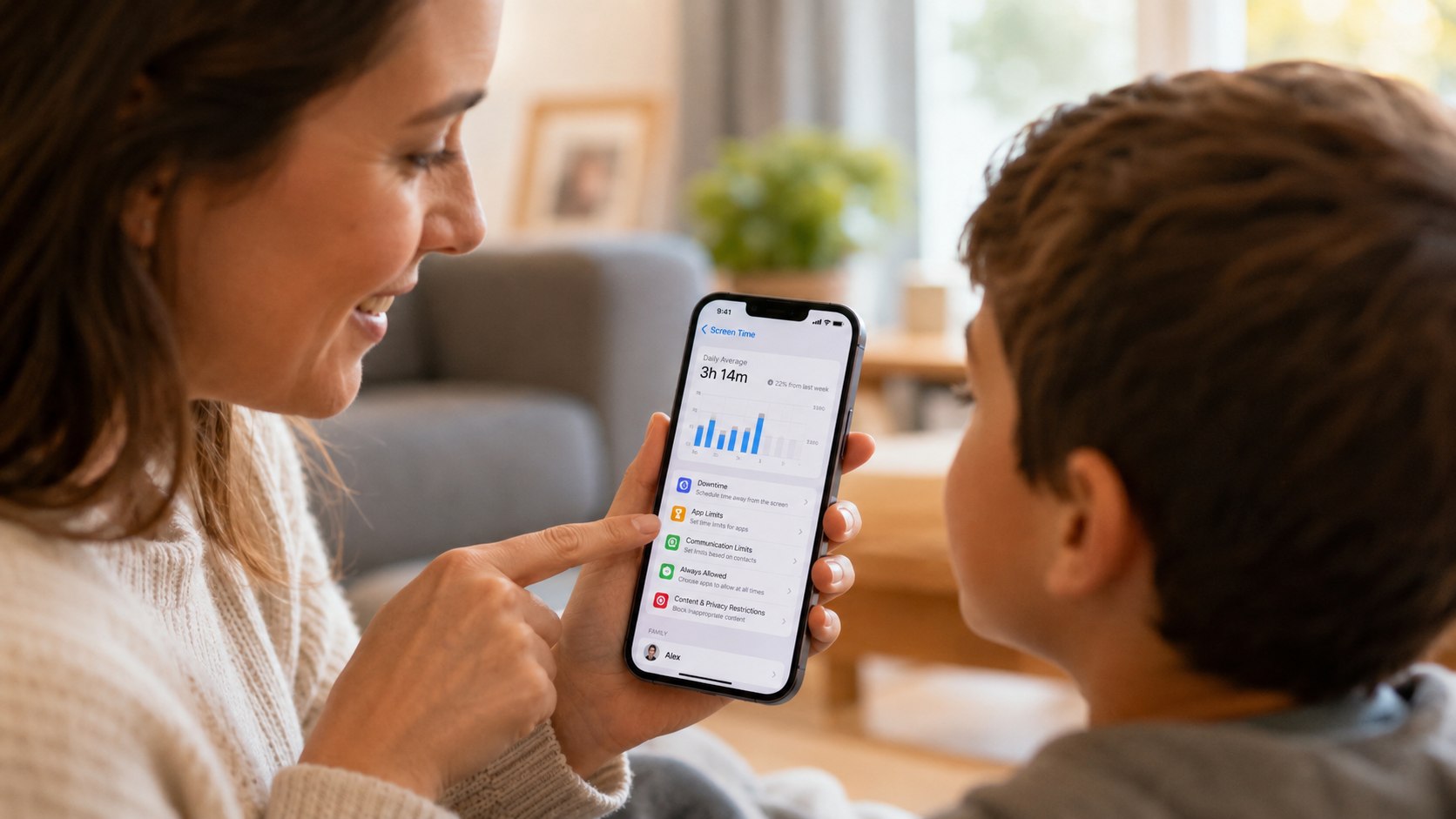
How to set up screen time iphone 2026 takes about 10–15 minutes if the iPhone is updated, the Apple Account is working, and the parent or owner knows the Screen Time passcode they want to use. The fastest fix is this: open Settings, tap Screen Time, turn on App & Website Activity, set Downtime, add App Limits, choose Always Allowed apps, and lock the setup with a passcode, as noted by Baltimore Chronicle.
This guide is built for US adults who need a practical answer, not theory: parents setting limits for kids, freelancers blocking distractions, renters sharing devices, and drivers trying to reduce late-night scrolling. Screen Time is free on iPhone, iPad, and Mac, but the real cost is bad setup: weak passcodes, vague app categories, and Downtime schedules that block maps, rideshare apps, or banking at the wrong time.
“With Screen Time, you can see how much time your child spends on their device.”
Source: Apple Support, parental controls guidance for iPhone and iPad.
Key takeaways
- Downtime is the best first control for bedtime, school hours, focused work, and reducing late-night app use.
- App Limits work better when you limit categories first, then add stricter rules for TikTok, YouTube, Safari, or games.
- Always Allowed must be reviewed carefully so Phone, Maps, Messages, banking, and emergency apps still work when limits start.
After this setup, the iPhone will enforce daily limits, block selected apps during scheduled hours, and show reports on usage patterns. For parents, Apple also supports managing a child’s Screen Time through Family Sharing, provided the child’s Apple Account is part of the family group. Apple recommends keeping all devices updated before changing these controls, because settings may sync across iPhone, iPad, Mac, and Apple Vision Pro.
The goal is not to make the iPhone unusable. The goal is to make the easiest choice the healthier one: fewer open-ended apps, fewer late-night notifications, and fewer workday distractions.
What you need before setting up Screen Time
Before changing limits, check the basics. A rushed setup often breaks because the iPhone is using an old iOS version, the child is not in Family Sharing, or the Screen Time passcode is too easy to guess.
- An iPhone running the latest available iOS version in 2026.
- Your Apple Account password and device passcode.
- Family Sharing enabled if you are managing a child’s iPhone.
- 10–15 minutes of setup time.
- No paid app or subscription; Screen Time is built into iOS.
- A clear rule for Downtime, such as 9:30 p.m. to 6:30 a.m.
- A separate Screen Time passcode, not the same as the lock-screen passcode.
Screen Time does not replace a conversation with a child, roommate, partner, or employee. It works best when the rule is specific: no games after 9 p.m., 45 minutes of social media, or no entertainment apps during work blocks. Vague restrictions usually lead to repeated override requests. For readers setting up a new device first, this new iPhone setup guide is a useful companion before applying limits.
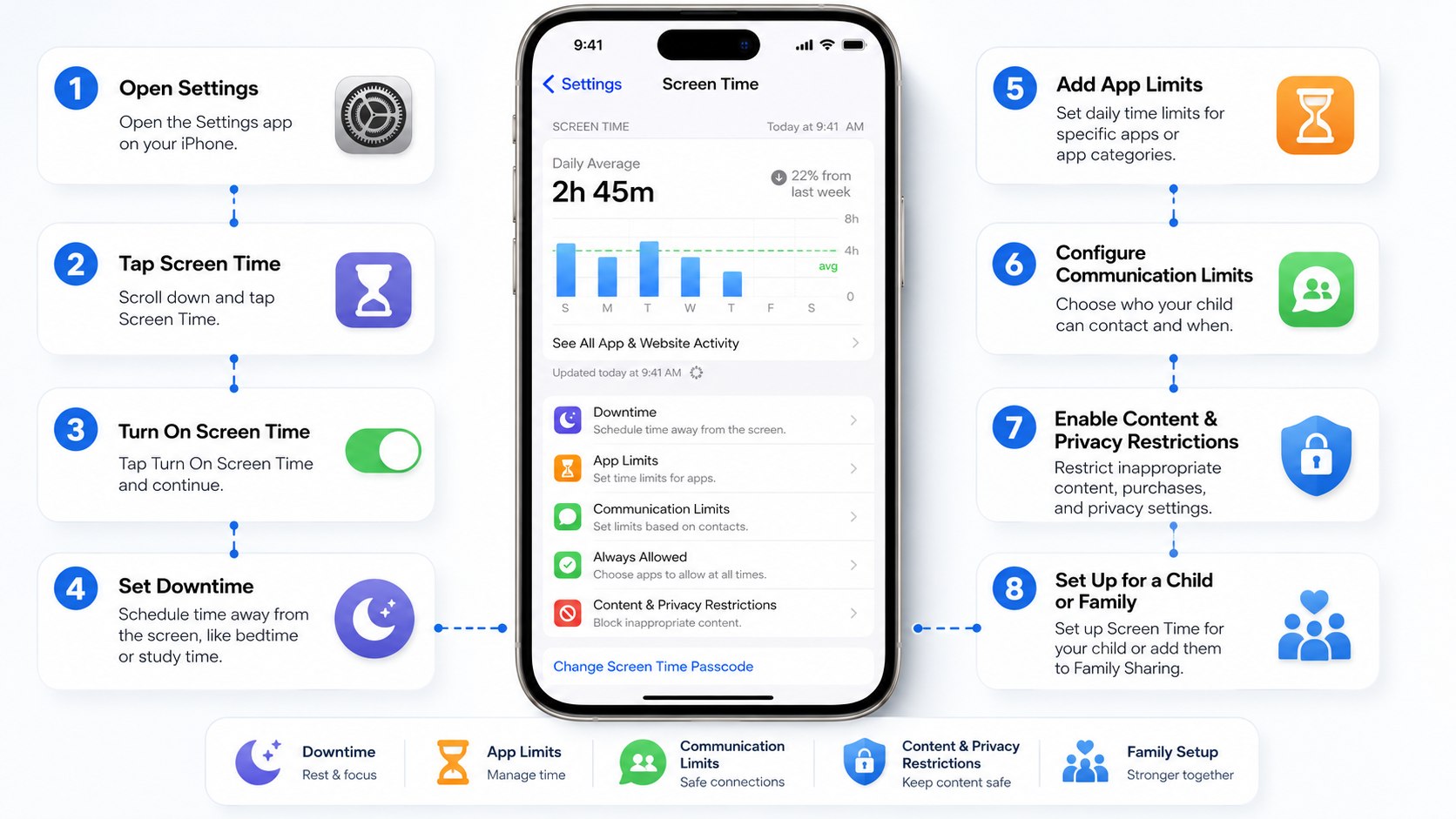
Step 1: Update iPhone and open Screen Time settings
Open Settings, tap General, then Software Update. Install the latest iOS version available for your iPhone before adjusting Screen Time.
This matters because Apple’s parental controls, Family Sharing behavior, and Screen Time syncing can change with major iOS releases. In 2026, Apple’s support pages still advise updating devices before turning on or changing Screen Time settings for a family group.
A common mistake is setting limits on an outdated iPhone, then wondering why Mac, iPad, or child-device settings do not match. Update first, then configure rules once.
Step 2: Turn on App & Website Activity
Go to Settings, tap Screen Time, then turn on App & Website Activity. This activates reporting and allows the iPhone to track usage by app, website, and category.
Without this feature, you are guessing. With it enabled, you can see whether the problem is Instagram, Roblox, YouTube, Safari, Messages, or a category such as Social, Games, or Entertainment.
The common mistake is setting limits before checking the usage report. Spend 24 hours collecting data if the problem is not urgent. You may discover that 80% of the issue comes from 2 apps, not the whole phone.
Step 3: Set Downtime for bedtime, school, or focused work
Tap Downtime and choose a schedule. For many US households, a realistic 2026 starting point is 9:30 p.m. to 6:30 a.m. on school nights, with a later schedule on Friday and Saturday.
Downtime is the strongest Screen Time feature because it changes the whole phone experience. Apps not marked as Always Allowed become unavailable during the scheduled window, while essential services can remain accessible.
The common mistake is making Downtime too aggressive. If it blocks Maps during a commute, a rideshare app after work, or a banking app before rent is due, the rule will be bypassed. Set a strict schedule, but keep essential tools available.
Step 4: Add App Limits for social media, games, and video
Tap App Limits, then Add Limit. Choose categories first, such as Social, Games, or Entertainment, then add specific apps if one app is causing the problem.
This matters because iPhone app limits are most effective when they match the actual habit. A freelancer may need Slack all day but only 20 minutes of Instagram. A parent may allow educational apps but limit YouTube, TikTok, or mobile games.
The common mistake is limiting too many categories at once. That creates unnecessary friction and more override requests. Start with 1–3 categories, then tighten the setup after reviewing usage reports.
For readers moving from an old iPhone to a new one, check whether Screen Time settings transferred correctly. This iPhone data transfer guide explains the broader 2026 migration process, including iCloud and Finder options.
Step 5: Choose Always Allowed apps carefully
Tap Always Allowed and decide which apps should work even during Downtime. Phone is usually essential. Messages, Maps, Wallet, banking apps, medication apps, school apps, and rideshare apps may also need access.
This matters because Screen Time should not block emergency communication or practical daily tasks. A teenager may need Messages for pickup coordination. A driver may need Maps. A renter may need a building-access app or payment app.
The common mistake is allowing too much. If Safari, YouTube, or social apps are always allowed, Downtime becomes cosmetic. Keep this list short and review it monthly.
| Screen Time control | Best use in 2026 | Typical mistake |
|---|---|---|
| Downtime | Bedtime, school hours, deep work, no-phone evenings | Blocking essential apps like Maps or Messages |
| App Limits | Social media, games, video, shopping, news apps | Limiting too many categories on day 1 |
| Always Allowed | Phone, Messages, Maps, banking, health, school apps | Leaving entertainment apps unrestricted |
| Communication Limits | Managing who a child can contact | Forgetting emergency and family contacts |
| Content & Privacy Restrictions | Blocking explicit content, purchases, app installs | Not checking App Store and web settings |
This comparison shows why Screen Time should be configured in layers. Downtime controls when the phone becomes quieter. App Limits control how long specific categories can be used. Always Allowed prevents the setup from becoming unsafe or impractical.
The best setup usually starts with Downtime, then adds App Limits after 24–48 hours of usage data. Parents should also review Communication Limits and Content & Privacy Restrictions. Adults using Screen Time for productivity can keep the setup simpler and focus on workday blocks. The strongest configuration is the one that the household can actually keep.
Step 6: Set a Screen Time passcode
Tap Lock Screen Time Settings, then create a dedicated Screen Time passcode. Do not reuse the iPhone unlock code, a birthday, a ZIP code, or a simple pattern such as 1234.
This matters because the passcode is what prevents fast changes when limits become inconvenient. For children, the parent should know the Screen Time passcode. The child should not.
The common mistake is giving the passcode to the child “just once.” After that, App Limits and Downtime lose force. If the passcode has already been shared, change it immediately.
Step 7: Use Family Sharing for a child’s iPhone
If you are setting limits for a child, open Settings, tap your name, then Family. Add the child’s Apple Account to Family Sharing, then manage Screen Time from your own iPhone.
This matters because Apple lets parents manage a child’s Screen Time remotely when Family Sharing is configured. Apple’s support guidance says parents can manage these settings from iPhone, iPad, Mac, or Apple Vision Pro when the child is part of the family group.
The common mistake is setting Screen Time directly on the child’s phone without Family Sharing. That can work, but it is harder to monitor, adjust, and approve requests from the parent’s device.
For US families with multiple devices, the cleanest approach is one parent account, one child Apple Account, Family Sharing, and one Screen Time passcode that is not used anywhere else.
Step 8: Review weekly reports and adjust limits
After 7 days, open Screen Time and review the weekly report. Look for late-night usage, repeated limit overrides, high-use apps, and categories that increased after you blocked another category.
This matters because behavior shifts. If you limit TikTok, usage may move to Safari, YouTube, Reddit, Discord, or mobile games. Screen Time is a management tool, not a one-time switch.
The common mistake is never checking the report again. A useful 2026 setup should change as work hours, school schedules, sports seasons, and family routines change. If a device is lost or offline during this process, this offline iPhone recovery guide may help before you continue adjustments.
Troubleshooting Screen Time problems
Most Screen Time complaints come from 5 problems: sync delays, wrong passcodes, too many exceptions, confusing Family Sharing settings, or apps that were allowed by mistake. Start with the simplest fix before resetting the whole setup.
- Limits are not working: confirm App & Website Activity is on, then restart the iPhone.
- Downtime blocks important apps: add only essential apps under Always Allowed.
- A child keeps requesting more time: reduce categories and make rules more specific.
- Settings do not sync: update all family devices and check Family Sharing membership.
- The passcode is known: change it and avoid codes tied to birthdays, addresses, or phone numbers.
Do not treat every override request as failure. Some requests are legitimate: homework, family travel, medical communication, or a school app that was miscategorized. The better test is whether the device now supports the schedule you intended.
If you are using Screen Time for yourself, avoid punitive limits. Set realistic friction: 30 minutes for social media, Downtime after 10 p.m., and no entertainment apps during billable work hours. For parents, combine controls with a clear rule that explains when limits can be changed and who can approve more time.
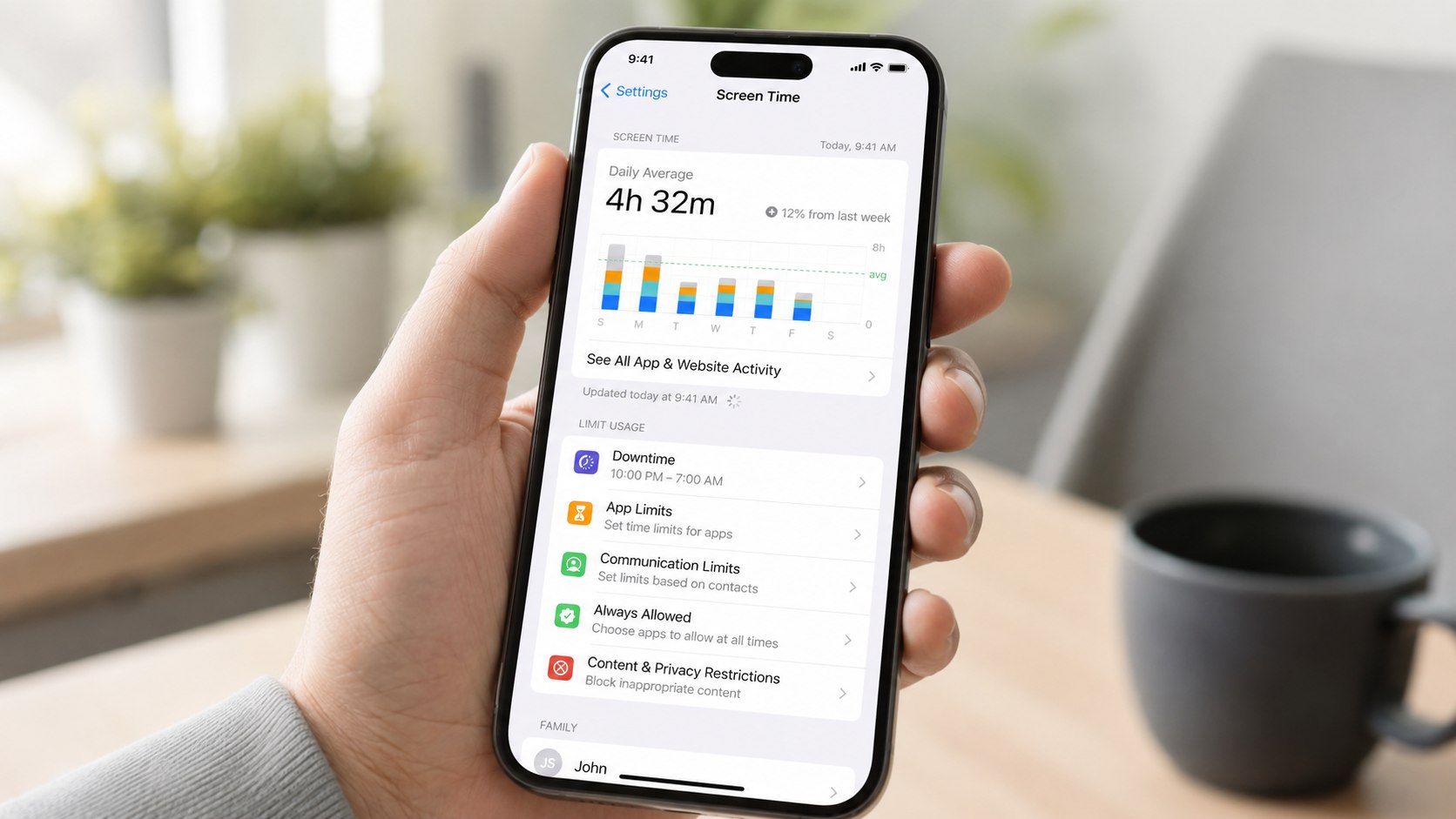
Screen Time setup checklist for US households
Use this checklist after setup. It catches the most common gaps before the first school night, workday, or travel day under the new limits.
- Update iPhone to the latest available iOS version.
- Turn on App & Website Activity.
- Set Downtime for weekdays and weekends separately.
- Add App Limits for Social, Games, and Entertainment.
- Review Always Allowed apps one by one.
- Create a separate Screen Time passcode.
- Enable Family Sharing for a child’s iPhone.
- Check Content & Privacy Restrictions for purchases and explicit content.
- Review weekly Screen Time reports after 7 days.
- Adjust limits after school, work, travel, or custody schedules change.
This checklist is intentionally practical. It does not require buying monitoring software, paying for a family-safety subscription, or replacing the phone. In 2026, a strong Screen Time setup can be done with Apple’s built-in tools.
Families in states such as Maryland, California, Texas, Florida, and New York may have different school device rules, but the iPhone setup process is the same nationally. Employers and freelancers should also avoid using Screen Time as a substitute for written workplace policy. For a personal device, it is a behavior tool. For a child’s device, it is a safety and routine tool.
FAQ
How do I set up Screen Time on iPhone in 2026?
Open Settings, tap Screen Time, turn on App & Website Activity, set Downtime, add App Limits, choose Always Allowed apps, and lock the settings with a Screen Time passcode. For a child, use Family Sharing so the parent can manage settings from their own device.
What is the difference between Downtime and App Limits?
Downtime controls when most apps are unavailable. App Limits control how long selected apps or categories can be used each day. A strong setup usually uses both: Downtime for bedtime or work hours, and App Limits for social media, games, or video.
Can my child bypass Screen Time limits?
A child may request more time, use an allowed app, or try to guess the passcode. The best defense is a separate Screen Time passcode, limited Always Allowed apps, Family Sharing, and weekly report checks.
Does Screen Time cost money in 2026?
No. Screen Time is built into iPhone, iPad, and Mac. There is no separate Apple subscription required for Downtime, App Limits, reports, or basic parental controls.
Should Safari be blocked during Downtime?
For younger children, usually yes, unless a school or homework site requires access. For adults, Safari can remain available if the real issue is specific apps. Review web usage before deciding.
Where can I verify Apple’s current Screen Time instructions?
Use Apple’s official support pages for Screen Time child management and iPhone parental controls. Check them before publication if Apple releases another iOS update in 2026.
Earlier we wrote about Plumber Hourly Rate 2026: Emergency Fees, Service Calls and Real Repair Costs