


You can restore an iPhone from an iCloud backup in about 30–90 minutes if the backup is current, Wi-Fi is stable, and your Apple Account password is ready. The fix is straightforward: erase the iPhone if it is already set up, reach the Transfer Your Apps & Data screen, sign in, choose the right backup, and keep the phone plugged in until apps, photos, messages, and settings finish downloading, аs noted by Baltimore Chronicle.
This guide explains how to restore iphone from icloud backup 2026 for a new iPhone, a replacement device from AppleCare, or an iPhone that needs a clean reset after software trouble. It also covers stuck restores, missing photos, failed Apple Account sign-ins, and storage-plan issues common for US users on Verizon, AT&T, T-Mobile, Xfinity Mobile, and Spectrum Mobile.
Key takeaways
- Use iCloud restore only from the setup screen; an already configured iPhone must be erased first.
- Keep the iPhone charging on reliable Wi-Fi because apps and photos may continue restoring after setup.
- As of 2026, US iCloud+ plans start at $0.99 monthly for 50 GB, according to Apple.
What you need before you start
A restore fails most often because one basic item is missing: the Apple Account password, enough iCloud storage, enough battery, or a stable Wi-Fi connection. Get those ready before erasing anything.
- An iPhone running the current iOS version available for that model.
- The Apple Account email and password used for the backup.
- Two-factor authentication access, such as a trusted phone number or another Apple device.
- Reliable Wi-Fi; public hotel, airport, or apartment-lobby networks often interrupt large restores.
- A charger and cable; keep the iPhone plugged in during the restore.
- The old iPhone, Mac, or iPad nearby if two-factor authentication or Quick Start is needed.
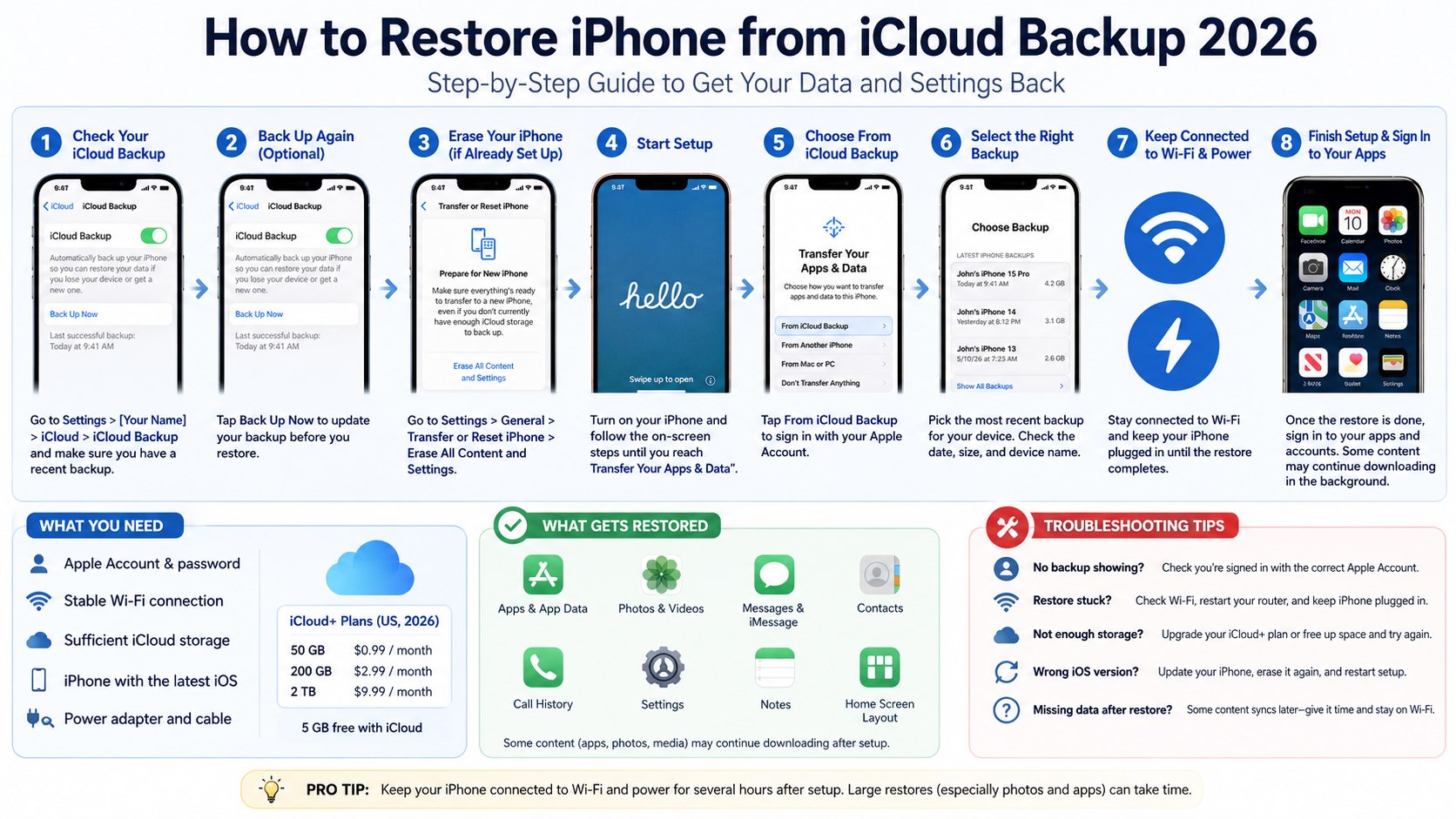
- Enough iCloud storage for the backup. Apple says iCloud includes 5 GB free, with US iCloud+ plans listed at $0.99 for 50 GB, $2.99 for 200 GB, and $9.99 for 2 TB as of 2026 on its official iCloud+ plans and pricing page.
If the old phone still works, create a fresh backup before touching the reset menu. Baltimore Chronicle has a separate guide on how to back up iPhone to iCloud in 2026 that covers storage plans, backup settings, and common upload errors.
How to restore iPhone from iCloud backup 2026: the quick workflow
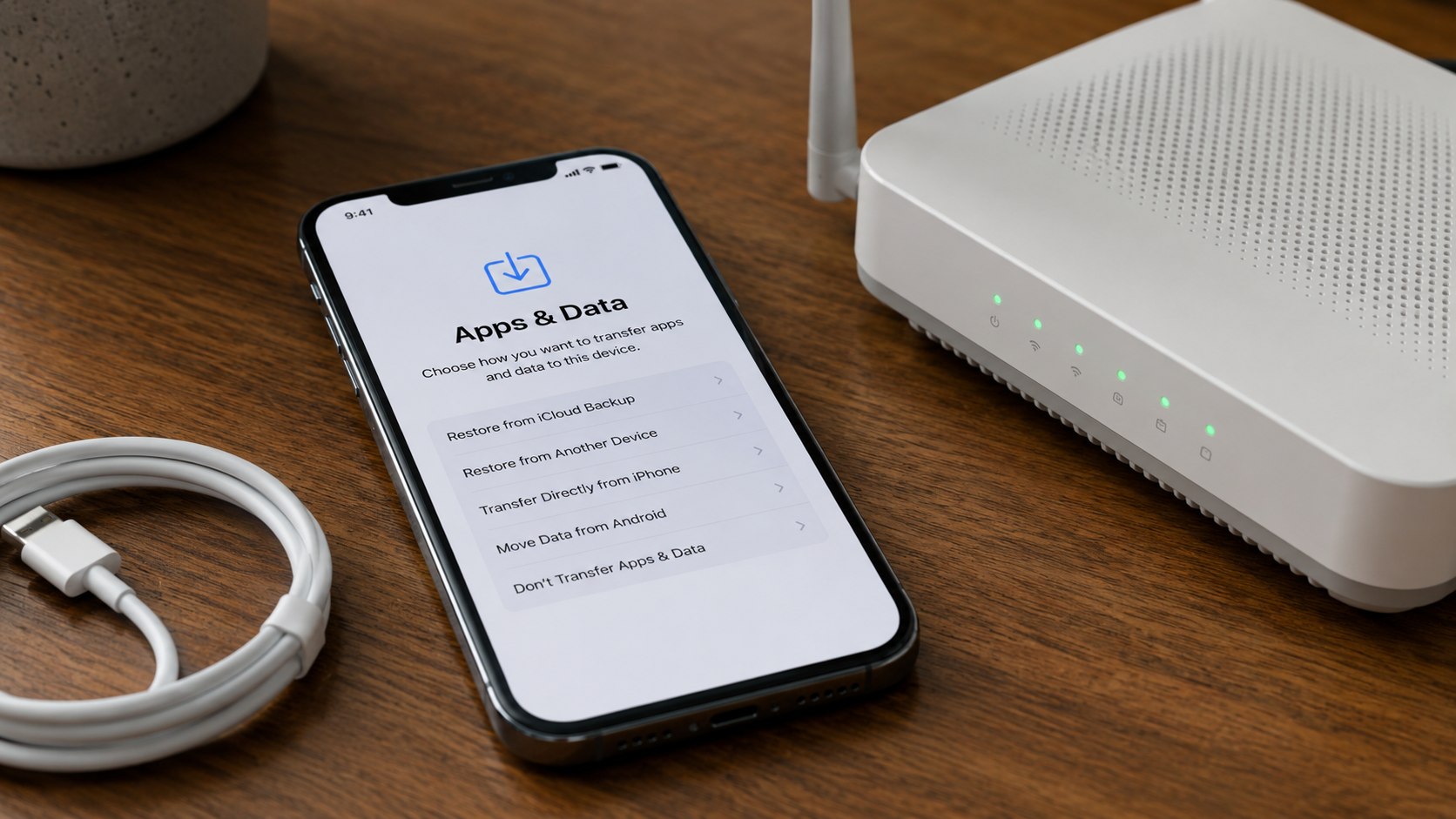
The official Apple path is still setup-based in 2026: turn on the iPhone, reach Transfer Your Apps & Data, tap From iCloud Backup, sign in, and choose a backup. Apple’s restore instructions also state that an iPhone already set up must be erased before it can use this restore path from iCloud.
| Situation | Best restore path | What to watch |
|---|---|---|
| Brand-new iPhone 16, iPhone 17, or replacement device | Restore directly from iCloud during setup | Choose the latest backup from the correct Apple Account |
| iPhone already set up | Erase all content, then restore during setup | Confirm the backup exists before erasing |
| Moving from old iPhone nearby | Use Quick Start, then restore from iCloud if offered | Keep both phones close and charged |
| Broken, lost, or traded-in old iPhone | Restore from the most recent iCloud backup | Two-factor authentication may require a trusted number |
Use iCloud restore when the goal is to recover settings, messages, app data, photos, and home-screen layout from a previous iPhone without connecting to a Mac or Windows PC.
Step 1: Confirm that an iCloud backup exists
On the old iPhone, open Settings, tap your name, tap iCloud, then iCloud Backup. Check the date and time of the last successful backup.
This matters because an iCloud restore can only recover data included in an existing backup. A backup from last night is usually useful; a backup from six months ago may leave out photos, messages, app data, and settings created since then.
A common mistake is assuming iCloud Photos and iCloud Backup are the same thing. iCloud Photos syncs photos separately, while iCloud Backup covers device data and settings that Apple includes in backups.
Step 2: Back up the old iPhone one more time
If the old iPhone still works, connect it to Wi-Fi and power, then run Back Up Now from the iCloud Backup screen. Stay on Wi-Fi until the backup finishes.
This step reduces the chance of losing recent texts, app settings, call history, and device preferences. It is the safest move before trading in a device at an Apple Store, Best Buy, Verizon, AT&T, or T-Mobile location.
The mistake to avoid is starting a restore while the latest backup is still uploading. If the backup status shows progress, wait until it displays a completed time.
Step 3: Erase the iPhone if it is already set up
If the iPhone already shows a home screen, go to Settings, General, Transfer or Reset iPhone, then Erase All Content and Settings. Follow the prompts and keep the iPhone connected to power.
This matters because the restore iPhone from iCloud option appears during setup, not as a normal Settings toggle after the device is configured. Apple’s support instructions for restoring from iCloud start from the Hello screen.
The common mistake is trying to restore a full iCloud backup on top of an active iPhone setup. That can sync some iCloud data, but it will not recreate the full device from a backup.
Step 4: Start setup and choose From iCloud Backup
Turn on the iPhone and follow the setup screens for language, country or region, Wi-Fi, Face ID, and passcode. At Transfer Your Apps & Data, choose From iCloud Backup, then sign in with the Apple Account used for the backup.
This is the main iCloud backup restore step because it connects the device to the backup list stored under that Apple Account. Use the same account that was signed in on the old iPhone, not a spouse’s, parent’s, work, or school account.
A common mistake is using a different Apple Account for App Store purchases than for iCloud. If apps were bought under another account, iOS may ask for that password later to re-download them.
Step 5: Pick the right backup
Select the backup that matches the old iPhone name, date, iOS version, and size. If several backups appear, choose the newest one unless there is a clear reason to avoid it.
This matters because a backup from an iPad, a work iPhone, or a family member’s old device may not contain the data expected. Restoring the wrong backup can also create confusion with apps, messages, and home-screen layout.
The mistake to avoid is choosing only by file size. A larger backup is not always better if it belongs to a different device or an older setup.
Step 6: Keep the iPhone on Wi-Fi and power
After the basic restore finishes, the iPhone may open to the home screen while apps, photos, messages, and files continue downloading. Keep the phone plugged in and connected to Wi-Fi for several hours if the backup is large.
This matters for families in California, Texas, New York, Florida, and other high-use markets where iPhones often hold years of photos, iMessage threads, and app data. A 200 GB iCloud plan can take much longer to restore than a small 5 GB backup.
The common mistake is leaving Wi-Fi immediately after the home screen appears. That can make the iPhone restore from backup look incomplete even when the restore is still running.
Step 7: Sign back into apps and accounts
Open important apps such as banking, email, work chat, authenticator, rideshare, school, health, and smart-home apps. Some apps require a fresh sign-in after the restore.
This matters because iCloud can restore app data, but banks, brokerages, employers, and health providers often require new device verification. The Federal Trade Commission and major banks regularly warn users to treat unexpected verification messages carefully, especially after a phone replacement.
The mistake to avoid is approving every security prompt without checking the source. Use the app’s official sign-in flow rather than a link from an unexpected text or email.
Step 8: Check what did not restore
Review Photos, Messages, Contacts, Notes, Wallet, Mail, Health, and key third-party apps. Then open Settings and check iCloud sync categories for anything that is paused, off, or still updating.
This step matters because some information syncs through iCloud rather than restoring directly from the backup. Photos, contacts, calendars, notes, and files may continue appearing after the main setup is done.
The common mistake is resetting the iPhone again too quickly. Give the restore time to finish, especially on slower home Wi-Fi or when moving a large backup to a new iPhone.
Troubleshooting iCloud restore problems
Most restore problems come from Wi-Fi, Apple Account access, storage limits, iOS version mismatch, or a restore that is still running. Use these fixes before erasing the iPhone again.
- iCloud backup restore stuck: keep the iPhone plugged in, restart the router, move closer to the Wi-Fi access point, and leave the phone overnight if the backup is large.
- No backup appears: confirm the Apple Account email, check whether the backup was made on the old iPhone, and verify that iCloud Backup was turned on.
- Restore says the iOS version is too old: update the new iPhone first, erase it again, then restart the iCloud restore process.
- Photos are missing: check whether iCloud Photos is enabled and give the library time to sync over Wi-Fi.
- Apps are waiting or grayed out: open the App Store, confirm the Apple Account, and check whether the app is still available in the US App Store.
If both the old and new phones are available, a device-to-device move may be faster than a cloud restore. Baltimore Chronicle’s comparison of how to transfer data from an old iPhone to a new iPhone in 2026 explains when to use Quick Start, iCloud, or a cable-based method.
iCloud restore vs Mac or PC restore
iCloud is usually the easiest method for renters, parents, freelancers, and drivers who need a working phone without connecting to a computer. A Mac or Windows PC restore can still make sense when Wi-Fi is poor or when an encrypted computer backup contains data not handled the same way through iCloud.
| Method | Best for | Limitations |
|---|---|---|
| iCloud restore | New iPhone setup, replacement phones, no computer nearby | Depends on Wi-Fi speed and iCloud backup availability |
| Mac Finder backup | Users with a MacBook Air, MacBook Pro, iMac, or Mac mini | Requires a cable and a backup stored on that Mac |
| Windows PC backup | Users with Apple Devices app or iTunes backups | Can be slower if drivers, cables, or Windows permissions fail |
A local Mac backup is useful when a household has weak Wi-Fi, limited broadband, or a very large photo library. Baltimore Chronicle’s guide on how to back up iPhone to Mac in 2026 covers the Finder route for MacBook Air, MacBook Pro, iMac, and Mac mini users.
Privacy and cost notes for US users in 2026
Restoring from iCloud uses Apple’s cloud service, your Apple Account, and two-factor authentication. Use a private home, office, or mobile hotspot connection when possible rather than an open public network.
Cost depends on how much iCloud storage the household needs. Apple lists 5 GB free with iCloud, then paid iCloud+ tiers; as of 2026, US pricing on Apple’s official page includes $0.99 per month for 50 GB, $2.99 for 200 GB, and $9.99 for 2 TB.
Family Sharing can reduce duplicate storage costs for households with multiple iPhones, iPads, and Macs. Parents should still confirm each family member is backing up under the correct Apple Account before a phone is erased.
FAQ
Can I restore an iPhone from iCloud after setup?
Not as a full device restore. To recover iPhone backup data from iCloud, erase the iPhone and choose From iCloud Backup during setup.
How long does an iCloud restore take in 2026?
A small backup may finish basic setup in under an hour, while a large photo-heavy iPhone can keep downloading content for several hours. Wi-Fi speed, iCloud server availability, and backup size all affect the timeline.
Will an iCloud restore bring back text messages?
Usually yes, if Messages were included in iCloud Backup or synced with Messages in iCloud. If messages are still missing, check iCloud settings and allow more time for syncing.
Can I restore from iCloud without the old iPhone?
Yes, if the backup exists and the Apple Account can be verified. A trusted phone number, trusted Apple device, or account recovery method may still be needed for two-factor authentication.
Why are my apps still loading after the restore?
The iPhone restores settings first, then downloads apps and media from Apple’s servers. Keep the device connected to Wi-Fi and power until app icons stop showing waiting or loading labels.
Should I use iCloud or Quick Start for a new iPhone?
Quick Start is convenient when the old iPhone is nearby and working. iCloud restore is better when the old phone is lost, broken, traded in, or unavailable.
Earlier we wrote about How to Cancel YouTube Premium 2026 on iPhone, Android, Family and Single Plans