


How to use screen time for kids 2026 starts with 3 practical actions: connect your child through Family Sharing, lock Screen Time with a private passcode, and enable Ask to Buy. Most parents can complete the basic setup in 10–20 minutes using an iPhone, iPad, or Mac. The result is a system that limits distracting apps, protects purchases, filters content, and still lets children request reasonable exceptions, as noted by Baltimore Chronicle.
The fastest route on an iPhone is Settings, Screen Time, then your child’s name under Family. Set Downtime, add App Limits, choose Always Allowed apps, and activate Content & Privacy Restrictions. After that, open Settings, Family, your child’s name, and Ask to Buy. Turn on Require Purchase Approval so new apps and eligible in-app purchases need an adult’s decision.
“With Ask to Buy, you can give kids the freedom to make their own choices while still managing their purchases and downloads.”
Apple Support, “Approve what kids buy and download with Ask to Buy.”
Key takeaways
- Use a separate Screen Time passcode that your child cannot guess or obtain from the device passcode.
- Combine Downtime with targeted App Limits instead of blocking every app for the same number of hours.
- Enable Ask to Buy to review free downloads, paid apps, eligible subscriptions, and in-app purchases before approval.
These controls work best when children understand why each rule exists. A strict limit without explanation may encourage repeated requests or attempts to bypass settings. A clear family agreement makes Apple parental controls easier to enforce and adjust.
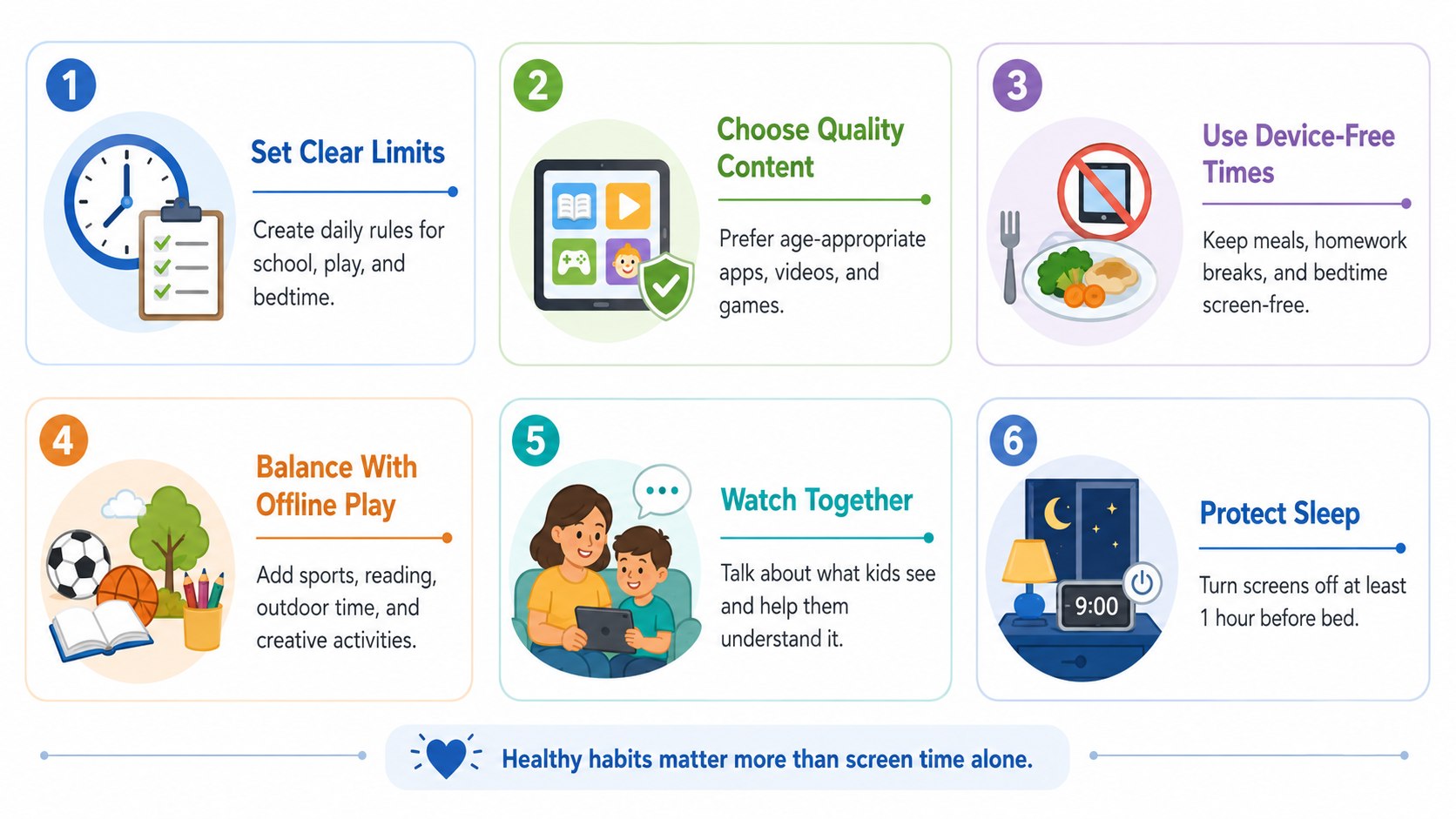
Screen Time should support household rules, sleep, schoolwork, and safety. It should not become a substitute for regular conversations about online behavior.
What you need before setting up Apple parental controls
Prepare the accounts and devices before changing limits. This avoids the most common setup failures, including missing child profiles, unsent requests, and settings that do not sync across devices.
- Your iPhone, iPad, or Mac signed into the correct Apple Account.
- Your child’s iPhone or iPad with current Apple software installed.
- A Family Sharing group containing the child’s Apple Account.
- The passwords and trusted phone numbers for both Apple Accounts.
- A new 4-digit Screen Time passcode that differs from every device passcode.
- Stable Wi-Fi and approximately 10–20 minutes.
- A valid family payment method when Purchase Sharing is enabled.
Apple does not charge a separate fee for Screen Time, Family Sharing, or Ask to Buy in 2026. Paid costs arise only when a family approves an app, subscription, in-app purchase, or another eligible item. Prices depend on the developer and can range from $0.99 purchases to recurring subscriptions costing several dollars monthly.
Update both devices before starting. Apple states that Screen Time settings sync more reliably when all family devices use the latest available software. An update also reduces compatibility problems between an older iPhone and a newer parent device.
Parents preparing a replacement phone can review the Baltimore Chronicle guide to setting up a new iPhone in 2026. Families moving a child’s data should also examine the available iPhone transfer methods before erasing the old device.
Keep the previous device active until Family Sharing, Screen Time, and purchase requests work on the replacement. Erasing it too soon can make account verification more difficult. It may also remove access to trusted-device authentication prompts.

How to use Screen Time for kids 2026: complete setup
Step 1: Add your child to Family Sharing
On the parent’s iPhone, open Settings and tap Family. Add the child’s existing Apple Account or create an appropriate child account by following Apple’s prompts.
This matters because Family Sharing lets a parent manage limits remotely. It also delivers app exception and Ask to Buy requests to an authorized adult’s device.
Common mistake: Do not let a child use the parent’s Apple Account. Shared credentials mix photos, messages, purchases, backups, and privacy settings.
Step 2: Turn on Screen Time from the parent’s device
Open Settings, select Screen Time, and find the child under Family. Follow the prompts to activate App & Website Activity and establish age-appropriate controls.
This creates a usage report showing apps, websites, pickups, and notifications. The report provides evidence for adjusting rules rather than guessing how the device is used.
Common mistake: Do not expect a detailed report immediately. The child must use the device long enough for activity data to appear.
Step 3: Create a private Screen Time passcode
Choose Lock Screen Time Settings and create a 4-digit code. Store it in a password manager or another secure location unavailable to the child.
The passcode prevents changes to Downtime, app limits, content filters, and privacy restrictions. It should be different from the child’s device unlock code.
Common mistake: Avoid birthdays, repeated digits, address numbers, and the last 4 digits of a phone number.
Step 4: Schedule Downtime around sleep and school
Open the child’s Screen Time settings and select Downtime. Choose a daily schedule or customize separate times for weekdays and weekends.
During Downtime, most apps are blocked unless they appear under Always Allowed. Calls and selected communication tools can remain available.
Common mistake: Do not begin Downtime before homework apps, school portals, or transportation tools are no longer needed.
The settings below provide a starting point, not a medical recommendation. Adjust them according to age, school obligations, family routines, and the child’s behavior.
| Control | Practical 2026 starting point | What to review |
|---|---|---|
| Downtime | Bedtime until morning | Schoolwork, alarm, transit, and emergency access |
| Social app limit | 30–90 minutes daily | Age, communication needs, and repeated extension requests |
| Game limit | 30–120 minutes daily | Weekdays, weekends, purchases, and online chat |
| Always Allowed | Phone, Messages, Maps, school tools | Only essential contacts and applications |
| Ask to Buy | Require approval | Price, developer, privacy, subscription terms, and age rating |
| Content restrictions | Match the child’s age | Apps, websites, media, purchases, and account changes |
A teenager who uses an iPhone for school may need more access than a younger child. The category also matters. Two hours in a drawing application is not identical to two hours of short-form video.
Review the first week of reports before tightening every setting. Look for late-night activity, repeated pickups, high notification volume, or one app consuming most available time. These patterns often reveal the real problem.
Do not change several rules every day. Frequent changes make the system unpredictable and may create conflict. Establish a schedule, observe it, then revise one or two settings at a time.
Children should also know which requests will receive quick approval. School applications, transportation tools, and communication apps may deserve different treatment from games or social platforms.
A written family rule can clarify that extra time depends on completed homework, sleep, chores, or another agreed condition. Keep those expectations realistic and consistent.
Step 5: Add App Limits by category or individual app
Select App Limits, tap Add Limit, and choose categories or specific apps. Set the daily time and customize schedules when weekends require different rules.
Individual limits provide better control than one broad entertainment category. They prevent one application from consuming the entire daily allowance.
Common mistake: Check whether Block at End of Limit is enabled. Without it, the limit may function more like a warning.
Step 6: Choose Always Allowed apps carefully
Open Always Allowed and keep essential apps available during Downtime. Suitable options may include Phone, Messages, Maps, school platforms, medical tools, and transportation apps.
This protects access to practical services without leaving every entertainment app open. Communication limits can further control who the child contacts.
Common mistake: Do not add a web browser automatically. A browser can provide another route to services blocked through app limits.
Step 7: Configure content and privacy restrictions
Turn on Content & Privacy Restrictions inside Screen Time. Review purchases, app installations, age ratings, web content, privacy access, location sharing, and account changes.
These settings prevent more than mature content. They can also stop children from deleting apps, changing accounts, modifying location settings, or installing unapproved software.
Common mistake: Do not rely only on an app’s listed age rating. Review its developer, privacy practices, communication features, and subscription model.
A free download can still contain advertising, paid upgrades, subscriptions, public chat, or data collection that deserves a parent’s review.
Step 8: Turn on Ask to Buy
On the parent’s iPhone or iPad, open Settings, tap Family, choose the child, and select Ask to Buy. Enable Require Purchase Approval.
On a Mac, open System Settings, click Family, select the child, choose Ask to Buy, and enable the approval requirement. Apple says authorized parents can respond through an iPhone, iPad, Mac, or Apple Watch.
Common mistake: Ask to Buy does not trigger for every action. App updates, some redemption codes, and certain previous purchases may behave differently.
How Ask to Buy works on iPhone and Mac
When a child selects an eligible app, purchase, redownload, or in-app transaction, Apple sends a request to the family organizer. The parent can examine the item and approve or decline it from a supported device.
- The child finds an app or eligible digital purchase.
- The child taps the purchase or download button.
- The request is sent through the family system.
- The parent opens the request and reviews the item.
- The parent approves or declines it.
- An approved item downloads to the child’s device.
Approval should involve more than checking the price. Open the App Store page and confirm the developer, age rating, privacy labels, in-app purchases, subscription terms, and recent reviews.
A $0 download is not automatically harmless. Some free games use recurring subscriptions, randomized rewards, advertising networks, or social features. Ask the child why the app is needed and how it will be used.
When an app requires payment, verify whether the price is one-time or recurring. Apple subscriptions may renew weekly, monthly, or annually until canceled. A low introductory price can therefore create a larger annual cost.
If another adult handles requests, the family organizer can designate that person as a parent or guardian. Only trusted adults should receive this authority because approvals may involve the family payment method.
Apple’s official Ask to Buy instructions explain that declined or dismissed requests may need to be submitted again. Parents can also find missed requests in Messages on supported devices.
Practical rules for approving apps and extra time
A consistent approval policy reduces arguments and rushed decisions. Before approving an app or Screen Time exception, use the following checklist.
- Confirm the exact developer and app name.
- Read the age rating and content description.
- Check whether public messaging or voice chat is included.
- Review collected data and tracking disclosures.
- Identify all subscriptions and in-app purchase ranges.
- Decide whether the app duplicates an existing service.
- Set an App Limit before the first extended session.
- Agree when the approval will be reviewed again.
A request for 15 more minutes may be reasonable when a child is finishing a school project. The same request may be inappropriate after repeated bedtime violations. Context should guide the response.
Parents can approve a temporary exception without permanently changing the rule. That approach is useful for travel, school assignments, family events, and other unusual situations.
Explain a declined purchase in specific terms. “The application shares location publicly” provides more guidance than “because I said no.” Clear reasoning teaches the child how to evaluate apps independently.
Revisit approved apps after major updates. Apple notes that some regional rules may require a new approval when an application makes a significant change, including an altered age rating or new feature.
For additional device protection, parents may also review Baltimore Chronicle’s guide to backing up an iPhone to iCloud. A current backup is valuable before account repairs, device replacement, or a factory reset.
Troubleshooting Screen Time and Ask to Buy
Most failures involve account mismatches, outdated software, notification settings, or incomplete Family Sharing configuration. Check these scenarios before resetting a device.
- No Ask to Buy notification: Update both devices, check Messages, and allow time-sensitive notifications through Focus settings.
- “Unable to Ask Permission” appears: Confirm that iCloud, App Store purchases, and Family Sharing use associated Apple Accounts.
- Screen Time limits do not sync: Verify the child appears under Family and update every connected Apple device.
- The child ignores Downtime: Check the Screen Time passcode and ensure Block at Downtime or Block at End is active.
- Requests reach the wrong adult: Review parent or guardian roles and confirm the organizer’s account information.
Apple recommends checking whether Purchase Sharing is active when Ask to Buy requests are missing. The organizer should also confirm that Ask to Buy remains enabled for the correct child.
Focus mode can hide time-sensitive notifications. Review the parent’s Focus settings or turn Focus off briefly to test whether requests arrive.
Device names should be unique, especially when a family owns several similar iPhones or iPads. Rename them through Settings, General, About, and Name.
Check the child’s contact card as well. Apple says the correct Apple Account email address or phone number helps requests move through Messages.
Use Apple’s official Ask to Buy troubleshooting page before signing out of accounts. Signing out prematurely can disrupt purchases, synced data, and trusted-device verification.
FAQ
Can I use Screen Time without Family Sharing?
Yes. Screen Time can be configured directly on a child’s iPhone or iPad and protected with a passcode. Family Sharing is more convenient because a parent can review activity and manage settings remotely.
Does Ask to Buy apply to free apps?
It can apply to eligible free downloads as well as paid apps and in-app purchases. This allows parents to review privacy, age ratings, communication features, and subscription offers before installation.
Why is my child not receiving the app after approval?
Check Wi-Fi, available storage, App Store account settings, and content restrictions. Confirm that the approval was completed with the correct Apple Account rather than only opening the notification.
Can a child bypass Screen Time by changing the date?
Current Apple controls reduce many older bypass methods, but no setting replaces supervision. Protect account changes, use a private Screen Time passcode, update software, and review activity reports regularly.
Can 2 parents approve Ask to Buy requests?
The family organizer can designate another adult as a parent or guardian. Apple states that only one authorized adult needs to act on each request.
How often should parents review Screen Time settings?
Review reports weekly during the first month. After the rules stabilize, a monthly review and additional checks after major app or schedule changes are usually practical.
Earlier we wrote about How UPS Access Point Works in 2026: Package Holds, Return Labels and Costs