

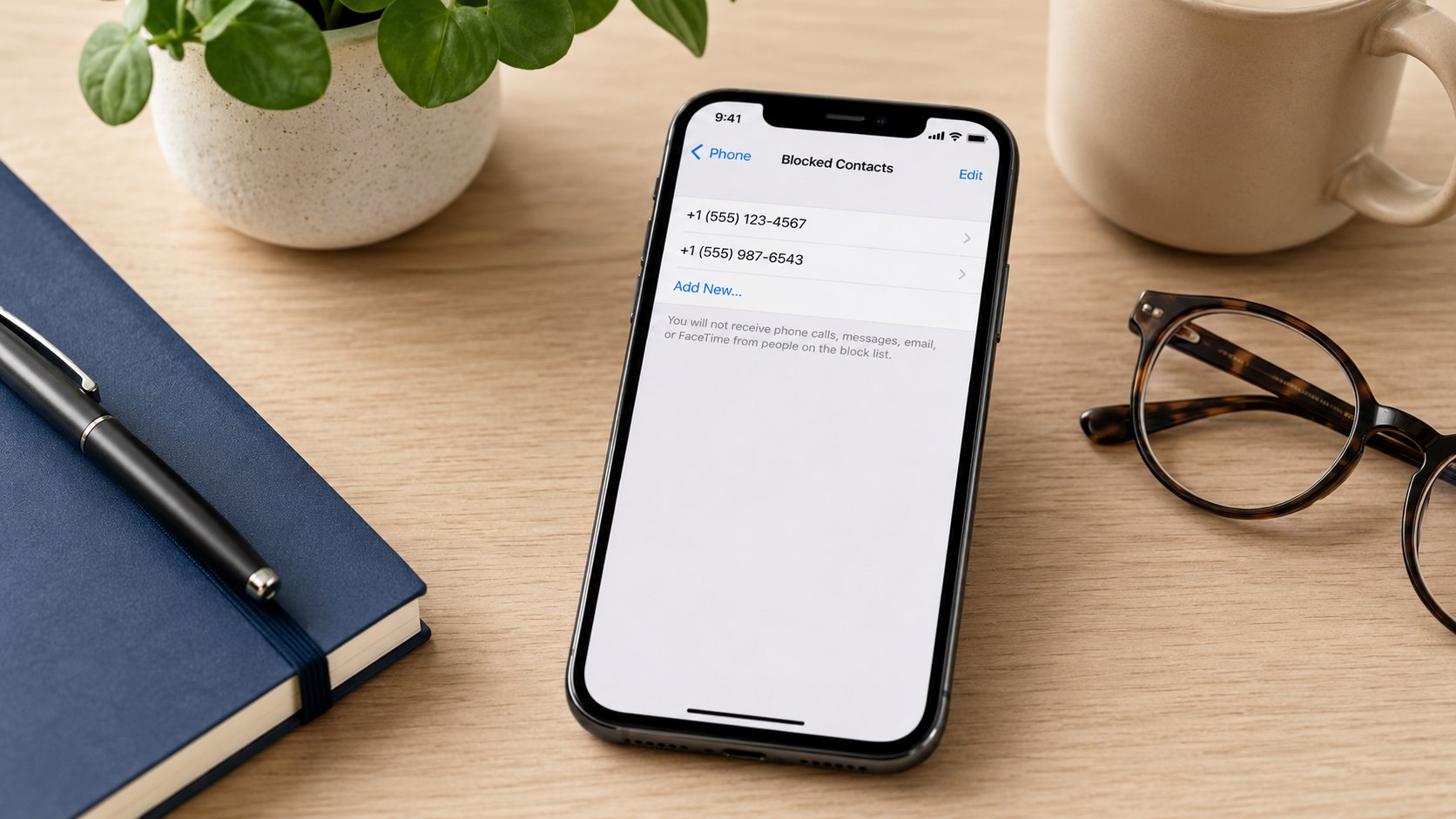
How to block a number on iPhone 2026 takes less than 1 minute. Open Phone, find the caller in Recents or Contacts, open their details, and tap Block Caller. The block also covers Messages and FaceTime for that number or email address, as the Baltimore Chronicle editorial team notes.
The blocked person receives no notification. Their calls will not ring, and their messages will not reach your inbox. They may still leave voicemail, but your iPhone will not send a normal alert.
Key takeaways
- Use Phone and Recents when the unwanted number has just called your iPhone.
- Use Contacts when you need to block every saved number linked to one person.
- Manage or reverse blocks through Privacy & Security > Blocked Contacts in iOS 26.
What you need
You do not need a paid app or carrier subscription. Apple includes contact blocking with iOS, so the direct method costs $0 in 2026.
- An iPhone running a current version of iOS
- Access to Phone, Contacts, Messages, or FaceTime
- The recent call, conversation, number, or saved contact
- About 30–60 seconds
- Your device passcode if settings access is restricted
Blocking follows the selected phone number or email address. It does not automatically identify every account owned by the same person. Someone may still contact you from another number or a third-party app.
The action also does not delete old calls or conversations. Those records stay on the iPhone until you remove them separately.
Before replacing or resetting the device, protect your settings and messages. Baltimore Chronicle explains how to back up an iPhone to iCloud in 2026, including storage checks and recovery steps.
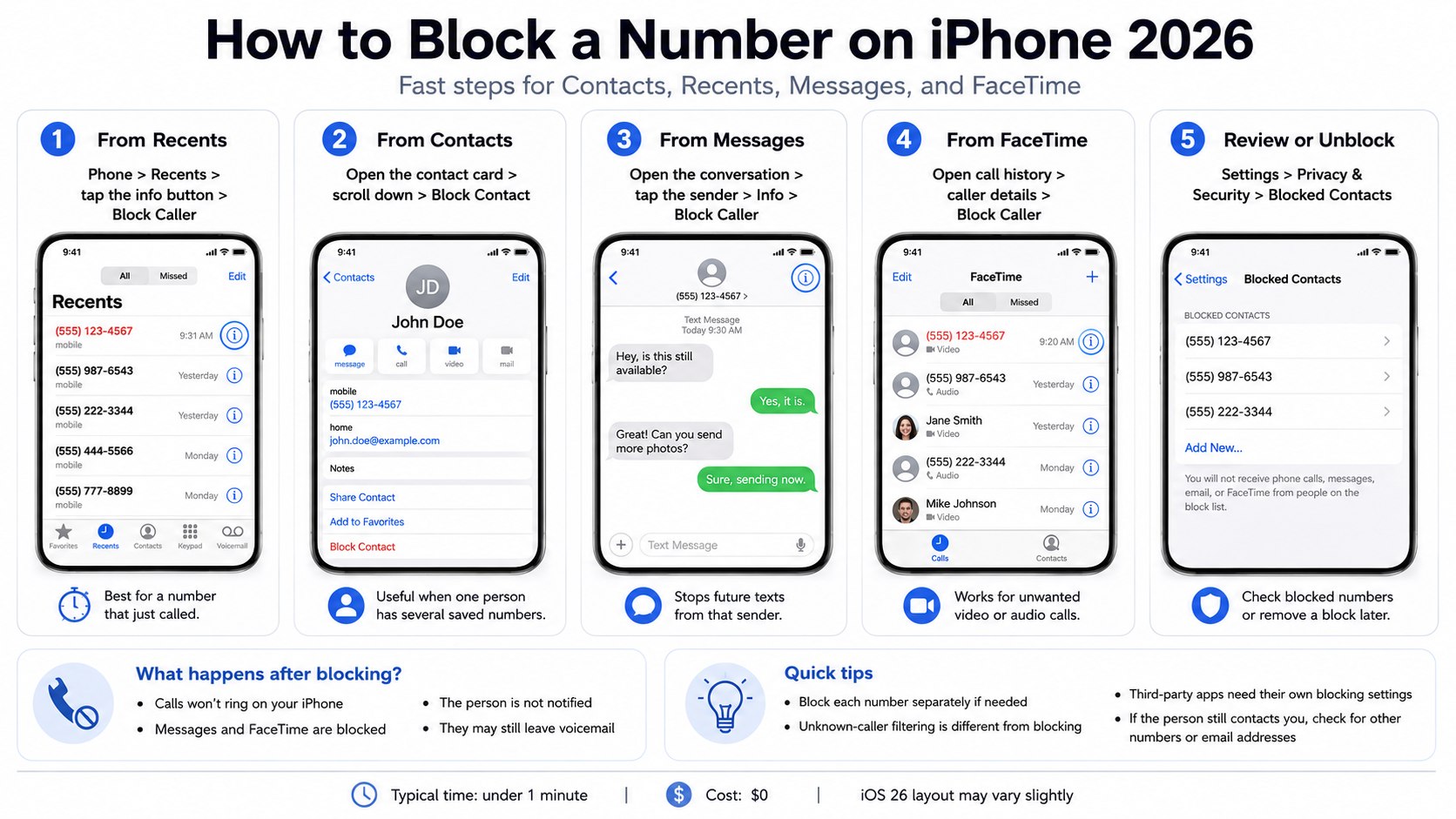
Step 1: Block a number from iPhone Recents
Open the Phone app and select Recents or Calls. The visible label depends on your current Phone app layout.
Find the unwanted caller and tap the information button beside the number. In some layouts, tapping the call entry opens the contact card directly.
Scroll down and tap Block Caller. Confirm the choice when the iPhone displays a warning.
This method works best after a robocall, repeated sales call, or unwanted personal call. It uses the exact number shown in your call history.
A common mistake is tapping the handset icon. That button may return the call instead of opening the caller’s details.
Step 2: Block a saved contact on iPhone
Open Phone and tap Contacts. You can also use the standalone Contacts app.
Select the person, then scroll to the bottom of their contact card. Tap Block Contact and confirm the action.
This option is useful when one contact card contains several phone numbers. It may also include email addresses used for iMessage or FaceTime.
Review the full card before confirming. A shared business, school, clinic, or family contact may contain numbers you still need.
Avoid combining unrelated people under one contact name. Blocking that card could stop legitimate communication from every attached number.
Step 3: Block a number through Messages
Open Messages and select the unwanted conversation. Tap the sender’s name, number, or profile icon at the top.
Choose Info, scroll down, and tap Block Caller or Block Contact. Confirm the action when prompted.
This stops future communication from that identity through Apple’s supported calling and messaging services. Existing texts remain visible until you delete the conversation.
Do not confuse blocking with Delete and Report Spam. Reporting supplies information about suspected abuse to Apple or your carrier. Blocking prevents further messages from the selected sender.
A sender may continue through WhatsApp, Signal, Telegram, Facebook Messenger, or another independent service. Open that application and use its separate blocking controls.
Step 4: Block a FaceTime caller
Open FaceTime and locate the unwanted call in your history. Tap the caller or open the information screen beside the entry.
Scroll through the details and select Block Caller. FaceTime can identify callers through telephone numbers or Apple Account email addresses.
This step matters when someone switches from regular calls to FaceTime audio or video. It also stops repeated invitations from the selected account.
Check the participant list before blocking anyone from a group call. One invitation may include both trusted and unknown participants.
You cannot block an entire group conversation as a single identity. Leave the group or mute notifications when that option is more suitable.
Step 5: Add a number directly to Blocked Contacts
Open Settings and select Privacy & Security. Tap Blocked Contacts, then choose Add Blocked Contact.
Select the saved person you want to block. Confirm the contact when iOS asks for approval.
This method is useful when the person has not called or messaged recently. The number must usually be stored in Contacts before selection.
Apple centralized this list under Privacy & Security in iOS 26. Older versions may place it inside Settings > Apps > Phone.
Use the Settings search field when the path looks different. Searching for “blocked contacts” usually opens the correct menu.
Step 6: Check whether the number was blocked correctly
Return to Settings > Privacy & Security > Blocked Contacts. Search the list for the person, number, or email address.
Confirm that every communication detail appears under the correct contact. A person using 2 numbers may require both entries.
The blocked identity will not receive an alert about your decision. Calls may be routed to voicemail without creating a normal notification.
Messages sent during the blocked period will not later appear after unblocking. Ask a legitimate sender to resend anything important.
The following comparison shows which route suits each situation.
| Starting point | Best situation | Path |
|---|---|---|
| Phone Recents | The number recently called | Phone > Recents > Info > Block Caller |
| Contacts | The person is already saved | Contacts > Contact card > Block Contact |
| Messages | You received an unwanted text | Conversation > Sender > Info > Block Caller |
| FaceTime | You received unwanted audio or video calls | FaceTime > Caller details > Block Caller |
| Settings | You need to add or review a block | Privacy & Security > Blocked Contacts |
All these routes add the selected identity to the same central blocking system. You do not need to repeat the action in every Apple app.
Separate phone numbers may still require separate entries. The same rule applies to Apple Account email addresses.
Review the list after merging duplicate contacts. An older number may remain blocked while a replacement number stays available.
This screen also helps diagnose missing calls. Check it before contacting Verizon, AT&T, T-Mobile, or another carrier.
If you are moving to another device, use Baltimore Chronicle’s guide on how to set up a new iPhone in 2026. It covers Quick Start, eSIM activation, transfers, and essential security settings.
Step 7: Unblock a number on iPhone
Open Settings > Privacy & Security > Blocked Contacts. Tap Edit near the top of the screen.
Select the removal control beside the relevant entry. Tap Unblock to restore future calls and messages.
Depending on the screen, you may also swipe left across the contact. The available gesture can vary with the iOS version.
Unblocking does not restore calls or messages sent during the blocked period. It only permits new communication.
The other person receives no notice that the restriction was removed. They must call or write again after the change.
Blocking a number versus screening unknown callers
Blocking a specific number targets one known identity. Unknown-caller screening controls broader groups of unsaved numbers.
Open Settings > Apps > Phone to review call-management options. Current iPhones may offer Never, Ask Reason for Calling, or Silence.
The screening option can ask an unknown caller to identify their purpose. Silence sends unsaved callers to voicemail without ringing your device.
- Use individual blocking for a known spammer or unwanted personal contact.
- Use unknown-caller screening when unfamiliar numbers call throughout the day.
- Use carrier filtering for calls identified as likely fraud or spam.
- Use Focus when you need temporary quiet without blocking anyone.
- Use Screen Time to manage communication on a child’s iPhone.
Broad screening can also hide legitimate calls. Pharmacies, schools, hospitals, contractors, insurers, and delivery drivers may use unsaved numbers.
Save expected callers before enabling strict filters. Check voicemail and the Unknown Callers section regularly.
Verizon Call Filter, AT&T ActiveArmor, and T-Mobile Scam Shield provide network-level tools. Available features and paid tiers may change during 2026.
Carrier tools cannot replace careful contact management. They may label unfamiliar callers incorrectly or miss newly created spam numbers.
Combine specific blocking with screening when repeated calls come from changing numbers. This approach reduces interruptions without closing every communication channel.
Troubleshooting blocked calls and messages
Most problems involve additional numbers, outdated menu paths, or confusion between Apple blocking and third-party apps. Check these scenarios before resetting the iPhone.
- The person still reaches you: Block every number and email address used by that person.
- Messages continue in another app: Use that app’s independent privacy and blocking controls.
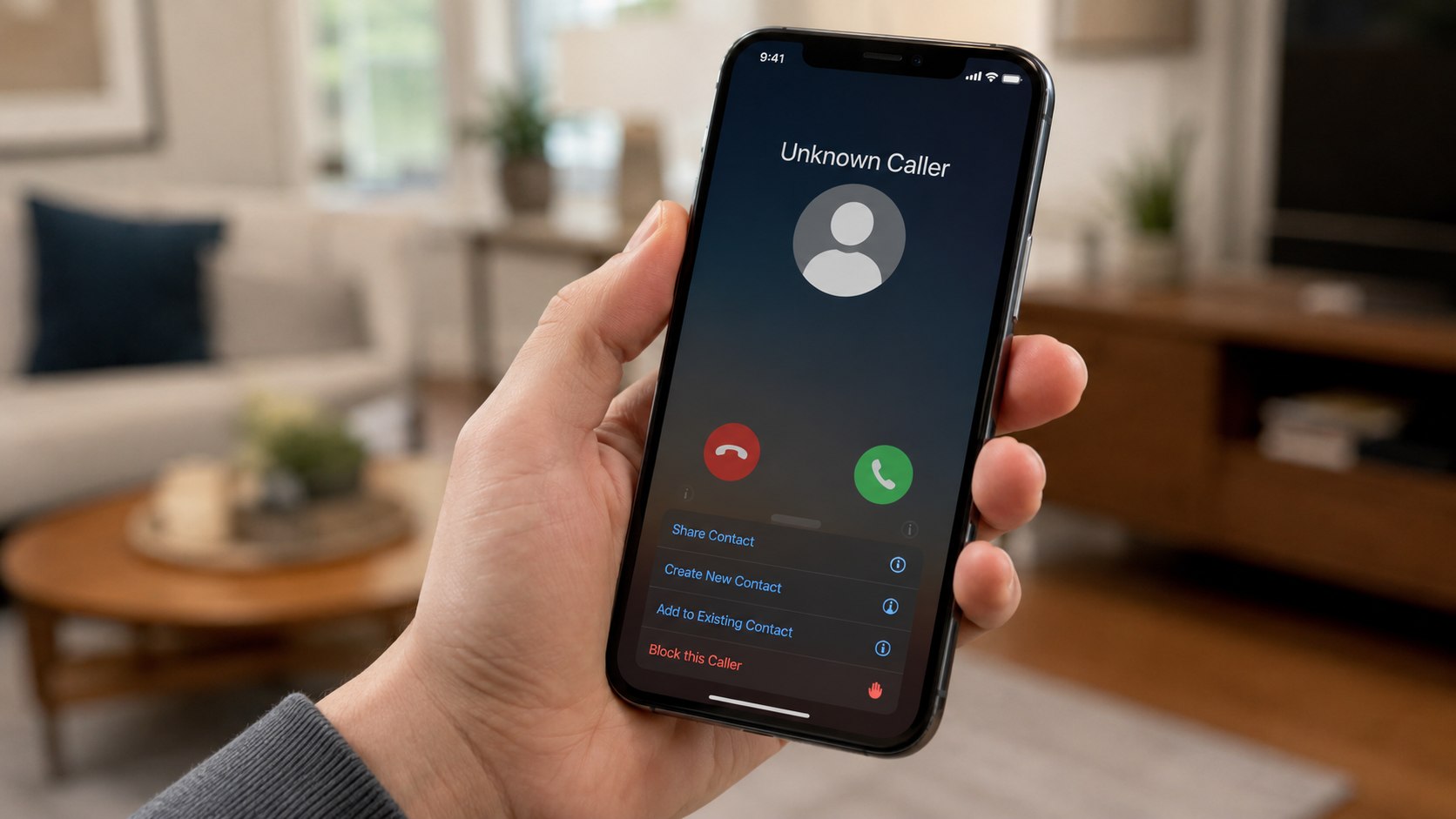
- You cannot find Block Caller: Open the complete information card and scroll to the bottom.
- A trusted person cannot call: Review Blocked Contacts, Focus, and unknown-caller settings.
- Spam uses changing numbers: Enable screening and your carrier’s fraud filter.
A blocked caller can still leave voicemail in some configurations. Your iPhone should not issue the usual alert.
Blocking also cannot stop someone who uses a new telephone number. Review each new call before adding another entry.
For stalking, threats, extortion, or impersonation, preserve screenshots and call records. Do not erase evidence before speaking with law enforcement.
A lost device creates a separate security risk. Follow Baltimore Chronicle’s instructions on how to find an iPhone when it is offline before remotely erasing it.
Suspected fraud can be reported through the Federal Trade Commission’s ReportFraud portal. Immediate threats should be reported to local police or 911.
Blocking is most effective when you preserve evidence first, block every known identity, and review wider call-filtering settings.
FAQ
Does someone know when you block their number on iPhone?
No. Apple does not send the person a blocking notification. They may suspect it because calls and messages stop connecting normally.
Can a blocked number leave a voicemail?
Yes. A blocked caller may still leave voicemail, but you should not receive a normal notification.
Does blocking a contact delete old text messages?
No. Existing messages remain in the conversation. Delete the thread separately when you no longer need it.
Does blocking a number also block FaceTime?
Yes, the selected number is blocked across supported Apple communication services. Separate email addresses may require additional blocking.
How do I block a number that has never called me?
Save the number as a contact. Then use Contacts or Settings > Privacy & Security > Blocked Contacts.
Why is a blocked person still contacting me?
They may be using another number, email address, or third-party app. Block each identity through the appropriate service.
Earlier we wrote about How to Buy a House with Bad Credit in USA 2026: FHA, Co-Signer and Credit Repair