

To learn how to unlock iPhone passcode without losing data 2026, first determine whether the passcode was changed within the last 72 hours. On iOS 17 or later, Apple may let you enter the previous passcode and create a new one without erasing anything. The process usually takes less than five minutes, аs noted by Baltimore Chronicle.
If that option is unavailable, Apple does not provide a legitimate way to remove a forgotten passcode while keeping unsynced data on the device. The remaining official method erases the iPhone, but a current iCloud or computer backup can return most data during setup.
Key takeaways
- A previous passcode may work for 72 hours after a passcode change on supported iOS versions.
- Without that option, resetting a forgotten iPhone passcode requires erasing the device.
- An iCloud, Finder, iTunes, or Apple Devices backup can restore data after the reset.
What you need
- The locked iPhone and a charging cable.
- The previous device passcode, if it was changed within the last 72 hours.
- The Apple Account email address or phone number connected to the iPhone.
- The Apple Account password for Activation Lock and backup restoration.
- A Mac or Windows PC with internet access if recovery mode becomes necessary.
- Access to a recent iCloud or computer backup.
- About 5 minutes for Passcode Reset or 30–90 minutes for erasing and restoring.
- No payment for Apple’s reset tools. Optional iCloud+ plans start at $0.99 per month in the US as of 2026.
Step 1: Choose How to Unlock iPhone Passcode Without Losing Data 2026
Check whether the passcode was recently changed, whether the lock screen shows “Forgot Passcode?,” and whether a usable backup exists. Do not continue entering random codes because repeated failed attempts increase the Security Lockout delay.
This first check separates the only direct no-erasure method from reset-and-restore options. Apple Support, repair shops, and law enforcement agencies cannot reveal the existing passcode because Apple does not store it in a recoverable form.
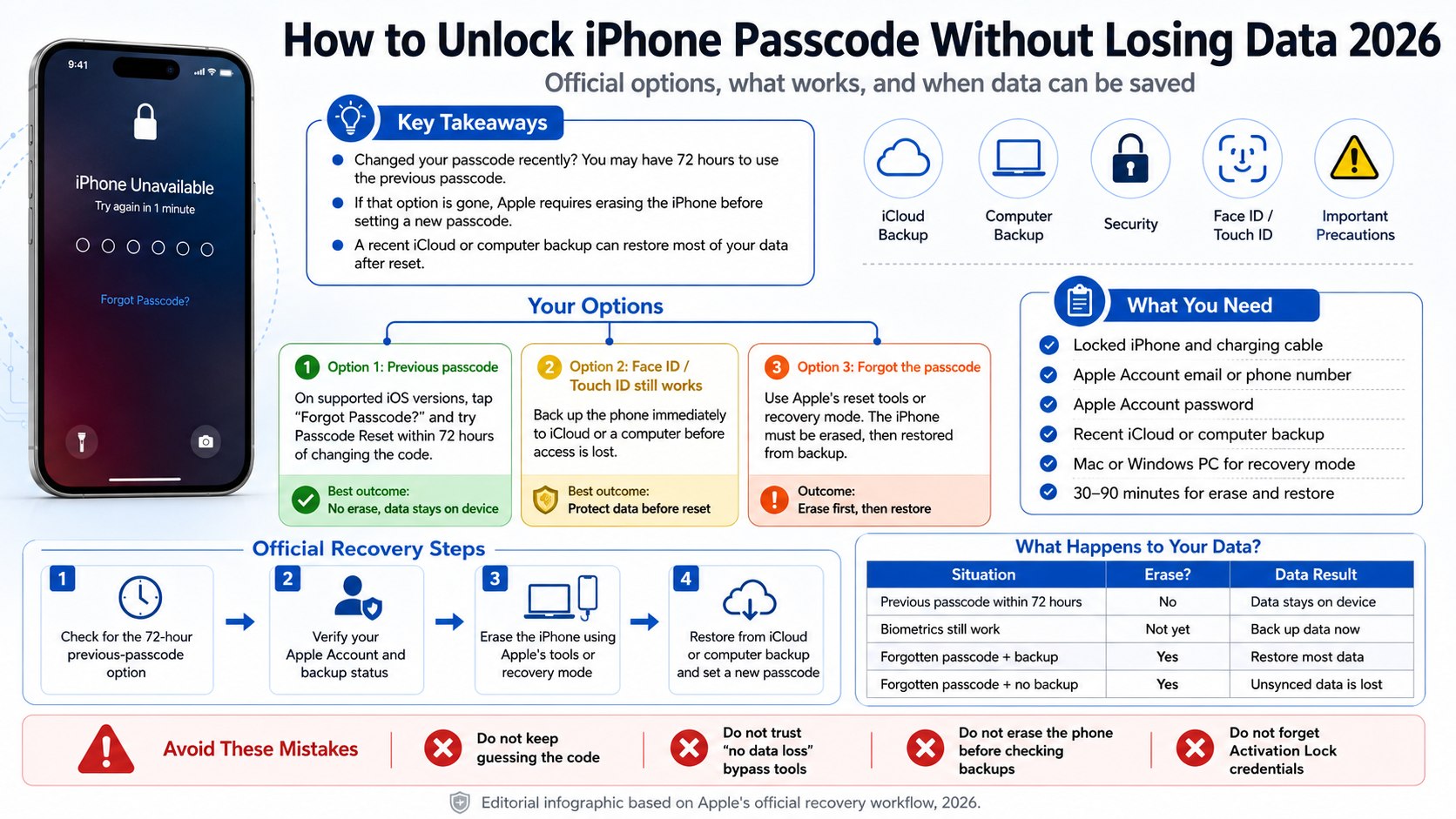
| Situation | Best official option | Will the iPhone be erased? | Likely data result |
|---|---|---|---|
| Passcode changed within 72 hours | Use the previous passcode | No | Data remains on the device |
| Face ID or Touch ID still works | Back up accessible data immediately | No, until a reset is required | Protects data before lockout |
| Forgotten passcode with current backup | Erase and restore from backup | Yes | Data returns up to the backup date |
| Forgotten passcode without a backup | Erase and set up as new | Yes | Unsynced local data is lost |
| Company- or school-owned iPhone | Contact the IT administrator | Depends on device management | Managed data may resync |
Before using recovery mode, check whether a current copy of the device exists. The Baltimore Chronicle guide on how to back up an iPhone to iCloud in 2026 explains where to find the latest backup date, how much storage is available, and which data may already be synchronized.
Step 2: Try the Previous Passcode Within 72 Hours
After several incorrect attempts, tap “Forgot Passcode?” on the lock screen, select “Try Passcode Reset,” and enter the previous device code. Follow the prompts to create a new passcode immediately.
This works because iOS 17 and later can retain the old passcode temporarily after a change. Apple states that the window lasts 72 hours unless the user manually expires the old code.
The common mistake is entering an older code that was replaced more than one change ago. The feature accepts the immediately preceding passcode, not every passcode previously used on the phone.
The previous-passcode feature is the only standard Apple method that changes a forgotten device code without first erasing the iPhone.
Apple’s official instructions for the 72-hour Passcode Reset feature show the required lock-screen prompts. The option may not appear if the phone runs older software, the deadline has passed, or “Expire Previous Passcode Now” was selected in Settings.
Step 3: Protect Data While Face ID or Touch ID Still Works
If biometric authentication still opens the iPhone, connect it to power and Wi-Fi immediately. Open Settings, tap the Apple Account name, choose iCloud, select iCloud Backup, and tap “Back Up Now” if the device allows access without requesting the forgotten code.
This matters because Face ID or Touch ID access may stop after a restart, a long period without unlocking, or another security event. Restarting the phone before confirming that important photos and documents have synced can remove the last available path to the data.
Review Photos, Contacts, Notes, Messages, iCloud Drive, and third-party apps individually. Services including Google Photos, Dropbox, Microsoft OneDrive, Gmail, and WhatsApp may preserve data outside the iPhone backup.
US iCloud storage includes 5GB at no charge. As of 2026, Apple lists iCloud+ at $0.99 per month for 50GB, $2.99 for 200GB, and $9.99 for 2TB, with larger 6TB and 12TB plans also available.
Buying storage after the iPhone is fully locked will not create a backup of inaccessible local data. A storage upgrade helps only when the device can still complete a backup or when existing synced content already resides in iCloud.
Step 4: Verify the Apple Account and Available Backups
Use another trusted Apple device, a Mac, or the iCloud website to confirm the Apple Account credentials before erasing the iPhone. Check the date of the latest device backup and inspect synced services such as Photos, Contacts, Calendar, Notes, and iCloud Drive.
This matters because the Apple Account password is normally required to clear Activation Lock and restore an iCloud backup. Erasing the phone before confirming access to the account can leave the device unusable during setup.
- Confirm the Apple Account email address or phone number.
- Test the password on another trusted device or Apple’s account website.
- Check the latest iCloud backup date under the device’s iCloud settings on another Apple product.
- Look for an encrypted Finder, iTunes, or Apple Devices backup on a previously used computer.
- Confirm access to the trusted phone number used for two-factor authentication.
An encrypted computer backup can preserve saved passwords, Wi-Fi settings, Health data, and other protected information that may not be included in an unencrypted backup. The encryption password is separate from the iPhone passcode and cannot be recovered by Apple if forgotten.
Users who previously connected the device to a Mac should also check the local backup folder. The guide to backing up an iPhone to a Mac in 2026 covers Finder backups, encryption settings, storage requirements, and common backup errors.
Step 5: Erase the Locked iPhone With Apple’s Tools
If the previous-passcode option is unavailable, use the lock-screen reset command or recovery mode. On supported software, the Security Lockout screen may offer “Forgot Passcode?” or “Start iPhone Reset,” allowing the owner to erase the device with the Apple Account password and an internet connection.
This step matters because Apple requires the encrypted device storage to be erased before a new passcode can be created. Third-party “no data loss” software often performs the same erase or requests credentials that should never be shared.
Using a Mac or Windows PC
Turn off the iPhone, connect it to the computer while holding the model-specific recovery button, and keep holding until the recovery-mode screen appears. Open Finder on a current Mac or Apple Devices on Windows, select the iPhone, and choose Restore.
For an iPhone with Face ID, connect it while holding the side button. For iPhone 7 and iPhone 7 Plus, hold Volume Down. For iPhone 6s, iPhone SE first generation, and earlier models, hold the Home button.
Apple’s forgotten iPhone passcode instructions confirm that restoring through a computer erases the device and installs the available iOS version.
If the software download lasts more than 15 minutes and the phone leaves recovery mode, allow the download to finish. Turn the iPhone off and repeat the recovery-mode button sequence before selecting Restore again.
Step 6: Restore the Backup and Secure the iPhone
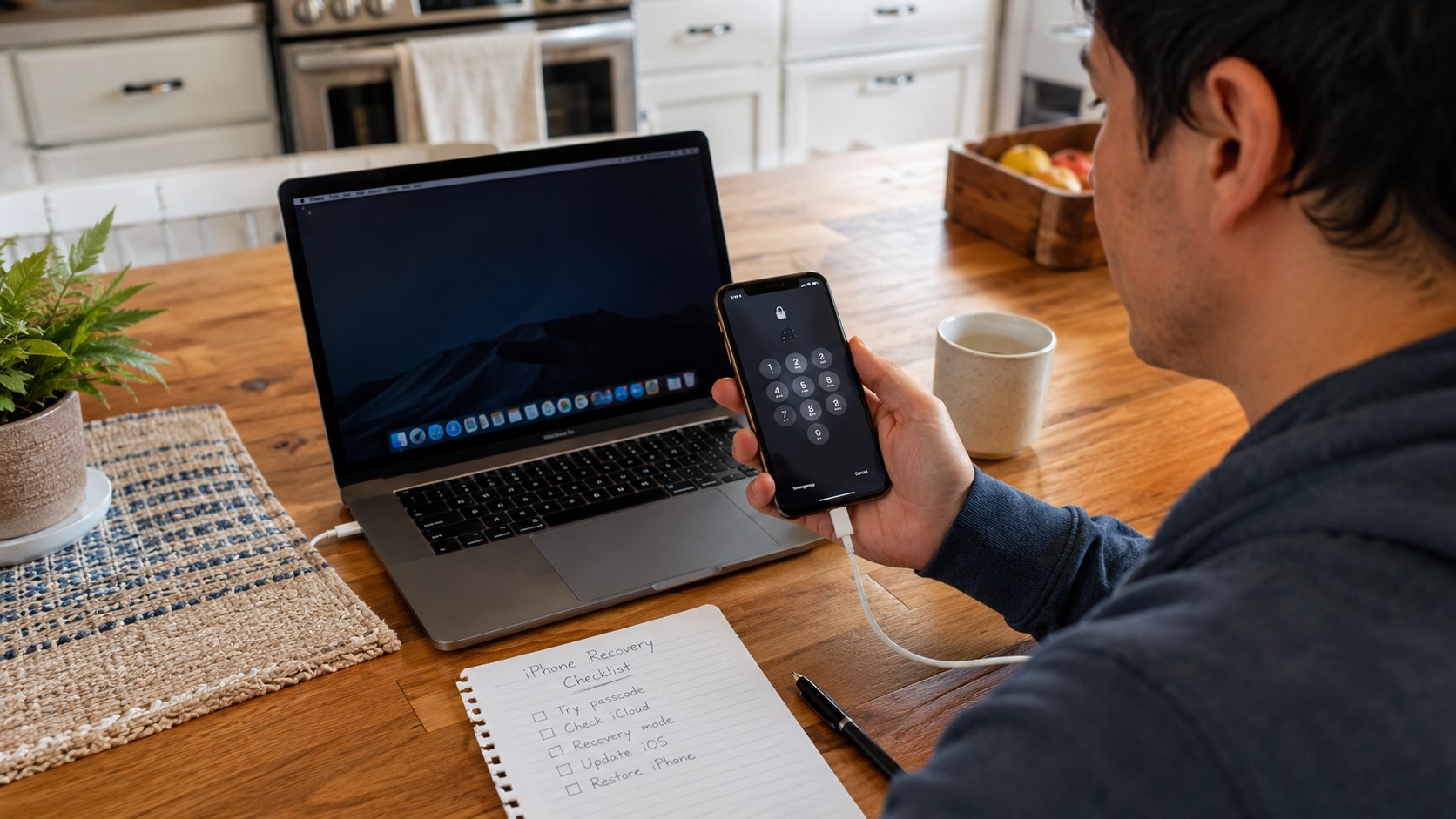
At the Hello screen, connect to Wi-Fi, sign in with the correct Apple Account, and choose “From iCloud Backup” or the computer-backup option. Select the newest backup that predates the lockout and keep the device connected to power while apps, photos, and messages return.
The initial setup may finish before all cloud content has downloaded. Missing photos or apps may still be restoring in the background.
The process resembles moving information to a replacement device. Baltimore Chronicle’s instructions on how to transfer data from an old iPhone to a new iPhone explain the differences between Quick Start, iCloud restoration, wired migration, and Mac or PC backups.
After access returns, create a memorable six-digit or custom alphanumeric passcode that is not reused for banking, email, or home-security accounts. Confirm that Face ID or Touch ID works, then create a fresh backup.
Parents using Family Sharing should avoid sharing one Apple Account among several family members. Separate accounts protect private messages, photos, backups, purchases, and Activation Lock records while still allowing eligible subscriptions and storage to be shared.
Troubleshooting
- iPhone passcode reset without erase is not shown: the 72-hour period may have expired, the previous code may have been manually invalidated, or the device may run unsupported software.
- Forgot iPhone passcode but need photos: check iCloud Photos, Google Photos, OneDrive, Dropbox, shared albums, Messages on a Mac, and other synced services before erasing.
- Restore iPhone without losing data appears incomplete: leave the phone charging on reliable Wi-Fi and check whether apps or photos are still downloading.
- iPhone unavailable without data loss is impossible without the previous-passcode feature, current biometric access, or a backup containing the needed information.
- Recovery mode fails: try another Apple-certified cable, USB port, Mac, or Windows PC, and verify that the iPhone’s physical buttons work.
Apple Stores and authorized service providers can help place a device in recovery mode or diagnose failed buttons. They cannot retrieve an unknown passcode, bypass Activation Lock without ownership documentation, or recover encrypted local files after the passcode is lost.
Frequently Asked Questions
Can Apple unlock a forgotten iPhone passcode without erasing it?
Apple cannot disclose or remove an existing passcode while preserving inaccessible local data. The exception is Apple’s 72-hour Passcode Reset feature, which lets an eligible user enter the immediately previous code and create a new one.
Can Face ID reveal or replace the forgotten passcode?
No. Face ID may provide temporary access to some phone functions, but security-sensitive changes usually require the device passcode. Use any remaining biometric access to confirm syncing and create a backup before restarting the iPhone.
Will a factory reset remove Activation Lock?
No. Erasing removes the device passcode and local content, but Activation Lock remains connected to the Apple Account used with Find My. The correct account credentials or Apple-approved proof-of-purchase process is required.
Do third-party iPhone passcode tools preserve data?
Claims should be treated cautiously. Modern iPhone storage is encrypted, and legitimate consumer tools cannot decrypt it without the passcode or another authorized credential. Avoid services requesting an Apple Account password, two-factor authentication code, or remote access to a computer.
What data returns after restoring an iCloud backup?
The result depends on the backup date and which services were syncing separately. Device settings, app data, messages, photos, contacts, and files may return, while information created after the last backup may be unavailable.
How can another lockout be prevented?
Keep automatic iCloud Backup enabled, maintain enough cloud storage, create periodic encrypted computer backups, and add an account recovery contact. Store the passcode and backup-encryption password in a reputable password manager or another secure offline location.
Earlier we wrote about How to Start an Amazon FBA Business in 2026: Costs, Steps, and Requirements